ai-context-bridge
Stop re-explaining your code. Switch between AI coding tools in 10 seconds.
MCP server • Claude Code plugin • Session search • 11 AI tools • Zero dependencies







npm i -g ai-context-bridge
The Problem
You're deep in a coding session with Claude Code. Rate limit hits. You can't even run a save command — the session is dead. Switch to Cursor? You'd have to re-explain everything from scratch.
76% of developers now use 2+ AI coding tools (Stack Overflow 2025). If you switch 3-5 times a day, that's 45-75 minutes wasted re-explaining context every single day.
Working on multiple projects side by side? Every tool has its own config format. Context doesn't transfer.
The Solution
Three steps. Then it's autonomous forever.
# 1. Install
npm i -g ai-context-bridge

# 2. Initialize
cd my-project
ctx init                # Private repos — stores context in .ctx/ inside the project
ctx init --external     # Public repos — stores context in ~/.ctx-global/ (zero files in repo)

# 3. Work normally. Context auto-saves on every commit.
#    When a rate limit hits, resume prompts are already waiting:
#    .ctx/resume-prompts/cursor.md
#    .ctx/resume-prompts/codex.md
#    .ctx/resume-prompts/claude.md
See it in action
ctx init
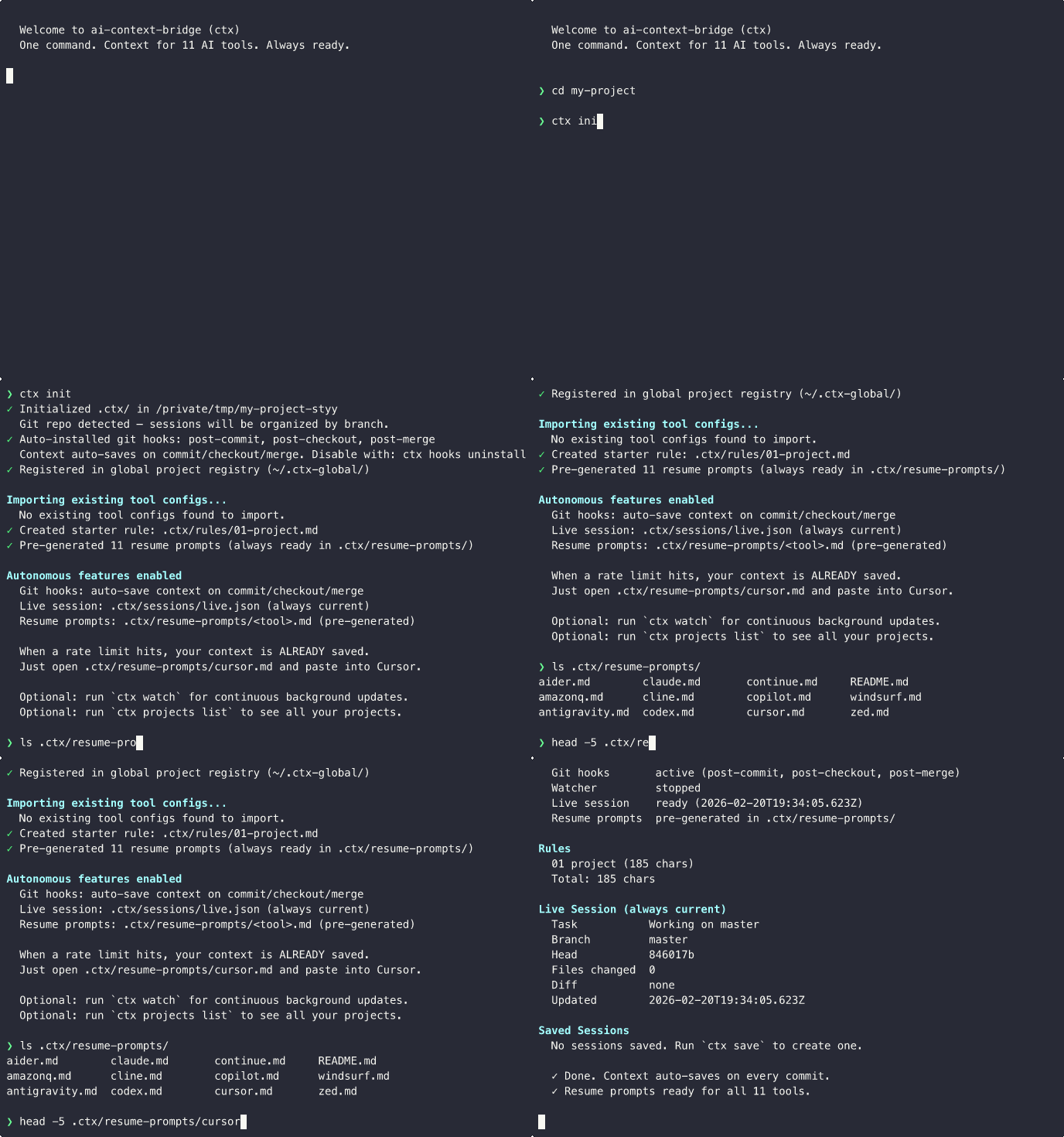
ctx switch

How It Stays Autonomous
| Trigger | What Happens | You Do Nothing |
|---|---|---|
git commit | Auto-saves context, refreshes all resume prompts | Yes |
git checkout | Updates branch context, refreshes prompts | Yes |
git merge | Updates context with merge state | Yes |
ctx watch | Background watcher refreshes every 30s + on file changes | Yes |
| Rate limit hits | Resume prompts already in .ctx/resume-prompts/ | Just open & paste |
The Rate Limit Scenario (Solved)
Before ctx: Rate limit hits → session dead → open Cursor → re-explain everything → 15 min wasted
With ctx: Rate limit hits → open .ctx/resume-prompts/cursor.md → paste into Cursor → keep working in 10 seconds
Key Features
Autonomous Context Saving
Git hooks auto-save your session on every commit, checkout, and merge. Resume prompts for all 11 tools are pre-generated and always ready. Zero workflow change required — rate limit recovery is instant.
External Storage for Public Repos
ctx init --external stores all context data in ~/.ctx-global/ instead of the project directory. Zero ctx files in your repo — perfect for open-source contributors who don't want to push session data accidentally.
Multi-Project Dashboard
ctx projects list shows all your initialized projects with branch, task, and last activity. Track your entire dev workflow across repos from one place.
Projects (2)
  project-a [feature/auth] (live)
    ~/project-a (git) — Implementing JWT auth
    Last active: 5m ago

  project-b [main] (live)
    ~/project-b (git) — Building dashboard
    Last active: 2h ago
Session Search
ctx search <query> uses TF-IDF ranking to find any past session by keyword. Filter by branch, see relevance scores, and find exactly what you were working on last Tuesday.
MCP Server
ctx-mcp exposes 5 tools to any MCP client — Claude Desktop, Windsurf, or any app that speaks the Model Context Protocol. Save, switch, search, and check status without leaving your AI tool.
Claude Code Plugin
Install with claude plugin install ctx@ai-context-bridge to get /ctx:save, /ctx:switch, /ctx:status, and /ctx:search as slash commands inside Claude Code. Context portability without switching windows.
Supported Tools (11)
| Tool | Config Format | Size Limit |
|---|---|---|
| Claude Code | CLAUDE.md | ~100K chars |
| Cursor | .cursor/rules/*.mdc | ~2.5K/file |
| OpenAI Codex | AGENTS.md | 32 KiB |
| GitHub Copilot | .github/copilot-instructions.md | No limit |
| Windsurf | .windsurf/rules/*.md | 6K/file, 12K total |
| Cline | .clinerules/*.md | No limit |
| Aider | CONVENTIONS.md + .aider.conf.yml | No limit |
| Continue | .continue/rules/*.md | No limit |
| Amazon Q | .amazonq/rules/*.md | No limit |
| Zed | .rules | No limit |
| Antigravity (Google) | AGENTS.md + .antigravity/*.md | No limit |
Missing your tool? See CONTRIBUTING.md for how to build an adapter.
MCP Server & Claude Code Plugin
MCP Server (ctx-mcp)
Exposes 5 tools to any MCP-compatible client:
| Tool | Description |
|---|---|
ctx_save | Save current session context (task, decisions, next steps) |
ctx_switch | Save + generate resume prompt for a target AI tool |
ctx_status | Show current live session state |
ctx_search | Search past sessions by keyword (TF-IDF ranked) |
ctx_list_tools | List all supported tools with character budgets |
Setup — add to your MCP client's settings.json:
{
  "mcpServers": {
    "ctx": {
      "command": "ctx-mcp"
    }
  }
}
The MCP server requires peer dependencies (the CLI does not):
npm install -g ai-context-bridge @modelcontextprotocol/sdk zod
Claude Code Plugin
# Add the marketplace (one-time setup)
claude plugin marketplace add himanshuskukla/ai-context-bridge

# Install the plugin
claude plugin install ctx@ai-context-bridge
| Slash Command | Description |
|---|---|
/ctx:save | Save session context |
/ctx:switch | Save + switch to another AI tool |
/ctx:status | Show current session state |
/ctx:search | Search past sessions |
The CLI itself has zero production dependencies — only Node.js built-ins. MCP server and plugin are optional add-ons with their own peer dependencies.
Architecture & Storage
┌─────────────────────────────────────────────────────────┐
│  Git Hooks (commit / checkout / merge)                  │
│  ctx watch (background watcher)                         │
│  ctx save / switch (manual)                             │
└──────────────┬──────────────────────────────────────────┘
               │
       ┌───────▼────────┐
       │ Session Engine  │
       │ (save, compile, │
       │  rank, search)  │
       └───────┬────────┘
               │
    ┌──────────┼──────────────┐
    │          │              │
    ▼          ▼              ▼
 Compiler   Ranker        Search
 (token-    (relevance-   (TF-IDF
  aware)     ranked)       index)
    │          │              │
    └──────────┼──────────────┘
               │
       ┌───────▼────────┐
       │  11 Adapters    │
       │  (Claude, Cursor│
       │   Codex, ...)   │
       └────────────────┘
The .ctx/ Directory
.ctx/
  config.json              # Tool preferences, enabled tools
  rules/                   # Universal rules (git-tracked, shared)
    01-project.md
    02-code-style.md
  sessions/                # Session snapshots (gitignored)
    live.json              # Always-current live session
    main/
      sess_2026-02-19T10-30-00_001.json
  resume-prompts/          # Pre-generated, always ready (gitignored)
    claude.md
    cursor.md
    codex.md
    ...
- Rules → git-tracked, shared with team (internal mode)
- Sessions + resume prompts → gitignored, personal/ephemeral
- External mode (
--external) → same structure at~/.ctx-global/projects/<name>/, zero files in project
Storage Options
| Mode | Storage Location | Auto-Save Triggers |
|---|---|---|
| Git (default) | .ctx/ in project | commit, checkout, merge |
External (--external) | ~/.ctx-global/projects/<name>/ | commit, checkout, merge |
| Local (no git) | .ctx/ in project | ctx watch or manual ctx save |
Use External for public/open-source repos where you want zero ctx files in the project directory.
Token-Aware Compilation
Each tool has different size limits. ctx compiles rules + session to fit:
- Session context has priority (never truncated)
- Rules added in priority order until budget exhausted
- Relevance-ranked compilation orders context by importance
Commands Reference
Core Commands
| Command | Description |
|---|---|
ctx init [--external] | Initialize + install hooks + register project |
ctx save [message] | Manual session snapshot |
ctx switch <tool> [msg] | Save + generate resume prompt for target tool |
ctx resume --tool <name> | Generate config + resume prompt for a tool |
ctx search <query> | Search past sessions (TF-IDF ranked) |
ctx sync | Regenerate configs for all enabled tools |
ctx status | Full status with live session info |
Management Commands
| Command | Description |
|---|---|
ctx watch | Background watcher (continuous auto-save) |
ctx hooks install|uninstall|status | Manage git hooks |
ctx projects list|remove | Multi-project dashboard |
ctx session list|show|delete | Manage saved sessions |
ctx rules add|list|delete|validate | Manage context rules |
ctx tools list|check | Show/detect supported tools |
Flags
--external— Store ctx data outside the project (for public repos)--dry-run— Preview changes without writing--verbose— Detailed output--quiet/-q— Minimal output--no-clipboard— Don't copy resume prompt--no-hooks— Skip git hook installation on init
Comparison
Why Not Just Use Ruler?
Ruler (~2,500 stars) is excellent for syncing rules and coding conventions across AI tools. If that's your main need, use it — it does that job well.
ctx solves a different problem: what happens when your AI session dies mid-work and you need to resume in another tool in 10 seconds.
| What you need | Ruler | ctx |
|---|---|---|
| Sync rules across tools | Yes — Ruler's strength | Yes |
| Save session context (branch, work-in-progress, decisions) | No | Yes |
| Survive rate limits (pre-saved, no command needed) | No | Yes |
| Autonomous (git hooks, zero workflow change) | No | Yes |
| External storage (zero files in public repos) | No | Yes |
| Multi-project dashboard | No | Yes |
| Session search (TF-IDF) | No | Yes |
| MCP server | No | Yes |
| Claude Code plugin | No | Yes |
| Zero dependencies | Yes | Yes |
| Tools supported | 11 | 11 |
Use Ruler to keep your tools configured the same way. Use ctx to keep your work-in-progress transferable between tools. They complement each other.
Full Comparison
| What it does | ctx | Ruler | ai-rulez | ContextPilot |
|---|---|---|---|---|
| Rules sync | Yes | Yes | Yes | Yes |
| Session context | Yes | No | No | Basic |
| Survives rate limits (pre-saved) | Yes | No | No | No |
| Autonomous (git hooks) | Yes | No | No | No |
| External storage (public repos) | Yes | No | No | No |
| Multi-project dashboard | Yes | No | No | No |
| Session search | Yes | No | No | No |
| Relevance-ranked compilation | Yes | No | No | No |
| MCP server | Yes | No | No | No |
| Claude Code plugin | Yes | No | No | No |
| Zero dependencies | Yes | Yes | No | No |
| Tools supported | 11 | 11 | 18 | 5 |
Where others are stronger: ai-rulez supports more tools (18 vs 11). Ruler has a larger community (~2,500 stars) and battle-tested rule syncing. ContextPilot integrates with VS Code natively.
Where ctx is different: Autonomous session saving via git hooks, rate limit recovery, session search, MCP server, Claude Code plugin, and context portability across 11 tools. These are problems the other tools weren't designed to solve.
FAQ
What is AI context switching?
AI context switching is the process of moving your work-in-progress from one AI coding tool to another. When you switch from Claude Code to Cursor (or any other tool), you lose your current task, decisions, branch context, and files changed. ctx captures all of this automatically via git hooks and generates tool-specific resume prompts so you can switch in 10 seconds instead of 15 minutes.
Does ctx work with public or open-source repos?
Yes. Use ctx init --external to store all context data in ~/.ctx-global/ instead of inside the project. This means zero ctx files appear in your repo — no risk of accidentally pushing session data with git add .. Git hooks still work because they live in .git/hooks/ which git never pushes.
How does ctx survive rate limits?
Unlike other tools that require you to run a save command, ctx pre-generates resume prompts on every git commit, checkout, and merge. When a rate limit hits and you can't run any commands, your resume prompts are already sitting in .ctx/resume-prompts/. Just open the file for your target tool and paste it in. Rate limit recovery takes 10 seconds.
What is the ctx MCP server?
The ctx MCP server (ctx-mcp) exposes 5 tools via the Model Context Protocol — an open standard for connecting AI tools to external capabilities. Any MCP-compatible client (Claude Desktop, Windsurf, etc.) can save sessions, switch tools, search history, and check status without leaving the AI interface.
Does ctx have any dependencies?
The CLI has zero production dependencies — it uses only Node.js built-ins (node:fs, node:child_process, node:os, etc.). The MCP server requires @modelcontextprotocol/sdk and zod as optional peer dependencies, installed separately only if you want MCP support.
How is ctx different from Ruler or ai-rulez?
Ruler and ai-rulez focus on syncing rules and conventions across tools — making sure all your AI tools know the same coding standards. ctx focuses on session context — your current task, branch, decisions, files changed, and next steps. Ruler keeps your tools configured the same way; ctx keeps your work-in-progress transferable between them. They're complementary.
What does relevance-ranked compilation do?
When generating resume prompts, ctx ranks your rules and context by relevance to the current session. Tools with strict size limits (Cursor at 2.5K/file, Windsurf at 6K/file) get the most important context first. Session context always has priority and is never truncated. This ensures every tool gets the best possible context within its character budget.
Can I search old sessions?
Yes. ctx search <query> uses TF-IDF ranking to search across all saved sessions. It matches against task descriptions, decisions, next steps, and branch names. You can filter by branch with --branch and limit results with --limit. The MCP server also exposes ctx_search so you can search from within any MCP-compatible AI tool.
Can I manage multiple projects at once?
Yes. Every ctx init registers the project in a global registry. Run ctx projects list to see all projects with their current branch, active task, and last activity timestamp. This works across both internal (.ctx/) and external (~/.ctx-global/) storage modes, giving you a single dashboard for your entire development workflow.
The Story
Read the full story of why and how I built this: I Built a CLI That Saves Your AI Coding Context When Rate Limits Hit — the 2 AM rate limit that started it all, the engineering challenges, and what it's like building a developer tool through vibe coding.
Development
git clone https://github.com/himanshuskukla/ai-context-bridge
cd ai-context-bridge
npm install
npm run build
npm test          # 157 tests
See CONTRIBUTING.md for development guide, adapter architecture, and how to add support for new AI tools.
License
MIT