AI-Trader


A professional, config-driven backtesting framework for algorithmic trading, built on Backtrader. Seamlessly test, optimize, and integrate trading strategies with Large Language Models (LLMs) across stocks, crypto, and forex markets.
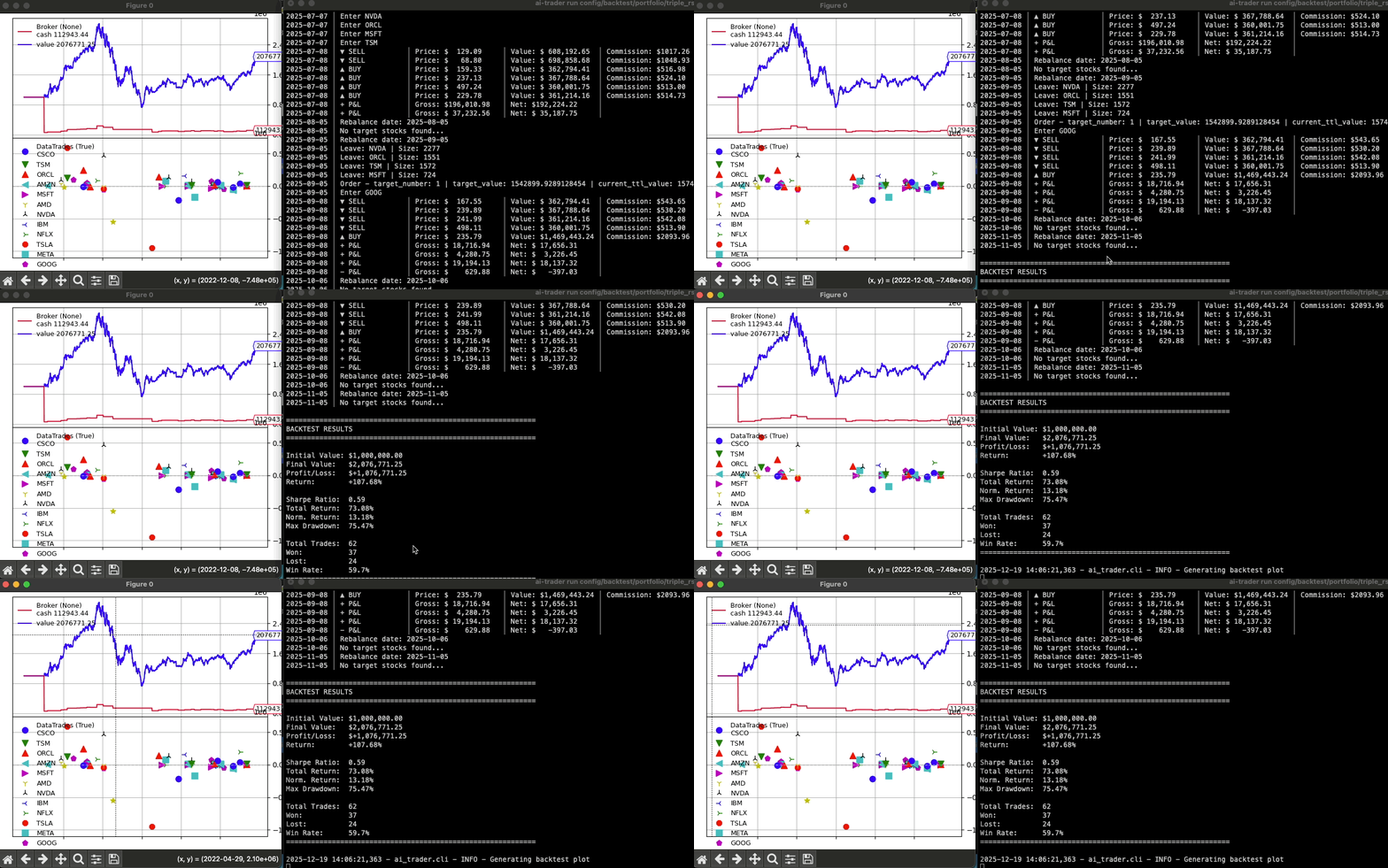
Key Features
- Config-Driven Workflows: Define and manage backtests with version-controllable YAML files for reproducible results.
- Seamless LLM Integration: Built-in MCP (Model Context Protocol) server allows AI assistants like Claude to run backtests, fetch data, and analyze strategies.
- Multi-Market Support: Test strategies on US stocks, Taiwan stocks, cryptocurrencies, and forex.
- Extensive Strategy Library: Comes with over 20 built-in strategies, from classic indicators to advanced adaptive models.
- Powerful CLI: A rich command-line interface to run backtests, fetch market data, and list strategies.
- Developer Friendly: Easily create and test custom strategies with simple helpers and a clear structure.
Quick Start
1. Installation
Option A: Install from PyPI (Recommended for using the CLI)
pip install ai-trader
Use this if you want to:
- Use the CLI commands:
ai-trader run,ai-trader fetch,ai-trader quick - Run backtests on your own data files
- Use as a library in your Python projects
Option B: Install from Source (Recommended for examples and config templates)
git clone https://github.com/whchien/ai-trader.git
cd ai-trader
pip install -e .
Use this if you want to:
- Run the config-based examples in
config/backtest/ - Use the example data files in
data/ - Run the example scripts in
scripts/examples/ - Contribute or customize strategies
(Poetry users can run
poetry install)
2. Run a Backtest via CLI
If you cloned from source, run a predefined backtest using a configuration file:
# Run a backtest from a config file (requires source installation)
ai-trader run config/backtest/classic/sma_example.yaml
Or, run a quick backtest on any data file (works with both pip and source installation):
# Quick backtest on your own data file
ai-trader quick CrossSMAStrategy your_data.csv --cash 100000
3. Fetch Market Data
Download historical data for any supported market:
# US Stock
ai-trader fetch TSM --market us_stock --start-date 2020-01-01

# Taiwan Stock (台灣股票)
ai-trader fetch 2330 --market tw_stock --start-date 2020-01-01

# Cryptocurrency
ai-trader fetch BTC-USD --market crypto --start-date 2020-01-01
Core Workflows
1. Configuration-Based Backtesting
The most robust way to run backtests is with a YAML config file.
my_backtest.yaml:
broker:
  cash: 1000000
  commission: 0.001425

data:
  file: "data/us_stock/TSM.csv"
  start_date: "2020-01-01"
  end_date: "2023-12-31"

strategy:
  class: "CrossSMAStrategy"
  params:
    fast: 10
    slow: 30

sizer:
  type: "percent"
  params:
    percents: 95
Run it:
ai-trader run my_backtest.yaml
See config/backtest/ for more examples.
2. Python-Based Backtesting
For more granular control or integration into other Python scripts.
Simple approach:
from ai_trader import run_backtest
from ai_trader.backtesting.strategies.classic.sma import CrossSMAStrategy

# Run backtest with example data
results = run_backtest(
    strategy=CrossSMAStrategy,
    data_source=None,  # Uses built-in example data
    cash=1000000,
    strategy_params={"fast": 10, "slow": 30}
)
Step-by-step control:
See scripts/examples/02_step_by_step.py for a detailed example.
3. LLM Integration (MCP Server)
Run ai-trader as a server to let AI assistants interact with your backtesting engine.
Start the Server (for testing):
python -m ai_trader.mcp
Configure with Claude Desktop (Recommended):
-
Locate your Claude Desktop configuration file:
- macOS/Linux:
~/.config/Claude/claude_desktop_config.json - Windows:
%APPDATA%\Claude\claude_desktop_config.json
- macOS/Linux:
-
Add the
ai-traderMCP server to themcpServerssection:
{
  "mcpServers": {
    "ai-trader": {
      "command": "python3",
      "args": ["-m", "ai_trader.mcp"],
      "cwd": "/path/to/ai-trader"
    }
  }
}
Configuration Notes:
- Replace
/path/to/ai-traderwith your actual ai-trader project directory - If using a virtual environment, use the full path to the Python executable:
/path/to/.venv/bin/python3 - Restart Claude Desktop after updating the config file
Once configured, you can use Claude to interact with your backtesting engine with natural language commands like:
- "Run a backtest of the CrossSMAStrategy on TSM data from 2020-2022."
- "List all available trading strategies."
- "Fetch Apple stock data from 2021 to 2024."
Creating Custom Strategies
Create a new file in ai_trader/backtesting/strategies/classic/ and inherit from BaseStrategy.
# ai_trader/backtesting/strategies/classic/my_strategy.py
import backtrader as bt
from ai_trader.backtesting.strategies.base import BaseStrategy

class MyCustomStrategy(BaseStrategy):
    params = dict(period=20)

    def __init__(self):
        self.sma = bt.indicators.SMA(self.data.close, period=self.p.period)

    def next(self):
        if not self.position and self.data.close[0] > self.sma[0]:
            self.buy()
        elif self.position and self.data.close[0] < self.sma[0]:
            self.close()
The new strategy is automatically available to the CLI and run_backtest function.
Documentation & Resources
- Strategy Examples: Details on built-in strategies.
- Example Scripts: 5 complete working examples for different use cases.
- Config Templates: YAML configuration templates.
- Migration Guide: For upgrading from v0.1.x.
Contributing
Contributions are welcome! Feel free to report bugs, suggest features, or submit pull requests.
Show Your Support
If you find this project helpful, please give it a star !
License
This project is licensed under the GNU General Public License v3 (GPL-3.0). See the LICENSE file for details.