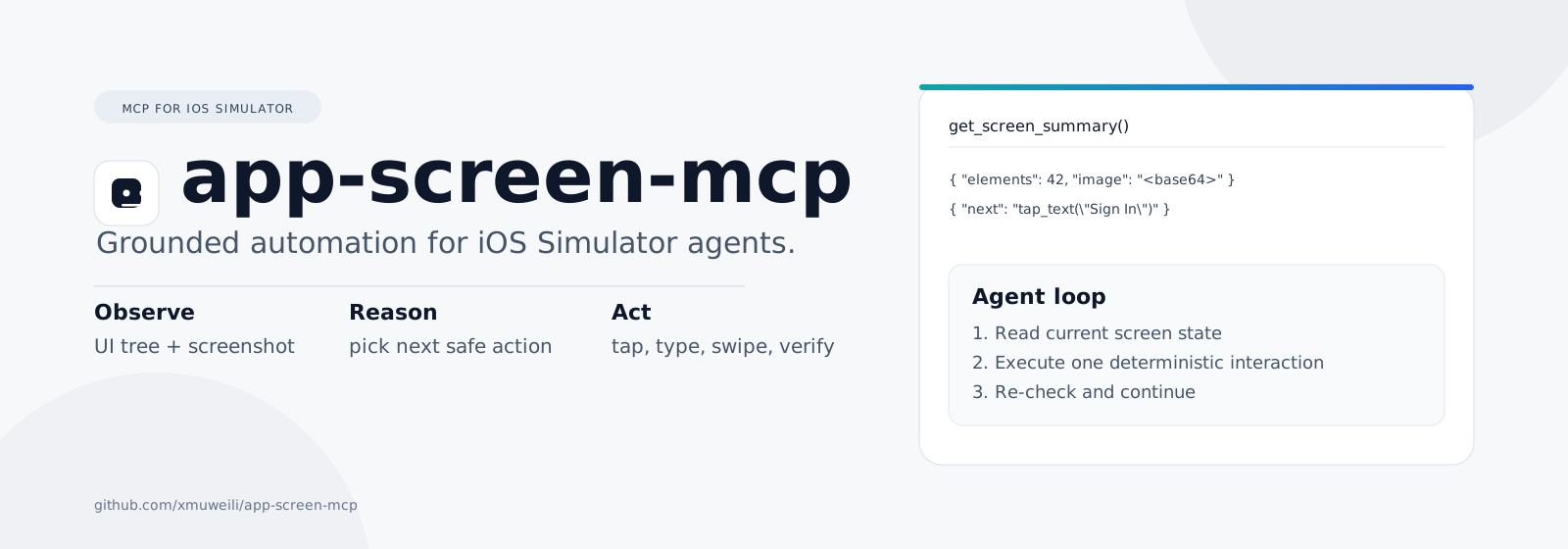
app-screen-mcp
MCP server for reliable iOS Simulator automation.
Control simulators, read accessibility UI trees, capture screenshots, and run grounded agent actions through one Model Context Protocol server.




Why this exists
Most mobile automation breaks when scripts act without observing current screen state.
app-screen-mcp fixes that by combining:
- Accessibility structure from
idb ui describe-all - Real pixels from Simulator screenshots
- Deterministic interactions (
tap,type_text,swipe, hardware buttons)
This gives agents a closed loop: observe, reason, act, verify.
What you get
- Simulator discovery and boot control
- App launch and termination by bundle ID
- Full normalized accessibility tree
- JPEG screenshots with size/quality controls
- Image-hash suppression to skip unchanged screenshots
- Semantic actions by text or accessibility ID
- Relative-coordinate taps for resolution-independent flows
- One-call screen summary (
UI tree + optional screenshot)
Architecture
MCP Client / Agent
        |
        v
   app-screen-mcp
        |
        +--> xcrun simctl (devices, app lifecycle, screenshots)
        |
        +--> idb (UI tree, tap, swipe, type, hardware buttons)
        |
        v
   iOS Simulator
Prerequisites
- macOS with Xcode + iOS Simulator
- Node.js 18+
idbtooling
Manual install for idb:
brew tap facebook/fb
brew install idb-companion
pip3 install fb-idb
Install
Option 1: one-step installer (recommended)
bash <(curl -fsSL https://raw.githubusercontent.com/xmuweili/app-screen-mcp/main/install.sh)
The script checks/installs:
- Xcode Command Line Tools
- Homebrew
- Node.js (18+)
idb-companionfb-idbapp-screen-mcp(global npm package)
Option 2: global npm install
npm install -g app-screen-mcp
Option 3: from source
git clone https://github.com/xmuweili/app-screen-mcp.git
cd app-screen-mcp
npm install
npm run build
Configure your MCP client
Claude Desktop
Config file:
~/Library/Application Support/Claude/claude_desktop_config.json
{
  "mcpServers": {
    "ios-simulator": {
      "command": "node",
      "args": ["/absolute/path/to/app-screen-mcp/dist/index.js"]
    }
  }
}
Cursor / VS Code MCP
Common config paths:
.cursor/mcp.json.vscode/mcp.json
Use the key your client expects: mcpServers or mcp.servers.
{
  "mcpServers": {
    "ios-simulator": {
      "command": "node",
      "args": ["/absolute/path/to/app-screen-mcp/dist/index.js"]
    }
  }
}
Restart your MCP client after updating config.
Tool reference (15 tools)
| Tool | Purpose |
|---|---|
list_simulators | List simulators and boot state |
boot_simulator | Boot simulator by UDID |
launch_app | Launch app by bundle_id |
terminate_app | Force-quit app by bundle_id |
get_ui_tree | Return normalized accessibility tree |
take_screenshot | Capture JPEG screenshot with compression and unchanged-image suppression |
get_screen_summary | Return tree + optional screenshot with token-saving options |
tap | Tap absolute (x, y) |
tap_relative | Tap relative (rx, ry) in [0,1] |
type_text | Type into focused field |
swipe | Swipe between points with optional duration |
press_button | Press HOME, LOCK, SIDE_BUTTON, or SIRI |
find_elements | Search tree by label/value/hint text |
tap_text | Find best text match and tap target point |
tap_id | Tap by accessibility identifier |
Quick usage patterns
1) Observe without image (cheap)
{
  "name": "get_screen_summary",
  "arguments": {
    "include_image": false,
    "compact_tree": true
  }
}
2) Add image when visual confirmation is required
{
  "name": "get_screen_summary",
  "arguments": {
    "include_image": true,
    "max_dim": 720,
    "quality": 55
  }
}
3) Skip unchanged screenshots
{
  "name": "get_screen_summary",
  "arguments": {
    "include_image": true,
    "only_if_changed": true,
    "previous_image_hash": "<last_hash>"
  }
}
4) Stable interaction flow
1. get_screen_summary(include_image=false)
2. find_elements("Sign In")
3. tap_id("login_email") or tap_text("Email")
4. type_text("user@example.com")
5. tap_text("Sign In")
6. get_screen_summary(include_image=true, only_if_changed=true)
Permission prompts
Permission behavior is enforced by the MCP client, not this server.
Claude Code (CLI)
Allow this server in ~/.claude/settings.json:
{
  "permissions": {
    "allow": ["mcp__ios-simulator__*"]
  }
}
ios-simulator must match your MCP server name.
Codex CLI
Codex uses command-level approvals. Use “always allow” for recurring safe command prefixes when prompted.
Local development
npm install
npm run build
npm start
Main implementation:
src/index.ts
Testing
The integration tests run against a real booted iOS Simulator.
npm test
Before running tests:
- Boot an iOS Simulator device.
- Build/install demo app under
demo-app/if not already installed.
Test helpers:
tests/helpers/client.tstests/helpers/ui.tstests/helpers/vision.ts
Troubleshooting
No iOS simulator is currently running- Boot a simulator first, or call
boot_simulator.
- Boot a simulator first, or call
idbcommand failures- Verify
idb-companionandfb-idbinstallation and PATH.
- Verify
- Missing/weak element matches
- Improve app accessibility labels and identifiers.
- GUI client cannot find node/module path
- Use an absolute path in
argsinstead of relying on shell PATH.
- Use an absolute path in
Contributing
Contributions are welcome.
For tool changes:
- Update tool schema in
src/index.ts - Implement tool handler in
src/index.ts - Add integration coverage in
tests/demo-app.test.ts - Update Tool Reference in this README
License
MIT