Apple Notes MCP Server
Bidirectional conversion between Apple Notes native format and Markdown — read notes as Markdown, write Markdown that becomes natively formatted notes.
I built this because I want Apple Notes to be my personal data hub, and I need it to work seamlessly with AI. This MCP server is the bridge.
Requirements: macOS 26 (Tahoe) or later.
Why This One?
There are other Apple Notes MCP implementations (including Claude's built-in one). Here's what makes this one different:
Bidirectional native format ↔ Markdown conversion. Other implementations lose formatting — they read plain text or write plain text into note bodies. This one preserves it in both directions:
- Reading: Apple Notes HTML → Markdown via turndown. Headings, bold, italic, lists, code — all faithfully converted.
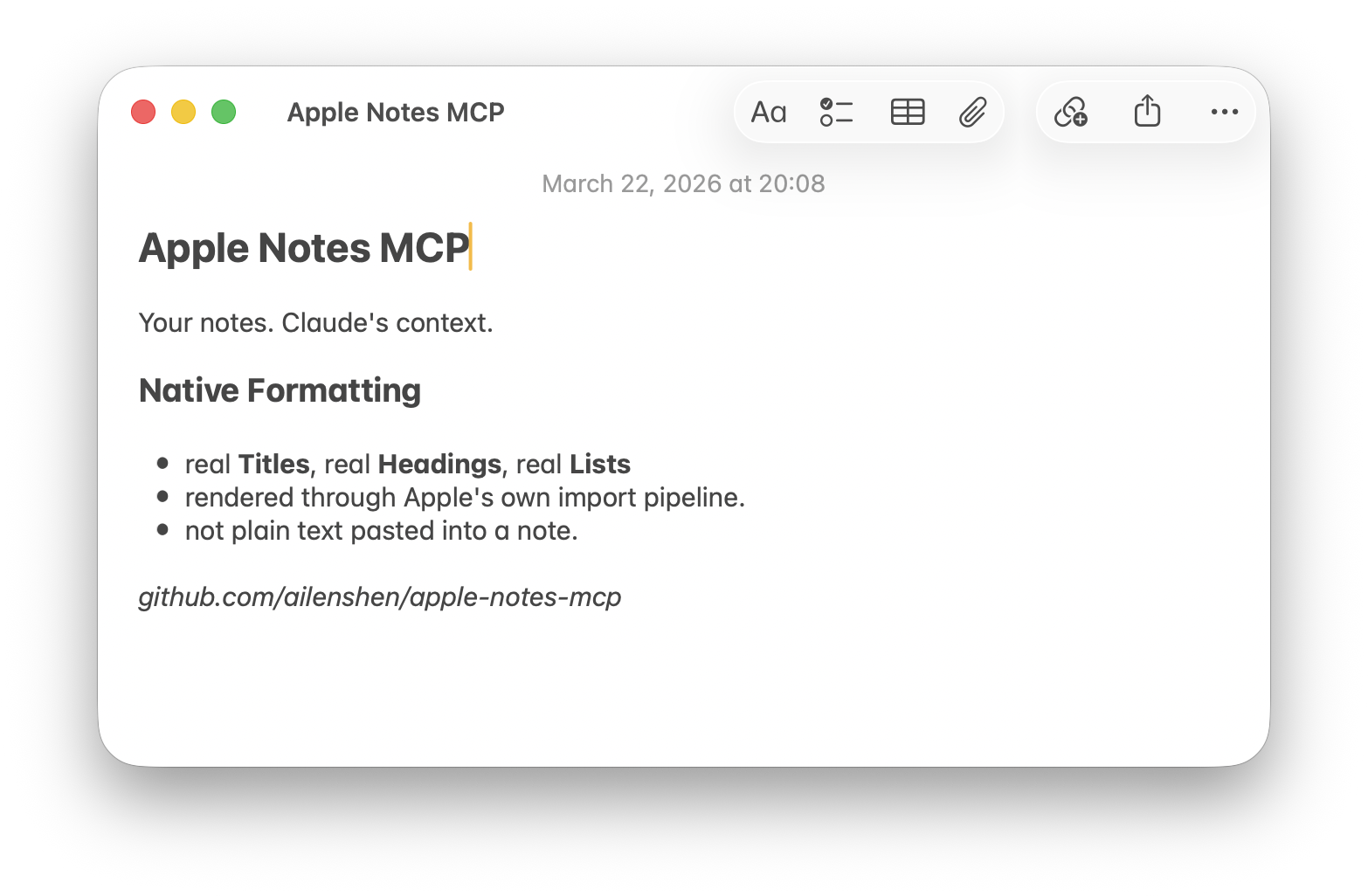
- Writing: Markdown → native Apple Notes formatting via macOS's built-in Markdown import. Titles become real Titles, headings become real Headings, not plain text.
The trade-off: Notes.app will briefly appear during note creation (~3 seconds), because we use open -a Notes to trigger the native import pipeline. It's the only way to get true native formatting without reverse-engineering Apple's private internal format.
Fast reads via SQLite. Listing and searching notes queries the NoteStore database directly — under 100ms, no AppleScript overhead.
What Can It Do?
- List notes — browse all your notes or filter by folder
- Search notes — find notes by keyword
- Read a note — get the full content of any note (returned as Markdown)
- Create a note — write a new note from Markdown (with native formatting)
- Update a note — replace a note's content while preserving its folder
- Delete a note — move a note to Recently Deleted
Setup
Prerequisites
- Node.js 18+
- macOS permissions for
node(not Terminal or Claude Desktop):- Full Disk Access — System Settings → Privacy & Security → Full Disk Access → add
node - Accessibility — System Settings → Privacy & Security → Accessibility → add
node
- Full Disk Access — System Settings → Privacy & Security → Full Disk Access → add
To find your node path: which node (typically /usr/local/bin/node or /opt/homebrew/bin/node).
Option A: Local (stdio)
For Claude Desktop or Claude Code on the same Mac. Add to your MCP client config:
{
  "mcpServers": {
    "apple-notes": {
      "command": "npx",
      "args": ["-y", "@ailenshen/apple-notes-mcp@latest"]
    }
  }
}
For Claude Desktop, the config file is at ~/Library/Application Support/Claude/claude_desktop_config.json.
Option B: Remote (HTTP)
For accessing your Apple Notes from anywhere — Claude on your phone, another computer, or any MCP client that supports HTTP.
Start the server in HTTP mode on your Mac:
npx @ailenshen/apple-notes-mcp@latest --http
This will print an endpoint URL with a random secret path:
Apple Notes MCP server running on HTTP
Endpoint: http://localhost:3100/mcp/a3f8b2c9e1d4...
The secret in the URL is the only authentication — anyone with the full URL can access your notes.
Making it accessible remotely: The HTTP server listens on 0.0.0.0:3100 by default. To access it over the internet, put it behind HTTPS using any reverse proxy or tunnel you prefer (ngrok, Cloudflare Tunnel, a VPS with nginx, etc.), then point your remote MCP client to the HTTPS URL.
CLI options:
| Flag | Default | Description |
|---|---|---|
--http | off | Enable HTTP mode (default is stdio) |
--port <number> | 3100 | HTTP port |
--secret <string> | random | Custom URL secret (auto-generated if omitted) |
Running as a persistent service on macOS: To keep the server running across reboots with a fixed secret, create a LaunchAgent. See the wiki for an example plist.
Usage Examples
Once configured, just talk to Claude naturally:
- "List all my notes in the Projects folder"
- "Search my notes for 'meeting agenda'"
- "Read my note titled 'Shopping List'"
- "Create a note in my Work folder with today's action items"
- "Update my 'Shopping List' note with these new items"
- "Delete the note called 'Old Draft'"
How It Works
| Action | Method | Speed |
|---|---|---|
| List / Search | SQLite (read-only) | < 100ms |
| Read | AppleScript → Markdown | ~1s |
| Create | Native Markdown import | ~3-4s |
| Update | Delete + Create | ~4-5s |
| Delete | AppleScript | ~1s |
- Reading is done through a read-only SQLite connection to the Notes database — fast and safe. Note content is converted from HTML to Markdown via turndown.
- Creating uses macOS's native Markdown import (
open -a Notes), so formatting is preserved natively. - Updating deletes the old note and creates a new one, automatically preserving the original folder.
- Deleting moves notes to Recently Deleted, just like doing it manually.
Markdown Support
When creating notes, most Markdown works natively:
| Element | Support |
|---|---|
Headings, bold, italic, lists, inline code | Fully supported |
| Block quotes | Content preserved, no indent style |
| Links | Text preserved, URL lost |
| Tables, footnotes | Not supported |
Roadmap
- Publish to npm —
npx @ailenshen/apple-notes-mcpjust works, zero setup beyond the config file. - Remote connection (Streamable HTTP) — Access your Apple Notes from anywhere via HTTP. Your Mac becomes the bridge between any remote MCP client and your notes.
- Update note — delete + recreate with folder preservation.
Vision
Apple Notes is the most natural place to keep personal knowledge on Apple devices — it syncs everywhere, it's fast, and it's private. But it's a walled garden with no API.
This project makes Apple Notes a first-class data source for AI. The long-term goal: wherever you're talking to Claude — on your Mac, on your phone, on the web — your Apple Notes are always accessible, readable, and writable.
License
MIT
