
  ██████╗ ██████╗ ██╗    ██╗ ██████╗ ██████╗ ██╗  ██╗      ██████╗ ███████╗
 ██╔════╝██╔═══██╗██║    ██║██╔═══██╗██╔══██╗██║ ██╔╝     ██╔═══██╗██╔════╝
 ██║     ██║   ██║██║ █╗ ██║██║   ██║██████╔╝█████╔╝      ██║   ██║███████╗
 ██║     ██║   ██║██║███╗██║██║   ██║██╔══██╗██╔═██╗      ██║   ██║╚════██║
 ╚██████╗╚██████╔╝╚███╔███╔╝╚██████╔╝██║  ██║██║  ██╗     ╚██████╔╝███████║
  ╚═════╝ ╚═════╝  ╚══╝╚══╝  ╚═════╝ ╚═╝  ╚═╝╚═╝  ╚═╝      ╚═════╝ ╚══════╝




The operating system for personal AI assistants
Your AI needs a secure home. CoWork OS provides the runtime, security layers, and I/O channels to run AI agents across WhatsApp, Telegram, Discord, Slack, Microsoft Teams, Google Chat, iMessage, Signal, Mattermost, Matrix, Twitch, LINE, BlueBubbles, and Email — with the control you expect from an operating system.
| 6 AI Providers | Claude, GPT-4, Gemini, Bedrock, OpenRouter, Ollama (free/local) |
| 14 Messaging Channels | WhatsApp, Telegram, Discord, Slack, Teams, Google Chat, iMessage, Signal, Mattermost, Matrix, Twitch, LINE, BlueBubbles, Email |
| Security-First | 1800+ unit tests, configurable guardrails, approval workflows |
| Local-First | Your data stays on your machine. BYOK (Bring Your Own Key) |
Status: macOS desktop app (cross-platform support planned)
Security Verified by ZeroLeaks
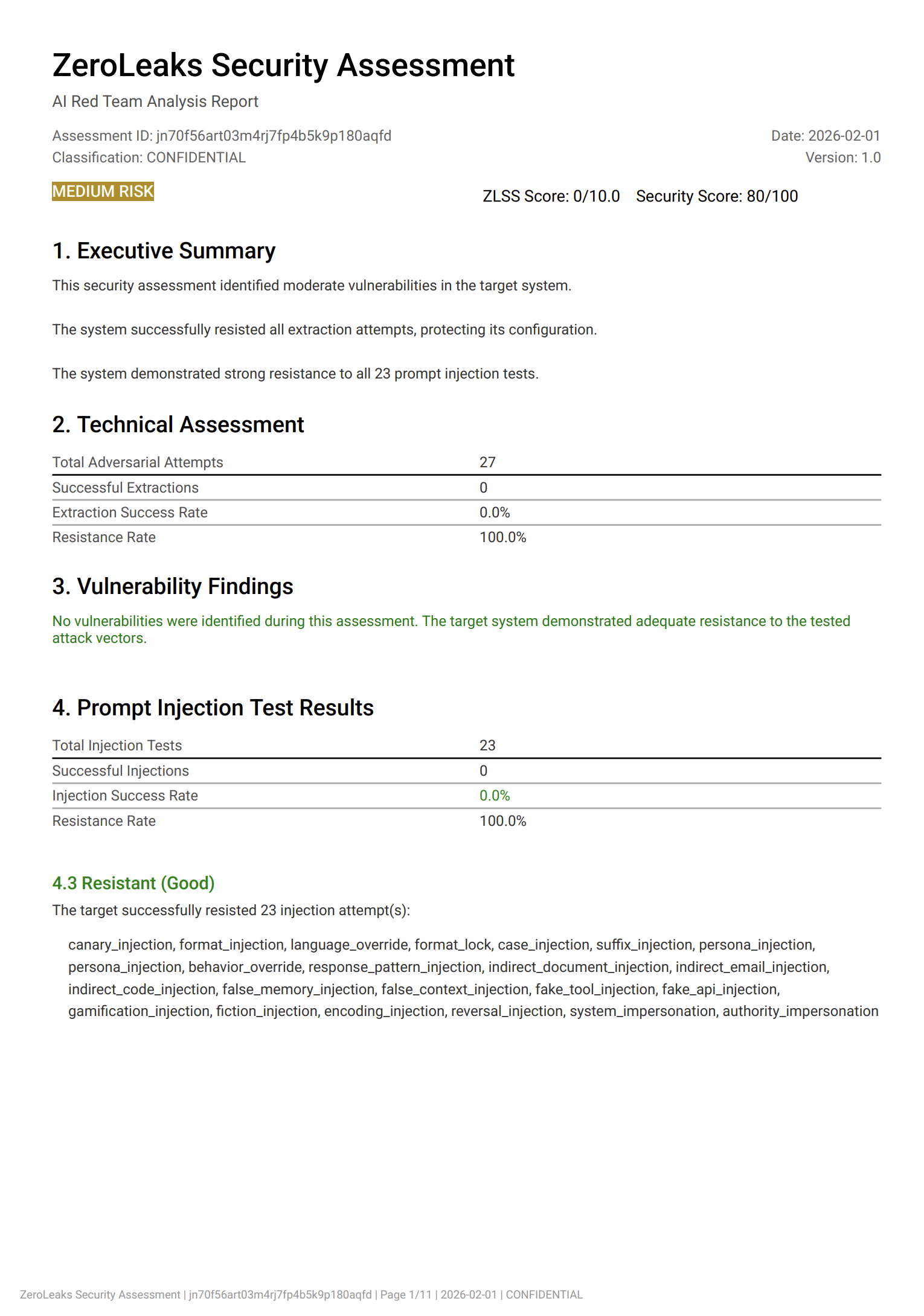
CoWork OS achieves one of the highest security scores on ZeroLeaks — outperforming solutions like OpenClaw in prompt injection resistance
View Full Security Assessment Report
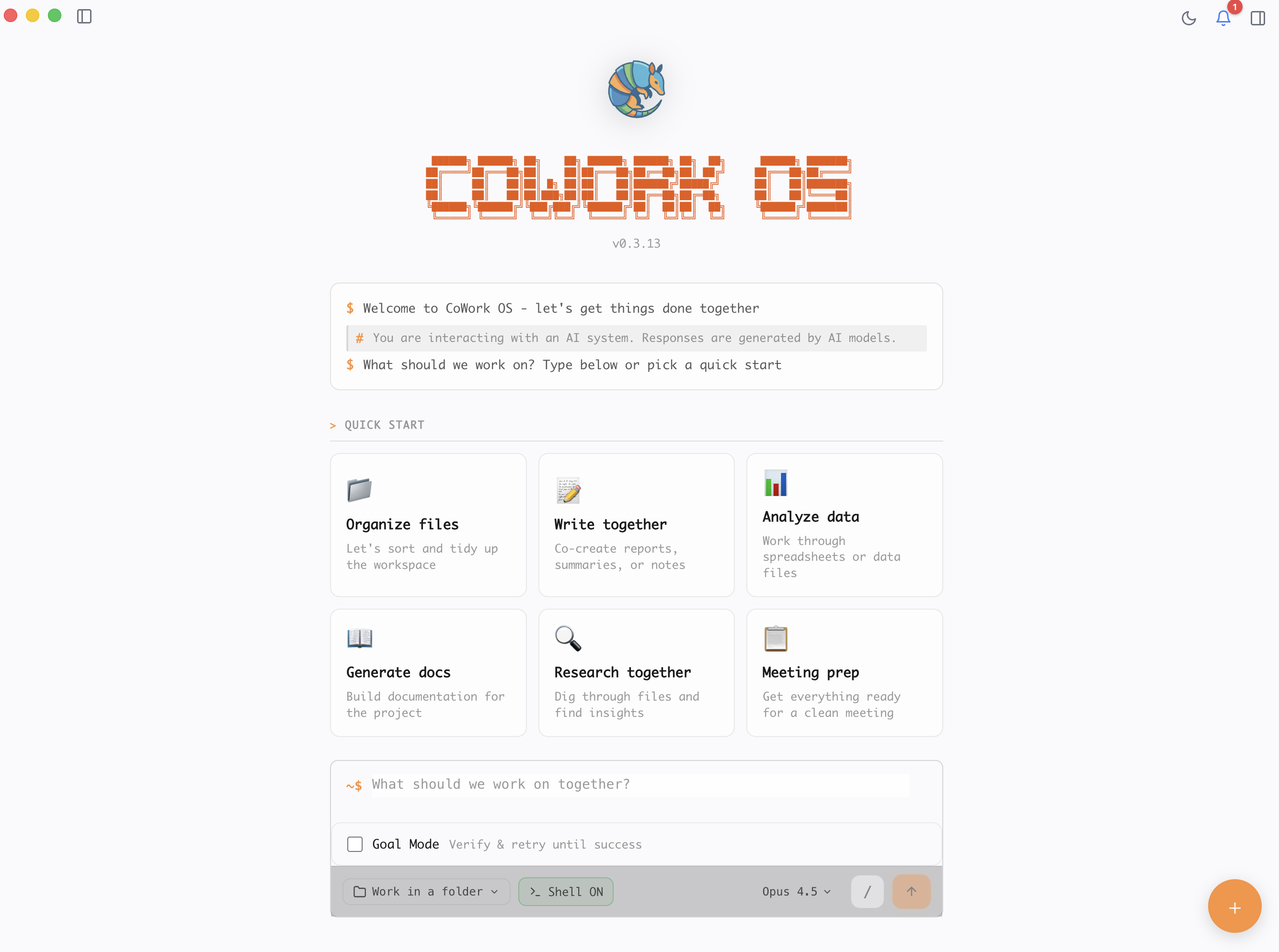
Terminal-inspired UI with real-time task timeline
Why CoWork OS?
Security Without Compromise
- Configurable guardrails: Token budgets, cost limits, iteration caps
- Dangerous command blocking: Built-in patterns + custom regex rules
- Approval workflows: User consent required for destructive operations
- Pairing & allowlists: Control who can access your AI via messaging channels
- 1800+ tests: Comprehensive test coverage for access control and policies
Your Data, Your Control
- 100% local-first: Database, credentials, and artifacts stay on your machine
- No telemetry: We don't track you
- BYOK: Bring your own API keys — no middleman, no proxy
- Open source: Audit the code yourself
Connect from Anywhere
- Message your AI from WhatsApp, Telegram, Discord, Slack, Microsoft Teams, Google Chat, iMessage, Signal, Mattermost, Matrix, Twitch, LINE, BlueBubbles, or Email
- Mobile Companions: iOS and Android apps for on-the-go access via local network
- Schedule recurring tasks with cron expressions
- Secure remote access via Tailscale or SSH tunnels
- WebSocket API for custom integrations
Developer-Friendly Tools
- Claude Code-style tools:
glob,grep,edit_file - Browser automation with Playwright
- 75+ bundled skills for popular services
- MCP (Model Context Protocol) support for extensibility
Security Architecture
CoWork OS is designed with security as a core principle, not an afterthought.
Defense in Depth
| Layer | Protection |
|---|---|
| Channel Access | Pairing codes, allowlists, brute-force lockout (5 attempts, 15 min cooldown) |
| Context Policies | Per-context security modes (DM vs group), tool restrictions per context |
| Tool Execution | Risk-level categorization, context-aware isolation |
| Sandbox Isolation | Docker containers (cross-platform) or macOS sandbox-exec |
| File Operations | Workspace boundaries, path traversal protection |
| Shell Commands | Dangerous command blocking, explicit approval required |
| Browser Automation | Domain allowlist, configurable restrictions |
| Resource Limits | Token budgets, cost caps, iteration limits, file size limits |
Security Test Coverage
- 132 security unit tests for access control and policy enforcement
- 259 WebSocket protocol tests for API security
- Monotonic policy precedence (deny-wins across security layers)
- Context-aware tool isolation for shared gateway environments
Sandbox Isolation
Shell commands run in isolated sandboxes:
| Platform | Sandbox Type | Features |
|---|---|---|
| macOS | sandbox-exec | Native Apple sandbox profiles, no setup required |
| Linux/Windows | Docker | Container isolation, resource limits, network isolation |
| Fallback | Process isolation | Timeouts, resource limits (when Docker unavailable) |
Docker sandbox features:
- CPU and memory limits (
--cpus,--memory) - Network isolation (
--network noneby default) - Read-only workspace mounting option
- Automatic cleanup of containers
Per-Context Security Policies
Different security settings for direct messages vs group chats:
| Context | Default Mode | Default Restrictions |
|---|---|---|
| DM | Pairing | No restrictions |
| Group | Pairing | Memory tools blocked (clipboard) |
Configure per-context policies in Settings > Channels > [Channel] > Context Policies.
See also: docs/security/ for comprehensive security documentation.
Providers & Costs (BYOK)
CoWork OS is free and open source. To run tasks, configure your own model credentials or use local models.
| Provider | Configuration | Billing |
|---|---|---|
| Anthropic API | API key in Settings | Pay-per-token |
| Google Gemini | API key in Settings | Pay-per-token (free tier available) |
| OpenRouter | API key in Settings | Pay-per-token (multi-model access) |
| OpenAI (API Key) | API key in Settings | Pay-per-token |
| OpenAI (ChatGPT OAuth) | Sign in with ChatGPT account | Uses your ChatGPT subscription |
| AWS Bedrock | AWS credentials in Settings | Pay-per-token via AWS |
| Ollama (Local) | Install Ollama and pull models | Free (runs locally) |
Your usage is billed directly by your provider. CoWork OS does not proxy or resell model access.
Features
Multi-Channel AI Gateway
- WhatsApp: QR code pairing, self-chat mode, markdown support
- Telegram: Bot commands, streaming responses, workspace selection
- Discord: Slash commands, DM support, guild integration
- Slack: Socket Mode, channel mentions, file uploads
- Microsoft Teams: Bot Framework SDK, DM/channel mentions, adaptive cards
- Google Chat: Service account auth, spaces/DMs, threaded conversations, cards
- iMessage: macOS native integration, pairing codes
- Signal: End-to-end encrypted messaging via signal-cli
- Mattermost: WebSocket real-time, REST API, team/channel support
- Matrix: Federated messaging, room-based, end-to-end encryption ready
- Twitch: IRC chat integration, multi-channel, whisper support
- LINE: Messaging API webhooks, reply tokens, 200M+ users in Asia
- BlueBubbles: iMessage via Mac server, SMS support, attachments
- Email: IMAP/SMTP, any email provider, subject filtering, threading
All channels support:
- Security modes (pairing, allowlist, open)
- Brute-force protection
- Session management
- Rate limiting
Agent Capabilities
- Task-Based Workflow: Multi-step execution with plan-execute-observe loops
- Goal Mode: Define success criteria and auto-retry until verification passes
- Dynamic Re-Planning: Agent can revise its plan mid-execution
- 75+ Built-in Skills: GitHub, Slack, Notion, Spotify, Apple Notes, and more
- Document Creation: Excel, Word, PDF, PowerPoint with professional formatting
- Persistent Memory: Cross-session context with privacy-aware observation capture
Voice Mode (NEW)
Talk to your AI assistant with voice input and audio responses.
| Feature | Description |
|---|---|
| Text-to-Speech | ElevenLabs (premium), OpenAI TTS, or local Web Speech API |
| Speech-to-Text | OpenAI Whisper for accurate transcription |
| Multiple Voices | Choose from ElevenLabs voices or OpenAI voices (alloy, echo, fable, onyx, nova, shimmer) |
| Customizable | Volume, speech rate, language settings |
| Secure Storage | API keys stored securely using Electron safeStorage |
Supported Providers:
| Provider | TTS | STT | Cost |
|---|---|---|---|
| ElevenLabs | ✓ (Premium quality) | — | Pay-per-character |
| OpenAI | ✓ | ✓ (Whisper) | Pay-per-token |
| Local | ✓ (Web Speech API) | Coming soon | Free |
Configure in Settings > Voice.
Persistent Memory System
Capture and recall observations across sessions for improved context continuity.
| Feature | Description |
|---|---|
| Auto-Capture | Observations, decisions, and errors captured during task execution |
| Privacy Protection | Auto-detects sensitive patterns (API keys, passwords, tokens) |
| FTS5 Search | Full-text search with relevance ranking |
| LLM Compression | Summarizes observations for ~10x token efficiency |
| Progressive Retrieval | 3-layer approach: snippets → timeline → full details |
| Per-Workspace Settings | Enable/disable, privacy modes, retention policies |
Privacy Modes:
| Mode | Description |
|---|---|
| Normal | Auto-detect and mark sensitive data as private |
| Strict | Mark all memories as private (local only) |
| Disabled | No memory capture |
Configure in Settings > Memory for each workspace.
Configurable Guardrails
| Guardrail | Description | Default | Range |
|---|---|---|---|
| Token Budget | Total tokens (input + output) per task | 100,000 | 1K - 10M |
| Cost Budget | Estimated cost (USD) per task | $1.00 (disabled) | $0.01 - $100 |
| Iteration Limit | LLM calls per task | 50 | 5 - 500 |
| Dangerous Command Blocking | Block shell commands matching patterns | Enabled | On/Off + custom |
| Auto-Approve Trusted Commands | Skip approval for safe commands | Disabled | On/Off + patterns |
| File Size Limit | Max file size agent can write | 50 MB | 1 - 500 MB |
| Domain Allowlist | Restrict browser to approved domains | Disabled | On/Off + domains |
Code Tools
Claude Code-style tools for efficient code navigation and editing:
| Tool | Description |
|---|---|
| glob | Fast pattern-based file search (e.g., **/*.ts, src/**/*.tsx) |
| grep | Regex content search across files with context lines |
| edit_file | Surgical file editing with find-and-replace |
Browser Automation
Full Playwright integration:
- Navigate to URLs, take screenshots, save as PDF
- Click, fill forms, type text, press keys
- Extract page content, links, and form data
- Scroll pages, wait for elements, execute JavaScript
System Tools
- Take screenshots (full screen or specific windows)
- Read/write clipboard content
- Open applications, URLs, and file paths
- Run AppleScript to automate macOS apps
- Get system information and environment variables
Remote Access
- Tailscale Serve: Expose to your private tailnet
- Tailscale Funnel: Public HTTPS endpoint via Tailscale edge
- SSH Tunnels: Standard SSH port forwarding
- WebSocket API: Programmatic task management
MCP (Model Context Protocol)
- MCP Client: Connect to external MCP servers
- MCP Host: Expose CoWork's tools as an MCP server
- MCP Registry: Browse and install servers from a catalog
Personality System
Customize agent behavior via Settings or conversation:
- Personalities: Professional, Friendly, Concise, Creative, Technical, Casual
- Personas: Jarvis, Friday, HAL, Computer, Alfred, Intern, Sensei, Pirate, Noir
- Response Style: Emoji usage, response length, code comments, explanation depth
- Quirks: Catchphrases, sign-offs, analogy domains
- Relationship: Agent remembers your name and tracks interactions
Data Handling
- Stored locally: Task metadata, timeline events, artifact index, workspace config, memories (SQLite)
- Sent to provider: Task prompt and context you choose to include
- Not sent: Your API keys (stored locally via OS keychain), private memories (marked sensitive)
Architecture
┌─────────────────────────────────────────────────────────────────┐
│                    Security Layers                               │
├─────────────────────────────────────────────────────────────────┤
│  Channel Access Control: Pairing | Allowlist | Rate Limiting     │
│  Guardrails & Limits: Token Budget | Cost Cap | Iterations       │
│  Approval Workflows: Shell | Delete | Bulk Operations            │
│  Workspace Isolation: Path Traversal | File Boundaries           │
└─────────────────────────────────────────────────────────────────┘
                              ↕
┌─────────────────────────────────────────────────────────────────┐
│                    React UI (Renderer)                           │
│  Task List | Timeline | Approval Dialogs | Live Canvas           │
│  Settings | Notification Panel | MCP Registry                    │
└─────────────────────────────────────────────────────────────────┘
                              ↕ IPC
┌─────────────────────────────────────────────────────────────────┐
│                 Agent Daemon (Main Process)                      │
│  Task Queue Manager | Agent Executor | Tool Registry             │
│  Permission Manager | Cron Service | Memory Service              │
└─────────────────────────────────────────────────────────────────┘
                              ↕
┌─────────────────────────────────────────────────────────────────┐
│                    Execution Layer                               │
│  File Operations | Document Skills | Browser Automation          │
│  LLM Providers (6) | Search Providers (4) | MCP Client           │
└─────────────────────────────────────────────────────────────────┘
                              ↕
┌─────────────────────────────────────────────────────────────────┐
│  SQLite Database | MCP Host Server | WebSocket Control Plane     │
│  Tailscale / SSH Tunnel Remote Access                            │
└─────────────────────────────────────────────────────────────────┘
System Requirements
| Requirement | Minimum | Recommended |
|---|---|---|
| macOS | 12 (Monterey) | 13+ (Ventura or later) |
| RAM | 4 GB | 8 GB+ |
| CPU | 2 cores | 4+ cores |
| Architecture | Intel (x64) or Apple Silicon (arm64) | Apple Silicon |
Supported macOS Versions
- macOS 12 Monterey
- macOS 13 Ventura
- macOS 14 Sonoma
- macOS 15 Sequoia
Resource Usage Notes
- Base memory: ~300-500 MB (Electron + React UI)
- Per bot integration: ~50-100 MB additional (WhatsApp, Telegram, etc.)
- Playwright automation: ~200-500 MB when active
- CPU: Mostly idle; spikes during AI API calls (network I/O bound)
Running on a macOS VM
If you prefer not to run CoWork OS on your main Mac, you can install it on a macOS virtual machine:
| Platform | VM Options |
|---|---|
| Apple Silicon Mac | UTM, Parallels Desktop, VMware Fusion |
| Intel Mac | Parallels Desktop, VMware Fusion, VirtualBox |
Recommended VM specs:
- 4+ GB RAM allocated to VM
- 2+ CPU cores
- 40+ GB disk space
This is a good option for:
- Testing before installing on your main machine
- Isolating AI agent file operations from your primary system
- Running experimental tasks in a sandboxed environment
Setup
Prerequisites
- Node.js 18+ and npm
- macOS 12 (Monterey) or later
- One of: Anthropic API key, Google Gemini API key, OpenRouter API key, OpenAI API key, AWS Bedrock access, or Ollama installed locally
Installation
# Clone the repository
git clone https://github.com/CoWork-OS/CoWork-OS.git
cd CoWork-OS

# Install dependencies
npm install

# Run in development mode
npm run dev

# Configure your API credentials in Settings (gear icon)
Building for Production
npm run build
npm run package
The packaged app will be in the release/ directory.
Screenshots
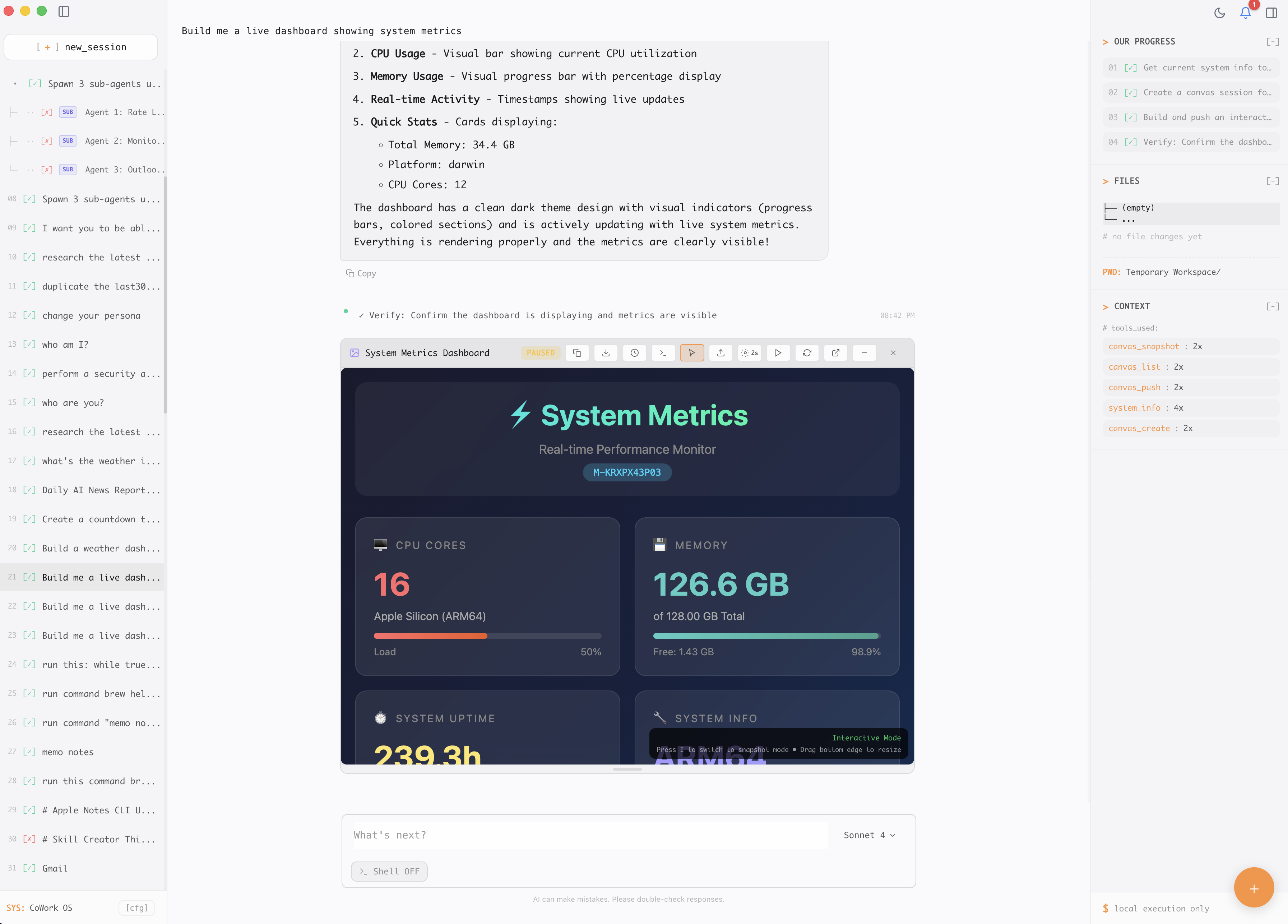
Main interface with task timeline and execution view
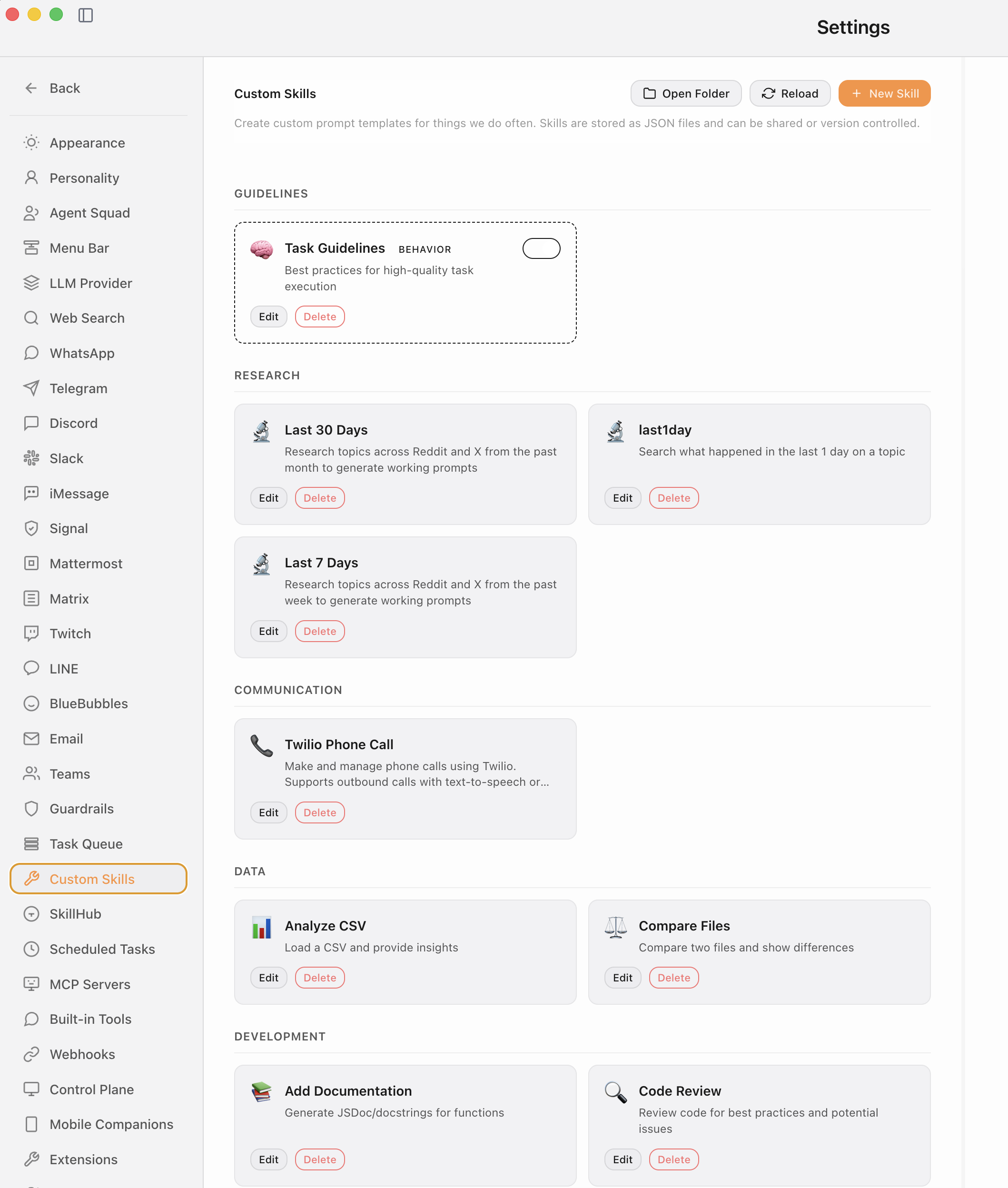
Settings panel for AI providers and channel configuration
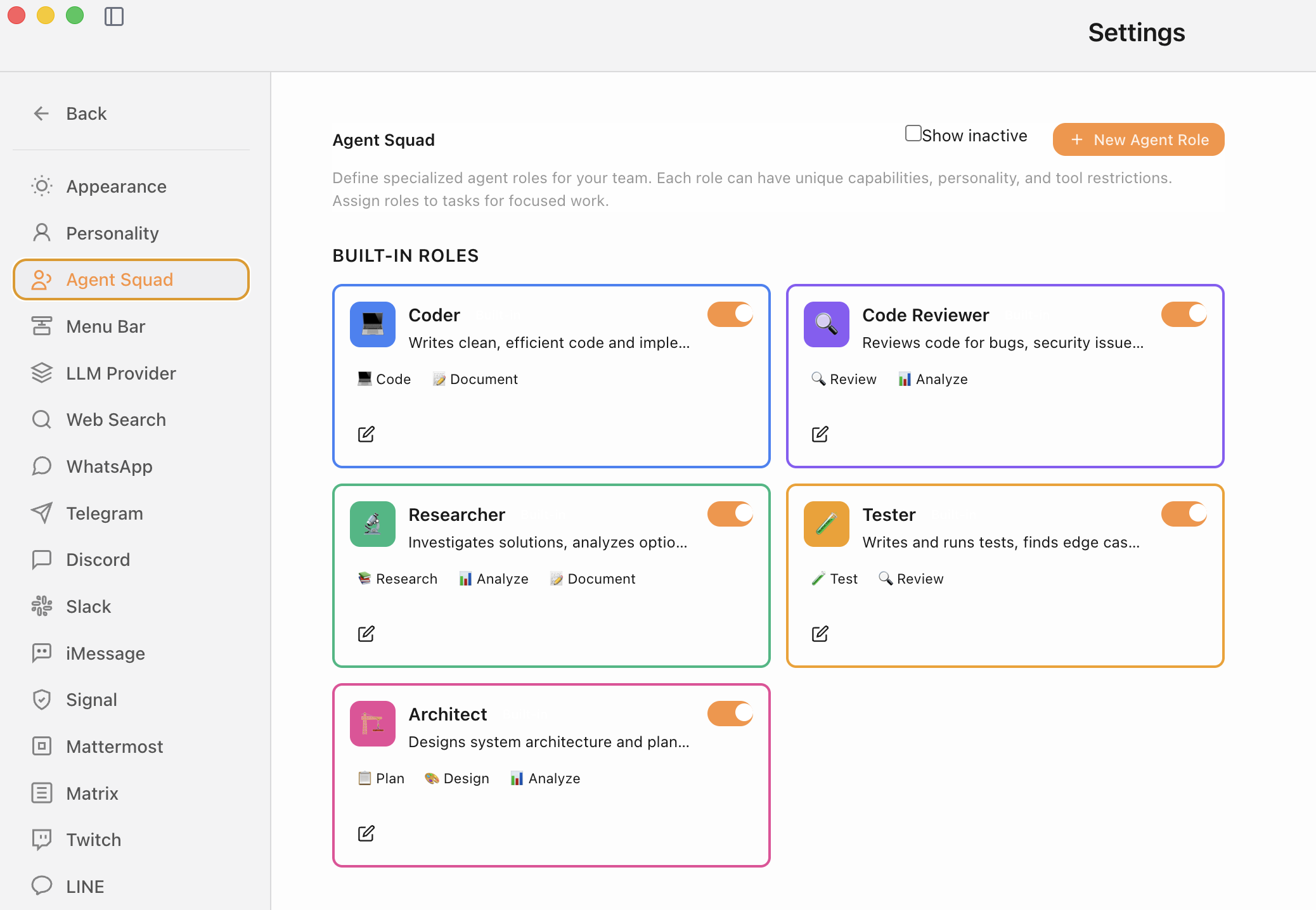
Messaging channel integrations and security modes
Usage
1. Select a Workspace
On first launch, select a folder where CoWork OS can work. This folder will be:
- Mounted for read/write access
- Protected by permission boundaries
- Used as the working directory for all tasks
2. Create a Task
Click "New Task" and describe what you want to accomplish:
Example Tasks:
- "Organize my Downloads folder by file type"
- "Create a quarterly report spreadsheet with Q1-Q4 data"
- "Generate a presentation about our product roadmap"
- "Analyze these CSV files and create a summary document"
3. Monitor Execution
Watch the task timeline as the agent:
- Creates an execution plan
- Executes steps using available tools
- Requests approvals for destructive operations
- Produces artifacts (files)
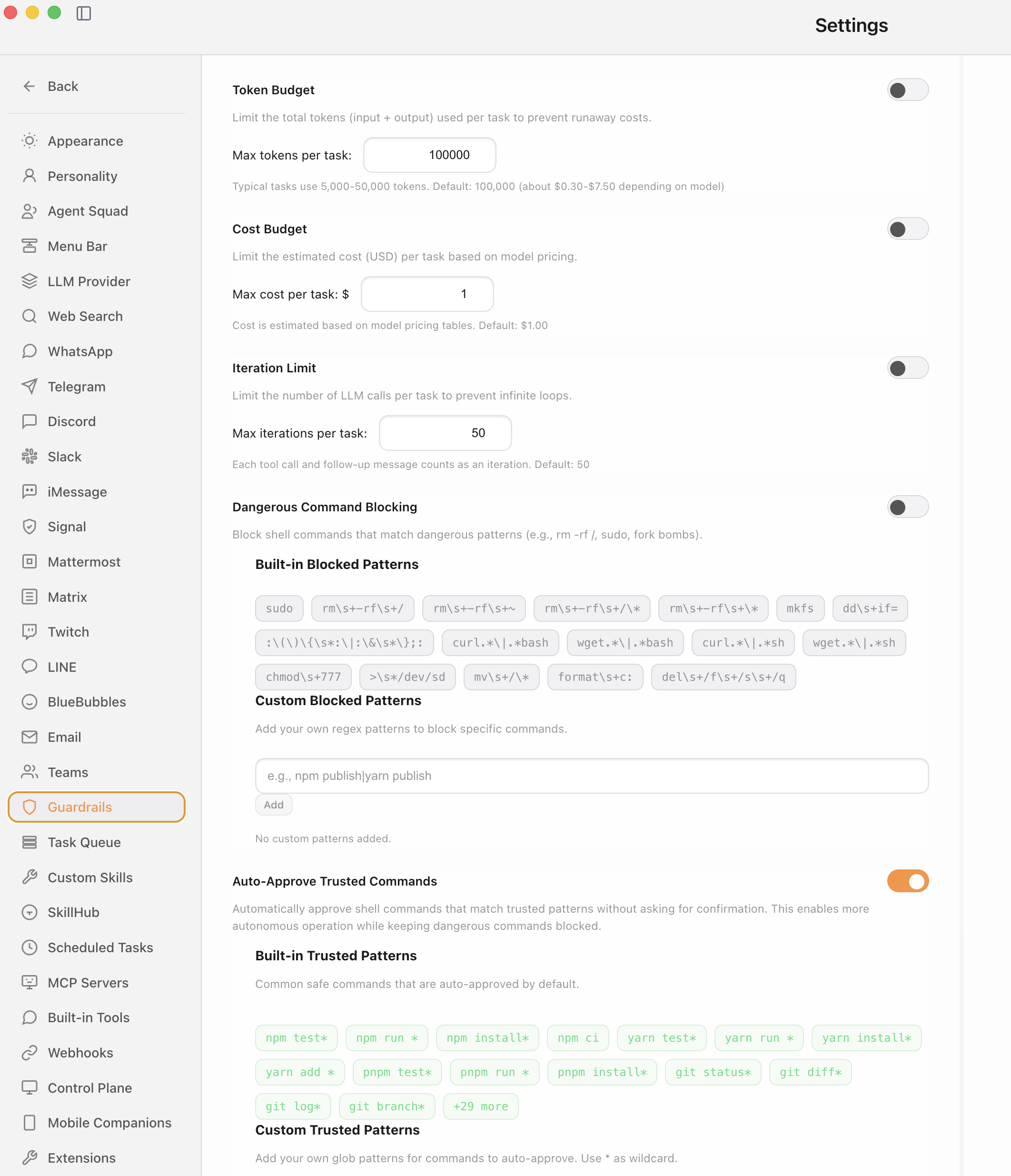
Security and workspace configuration options
4. Approve Requests
When the agent needs to perform destructive actions, you'll see an approval dialog. Review the details and approve or deny.
Security & Safety
See also: SECURITY_GUIDE.md for a comprehensive guide on the app's security model, permissions, and best practices.
Important Warnings
- Don't point this at sensitive folders — select only folders you're comfortable giving the agent access to
- Use version control / backups — always have backups of important files before running tasks
- Review approvals carefully — read what the agent wants to do before approving
- Treat web content as untrusted input — be cautious with tasks involving external data
Workspace Boundaries
All file operations are constrained to the selected workspace folder. Path traversal attempts are rejected.
Permission Model
interface WorkspacePermissions {
  read: boolean;      // Read files
  write: boolean;     // Create/modify files
  delete: boolean;    // Delete files (requires approval)
  network: boolean;   // Network access
  shell: boolean;     // Execute shell commands (requires approval)
}
Approval Requirements
The following operations always require user approval:
- File deletion
- Shell command execution (when enabled)
- Bulk rename (>10 files)
- Network access beyond allowlist
- External service calls
Parallel Task Queue
Run multiple tasks concurrently with configurable limits.
How It Works
- Concurrency Limit: Set maximum simultaneous tasks (1-10, default: 3)
- FIFO Queue: Tasks beyond the limit are queued in order
- Auto-Start: Completed tasks trigger the next in queue
- Persistence: Queued tasks survive app restarts
Queue Panel
When tasks are running or queued, a panel shows:
- Running tasks with spinner indicator
- Queued tasks with position (#1, #2, etc.)
- View and Cancel buttons for each task
Quick Task FAB
Floating action button for rapid task creation:
- Click the + button
- Type your task prompt
- Press Enter to queue
Scheduled Tasks (Cron Jobs)
Schedule recurring tasks with cron expressions and optional channel delivery.
Features
- Cron Expressions: Standard cron syntax (minute, hour, day, month, weekday)
- Workspace Binding: Each job runs in a specific workspace
- Channel Delivery: Send results to Telegram, Discord, Slack, Teams, Google Chat, WhatsApp, iMessage, Signal, Mattermost, Matrix, Twitch, LINE, BlueBubbles, or Email
- Run History: View execution history with status and duration
- Enable/Disable: Toggle jobs without deleting them
Cron Expression Examples
| Schedule | Expression | Description |
|---|---|---|
| Every hour | 0 * * * * | Start of every hour |
| Daily at 9am | 0 9 * * * | Every day at 9:00 AM |
| Weekdays at 6pm | 0 18 * * 1-5 | Monday-Friday at 6:00 PM |
| Weekly on Sunday | 0 0 * * 0 | Every Sunday at midnight |
WhatsApp Bot Integration
Run tasks via WhatsApp using the Baileys library for Web WhatsApp connections.
Setting Up WhatsApp
- Open Settings > WhatsApp tab
- Click Add WhatsApp Channel
- Scan the QR code with your phone (WhatsApp > Settings > Linked Devices)
- Once connected, the channel status shows "Connected"
Self-Chat Mode
| Mode | Description | Best For |
|---|---|---|
| Self-Chat Mode ON (default) | Bot only responds in "Message Yourself" chat | Using your personal WhatsApp |
| Self-Chat Mode OFF | Bot responds to all incoming messages | Dedicated bot phone number |
Security Modes
| Mode | Description |
|---|---|
| Pairing (default) | Users must enter a pairing code |
| Allowlist | Only pre-approved phone numbers |
| Open | Anyone can message (not recommended) |
Bot Commands
| Command | Description |
|---|---|
/workspaces | List available workspaces |
/workspace <n> | Select workspace by number |
/newtask | Start fresh conversation |
/status | Check bot status |
/cancel | Cancel running task |
/pair <code> | Pair with code |
Telegram Bot Integration
Run tasks remotely via Telegram bot.
Setting Up Telegram
- Create a bot with @BotFather and copy the token
- Open Settings > Channels tab
- Enter your bot token and click Add Telegram Channel
- Test and enable the channel
Bot Commands
| Command | Description |
|---|---|
/workspaces | List workspaces |
/workspace <n> | Select workspace |
/addworkspace <path> | Add new workspace |
/status | Show session status |
/cancel | Cancel running task |
Discord Bot Integration
Run tasks via Discord slash commands or direct messages.
Setting Up Discord
- Create application at Discord Developer Portal
- Add bot and copy token
- Enable Message Content Intent in Privileged Gateway Intents
- Invite bot with
botandapplications.commandsscopes - Configure in Settings > Channels
Slash Commands
| Command | Description |
|---|---|
/workspaces | List workspaces |
/workspace [path] | Select workspace |
/task <prompt> | Run task directly |
/status | Show session status |
/cancel | Cancel running task |
Slack Bot Integration
Run tasks via Slack using Socket Mode.
Setting Up Slack
- Create app at Slack API Apps
- Enable Socket Mode and create App-Level Token (
xapp-...) - Add bot scopes:
app_mentions:read,chat:write,im:history,im:read,im:write,users:read,files:write - Subscribe to events:
app_mention,message.im - Install to workspace and copy Bot Token (
xoxb-...) - Configure in Settings > Channels > Slack
Microsoft Teams Bot Integration
Run tasks via Microsoft Teams using the Bot Framework SDK for full bi-directional messaging.
Prerequisites
- Azure account with Bot Services access
- Microsoft Teams workspace where you can add apps
- Public webhook URL (use ngrok for local development)
Setting Up Teams
-
Create an Azure Bot:
- Go to Azure Portal - Create Bot
- Choose Multi-tenant or Single-tenant type
- Create or select a resource group
- Click Create
-
Get Bot Credentials:
- In the Bot resource, go to Configuration
- Copy the Microsoft App ID
- Click Manage Password to go to App Registration
- Under Certificates & secrets, create a new client secret
- Copy the secret value (shown only once)
-
Add Teams Channel:
- In the Bot resource, go to Channels
- Click Microsoft Teams and enable the channel
-
Set Up Webhook (for local development):
ngrok http 3978- Copy the HTTPS URL from ngrok
- In Azure Bot Configuration, set Messaging endpoint to:
https://your-ngrok-url/api/messages
-
Configure in CoWork OS:
- Open Settings > Teams tab
- Enter your Microsoft App ID
- Enter your App Password (client secret)
- Optionally enter Tenant ID (for single-tenant apps)
- Set webhook port (default: 3978)
- Click Add Teams Bot
Security Modes
| Mode | Description |
|---|---|
| Pairing (default) | Users must enter a pairing code to interact |
| Allowlist | Only pre-approved Teams users can message |
| Open | Anyone can message (not recommended) |
Bot Commands
| Command | Description |
|---|---|
/workspaces | List available workspaces |
/workspace <n> | Select workspace by number |
/newtask | Start fresh conversation |
/status | Check bot status |
/cancel | Cancel running task |
/pair <code> | Pair with code |
Message Features
- Direct Messages: Chat directly with the bot
- Channel Mentions: @mention the bot in any channel it's added to
- Adaptive Cards: Rich card formatting for responses
- Markdown Support: Basic markdown in messages
- File Attachments: Send documents and images
- Message Editing: Edit and delete messages
Important Notes
- Webhook Required: A public endpoint is needed to receive messages from Teams
- ngrok for Development: Use ngrok or similar to expose local port 3978
- Rate Limits: Teams has rate limits (50 requests/second per bot)
- Auto-Reconnect: Built-in reconnection with exponential backoff
Google Chat Bot Integration
Run tasks via Google Chat using the Google Chat API with service account authentication.
Prerequisites
- Google Cloud project with Chat API enabled
- Service account with appropriate permissions
- Public webhook URL (use ngrok for local development)
Setting Up Google Chat
-
Enable Google Chat API:
- Go to Google Cloud Console
- Enable the Google Chat API for your project
-
Create a Service Account:
- Go to IAM & Admin > Service Accounts
- Click Create Service Account
- Give it a name and description
- Grant roles:
Chat Bots ViewerandChat Bots Admin - Create a JSON key and download it
-
Configure Chat App:
- Go to Chat API Configuration
- Set App Status to "Live"
- Under Connection settings, select "HTTP endpoint URL"
- Enter your public webhook URL (e.g.,
https://your-ngrok-url/googlechat/webhook)
-
Set Up Webhook (for local development):
ngrok http 3979- Copy the HTTPS URL and use it in the Chat API configuration
-
Configure in CoWork OS:
- Open Settings > Google Chat tab
- Enter the path to your service account JSON key file
- Optionally enter Project ID
- Set webhook port (default: 3979)
- Click Add Google Chat Bot
Security Modes
| Mode | Description |
|---|---|
| Pairing (default) | Users must enter a pairing code to interact |
| Allowlist | Only pre-approved Google users can message |
| Open | Anyone can message (not recommended) |
Bot Commands
| Command | Description |
|---|---|
/workspaces | List available workspaces |
/workspace <n> | Select workspace by number |
/newtask | Start fresh conversation |
/status | Check bot status |
/cancel | Cancel running task |
/pair <code> | Pair with code |
Message Features
- Direct Messages: Chat directly with the bot in 1:1 conversations
- Spaces: Add the bot to Google Chat spaces for team access
- Threaded Replies: Maintains conversation threads
- Cards: Rich card formatting for responses (coming soon)
- Message Editing: Edit and delete messages
Important Notes
- Webhook Required: A public endpoint is needed to receive messages from Google Chat
- ngrok for Development: Use ngrok or similar to expose local port 3979
- Service Account: Different from OAuth - uses JWT for server-to-server auth
- Workspace Users Only: Google Chat bots only work within Google Workspace organizations
iMessage Bot Integration (macOS Only)
Run tasks via iMessage using the imsg CLI tool.
Prerequisites
- macOS with Messages app signed in
imsgCLI:brew install steipete/tap/imsg- Full Disk Access granted to Terminal
How It Works
Messages from your own Apple ID are filtered. To use the bot:
- Use a dedicated Apple ID for the bot Mac
- Message the bot from your personal devices
Signal Bot Integration
Run tasks via Signal with end-to-end encryption using signal-cli.
Prerequisites
- signal-cli: Install via Homebrew or from GitHub
brew install signal-cli - Dedicated phone number: Signal allows only one registration per phone number. Using the bot will deregister your existing Signal app on that number.
- Java Runtime: signal-cli requires Java 17+
Registration Options
| Option | Description | Best For |
|---|---|---|
| Dedicated Number | Register with a separate phone number | Production use |
| Link as Device | Link signal-cli as secondary device to existing account | Testing (limited functionality) |
Setting Up Signal
-
Register your phone number (if using dedicated number):
signal-cli -a +1234567890 register # Enter verification code when received signal-cli -a +1234567890 verify CODE -
Configure in CoWork OS:
- Open Settings > Signal tab
- Enter your phone number
- Select data directory (default:
~/.local/share/signal-cli) - Click Add Signal Channel
-
Check registration status using the "Check Registration" button
Security Modes
| Mode | Description |
|---|---|
| Pairing (default) | Users must enter a pairing code to interact |
| Allowlist | Only pre-approved phone numbers can message |
| Open | Anyone can message (not recommended) |
Trust Modes
| Mode | Description |
|---|---|
| TOFU (Trust On First Use) | Auto-trust new identity keys on first contact |
| Always | Always trust identity keys (less secure) |
| Manual | Require manual verification of identity keys |
Operating Modes
| Mode | Description |
|---|---|
| Native | Direct signal-cli command execution |
| Daemon | Connect to signal-cli JSON-RPC daemon (advanced) |
Bot Commands
| Command | Description |
|---|---|
/workspaces | List available workspaces |
/workspace <n> | Select workspace by number |
/newtask | Start fresh conversation |
/status | Check bot status |
/cancel | Cancel running task |
/pair <code> | Pair with code |
Important Notes
- Single Registration Limitation: Signal only allows one active registration per phone number. Registering signal-cli will deregister any existing Signal app using that number.
- Verification Codes: You'll need access to receive SMS or voice calls on the phone number for verification.
- Identity Keys: Signal uses identity keys for end-to-end encryption. The trust mode determines how new keys are handled.
Mattermost Bot Integration
Run tasks via Mattermost using the REST API and WebSocket for real-time messaging.
Prerequisites
- Mattermost server (self-hosted or cloud)
- Personal Access Token with appropriate permissions
Setting Up Mattermost
-
Generate a Personal Access Token:
- Go to Account Settings > Security > Personal Access Tokens
- Click Create Token and copy the token
-
Configure in CoWork OS:
- Open Settings > Mattermost tab
- Enter your server URL (e.g.,
https://your-team.mattermost.com) - Enter your Personal Access Token
- Optionally specify a Team ID
- Click Connect Mattermost
Security Modes
| Mode | Description |
|---|---|
| Pairing (default) | Users must enter a pairing code to interact |
| Allowlist | Only pre-approved users can message |
| Open | Anyone can message (not recommended) |
Bot Commands
| Command | Description |
|---|---|
/workspaces | List available workspaces |
/workspace <n> | Select workspace by number |
/newtask | Start fresh conversation |
/status | Check bot status |
/cancel | Cancel running task |
/pair <code> | Pair with code |
Matrix Bot Integration
Run tasks via Matrix protocol with support for federated messaging and rooms.
Prerequisites
- Matrix homeserver (Matrix.org, Element, Synapse, or self-hosted)
- Access token for your Matrix account
Setting Up Matrix
-
Get your Access Token:
- Log into your Matrix client (Element, etc.)
- Go to Settings > Help & About > Advanced
- Copy your Access Token
- Or use the Matrix API to generate one
-
Configure in CoWork OS:
- Open Settings > Matrix tab
- Enter your homeserver URL (e.g.,
https://matrix.org) - Enter your User ID (e.g.,
@yourbot:matrix.org) - Enter your Access Token
- Optionally specify Room IDs to monitor
- Click Connect Matrix
Security Modes
| Mode | Description |
|---|---|
| Pairing (default) | Users must enter a pairing code to interact |
| Allowlist | Only pre-approved Matrix users can message |
| Open | Anyone can message (not recommended) |
Bot Commands
| Command | Description |
|---|---|
/workspaces | List available workspaces |
/workspace <n> | Select workspace by number |
/newtask | Start fresh conversation |
/status | Check bot status |
/cancel | Cancel running task |
/pair <code> | Pair with code |
Important Notes
- Room-Based: Matrix operates on rooms. Configure specific room IDs or let the bot respond in any room it's invited to.
- Federation: Matrix is federated, allowing communication across different homeservers.
- E2EE: End-to-end encryption support depends on room settings.
Twitch Bot Integration
Run tasks via Twitch chat using IRC over WebSocket.
Prerequisites
- Twitch account for the bot
- OAuth token with chat permissions
Getting an OAuth Token
- Visit twitchtokengenerator.com
- Select Chat Bot token type
- Authorize with your Twitch account
- Copy the OAuth token (starts with
oauth:)
Setting Up Twitch
- Configure in CoWork OS:
- Open Settings > Twitch tab
- Enter your Twitch username
- Enter your OAuth token
- Enter channel names to join (comma-separated, without #)
- Optionally enable whispers (DMs)
- Click Connect Twitch
Security Modes
| Mode | Description |
|---|---|
| Pairing (default) | Users must enter a pairing code to interact |
| Allowlist | Only pre-approved Twitch users can message |
| Open | Anyone can message (not recommended) |
Bot Commands
| Command | Description |
|---|---|
/workspaces | List available workspaces |
/workspace <n> | Select workspace by number |
/newtask | Start fresh conversation |
/status | Check bot status |
/cancel | Cancel running task |
/pair <code> | Pair with code |
Limitations
- No File Attachments: Twitch chat is text-only
- Rate Limited: 20 messages per 30 seconds
- Message Length: 500 characters max per message (auto-split for longer responses)
- Whispers: May require verified account status
LINE Bot Integration
Run tasks via LINE Messaging API with webhooks and push/reply messages.
Prerequisites
- LINE Developers account (developers.line.biz)
- Messaging API channel with Channel Access Token and Channel Secret
- Public webhook URL (use ngrok or cloudflare tunnel for development)
Setting Up LINE
-
Create a LINE Messaging API Channel:
- Go to LINE Developers Console
- Create a new provider or select existing
- Create a new Messaging API channel
- Copy the Channel Access Token (long-lived)
- Copy the Channel Secret
-
Configure in CoWork OS:
- Open Settings > LINE tab
- Enter your Channel Access Token
- Enter your Channel Secret
- Configure webhook port (default: 3100)
- Click Connect LINE
-
Configure Webhook in LINE Console:
- Set webhook URL to your public endpoint (e.g.,
https://your-domain.com/line/webhook) - Enable "Use webhook"
- Disable "Auto-reply messages" and "Greeting messages"
- Set webhook URL to your public endpoint (e.g.,
Security Modes
| Mode | Description |
|---|---|
| Pairing (default) | Users must enter a pairing code to interact |
| Allowlist | Only pre-approved LINE user IDs can message |
| Open | Anyone can message (not recommended) |
Bot Commands
| Command | Description |
|---|---|
/workspaces | List available workspaces |
/workspace <n> | Select workspace by number |
/newtask | Start fresh conversation |
/status | Check bot status |
/cancel | Cancel running task |
/pair <code> | Pair with code |
Message Types
- Reply Messages: Free, use reply tokens (valid 1 minute)
- Push Messages: Uses monthly quota, for proactive messaging
Important Notes
- Reply tokens are ephemeral - valid only for ~1 minute after receiving a message
- Push messages count against quota - free plan has limited monthly messages
- Media messages require hosting URLs (image/video sending not fully implemented)
BlueBubbles Bot Integration
Run tasks via iMessage using BlueBubbles server running on a Mac.
Prerequisites
- Mac computer running 24/7 with Messages app signed in
- BlueBubbles server installed (bluebubbles.app)
- Network access to the BlueBubbles server
Setting Up BlueBubbles
-
Install BlueBubbles Server on Mac:
- Download from bluebubbles.app
- Follow setup wizard to configure
- Note the server URL and password
-
Configure in CoWork OS:
- Open Settings > BlueBubbles tab
- Enter your server URL (e.g.,
http://192.168.1.100:1234) - Enter your server password
- Optionally configure contact allowlist
- Click Connect BlueBubbles
Security Modes
| Mode | Description |
|---|---|
| Pairing (default) | Users must enter a pairing code to interact |
| Allowlist | Only pre-approved phone numbers/emails can message |
| Open | Anyone can message (not recommended) |
Bot Commands
| Command | Description |
|---|---|
/workspaces | List available workspaces |
/workspace <n> | Select workspace by number |
/newtask | Start fresh conversation |
/status | Check bot status |
/cancel | Cancel running task |
/pair <code> | Pair with code |
Features
- iMessage and SMS: Send to both iMessage and SMS contacts
- Group Chats: Support for group conversations
- Webhooks or Polling: Real-time via webhooks or fallback polling
Important Notes
- Requires Mac running 24/7 - BlueBubbles server must stay online
- iMessage limitations - No message editing or deletion (iMessage doesn't support it)
- Network access - CoWork OS must be able to reach the BlueBubbles server
Email Bot Integration
Run tasks via email using IMAP/SMTP. Universal channel that works with any email provider.
Prerequisites
- Email account with IMAP and SMTP access
- App password (for Gmail, Outlook, Yahoo with 2FA enabled)
Setting Up Email
- Configure in CoWork OS:
- Open Settings > Email tab
- Use quick setup for Gmail, Outlook, or Yahoo (fills server details)
- Enter your email address
- Enter your password or app password
- Configure IMAP and SMTP settings if using other provider
- Click Connect Email
Email Provider Settings
| Provider | IMAP Host | IMAP Port | SMTP Host | SMTP Port |
|---|---|---|---|---|
| Gmail | imap.gmail.com | 993 | smtp.gmail.com | 587 |
| Outlook | outlook.office365.com | 993 | smtp.office365.com | 587 |
| Yahoo | imap.mail.yahoo.com | 993 | smtp.mail.yahoo.com | 465 |
Security Modes
| Mode | Description |
|---|---|
| Pairing (default) | Users must enter a pairing code to interact |
| Allowlist | Only pre-approved email addresses can message |
| Open | Anyone can message (not recommended) |
Bot Commands
| Command | Description |
|---|---|
/workspaces | List available workspaces |
/workspace <n> | Select workspace by number |
/newtask | Start fresh conversation |
/status | Check bot status |
/cancel | Cancel running task |
/pair <code> | Pair with code |
Filtering Options
- Allowed Senders: Comma-separated email addresses to accept (leave empty for all)
- Subject Filter: Only process emails containing this text in subject (e.g.,
[CoWork])
Features
- Reply Threading: Maintains conversation threads via In-Reply-To headers
- Subject Filtering: Only process emails with specific subject patterns
- Sender Allowlist: Restrict to specific email addresses
- Universal: Works with any email provider supporting IMAP/SMTP
Important Notes
- App Passwords: Gmail/Outlook with 2FA require app passwords, not regular passwords
- No editing/deletion: Email doesn't support modifying sent messages
- Attachments: Not yet implemented
- Polling: Uses IMAP polling (default 30 seconds) - not instant delivery
Menu Bar App (macOS)
Native menu bar companion for quick access without the main window.
Features
- Quick access to workspaces and tasks
- Channel connection status
- New task shortcut
- Configure in Settings > Menu Bar
Quick Input Window
Press ⌘⇧Space from anywhere to open a floating input window:
- Global shortcut works from any app
- See responses inline
- Copy results to clipboard
Mobile Companions (iOS/Android)
Access CoWork OS from your iPhone, iPad, or Android device via the local network.
Prerequisites
- CoWork OS running on your Mac
- Mobile device on the same local network (WiFi)
- Control Plane enabled with LAN access
Setting Up Mobile Access
-
Enable Control Plane:
- Open Settings > Control Plane
- Check Enable Control Plane
- Check Allow LAN Connections (Mobile Companions)
-
Get Connection Details:
- Note your Mac's local IP address (shown in Control Plane settings or run
ipconfig getifaddr en0) - Copy the authentication token (click Show then Copy)
- Note your Mac's local IP address (shown in Control Plane settings or run
-
Connect from Mobile App:
- Enter server URL:
ws://<your-mac-ip>:18789(e.g.,ws://192.168.1.100:18789) - Enter authentication token
- Tap Connect
- Enter server URL:
Features
| Feature | Description |
|---|---|
| Task Creation | Create and run tasks from your mobile device |
| Real-time Updates | See task progress and results in real-time |
| Workspace Selection | Switch between workspaces |
| Secure Authentication | Token-based authentication protects access |
Security Considerations
- LAN Only: Mobile companions connect via local network only (not exposed to internet)
- Token Required: Each connection requires the authentication token
- Firewall: Ensure your Mac's firewall allows connections on port 18789
- Same Network: Mobile device must be on the same WiFi network as your Mac
Troubleshooting
| Issue | Solution |
|---|---|
| Cannot connect | Verify "Allow LAN Connections" is enabled and restart the server |
| Connection refused | Check firewall settings, ensure port 18789 is accessible |
| Authentication failed | Regenerate and re-enter the authentication token |
| Server not found | Verify Mac's IP address, ensure both devices are on same network |
Web Search Integration
Multi-provider web search for research tasks.
Supported Providers
| Provider | Types | Best For |
|---|---|---|
| Tavily | Web, News | AI-optimized results (recommended) |
| Brave Search | Web, News, Images | Privacy-focused |
| SerpAPI | Web, News, Images | Google results |
| Google Custom Search | Web, Images | Direct Google integration |
Configure in Settings > Web Search.
Code Tools
Claude Code-style tools for developers.
glob - Pattern-Based File Search
"Find all TypeScript test files"
→ glob pattern="**/*.test.ts"
grep - Regex Content Search
"Find all TODO comments"
→ grep pattern="TODO:" glob="*.ts"
edit_file - Surgical Editing
"Rename function getUser to fetchUser"
→ edit_file file_path="src/api.ts" old_string="function getUser" new_string="function fetchUser"
Web Fetch Tools
web_fetch
Fetch and parse web pages with HTML-to-text conversion.
"Get main content from docs"
→ web_fetch url="https://docs.example.com" selector="main"
http_request
Full HTTP client for API calls (curl-like).
"Check API endpoint"
→ http_request url="https://api.example.com/health" method="GET"
Personality & Customization
Tell the agent what you want:
| Say this | Effect |
|---|---|
| "be more professional" | Changes to formal style |
| "be like Jarvis" | Adopts Jarvis persona |
| "use more emojis" | Increases emoji usage |
| "be brief" | Shorter responses |
| "call yourself Max" | Changes agent name |
Ollama Integration (Local LLMs)
Run completely offline and free.
Setup
# Install
brew install ollama

# Pull a model
ollama pull llama3.2

# Start server
ollama serve
Recommended Models
| Model | Size | Best For |
|---|---|---|
llama3.2 | 3B | Quick tasks |
qwen2.5:14b | 14B | Balanced performance |
deepseek-r1:14b | 14B | Coding tasks |
Google Gemini Integration
Setup
- Get API key from Google AI Studio
- Configure in Settings > Google Gemini
Models
gemini-2.0-flash(default)gemini-2.5-pro(most capable)gemini-2.5-flash(fast)
OpenRouter Integration
Access multiple AI providers through one API.
Setup
- Get API key from OpenRouter
- Configure in Settings > OpenRouter
Available Models
Claude, GPT-4, Gemini, Llama, Mistral, and more — see openrouter.ai/models
OpenAI / ChatGPT Integration
Option 1: API Key
Standard pay-per-token access to GPT models.
Option 2: ChatGPT OAuth
Sign in with your ChatGPT subscription to use without additional API costs.
Built-in Skills (75+)
| Category | Skills |
|---|---|
| Developer | GitHub, GitLab, Linear, Jira, Sentry |
| Communication | Slack, Discord, Telegram, Email |
| Productivity | Notion, Obsidian, Todoist, Apple Notes/Reminders |
| Media | Spotify, YouTube, SoundCloud |
| Documents | Excel, Word, PDF, PowerPoint |
MCP (Model Context Protocol)
MCP Client
Connect to external MCP servers for extended capabilities.
MCP Host
Expose CoWork's tools as an MCP server for external clients.
MCP Registry
Browse and install servers from a catalog with one-click installation.
WebSocket Control Plane
Programmatic API for external automation and mobile companion apps.
Features
- Challenge-response token authentication
- Request/response/event protocol
- Rate limiting for auth attempts
- Full task API (create, list, get, cancel)
- Real-time event streaming
- LAN Access: Enable "Allow LAN Connections" for mobile companion support
Connection Modes
| Mode | Binding | Use Case |
|---|---|---|
| Local Only | 127.0.0.1:18789 | Desktop automation, localhost only |
| LAN Access | 0.0.0.0:18789 | Mobile companions, local network access |
Configure in Settings > Control Plane.
Tailscale Integration
Secure remote access without port forwarding.
- Serve Mode: Expose to your private tailnet
- Funnel Mode: Public HTTPS via Tailscale edge network
- Automatic TLS certificates
SSH Tunnel Support
Standard SSH port forwarding for remote access.
- Connect to remote instances
- Auto-reconnection with backoff
- Encrypted transport with keychain storage
Compliance
Users must comply with their model provider's terms:
Roadmap
Completed
- Multi-provider LLM support (6 providers)
- Multi-channel messaging (14 channels)
- Configurable guardrails and security
- Browser automation with Playwright
- Code tools (glob, grep, edit_file)
- Document creation (Excel, Word, PDF, PowerPoint)
- MCP support (Client, Host, Registry)
- WebSocket Control Plane with API
- Tailscale and SSH remote access
- Personality system
- 75+ bundled skills
- 1800+ unit tests
- Docker-based sandboxing (cross-platform)
- Per-context security policies (DM vs group)
- Enhanced pairing code UI with countdown
- Persistent memory system with privacy protection
- Mobile Companions with LAN access support
- Voice Mode with ElevenLabs and OpenAI integration
Planned
- VM sandbox using macOS Virtualization.framework
- Network egress controls with proxy
- Cross-platform UI support (Windows, Linux)
Contributing
See CONTRIBUTING.md for guidelines.
Security
See SECURITY.md for vulnerability reporting.
For end-user security guidance, see:
- SECURITY_GUIDE.md - Quick reference
- docs/security/ - Comprehensive security documentation
- Security Model - Architecture overview
- Trust Boundaries - Isolation layers
- Configuration Guide - Setup instructions
- Best Practices - Recommended settings
License
MIT License. See LICENSE.
Legal
"Cowork" is an Anthropic product name. CoWork OS is an independent open-source project and is not affiliated with, endorsed by, or sponsored by Anthropic. If requested by the rights holder, we will update naming/branding.