DebugMCP (MCP Server) - Empowering AI Agents with Multi-Language Debugging Capabilities
Let AI agents debug your code inside VS Code — set breakpoints, step through execution, inspect variables, and evaluate expressions. Works with GitHub Copilot, Cline, Cursor, and any MCP-compatible assistant. Supports Python, JavaScript/TypeScript, Java, C#, C++, Go, Rust, PHP, and Ruby.
📢 Beta Version Notice: This is a beta version of DebugMCP maintained by ozzafar@microsoft.com and orbarila@microsoft.com. We welcome feedback and contributions to help improve this extension.





Watch DebugMCP in action — your AI assistant autonomously sets breakpoints, steps through code, and inspects variables directly in VS Code.
🚀 Quick Install
Install from VS Code Marketplace or use the direct link: vscode:extension/ozzafar.debugmcpextension
Table of Contents
- Overview
- Features
- Installation
- Quick Start
- Supported Languages
- Configuration
- Troubleshooting
- Contributing
- License
Overview
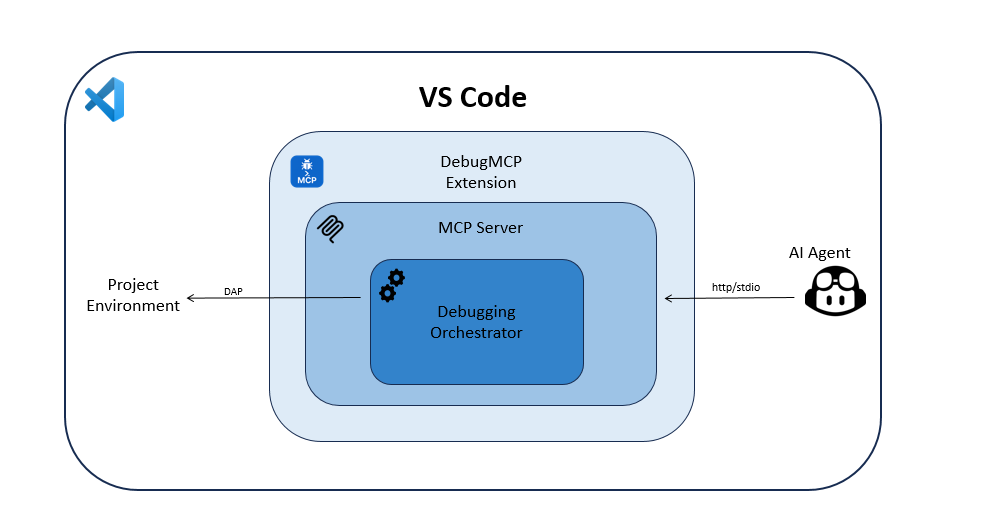
DebugMCP is an MCP server that gives AI coding agents full control over the VS Code debugger. Instead of reading logs or guessing, your AI assistant can autonomously set breakpoints, launch debug sessions, step through code line by line, inspect variable values, and evaluate expressions — just like a human developer would. It runs 100% locally, requires zero configuration, and works out of the box with any MCP-compatible AI assistant.
Features
🔧 Tools
| Tool | Description | Parameters |
|---|---|---|
| get_debug_instructions | Get the debugging guide with best practices and workflow instructions | None |
| start_debugging | Start a debug session for a source code file | fileFullPath (required)workingDirectory (required)testName (optional)configurationName (optional) |
| stop_debugging | Stop the current debug session | None |
| step_over | Execute the next line (step over function calls) | None |
| step_into | Step into function calls | None |
| step_out | Step out of the current function | None |
| continue_execution | Continue until next breakpoint | None |
| restart_debugging | Restart the current debug session | None |
| add_breakpoint | Add a breakpoint at a specific line | fileFullPath (required)lineContent (required) |
| remove_breakpoint | Remove a breakpoint from a specific line | fileFullPath (required)line (required) |
| clear_all_breakpoints | Remove all breakpoints at once | None |
| list_breakpoints | List all active breakpoints | None |
| get_variables_values | Get variables and their values at current execution point | scope (optional: 'local', 'global', 'all') |
| evaluate_expression | Evaluate an expression in debug context | expression (required) |
Note: The
get_debug_instructionstool is particularly useful for AI clients like GitHub Copilot that don't support MCP resources. It provides the same debugging guide content that is also available as an MCP resource.
🎯 Debugging Best Practices
DebugMCP follows systematic debugging practices for effective issue resolution:
- Start with Entry Points: Begin debugging at function entry points or main execution paths
- Follow the Execution Flow: Use step-by-step execution to understand code flow
- Root Cause Analysis: Don't stop at symptoms - find the underlying cause
🛡️ Security & Reliability
- Secure Communication: All MCP communications use secure protocols
- Local Operation: The MCP server runs 100% locally with no external communications and requires no credentials
- State Validation: Robust validation of debugging states and operations
Installation
Quick Install Options
Option 1: Direct Link (Fastest)
- Click this link: vscode:extension/ozzafar.debugmcpextension
- Or copy and paste in your browser:
vscode:extension/ozzafar.debugmcpextension
Option 2: VS Code Marketplace
- Visit: https://marketplace.visualstudio.com/items?itemName=ozzafar.debugmcpextension
- Click "Install"
Option 3: Within VS Code
- Open VSCode
- Go to Extensions (Ctrl+Shift+X / Cmd+Shift+X)
- Search for "DebugMCP"
- Click Install
- The extension automatically activates and registers as an MCP server
Verification
After installation, you should see:
- DebugMCP extension in your installed extensions
- MCP server automatically running on port 3001 (configurable)
- Debug tools available to connected AI assistants
📝 Note: No additional debugging rule instructions are needed - the extension works out of the box.
💡 Tip: Enable auto-approval for all debugmcp tools in your AI assistant to create seamless debugging workflows without constant approval interruptions.
Quick Start
- Install the extension (see Installation)
- Open your project in VSCode
- Ask your AI to debug - it can now set breakpoints, start debugging, and analyze your code!
Supported Languages
DebugMCP supports debugging for the following languages with their respective VSCode extensions:
| Language | Extension Required | File Extensions | Status |
|---|---|---|---|
| Python | Python | .py | ✅ Fully Supported |
| JavaScript/TypeScript | Built-in / JS Debugger | .js, .ts, .jsx, .tsx | ✅ Fully Supported |
| Java | Extension Pack for Java | .java | ✅ Fully Supported |
| C/C++ | C/C++ | .c, .cpp, .cc | ✅ Fully Supported |
| Go | Go | .go | ✅ Fully Supported |
| Rust | rust-analyzer | .rs | ✅ Fully Supported |
| PHP | PHP Debug | .php | ✅ Fully Supported |
| Ruby | Ruby | .rb | ✅ Fully Supported |
| C#/.NET | C# | .cs | ✅ Fully Supported |
Configuration
MCP Server Configuration (Recommended)
The extension runs an MCP server automatically. It will pop up a message to auto-register the MCP server in your AI assistant.
Manual MCP Server Registration (Optional)
🔄 Auto-Migration: If you previously configured DebugMCP with SSE transport, the extension will automatically migrate your configuration to the new Streamable HTTP transport on activation.
Cline
Add to your Cline settings or cline_mcp_settings.json:
{
  "mcpServers": {
    "debugmcp": {
      "type": "streamableHttp",
      "url": "http://localhost:3001/mcp",
      "description": "DebugMCP - AI-powered debugging assistant"
    }
  }
}
GitHub Copilot
Add to your VS Code settings (settings.json):
{
  "mcp": {
    "servers": {
      "debugmcp": {
        "type": "http",
        "url": "http://localhost:3001/mcp",
        "description": "DebugMCP - Multi-language debugging support"
      }
    }
  }
}
Cursor
Add to Cursor's MCP settings:
{
  "mcpServers": {
    "debugmcp": {
      "type": "streamableHttp",
      "url": "http://localhost:3001/mcp",
      "description": "DebugMCP - Debugging tools for AI assistants"
    }
  }
}
Extension Settings
Configure DebugMCP behavior in VSCode settings:
{
  "debugmcp.serverPort": 3001,
  "debugmcp.timeoutInSeconds": 180
}
| Setting | Default | Description |
|---|---|---|
debugmcp.serverPort | 3001 | Port number for the MCP server |
debugmcp.timeoutInSeconds | 180 | Timeout for debugging operations |
FAQ
Which AI assistants are supported?
DebugMCP works with any MCP-compatible AI assistant, including GitHub Copilot, Cline, Cursor, Roo Code, Windsurf, and others. If your assistant supports the Model Context Protocol, it can use DebugMCP.
Does it work with VS Code Remote SSH / Codespaces / WSL?
Yes. DebugMCP runs as a VS Code extension with extensionKind: workspace, so it activates in the remote environment where your code lives. The MCP server runs on localhost within that remote context.
Do I need to configure launch.json?
No. DebugMCP automatically generates appropriate debug configurations based on the file's language/extension. If you have a launch.json, it will use matching configurations from there. You can also specify a configuration by name using the configurationName parameter.
Is my code sent to any external service?
No. DebugMCP runs 100% locally. The MCP server runs on localhost, and no code, variables, or debug data is sent to any external service. The AI assistant communicates with the MCP server entirely within your local machine.
What if port 3001 is already in use?
Change the port in VS Code settings: "debugmcp.serverPort": 3002 (or any available port). Then update your AI assistant's MCP configuration to use the new port.
Can I debug unit tests?
Yes. Pass the testName parameter to start_debugging to debug a specific test method. DebugMCP will configure the debug session to run and pause at breakpoints within that test.
Why is my AI assistant not using the debug tools?
Make sure DebugMCP is registered in your AI assistant's MCP settings. The extension should auto-detect and offer to register itself. If not, see the Manual MCP Server Registration section. Also enable auto-approval for DebugMCP tools for a smoother workflow.
Troubleshooting
Common Issues
MCP Server Not Starting
- Symptom: AI assistant can't connect to DebugMCP
- Solution:
- Check if port 3001 is available
- Restart VSCode
- Verify extension is installed and activated
How It Works
Architecture
Launch Configuration Integration
The extension handles debug configurations intelligently:
-
Existing launch.json: If a
.vscode/launch.jsonfile exists, it will:- Search for a relevant configuration
- Use a specific configuration if found
-
Default Configuration: If no launch.json exists or no relevant config, it creates an appropriate default configurations for each language based on file extension detection
Requirements
- VSCode with appropriate language extensions installed:
- Python: Python extension for
.pyfiles - JavaScript/TypeScript: Built-in Node.js debugger or JavaScript Debugger extension
- Java: Extension Pack for Java
- C#/.NET: C# extension
- C/C++: C/C++ extension
- Go: Go extension
- Rust: rust-analyzer extension
- PHP: PHP Debug extension
- Ruby: Ruby extension with debug support
- Python: Python extension for
- MCP-compatible AI assistant (Copilot, Cline, Roo..)
Development
To build the extension:
npm install
npm run compile
Contributing
This project welcomes contributions and suggestions. Most contributions require you to agree to a Contributor License Agreement (CLA) declaring that you have the right to, and actually do, grant us the rights to use your contribution. For details, visit https://cla.opensource.microsoft.com.
When you submit a pull request, a CLA bot will automatically determine whether you need to provide a CLA and decorate the PR appropriately (e.g., status check, comment). Simply follow the instructions provided by the bot. You will only need to do this once across all repos using our CLA.
This project has adopted the Microsoft Open Source Code of Conduct. For more information see the Code of Conduct FAQ or contact opencode@microsoft.com with any additional questions or comments.
Security
Security vulnerabilities should be reported following the guidance at https://aka.ms/SECURITY.md. Please do not report security vulnerabilities through public GitHub issues.
Trademarks
This project may contain trademarks or logos for projects, products, or services. Authorized use of Microsoft trademarks or logos is subject to and must follow Microsoft's Trademark & Brand Guidelines. Use of Microsoft trademarks or logos in modified versions of this project must not cause confusion or imply Microsoft sponsorship. Any use of third-party trademarks or logos are subject to those third-party's policies.
⭐ Star History
License
MIT License - See LICENSE for details
This extension was created by Oz Zafar, Ori Bar-Ilan and Karin Brisker.