🎲 Dice MCP Server
A Model Context Protocol (MCP) server that provides dice rolling and coin flipping functionality for AI assistants like Claude.
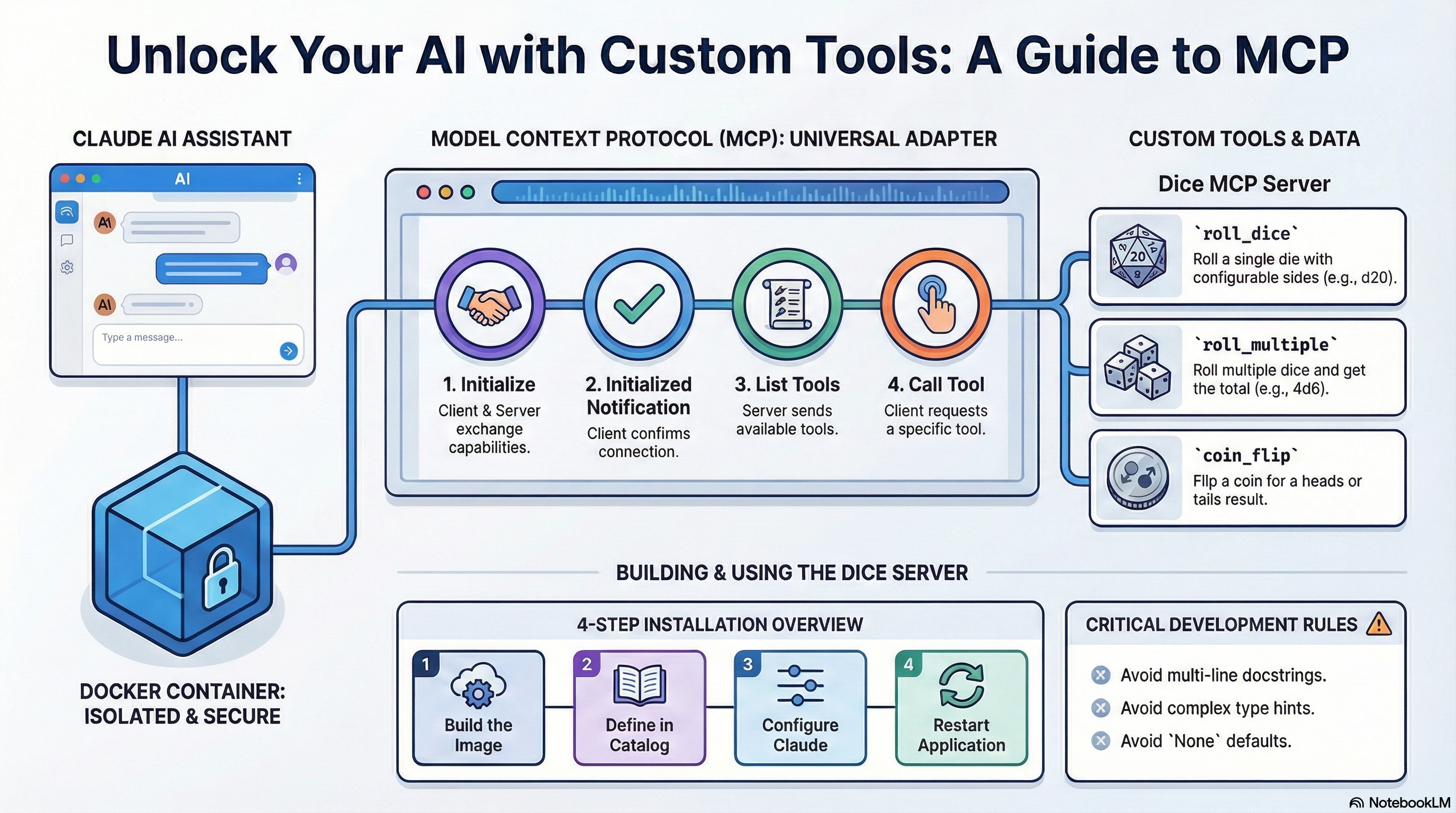
Table of Contents
- What is MCP?
- How MCP Communication Works
- Available Tools
- Prerequisites
- Installation
- Testing
- Usage Examples
- Project Structure
- Development Guide
- Best Practices
- Implementation Patterns
- Output Formatting Guidelines
- Troubleshooting
- Security Considerations
- License
- Acknowledgements
What is MCP?
The Model Context Protocol (MCP) is an open standard that allows AI assistants to securely connect to external tools and data sources. Think of it as a universal adapter that lets Claude use custom tools you create.
MCP servers run in Docker containers, providing:
- Isolation — Secure sandboxed environment
- Portability — Works on any system with Docker
- Standardization — Consistent protocol across all tools
How MCP Communication Works
MCP uses JSON-RPC 2.0 over stdio (standard input/output). Communication happens through a structured conversation between the client (Claude Desktop) and your server.
The 3-Step Handshake
Before any tools can be used, the client and server must complete an initialization handshake:
Step 1: Initialize (Client → Server)
{"jsonrpc":"2.0","method":"initialize","params":{"protocolVersion":"2024-11-05","capabilities":{},"clientInfo":{"name":"test","version":"1.0"}},"id":0}
"Hey server, I'm a client. Here's my protocol version and capabilities."
The server responds with its own capabilities and version info.
Step 2: Initialized Notification (Client → Server)
{"jsonrpc":"2.0","method":"notifications/initialized"}
"Got it! We're connected and ready to work."
Step 3: List Tools (Client → Server)
{"jsonrpc":"2.0","method":"tools/list","id":1}
"What tools do you have available?"
The server responds with all available tools, their parameters, and descriptions.
Visual Flow
┌──────────────────┐                    ┌──────────────────┐
│  Claude Desktop  │                    │  Your MCP Server │
│    (Client)      │                    │  (dice-mcp)      │
└────────┬─────────┘                    └────────┬─────────┘
         │                                       │
         │  1. initialize                        │
         │──────────────────────────────────────>│
         │                                       │
         │  Response: capabilities               │
         │<──────────────────────────────────────│
         │                                       │
         │  2. notifications/initialized         │
         │──────────────────────────────────────>│
         │                                       │
         │  3. tools/list                        │
         │──────────────────────────────────────>│
         │                                       │
         │  Response: [roll_dice, roll_multiple, │
         │            coin_flip]                 │
         │<──────────────────────────────────────│
         │                                       │
         │  4. tools/call (when you ask Claude)  │
         │──────────────────────────────────────>│
         │                                       │
         │  Response: "🎲 Rolled d20: 17"        │
         │<──────────────────────────────────────│
Why Docker + stdio?
| Component | Purpose |
|---|---|
| Docker | Isolated container for security and portability |
| stdio | Communication via stdin/stdout pipes |
-i flag | Keeps stdin open so messages can flow both ways |
--rm flag | Automatically remove container when it exits |
Claude Desktop handles all of this automatically — you just say "roll a d20" and it manages the JSON-RPC behind the scenes!
Available Tools
| Tool | Parameters | Description |
|---|---|---|
roll_dice | sides (default: "6") | Roll a single die with configurable sides |
roll_multiple | count (default: "2"), sides (default: "6") | Roll multiple dice and get total |
coin_flip | None | Flip a coin for heads or tails |
Common Dice Notation
| Dice | Sides | Common Use |
|---|---|---|
| d4 | 4 | Damage dice |
| d6 | 6 | Standard dice |
| d8 | 8 | Weapon damage |
| d10 | 10 | Percentile |
| d12 | 12 | Barbarian damage |
| d20 | 20 | Attack rolls, skill checks |
| d100 | 100 | Percentile rolls |
Prerequisites
- Docker Desktop with MCP Toolkit enabled
- Docker MCP CLI plugin (
docker mcpcommand)
Installation
Step 1: Save the Files
# Create project directory
mkdir dice-mcp-server
cd dice-mcp-server

# Save these files in the directory:
# - Dockerfile
# - requirements.txt
# - dice_server.py
# - README.md
# - CLAUDE.md
# - ACKNOWLEDGEMENTS.md
Step 2: Build Docker Image
docker build -t dice-mcp-server .
Step 3: Create Custom Catalog
# Create catalogs directory if it doesn't exist
mkdir -p ~/.docker/mcp/catalogs

# Create or edit custom.yaml
nano ~/.docker/mcp/catalogs/custom.yaml
Add this content to custom.yaml:
version: 2
name: custom
displayName: Custom MCP Servers
registry:
  dice:
    description: "Roll dice and flip coins with configurable options"
    title: "Dice Roller"
    type: server
    dateAdded: "2025-01-09T00:00:00Z"
    image: dice-mcp-server:latest
    ref: ""
    readme: ""
    toolsUrl: ""
    source: ""
    upstream: ""
    icon: ""
    tools:
      - name: roll_dice
      - name: roll_multiple
      - name: coin_flip
    metadata:
      category: productivity
      tags:
        - dice
        - random
        - games
      license: MIT
      owner: local
Nano Save Tips:
Ctrl + O→ SaveEnter→ Confirm filenameCtrl + X→ Exit
Step 4: Update Registry
nano ~/.docker/mcp/registry.yaml
Add this entry under the existing registry: key:
registry:
  # ... existing servers ...
  dice:
    ref: ""
Step 5: Configure Claude Desktop
Find your Claude Desktop config file:
| OS | Path |
|---|---|
| macOS | ~/Library/Application Support/Claude/claude_desktop_config.json |
| Windows | %APPDATA%\Claude\claude_desktop_config.json |
| Linux | ~/.config/Claude/claude_desktop_config.json |
Ensure your config includes the custom catalog:
{
  "mcpServers": {
    "mcp-toolkit-gateway": {
      "command": "docker",
      "args": [
        "run",
        "-i",
        "--rm",
        "-v", "/var/run/docker.sock:/var/run/docker.sock",
        "-v", "[YOUR_HOME]/.docker/mcp:/mcp",
        "docker/mcp-gateway",
        "--catalog=/mcp/catalogs/docker-mcp.yaml",
        "--catalog=/mcp/catalogs/custom.yaml",
        "--config=/mcp/config.yaml",
        "--registry=/mcp/registry.yaml",
        "--tools-config=/mcp/tools.yaml",
        "--transport=stdio"
      ]
    }
  }
}
Replace [YOUR_HOME] with your home directory path:
- macOS:
/Users/your_username - Windows:
C:\\Users\\your_username - Linux:
/home/your_username
Note: JSON does not support comments. Remove any // comments if present.
Step 6: Restart Claude Desktop
- Quit Claude Desktop completely
- Start Claude Desktop again
- Your dice tools should now appear!
Testing
Verify Docker Image
docker images | grep dice
Test MCP Protocol
echo '{"jsonrpc":"2.0","method":"initialize","params":{"protocolVersion":"2024-11-05","capabilities":{},"clientInfo":{"name":"test","version":"1.0"}},"id":0}
{"jsonrpc":"2.0","method":"notifications/initialized"}
{"jsonrpc":"2.0","method":"tools/list","id":1}' | docker run -i --rm dice-mcp-server
Expected output includes your three tools: roll_dice, roll_multiple, and coin_flip.
Verify Server in Docker MCP
docker mcp server list
Test in Claude Desktop
Just ask Claude:
- "Roll a dice"
- "Roll a d20"
- "Roll 4d6"
- "Flip a coin"
Usage Examples
Once installed, you can ask Claude things like:
| Request | Tool Used |
|---|---|
| "Roll a dice" | roll_dice |
| "Roll a d20 for initiative" | roll_dice(sides="20") |
| "Roll 4d6 for stats" | roll_multiple(count="4", sides="6") |
| "Flip a coin to decide" | coin_flip |
Project Structure
dice-mcp-server/
├── Dockerfile           # Docker container configuration
├── requirements.txt     # Python dependencies
├── dice_server.py       # Main MCP server code
├── README.md            # This file
├── CLAUDE.md            # Implementation guidelines
└── ACKNOWLEDGEMENTS.md  # Credits and thanks
Development Guide
Adding New Tools
- Add a new function to
dice_server.pywith the@mcp.tool()decorator - Use single-line docstrings only
- Default parameters to empty strings (
param: str = "") - Always return a formatted string
- Update
custom.yamlwith the new tool name - Rebuild:
docker build -t dice-mcp-server .
Local Testing Without Docker
pip install "mcp[cli]>=1.2.0"
python dice_server.py
Testing MCP Protocol Locally
# Set environment variables for testing
export SOME_VAR="test-value"

# Run directly
python dice_server.py

# Test MCP protocol
echo '{"jsonrpc":"2.0","method":"tools/list","id":1}' | python dice_server.py
Best Practices
Critical Rules for MCP Server Development
These rules prevent common errors that break Claude Desktop integration:
| Rule | Description |
|---|---|
❌ NO @mcp.prompt() | Prompt decorators break Claude Desktop |
❌ NO prompt parameter | Don't pass prompt to FastMCP() |
| ❌ NO complex type hints | Avoid Optional, Union, List[str], etc. |
❌ NO None defaults | Use param: str = "" not param: str = None |
| ✅ Single-line docstrings | Multi-line docstrings cause gateway panic errors |
| ✅ Default to empty strings | Always use param: str = "" |
| ✅ Return strings | All tools must return formatted strings |
| ✅ Use Docker | Server must run in a Docker container |
| ✅ Log to stderr | Use the logging configuration provided |
| ✅ Handle errors gracefully | Return user-friendly error messages |
Code Generation Checklist
Before deploying your MCP server, verify:
- No
@mcp.prompt()decorators used - No
promptparameter inFastMCP() - No complex type hints
- ALL tool docstrings are SINGLE-LINE only
- ALL parameters default to empty strings (
"") notNone - All tools return strings
- Check for empty strings with
.strip()not just truthiness - Error handling in every tool
- Security handled via Docker secrets (if needed)
- Catalog includes
version: 2,name,displayName, andregistrywrapper - Registry entries are under
registry:key withref: "" - Date format is ISO 8601 (
YYYY-MM-DDTHH:MM:SSZ) - Claude config JSON has no comments
Implementation Patterns
✅ Correct Tool Implementation
@mcp.tool()
async def fetch_data(endpoint: str = "", limit: str = "10") -> str:
    """Fetch data from API endpoint with optional limit."""
    # Check for empty strings, not just truthiness
    if not endpoint.strip():
        return "❌ Error: Endpoint is required"

    try:
        # Convert string parameters as needed
        limit_int = int(limit) if limit.strip() else 10
        # Implementation
        return f"✅ Fetched {limit_int} items"
    except ValueError:
        return f"❌ Error: Invalid limit value: {limit}"
    except Exception as e:
        return f"❌ Error: {str(e)}"
❌ Incorrect Tool Implementation
# DON'T DO THIS:
@mcp.tool()
async def bad_example(
    endpoint: Optional[str] = None,  # ❌ Optional type hint
    limit: int = 10                   # ❌ Non-string parameter
) -> dict:                            # ❌ Non-string return type
    """
    This is a multi-line docstring.   # ❌ Multi-line docstring
    It will cause gateway panic errors.
    """
    return {"result": "data"}          # ❌ Returns dict, not string
API Integration Pattern
async with httpx.AsyncClient() as client:
    try:
        response = await client.get(url, headers=headers, timeout=10)
        response.raise_for_status()
        data = response.json()
        # Process and format data
        return f"✅ Result: {formatted_data}"
    except httpx.HTTPStatusError as e:
        return f"❌ API Error: {e.response.status_code}"
    except Exception as e:
        return f"❌ Error: {str(e)}"
System Command Pattern
import subprocess

try:
    result = subprocess.run(
        command,
        capture_output=True,
        text=True,
        timeout=10,
        shell=True  # Only if needed
    )
    if result.returncode == 0:
        return f"✅ Output:\n{result.stdout}"
    else:
        return f"❌ Error:\n{result.stderr}"
except subprocess.TimeoutExpired:
    return "⏱️ Command timed out"
File Operations Pattern
try:
    with open(filename, 'r') as f:
        content = f.read()
    return f"✅ File content:\n{content}"
except FileNotFoundError:
    return f"❌ File not found: {filename}"
except Exception as e:
    return f"❌ Error reading file: {str(e)}"
Output Formatting Guidelines
Use emojis for visual clarity in your tool responses:
| Emoji | Use Case |
|---|---|
| ✅ | Success operations |
| ❌ | Errors or failures |
| ⏱️ | Time-related information |
| 📊 | Data or statistics |
| 🔍 | Search or lookup operations |
| ⚡ | Actions or commands |
| 🔒 | Security-related information |
| 📁 | File operations |
| 🌐 | Network operations |
| ⚠️ | Warnings |
| 🎲 | Dice/random operations |
| 🪙 | Coin flip operations |
Formatting Multi-line Output
return f"""📊 Results:
- Field 1: {value1}
- Field 2: {value2}
- Field 3: {value3}

Summary: {summary}"""
Troubleshooting
Tools Not Appearing in Claude
- Verify Docker image built successfully:
docker images | grep dice - Check that
custom.yamlis properly formatted (YAML is whitespace-sensitive) - Ensure Claude Desktop config includes
--catalog=/mcp/catalogs/custom.yaml - Verify registry entry is under the
registry:key, not at root level - Restart Claude Desktop completely (quit and reopen)
"Request before initialization" Error
This is expected when testing with a simple echo command. The MCP protocol requires the full handshake sequence. Claude Desktop handles this automatically.
Gateway Panic Errors
Usually caused by:
- Multi-line docstrings (use single-line only)
@mcp.prompt()decorators (remove them)promptparameter inFastMCP()(remove it)
Container Won't Start
Check Docker logs:
docker logs $(docker ps -lq)
Authentication Errors (for API-based servers)
- Verify secrets with
docker mcp secret list - Ensure secret names match in code and catalog
- Check environment variable names match
Security Considerations
| Practice | Description |
|---|---|
| Non-root user | Container runs as mcpuser (UID 1000) |
| No hardcoded secrets | Use Docker Desktop secrets for API keys |
| Stderr logging | Sensitive data never logged to stdout |
| Input validation | All inputs sanitized before use |
| Error handling | Graceful failures with user-friendly messages |
License
MIT License
Acknowledgements
See ACKNOWLEDGEMENTS.md for credits and thanks.