
Env-Doctor
The missing link between your GPU and Python AI libraries


"Why does my PyTorch crash with CUDA errors when I just installed it?"
Because your driver supports CUDA 11.8, but
pip install torchgave you CUDA 12.4 wheels.
Env-Doctor diagnoses and fixes the #1 frustration in GPU computing: mismatched CUDA versions between your NVIDIA driver, system toolkit, cuDNN, and Python libraries.
It takes 5 seconds to find out if your environment is broken - and exactly how to fix it.
Doctor "Check" (Diagnosis)
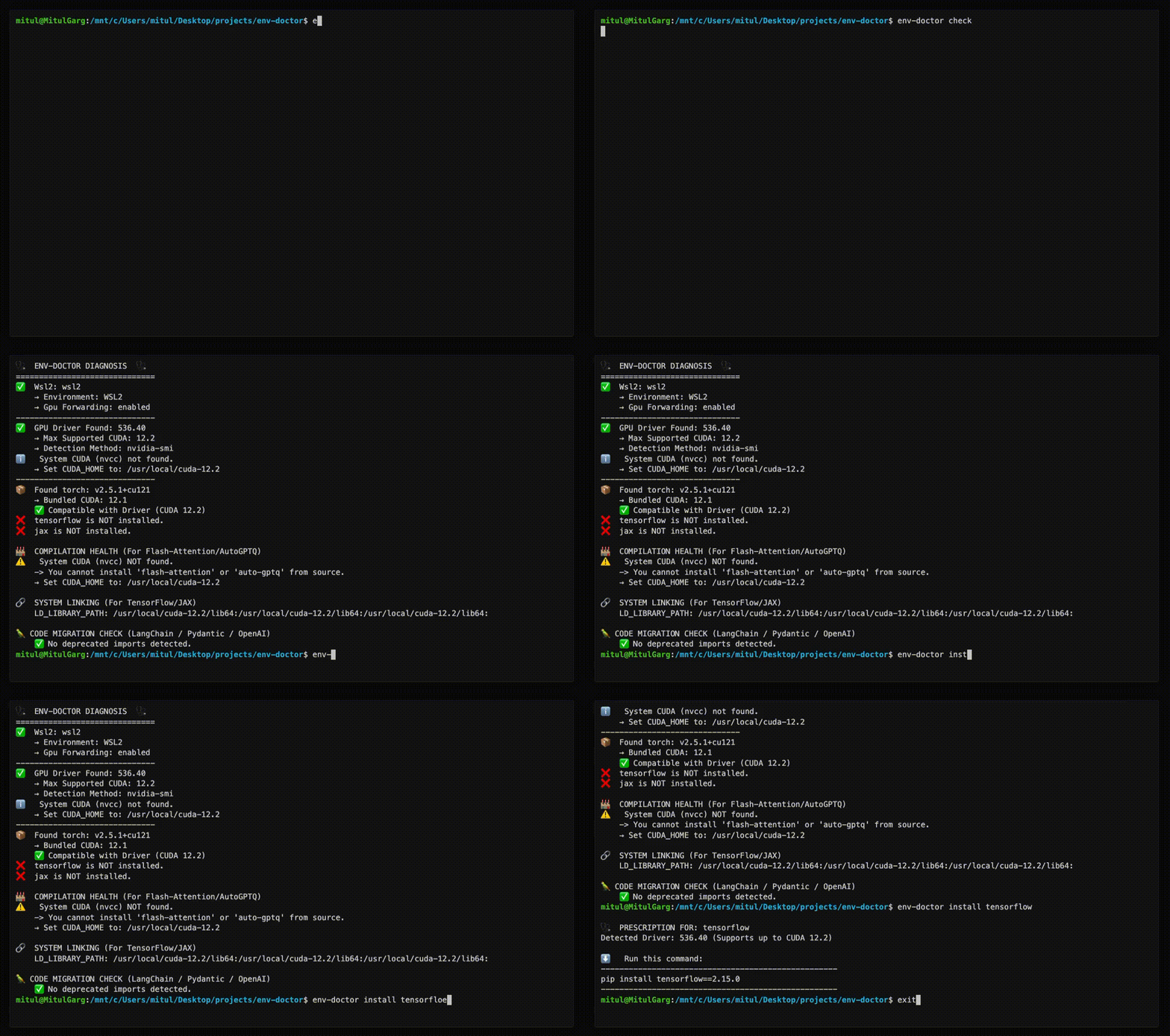
Features
| Feature | What It Does |
|---|---|
| One-Command Diagnosis | Check compatibility: GPU Driver → CUDA Toolkit → cuDNN → PyTorch/TensorFlow/JAX |
| Python Version Compatibility | Detect Python version conflicts with AI libraries and dependency cascade impacts |
| CUDA Installation Guide | Get platform-specific, copy-paste CUDA installation commands for your system |
| Safe Install Commands | Get the exact pip install command that works with YOUR driver |
| Extension Library Support | Install compilation packages (flash-attn, SageAttention, auto-gptq, apex, xformers) with CUDA version matching |
| AI Model Compatibility | Check if LLMs, Diffusion, or Audio models fit on your GPU before downloading |
| WSL2 GPU Support | Validate GPU forwarding, detect driver conflicts within WSL2 env for Windows users |
| Deep CUDA Analysis | Find multiple installations, PATH issues, environment misconfigurations |
| Container Validation | Catch GPU config errors in Dockerfiles before you build |
| MCP Server | Expose diagnostics to AI assistants (Claude Desktop, Zed) via Model Context Protocol |
| CI/CD Ready | JSON output and proper exit codes for automation |
Installation
pip install env-doctor
Usage
Diagnose Your Environment
env-doctor check
Example output:
🩺 ENV-DOCTOR DIAGNOSIS
============================================================

🖥️  Environment: Native Linux

🎮 GPU Driver
   ✅ NVIDIA Driver: 535.146.02
   └─ Max CUDA: 12.2

🔧 CUDA Toolkit
   ✅ System CUDA: 12.1.1

📦 Python Libraries
   ✅ torch 2.1.0+cu121

✅ All checks passed!
Check Python Version Compatibility
env-doctor python-compat
🐍  PYTHON VERSION COMPATIBILITY CHECK
============================================================
Python Version: 3.13 (3.13.0)
Libraries Checked: 2

❌  2 compatibility issue(s) found:

    tensorflow:
      tensorflow supports Python <=3.12, but you have Python 3.13
      Note: TensorFlow 2.15+ requires Python 3.9-3.12. Python 3.13 not yet supported.

    torch:
      torch supports Python <=3.12, but you have Python 3.13
      Note: PyTorch 2.x supports Python 3.9-3.12. Python 3.13 support experimental.

⚠️   Dependency Cascades:
    tensorflow [high]: TensorFlow's Python ceiling propagates to keras and tensorboard
      Affected: keras, tensorboard, tensorflow-estimator
    torch [high]: PyTorch's Python version constraint affects all torch ecosystem packages
      Affected: torchvision, torchaudio, triton

💡  Consider using Python 3.12 or lower for full compatibility

💡  Cascade: tensorflow constraint also affects: keras, tensorboard, tensorflow-estimator

💡  Cascade: torch constraint also affects: torchvision, torchaudio, triton

============================================================
Get Safe Install Command
env-doctor install torch
⬇️ Run this command to install the SAFE version:
---------------------------------------------------
pip install torch torchvision --index-url https://download.pytorch.org/whl/cu118
---------------------------------------------------
Get CUDA Installation Instructions
env-doctor cuda-install
============================================================
CUDA TOOLKIT INSTALLATION GUIDE
============================================================

Detected Platform:
    Linux (ubuntu 22.04, x86_64)

Driver: 535.146.02 (supports up to CUDA 12.2)
Recommended CUDA Toolkit: 12.1

============================================================
Ubuntu 22.04 (x86_64) - Network Install
============================================================

Installation Steps:
------------------------------------------------------------
    1. wget https://developer.download.nvidia.com/compute/cuda/repos/ubuntu2204/x86_64/cuda-keyring_1.1-1_all.deb
    2. sudo dpkg -i cuda-keyring_1.1-1_all.deb
    3. sudo apt-get update
    4. sudo apt-get -y install cuda-toolkit-12-1

Post-Installation Setup:
------------------------------------------------------------
    export PATH=/usr/local/cuda-12.1/bin${PATH:+:${PATH}}
    export LD_LIBRARY_PATH=/usr/local/cuda-12.1/lib64${LD_LIBRARY_PATH:+:${LD_LIBRARY_PATH}}

    TIP: Add the above exports to ~/.bashrc or ~/.zshrc

Verify Installation:
------------------------------------------------------------
    nvcc --version

Official Download Page:
    https://developer.nvidia.com/cuda-12-1-0-download-archive
Supported Platforms:
- Ubuntu 20.04, 22.04, 24.04
- Debian 11, 12
- RHEL 8, 9 / Rocky Linux / AlmaLinux
- Fedora 39+
- WSL2 (Ubuntu)
- Windows 10/11
- Conda (all platforms)
Install Compilation Packages (Extension Libraries)
For extension libraries like flash-attn, SageAttention, auto-gptq, apex, and xformers that require compilation from source, env-doctor provides special guidance to handle CUDA version mismatches:
env-doctor install flash-attn
Example output (with CUDA mismatch):
🩺  PRESCRIPTION FOR: flash-attn

⚠️   CUDA VERSION MISMATCH DETECTED
     System nvcc: 12.1.1
     PyTorch CUDA: 12.4.1

🔧  flash-attn requires EXACT CUDA version match for compilation.
    You have TWO options to fix this:

============================================================
📦  OPTION 1: Install PyTorch matching your nvcc (12.1)
============================================================

Trade-offs:
  ✅ No system changes needed
  ✅ Faster to implement
  ❌ Older PyTorch version (may lack new features)

Commands:
  # Uninstall current PyTorch
  pip uninstall torch torchvision torchaudio -y

  # Install PyTorch for CUDA 12.1
  pip install torch --index-url https://download.pytorch.org/whl/cu121

  # Install flash-attn
  pip install flash-attn --no-build-isolation

============================================================
⚙️   OPTION 2: Upgrade nvcc to match PyTorch (12.4)
============================================================

Trade-offs:
  ✅ Keep latest PyTorch
  ✅ Better long-term solution
  ❌ Requires system-level changes
  ❌ Verify driver supports CUDA 12.4

Steps:
  1. Check driver compatibility:
     env-doctor check

  2. Download CUDA Toolkit 12.4:
     https://developer.nvidia.com/cuda-12-4-0-download-archive

  3. Install CUDA Toolkit (follow NVIDIA's platform-specific guide)

  4. Verify installation:
     nvcc --version

  5. Install flash-attn:
     pip install flash-attn --no-build-isolation

============================================================
Check Model Compatibility
env-doctor model llama-3-8b
🤖  Checking: LLAMA-3-8B (8.0B params)

🖥️   Your Hardware: RTX 3090 (24GB)

💾  VRAM Requirements:
  ✅  FP16: 19.2GB - fits with 4.8GB free
  ✅  INT4:  4.8GB - fits with 19.2GB free

✅  This model WILL FIT on your GPU!
List all models: env-doctor model --list
Automatic HuggingFace Support (New ✨) If a model isn't found locally, env-doctor automatically checks the HuggingFace Hub, fetches its parameter metadata, and caches it locally for future runs — no manual setup required.
# Fetches from HuggingFace on first run, cached afterward
env-doctor model bert-base-uncased
env-doctor model sentence-transformers/all-MiniLM-L6-v2
Output:
🤖  Checking: BERT-BASE-UNCASED
    (Fetched from HuggingFace API - cached for future use)
    Parameters: 0.11B
    HuggingFace: bert-base-uncased

🖥️   Your Hardware:
    RTX 3090 (24GB VRAM)

💾  VRAM Requirements & Compatibility
  ✅  FP16:  264 MB - Fits easily!

💡  Recommendations:
1. Use fp16 for best quality on your GPU
Validate Dockerfiles
env-doctor dockerfile
🐳  DOCKERFILE VALIDATION

❌  Line 1: CPU-only base image: python:3.10
    Fix: FROM nvidia/cuda:12.1.0-runtime-ubuntu22.04

❌  Line 8: PyTorch missing --index-url
    Fix: pip install torch --index-url https://download.pytorch.org/whl/cu121
More Commands
| Command | Purpose |
|---|---|
env-doctor check | Full environment diagnosis |
env-doctor python-compat | Check Python version compatibility with AI libraries |
env-doctor cuda-install | Step-by-step CUDA Toolkit installation guide |
env-doctor install <lib> | Safe install command for PyTorch/TensorFlow/JAX, extension libraries (flash-attn, auto-gptq, apex, xformers, SageAttention, etc.) |
env-doctor model <name> | Check model VRAM requirements |
env-doctor cuda-info | Detailed CUDA toolkit analysis |
env-doctor cudnn-info | cuDNN library analysis |
env-doctor dockerfile | Validate Dockerfile |
env-doctor docker-compose | Validate docker-compose.yml |
env-doctor scan | Scan for deprecated imports |
env-doctor debug | Verbose detector output |
CI/CD Integration
# JSON output for scripting
env-doctor check --json

# CI mode with exit codes (0=pass, 1=warn, 2=error)
env-doctor check --ci
GitHub Actions example:
- run: pip install env-doctor
- run: env-doctor check --ci
MCP Server (AI Assistant Integration)
Env-Doctor includes a built-in Model Context Protocol (MCP) server that exposes diagnostic tools to AI assistants like Claude Desktop.
Quick Setup for Claude Desktop
-
Install env-doctor:
pip install env-doctor -
Add to Claude Desktop config (
~/Library/Application Support/Claude/claude_desktop_config.json):{ "mcpServers": { "env-doctor": { "command": "env-doctor-mcp" } } } -
Restart Claude Desktop - the tools will be available automatically.
Available Tools (11 Total)
env_check- Full GPU/CUDA environment diagnosticsenv_check_component- Check specific component (driver, CUDA, cuDNN, etc.)python_compat_check- Check Python version compatibility with installed AI librariescuda_info- Detailed CUDA toolkit informationcudnn_info- Detailed cuDNN library informationcuda_install- Step-by-step CUDA installation instructionsinstall_command- Get safe pip install commands for AI librariesmodel_check- Analyze if AI models fit on your GPUmodel_list- List all available models in databasedockerfile_validate- Validate Dockerfiles for GPU issuesdocker_compose_validate- Validate docker-compose.yml for GPU configuration
Example Usage
Ask Claude Desktop:
- "Check my GPU environment"
- "Is my Python version compatible with my installed AI libraries?"
- "How do I install CUDA Toolkit on Ubuntu?"
- "Get me the pip install command for PyTorch"
- "Can I run Llama 3 70B on my GPU?"
- "Validate this Dockerfile for GPU issues"
- "What CUDA version does my PyTorch require?"
- "Show me detailed CUDA toolkit information"
Learn more: MCP Integration Guide
Documentation
Full documentation: https://mitulgarg.github.io/env-doctor/
- Getting Started
- Command Reference
- MCP Integration Guide
- WSL2 GPU Guide
- CI/CD Integration
- Architecture
Video Tutorial: Watch Demo on YouTube
Contributing
Contributions welcome! See CONTRIBUTING.md for details.
License
MIT License - see LICENSE