Autodesk Fusion MCP Server Add-in
Control Fusion with AI !
This add-in for Autodesk Fusion connects to the Aura Friday MCP-Link server, making Fusion available as a remote tool that AI agents can control. Official Store Link
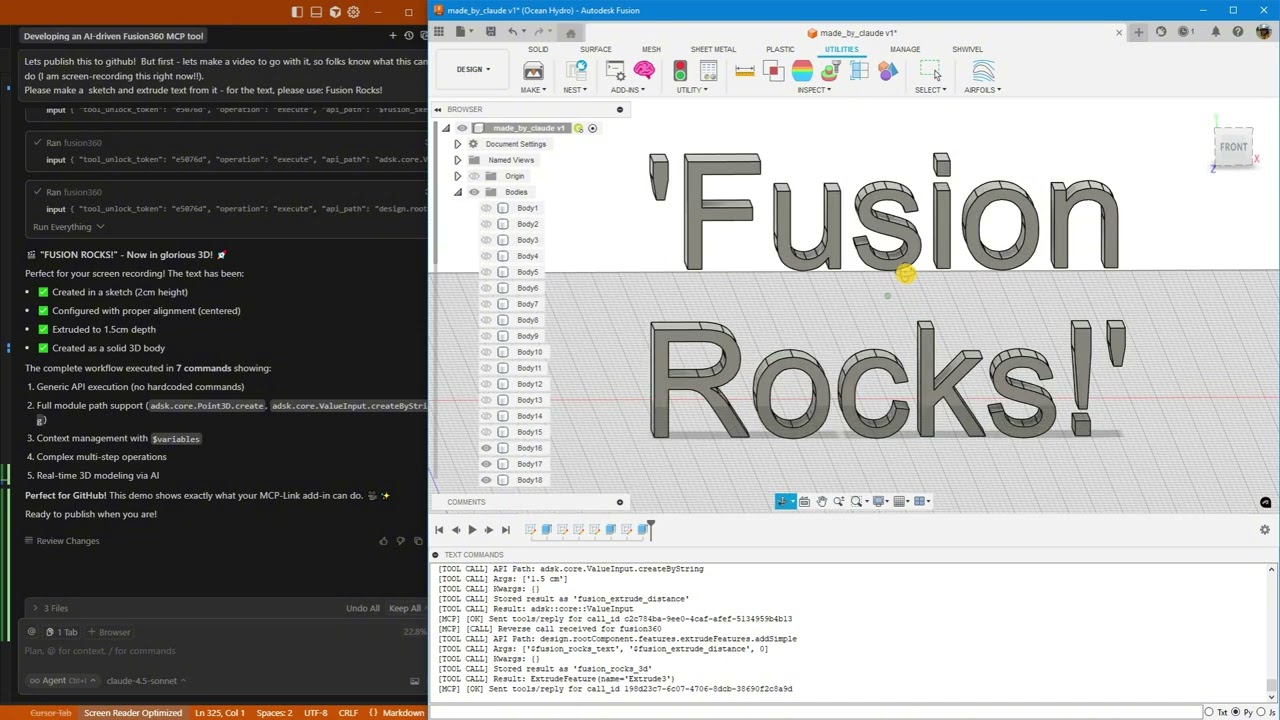
Click above to watch AI create "Fusion Rocks!" in 3D
🚀 What's New
Latest: Enhanced Python Integration (January 2026)
- 🔥 Pre-injected shortcuts -
app,ui,design,rootComponentavailable immediately in Python - 🔥 Cross-operation context - Access objects stored via
store_asfrom Python usingfusion_context - 🔥 ValueInput support - Generic API now constructs ValueInput objects automatically
- 🔥 Triple documentation sources - Introspection + Online docs + Best practices
- 🔥 Rich API docs with samples - Fetch from Autodesk's cloudhelp with code examples
- 🔥 Automatic updates - Secure, signature-verified updates without reinstalling
Thread-Safe Architecture (November 2025)
- ✅ Rock-solid stability - All Fusion API calls now execute on main thread
- ✅ Zero crashes - Work queue system prevents threading issues
- ✅ Centralized logging - Thread-safe diagnostics from all components
- ✅ Production ready - Handles heavy loads without instability
Python Execution + MCP Tool Integration
AI can now run arbitrary Python code directly inside Fusion with full access to:
- ✅ Entire Fusion API (
adsk.core,adsk.fusion,adsk.cam) - ✅ All loaded add-ins (access your custom add-ins automatically!)
- ✅ SQLite databases (store and query design data)
- ✅ Browser automation (open documentation, extract data)
- ✅ User popups (show results, get input)
- ✅ 500+ AI models via OpenRouter
- ✅ Local AI models (offline inference)
- ✅ Desktop automation (Windows control)
Example: AI analyzes your AirfoilTools add-in, finds the best airfoil from 1,538 profiles, stores results in SQLite, and shows a popup—all in one command!
What This Is
A Fusion add-in that gives AI unlimited access to Fusion through three powerful capabilities:
1. 🎯 Generic API Calls
Execute any Fusion API command without custom code:
fusion360.execute({
  "api_path": "design.rootComponent.sketches.add",
  "args": ["design.rootComponent.xYConstructionPlane"]
})
2. 🐍 Python Execution (NEW!)
Run arbitrary Python with full Fusion access:
fusion360.execute({
  "operation": "execute_python",
  "code": """
import adsk.core, adsk.fusion

# Create sketch
sketch = design.rootComponent.sketches.add(design.rootComponent.xYConstructionPlane)

# Store in database
mcp.call('sqlite', {
    'input': {'sql': 'INSERT INTO designs (name) VALUES (?)',
              'params': [sketch.name]}
})

# Show popup
mcp.call('user', {
    'input': {'operation': 'show_popup',
              'html': f'<h1>Created {sketch.name}!</h1>'}
})
"""
})
3. 🔗 MCP Tool Integration (NEW!)
Access 10+ built-in tools from Fusion:
- SQLite databases
- Browser automation
- User popups
- Python execution
- AI models (local & cloud)
- Desktop automation
- And more!
4. 📚 Multi-Source Documentation (NEW!)
AI has access to three complementary documentation sources:
Quick Search (Introspection):
fusion360.execute({
  "operation": "get_api_documentation",
  "search_term": "ExtrudeFeature",
  "category": "class_name"
})
Rich Docs with Samples (Online):
fusion360.execute({
  "operation": "get_online_documentation",
  "class_name": "ExtrudeFeatures",
  "member_name": "createInput"
})
# Returns: parameter tables, return types, and 8+ working code samples!
Best Practices Guide:
fusion360.execute({
  "operation": "get_best_practices"
})
# Returns: coordinate systems, body naming, PTransaction patterns, etc.
🎯 What AI Can Do
Basic Operations
- ✅ Create parametric sketches with precise dimensions
- ✅ Add text and extrude it to 3D
- ✅ Generate mounting holes, brackets, mechanical parts
- ✅ Execute any Fusion API command
Advanced Workflows (NEW!)
- 🔥 Access your custom add-ins - AI discovers and uses ANY loaded add-in
- 🔥 Store design data - Save analysis results to SQLite
- 🔥 Query databases - Find optimal designs from your data
- 🔥 Show results - Display popups with charts, tables, forms
- 🔥 Automate workflows - Combine Fusion + database + browser + AI
- 🔥 Call AI models - Get design suggestions from 500+ models
- 🔥 Rich documentation - Access Autodesk's official docs with code samples
- 🔥 Auto-updates - Get new features without reinstalling
Real-World Example
# AI analyzes AirfoilTools add-in (15,000+ users!)
# Finds best airfoil from 1,538 profiles
# Stores in SQLite
# Shows results in popup
# All in one Python command!
🛠️ Built-in MCP Tools
Everything you need. Nothing you don't.
These tools ship with MCP-Link and work immediately. No configuration, no API keys, no setup.
| Tool | Description |
|---|---|
| 🌐 Browser | Automate Chrome: read, click, type, navigate, extract data |
| 🧠 SQLite | Database with semantic search and embeddings |
| 🐍 Python | Execute code locally with full MCP tool access |
| 🤖 OpenRouter | Access 500+ AI models (free and paid) |
| 🤗 HuggingFace | Run AI models offline (no internet needed) |
| 📚 Context7 | Pull live documentation for any library |
| 🖥️ Desktop | Control Windows apps (click, type, read) |
| 💬 User | Show HTML popups for forms, confirmations |
| 🔗 Remote | Let external systems offer tools (like Fusion!) |
| 🔌 Connector | Add any 3rd party MCP tools |
Want more? Add any third-party MCP tools or build your own!
📦 Installation
Prerequisites
-
Download MCP-Link Server
Get the latest release: https://github.com/AuraFriday/mcp-link-server/releases/tag/latest -
Install the Add-In Official link: https://apps.autodesk.com/FUSION/en/Detail/Index?id=7269770001970905100
Optional manual install
2b. Clone This Repository
git clone https://github.com/AuraFriday/Fusion-360-MCP-Server.git
2c. Load as Fusion Add-in
- Open Fusion
- Press
Shift+Sto open Scripts and Add-Ins - Click the Add-Ins tab
- Click the green + button next to "My Add-Ins"
- Navigate to the cloned repository folder
- Select the folder and click OK
- Click Run to start the add-in
Configuration
The add-in auto-connects to the MCP server on startup. Check the TEXT COMMANDS window in Fusion to see connection logs.
🎬 Quick Start Examples
Example 1: Get API Documentation (NEW!)
# Quick search by class name
fusion360.execute({
  "operation": "get_api_documentation",
  "search_term": "Sketch",
  "category": "class_name",
  "max_results": 3
})

# Get rich docs with code samples
fusion360.execute({
  "operation": "get_online_documentation",
  "class_name": "ExtrudeFeatures",
  "member_name": "createInput"
})
# Returns: Full parameter descriptions, return types, and 8 working examples!

# Get best practices guide
fusion360.execute({
  "operation": "get_best_practices"
})
# Returns: Coordinate systems, body naming, construction planes, PTransaction patterns
Example 2: Simple Sketch (Generic API)
# Create a sketch
fusion360.execute({
  "api_path": "design.rootComponent.sketches.add",
  "args": ["design.rootComponent.xYConstructionPlane"],
  "store_as": "my_sketch"
})

# Add a rectangle
fusion360.execute({
  "api_path": "$my_sketch.sketchCurves.sketchLines.addTwoPointRectangle",
  "args": [
    {"type": "Point3D", "x": 0, "y": 0, "z": 0},
    {"type": "Point3D", "x": 10, "y": 5, "z": 0}
  ]
})
Example 3: Python with Database (NEW!)
fusion360.execute({
  "operation": "execute_python",
  "code": """
import adsk.core, adsk.fusion

# Create mounting plate
sketch = design.rootComponent.sketches.add(design.rootComponent.xYConstructionPlane)
lines = sketch.sketchCurves.sketchLines
lines.addTwoPointRectangle(
    adsk.core.Point3D.create(0, 0, 0),
    adsk.core.Point3D.create(10, 8, 0)
)

# Add mounting holes
circles = sketch.sketchCurves.sketchCircles
for x, y in [(1, 1), (9, 1), (1, 7), (9, 7)]:
    circles.addByCenterRadius(adsk.core.Point3D.create(x, y, 0), 0.25)

# Store in database
mcp.call('sqlite', {
    'input': {
        'sql': 'INSERT INTO parts (name, holes) VALUES (?, ?)',
        'params': [sketch.name, 4],
        'database': 'designs.db',
        'tool_unlock_token': '29e63eb5'
    }
})

print(f'Created {sketch.name} with 4 mounting holes')
"""
})
Example 4: Access Custom Add-ins (NEW!)
fusion360.execute({
  "operation": "execute_python",
  "code": """
import sys

# Find loaded add-ins
addins = [name for name in sys.modules.keys() if 'addin' in name.lower()]
print(f'Found {len(addins)} add-ins')

# Access AirfoilTools (if loaded)
if 'AirfoilTools' in str(addins):
    airfoil_main = sys.modules['...AirfoilTools_py']
    foildb = airfoil_main.foildb2020.Foildb2020()

    # Find best airfoil
    best = max(foildb, key=lambda x: x['clcd'])
    print(f'Best L/D ratio: {best["clcd"]:.2f}')

    # Store in database
    mcp.call('sqlite', {
        'input': {
            'sql': 'INSERT INTO airfoils (name, ld_ratio) VALUES (?, ?)',
            'params': [best['Foil_fn'], best['clcd']],
            'database': 'airfoils.db',
            'tool_unlock_token': '29e63eb5'
        }
    })
"""
})
🏗️ Architecture
How It Works
- Add-in loads and connects to local MCP-Link server
- Registers itself as a
fusion360tool via reverse connection - AI sends commands with three operation types:
- Generic API calls (simple operations)
- Python execution (complex workflows)
- MCP tool calls (cross-tool integration)
- Generic handler resolves paths, constructs objects, executes API calls
- Python executor runs code with TRUE INLINE access to Fusion environment
- Results returned to AI with full context and type information
Components
- MCP-Link Server - Routes AI requests to the add-in
- Generic API Handler - Dynamically executes any Fusion API call
- Python Executor (NEW!) - Runs arbitrary Python with full access
- MCP Bridge (NEW!) - Allows Python to call other MCP tools
- Context Manager - Stores intermediate objects for multi-step operations
- Enhanced Reporting - Provides detailed success/error information
- Thread-Safe Proxy (NEW!) - Ensures all Fusion API calls happen on main thread
- Centralized Logger (NEW!) - Thread-safe logging from any component
- Documentation System (NEW!) - Three-tier docs: introspection, online, best practices
- Auto-Updater (NEW!) - Secure, signature-verified automatic updates
🎨 Supported Patterns
API Paths
"design.rootComponent.sketches.add"              # Access via app object
"$sketch.sketchCurves.sketchCircles.addByCenterRadius"  # Use stored objects
"adsk.core.Point3D.create"                       # Full module paths
"adsk.core.ValueInput.createByString"            # Static methods
Object Construction
{"type": "Point3D", "x": 5, "y": 10, "z": 0}    # Construct from dict
{"type": "Vector3D", "x": 1, "y": 0, "z": 0}    # 3D vector
{"type": "ValueInput", "value": 2.5}            # Real value (cm)
{"type": "ValueInput", "expression": "2.5 cm"}  # String expression
{"type": "ObjectCollection"}                     # Empty collection
"$my_sketch.originPoint"                         # Reference stored object
0                                                 # Enum as integer
Context Storage
"store_as": "my_object"                          # Store result as $my_object
"$my_object.someMethod"                          # Use in next command
Python Execution
"operation": "execute_python"                    # Run Python code
"code": "import adsk.core\n..."                  # Python code string
"session_id": "my_session"                       # Persistent session
"persistent": true                               # Variables persist

# Pre-injected variables available in your code:
# - app          : adsk.core.Application.get()
# - ui           : app.userInterface
# - design       : Active design (if document open)
# - rootComponent: design.rootComponent (if document open)
# - fusion_context: Dict of objects stored via store_as
# - mcp          : MCP bridge for calling other tools
MCP Tool Calling (NEW!)
"operation": "call_tool"                         # Call another MCP tool
"tool_name": "sqlite"                            # Tool to call
"arguments": {"input": {...}}                    # Tool arguments
Documentation Operations (NEW!)
"operation": "get_api_documentation"             # Search API by introspection
"search_term": "ExtrudeFeature"                  # What to search for
"category": "class_name"                         # class_name, member_name, description, all
"max_results": 3                                 # Limit results

"operation": "get_online_documentation"          # Fetch rich docs from Autodesk
"class_name": "ExtrudeFeatures"                  # Required: class name
"member_name": "createInput"                     # Optional: method/property name

"operation": "get_best_practices"                # Get design guidelines
🎨 Advanced Capabilities
Electronics Design
Fusion 360 includes complete electronics design capabilities accessible via API:
Workspaces Available:
- ✅ Schematic Editor - Circuit schematic capture
- ✅ PCB Editor - PCB layout with auto-routing
- ✅ 3D PCB - Visualize PCB in mechanical context
- ✅ Symbol/Footprint editors - Create custom components
Use Cases:
- Design PCBs and mechanical enclosures together
- 3D visualization of PCB in product design
- Export Gerber files for manufacturing
- Component library management
CAM/Manufacturing
Full manufacturing capabilities with 280+ CAM classes:
Capabilities:
- 2D/3D milling toolpaths
- Turning operations (lathe)
- Additive manufacturing (3D printing)
- Post-processing for CNC machines
- Toolpath simulation
Module: adsk.cam fully accessible via Python
McMaster-Carr Integration
Direct access to 500,000+ industrial components:
Command: InsertMcMasterCarrComponentCommand
Categories:
- Bearings, fasteners, gears, motors
- Pneumatics, hydraulics, electronics
- Raw materials, tools, safety equipment
Limitation: Opens interactive dialog (user must select part)
Simulation & Analysis
- Static stress analysis
- Modal analysis (vibration)
- Thermal analysis
- Shape optimization
- Event simulation (drop tests)
Generative Design
- AI-driven design exploration
- Hundreds of design alternatives
- Optimization for weight, strength, manufacturing
- Cloud-based computation
💡 Use Cases
AI Design Assistants
- Natural language to CAD: "Create a mounting bracket with 4 holes"
- Design exploration: "Try 10 variations of this part"
- Parameter optimization: "Find the best dimensions for strength"
Data-Driven Design (NEW!)
- Query databases: "Find the best airfoil for Re=500,000"
- Store analysis: "Save this design's mass and volume"
- Compare designs: "Show me all brackets lighter than 100g"
Workflow Automation (NEW!)
- Multi-tool workflows: Create design → Store in DB → Show popup
- Access custom add-ins: Use your existing add-ins via AI
- Batch operations: Process 100 designs automatically
Educational Tools
- Learn Fusion API through AI guidance
- Interactive tutorials with instant feedback
- Explore aerodynamics with AirfoilTools integration
CAM Automation
- AI-driven toolpath generation
- Optimize cutting parameters
- Batch process manufacturing jobs
🎯 Real-World Example: AirfoilTools Integration
Scenario: You have the AirfoilTools add-in (15,000+ users) loaded in Fusion.
AI can:
- Discover the add-in automatically
- Access 1,538 airfoil profiles
- Find the best airfoil (L/D ratio: 505.02!)
- Store results in SQLite
- Create geometry in Fusion
- Show results in popup
All without any custom integration code!
See AUTODESK_DEMO_AIRFOILTOOLS.md for the complete demo.
📚 Documentation
- Quick Start Guide - 10 comprehensive tests
- Python Integration - Full capabilities
- Demo Scripts - Working examples
- AirfoilTools Demo - Real-world integration
🔧 Technical Details
Core Architecture
- Built with Fusion's native Python API
- Uses Server-Sent Events (SSE) for MCP connection
- JSON-RPC protocol for command execution
- TRUE INLINE Python execution (no sandboxing)
- Zero overhead on Fusion performance
- All operations run locally (no cloud dependencies)
- Auto-reconnection with exponential backoff
- Native messaging protocol for server discovery
Thread Safety & Stability
- Main Thread Execution: All Fusion API calls execute on Fusion's main UI thread
- Work Queue System: Background threads queue work items for safe main thread processing
- Custom Event Handler: Uses Fusion's
CustomEventsystem to safely trigger API calls - Centralized Logging: Thread-safe log buffer ensures reliable diagnostics from any thread
- Crash Prevention: Robust architecture prevents crashes even under heavy load
Documentation System (NEW!)
- Three-Tier Approach: Introspection → Online docs → Best practices
- Introspection: Live API search using Python's
inspectmodule - Online Docs: Fetches from Autodesk's cloudhelp with predictable URLs
- Best Practices: Built-in guide covering coordinate systems, body naming, PTransaction patterns
- Rich Content: Parameter tables, return types, and working code samples
Auto-Update System (NEW!)
- Secure Updates: RSA signature verification ensures authenticity
- Static Loader: Minimal stub that never updates itself
- Safe Overwrites: Updates applied before modules load
- Background Downloads: Non-blocking update checks
- Version Tracking:
VERSION.txtfor reliable version comparison - Platform-Specific: Separate packages for Windows/Mac
⚠️ Limitations
- Enum values must be passed as integers (e.g.,
0forNewBodyFeatureOperation) - Some complex objects need specific construction patterns
- Context is lost when add-in is reloaded (working as intended for session isolation)
- Python execution has FULL system access (use responsibly!)
🚀 Future Enhancements
Semantic search integration for auto-documentation✅ DONE (Multi-source docs)Auto-update system✅ DONE (Secure signature-verified updates)- Batch operation optimization
- Extended enum handling
- More intuitive object construction patterns
- Script library for common operations
- Visual workflow builder
- Electronics design automation (PCB layout, schematic capture)
- CAM toolpath generation via AI
🤝 Contributing
Want to contribute? PRs welcome! This is the future of AI-powered CAD.
Ideas for Contributors
- Add example workflows
- Improve error messages
- Create tutorial videos
- Test with different add-ins
- Build integration with other CAD tools
📄 License
Proprietary - See LICENSE file for details
👤 Author
Created by AuraFriday
With 15,000+ users trusting previous Fusion add-ins
🔗 Links
- MCP-Link Server: https://github.com/AuraFriday/mcp-link-server
- Offical Store Add-in: https://apps.autodesk.com/FUSION/en/Detail/Index?id=7269770001970905100
- Model Context Protocol: https://modelcontextprotocol.io
- Fusion API: https://help.autodesk.com/view/fusion360/ENU/?guid=GUID-A92A4B10-3781-4925-94C6-47DA85A4F65A
❓ FAQ
Q: Does this work with my existing add-ins?
A: Yes! AI can discover and use ANY loaded add-in automatically.
Q: Do I need to write custom integration code?
A: No! The generic API handler works with everything.
Q: Can AI access my databases?
A: Yes! Use the SQLite tool to store and query design data.
Q: Is this secure?
A: Python execution has full system access. Only run code you trust.
Q: Does this work offline?
A: Yes! All operations run locally. Optional: use local AI models.
Q: Can I use this with Claude/ChatGPT/etc?
A: Yes! Works with any AI that supports MCP protocol.
Q: Is it stable? Will it crash Fusion?
A: Very stable! Thread-safe architecture ensures all API calls happen on main thread, preventing crashes.
Q: Can I use this in production?
A: Yes! The add-in is production-ready with robust error handling and stability features.
Q: How do updates work?
A: Automatic! The add-in checks for updates in the background and applies them on next restart. All updates are cryptographically signed for security.
Q: Can AI access Fusion's documentation?
A: Yes! Three ways: (1) Live API introspection, (2) Autodesk's official cloudhelp docs with code samples, (3) Built-in best practices guide.
Q: Does this work with electronics design?
A: Yes! Full access to PCB design, schematic capture, 3D PCB visualization, and component libraries.
Q: Can I use this for manufacturing (CAM)?
A: Yes! The adsk.cam module provides 280+ classes for milling, turning, additive manufacturing, and toolpath generation.
🌟 Star This Project!
If you find this useful, please star the repository and share with the Fusion community!
Questions? Open an issue or check the documentation in docs/
This is the future of AI-powered CAD. 🚀