GSD Task Manager
Get Stuff Done (or Get Shit Done, if you're feeling snarky) — A privacy-first task manager based on the Eisenhower Matrix.
🚀 Live App: gsd.vinny.dev 📦 Current Version: 5.10.0 🔄 Latest: Command Palette (⌘K), Quick Settings Panel, and Smart View Pinning for enhanced productivity workflows



What is the Eisenhower Matrix?
The Eisenhower Matrix is a productivity framework that helps you prioritize tasks by urgency and importance. It's named after President Dwight D. Eisenhower, who famously said: "What is important is seldom urgent, and what is urgent is seldom important."
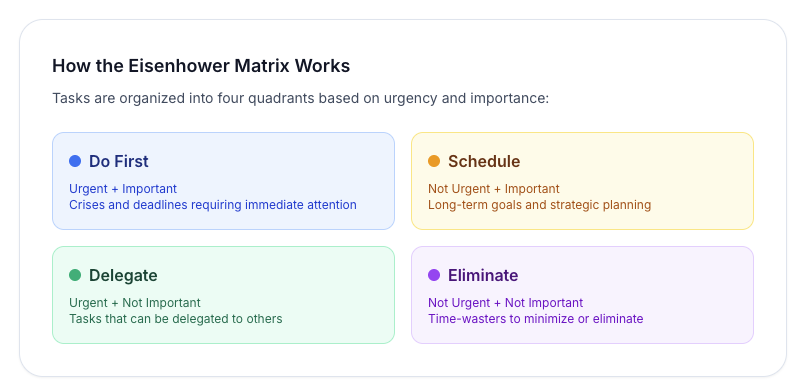
The matrix divides tasks into four quadrants:
The Four Quadrants
- Do First (Urgent + Important) — Crises, deadlines, emergencies. Handle these immediately.
- Schedule (Not Urgent + Important) — Strategic planning, learning, relationship building. This is where you should spend most of your time.
- Delegate (Urgent + Not Important) — Interruptions, some emails, other people's priorities. Delegate these when possible.
- Eliminate (Not Urgent + Not Important) — Time-wasters, busy work, mindless scrolling. Minimize or eliminate these.
How GSD Works
GSD Task Manager is a completely private task manager that runs entirely in your browser. Your tasks never leave your device — everything is stored locally using IndexedDB.
Core Features
📊 Task Management
- ✅ Eisenhower Matrix — Organize tasks by urgency and importance across four quadrants
- ✅ Task Dependencies — Define blocking relationships between tasks with circular dependency prevention
- ✅ Recurring Tasks — Automatically recreate tasks on daily, weekly, or monthly schedules
- ✅ Tags & Labels — Categorize tasks with custom tags for easy filtering
- ✅ Subtasks & Checklists — Break down complex tasks into manageable steps with progress tracking
- ✅ Batch Operations — Select and manage multiple tasks at once (complete, move, tag, delete)
- ✅ Smart Search — Search across titles, descriptions, tags, and subtasks
📈 Analytics & Insights
- ✅ Dashboard View — Visualize productivity patterns with interactive charts
- ✅ Completion Metrics — Track daily, weekly, and monthly completion rates
- ✅ Streak Tracking — Monitor current and longest completion streaks
- ✅ Quadrant Distribution — Analyze where your time and energy is focused
- ✅ Tag Analytics — View completion rates and usage statistics per tag
- ✅ Trend Analysis — 7/30/90-day trend views with line and bar charts
🔐 Privacy & Data
- ✅ Privacy-first — All data stored locally in IndexedDB (no server by default)
- ✅ End-to-End Encryption — Optional cloud sync with client-side encryption (OAuth-based, fully implemented)
- ✅ Export/Import — Back up tasks as JSON with merge or replace modes
- ✅ Works Offline — Full functionality without internet connection
📱 PWA & Notifications
- ✅ Install as PWA — Works on desktop and mobile with offline support
- ✅ Smart Notifications — Configurable reminders (5min to 1 day before due)
- ✅ Auto-Updates — Service worker updates with user-friendly notifications
- ✅ Periodic Sync — Background sync for installed PWAs (Chrome/Edge)
🎨 User Experience
- ✅ Dark Mode — Automatic theme switching with system preference support
- ✅ Command Palette — Universal search and action interface with ⌘K / Ctrl+K shortcut
- ✅ Quick Settings Panel — Slide-out panel for frequently-adjusted preferences (theme, notifications, sync interval)
- ✅ Smart View Pinning — Pin up to 5 smart views to header with keyboard shortcuts (1-9, 0 to clear)
- ✅ Keyboard Shortcuts — Fast navigation (
nfor new task,⌘Kfor command palette,?for help) - ✅ Drag & Drop — Reorder tasks and move between quadrants
- ✅ Responsive Design — Optimized for desktop, tablet, and mobile
How to Use
Creating Tasks
- Click "New Task" or press
n - Enter a task title
- Optionally add a description
- Mark the task as Urgent and/or Important
- Click "Add Task"
Your task will automatically appear in the correct quadrant based on your selections.
Managing Tasks
- Complete a task — Click the checkmark icon
- Edit a task — Click the edit icon (pencil)
- Delete a task — Click the delete icon (trash)
- Move between quadrants — Drag and drop tasks, or edit to change urgency/importance
Dashboard & Analytics
View your productivity metrics and patterns by switching to Dashboard view (toggle in header):
- Task Overview — Total, active, and completed task counts
- Completion Rate — Percentage of tasks completed
- Quadrant Distribution — See where your tasks are concentrated
- 7-Day Trend — Visualize task completion over the past week
- Due Date Analysis — Track overdue and upcoming tasks
- Activity Heatmap — Identify your most productive days of the week
Use these insights to:
- Identify bottlenecks (too many tasks in Q1? You might be reactive instead of proactive)
- Validate focus (Q2 should be where you spend most time)
- Spot patterns (completing more tasks on certain days?)
Batch Operations
Select and manage multiple tasks at once:
- Click "Select Tasks" button in the header to enter selection mode
- Click checkboxes on task cards to select multiple tasks
- Use the floating action bar at the bottom to:
- Complete selected — Mark all as done
- Reopen selected — Mark completed tasks as active
- Delete selected — Remove multiple tasks at once
- Move to quadrant — Change urgency/importance for all selected
- Add tags — Apply tags to multiple tasks
- Assign dependencies — Set up blocking relationships
This is especially useful for:
- Weekly reviews (bulk moving tasks between quadrants)
- Cleaning up old tasks (bulk delete completed items)
- Organizing projects (bulk tagging related tasks)
Task Dependencies
Define relationships between tasks where one must be completed before another:
- When creating or editing a task, use the Dependencies section
- Search for tasks to add as dependencies (tasks that must be completed first)
- Selected dependencies appear as chips with remove buttons
- The system prevents circular dependencies (A depends on B, B depends on A)
Why use dependencies?
- Break down large projects into ordered steps
- Ensure prerequisite work is done before starting next phase
- Visualize task relationships and blockers
Example: "Deploy to production" depends on "Run tests" and "Code review approved"
Recurring Tasks
Automatically recreate tasks on a schedule:
- When creating or editing a task, set Recurrence to Daily, Weekly, or Monthly
- When you mark the task complete, a new instance is automatically created with the next due date
- Subtasks reset to uncompleted in the new instance
- Recurring tasks show a repeat icon (⟳) on the task card
Use cases:
- Daily standup prep
- Weekly status reports
- Monthly expense reviews
Tags, Subtasks & Notifications
Tags — Categorize tasks with custom labels:
- Add tags like
#work,#personal,#healthin the task form - Tags appear as colored chips on task cards
- Use search to filter by tag
Subtasks — Break complex tasks into steps:
- Add checklist items in the task form
- Toggle subtask completion independently
- Progress bar shows completion (e.g., 2/5)
Notifications — Get reminded before tasks are due:
- When setting a due date, choose when to be notified (5 mins, 15 mins, 1 hour, 1 day before)
- Enable/disable notifications per task with the checkbox
- Grant browser notification permissions when prompted
Keyboard Shortcuts
Global Shortcuts:
⌘K/Ctrl+K— Open command palette (universal search and actions)n— Create a new task/— Focus the search bar?— Show help dialog
Smart View Shortcuts:
1-9— Activate pinned smart view at that position0— Clear active smart view filter
Command Palette Shortcuts:
⌘M/Ctrl+M— View matrix⌘D/Ctrl+D— View dashboard⌘T/Ctrl+T— Toggle theme⌘,/Ctrl+,— Open settings
Use the command palette (⌘K) to discover all available shortcuts and actions!
Backing Up Your Data
Since all your tasks are stored locally in your browser:
- Click the Settings icon in the header
- Click "Export Tasks" to download a JSON backup
- Click "Import Tasks" to restore from a backup file
When importing, you'll choose between two modes:
- Merge — Keep existing tasks and add imported tasks (safer, prevents data loss)
- Replace — Delete all existing tasks and replace with imported tasks (shows warning)
Important: Clearing your browser data will delete your tasks. Export regularly to avoid data loss!
Installing as a PWA
GSD can be installed on your desktop or mobile device for offline access:
- Desktop (Chrome/Edge): Click the install icon in the address bar
- Mobile (iOS Safari): Tap Share → "Add to Home Screen"
- Mobile (Android Chrome): Tap the three-dot menu → "Install app"
Visit the Install page for detailed instructions.
Tips for Success
Getting Things Done with GSD
- Start your day in Quadrant 2 — Focus on important, non-urgent tasks before firefighting begins
- Review weekly — Use batch operations to move tasks between quadrants as priorities shift
- Be honest about urgency — Not everything is urgent, even if it feels that way
- Eliminate ruthlessly — If a task stays in Q4 for weeks, delete it
- Export regularly — Keep backups of your task data
Making the Most of v3.0 Features
- Check the dashboard weekly — Review your completion rate and quadrant distribution to identify patterns
- Use dependencies for projects — Break down large initiatives into sequential tasks with clear prerequisites
- Batch organize during reviews — Use selection mode to bulk tag, move, or clean up tasks
- Tag strategically — Use consistent tags like
#work,#personal,#waitingto enable filtering - Set recurring tasks for routines — Weekly reviews, daily planning sessions, monthly goal check-ins
- Break down complex tasks — Use subtasks to make large tasks less intimidating and more actionable
- Let notifications help — Set reminders for time-sensitive tasks, but don't rely on them exclusively
🔧 Backend & Infrastructure (Optional)
GSD Task Manager works completely offline by default, but includes an optional cloud sync backend powered by Cloudflare Workers.
Cloud Sync Features (Fully Implemented)
The backend provides optional cloud sync with enterprise-grade security:
- End-to-End Encryption — Zero-knowledge architecture: server never sees plaintext task data
- OAuth Authentication — Secure login with Google or Apple (OIDC-compliant)
- Multi-Device Sync — Keep tasks in sync across unlimited devices using vector clocks
- Conflict Resolution — Automatic handling of concurrent edits with cascade sync
- Device Management — Manage and revoke access for specific devices
- MCP Server Integration — AI-powered task management through Claude Desktop (see below)
Multi-Environment Deployment
The worker backend supports three environments:
| Environment | Purpose | URL |
|---|---|---|
| Development | Local testing | localhost:3000 |
| Staging | Pre-production testing | gsd-dev.vinny.dev |
| Production | Live app | gsd.vinny.dev |
Each environment has isolated:
- D1 databases for encrypted task storage
- KV namespaces for sessions and rate limiting
- R2 buckets for backup storage
- Environment-specific secrets and OAuth configurations
CloudFront Edge Routing
The production deployment uses a CloudFront Function for intelligent URL routing at edge locations:
Purpose: Next.js static exports with trailingSlash: true create files like /dashboard/index.html, but S3 bucket endpoints don't automatically serve index.html for directory paths. Without URL rewriting, navigating to /dashboard/ would return a 403 error.
Solution: A CloudFront Function runs on every request with sub-millisecond latency to rewrite URLs before they reach S3:
/dashboard/→/dashboard/index.html✅/install/→/install/index.html✅/→/index.html✅
Files:
cloudfront-function-url-rewrite.js- Edge function code (JavaScript runtime)scripts/deploy-cloudfront-function.sh- Automated deployment script
Deployment:
# Deploy or update the CloudFront Function
./scripts/deploy-cloudfront-function.sh
This creates the function, publishes it, attaches it to the CloudFront distribution, and invalidates the cache. Changes propagate to all edge locations within 2-3 minutes.
Why CloudFront Functions?
- Runs at CloudFront edge (sub-ms latency, closer to users than Lambda@Edge)
- Lightweight JavaScript runtime (no Node.js overhead)
- Processes 100% of viewer requests before reaching origin (S3)
- Cost-effective at scale (charged per million requests)
MCP Server for AI-Powered Task Management (v5.0.0) 🆕
📦 npm Package: gsd-mcp-server
The Model Context Protocol (MCP) Server enables AI assistants like Claude or ChatGPG to access and analyze your tasks through natural language.
What is MCP?
- MCP is Anthropic's protocol for connecting AI assistants to external data sources
- The GSD MCP Server runs locally on your machine and communicates with Claude, ChatGPT or any other AI tool
- Provides secure, read-only access to your synced tasks
Features:
- ✅ Decrypted Task Access — Claude can read all your task content (titles, descriptions, tags, subtasks)
- ✅ Natural Language Queries — Ask "What are my urgent tasks this week?" or "Show me all #work tasks"
- ✅ Smart Search & Filtering — Search across all task content, filter by quadrant, status, or tags
- ✅ Privacy-First — Encryption passphrase stored locally, decryption happens on your machine
- ✅ Read-Only — Claude cannot modify, create, or delete tasks (safe exploration)
- ✅ Zero-Knowledge Server — Your Worker still can't decrypt tasks; MCP server handles decryption locally
Available Tools:
list_tasks— List all decrypted tasks with optional filtering (quadrant, status, tags)get_task— Get detailed information about a specific task by IDsearch_tasks— Search across titles, descriptions, tags, and subtasksget_sync_status— Check sync health (last sync time, conflicts, storage)list_devices— View all registered devicesget_task_stats— Get task statistics and metadata
Use Cases:
- Weekly Planning — "What are my urgent tasks this week?"
- Task Discovery — "Find all tasks mentioning the quarterly report"
- Productivity Analysis — "How many tasks do I have in each quadrant?"
- Smart Prioritization — "Which tasks should I focus on today?"
Security:
- Encryption passphrase stored only in local Claude Desktop config (never in cloud)
- End-to-end encryption maintained (Worker still can't decrypt tasks)
- Read-only access prevents accidental modifications
- Opt-in feature (requires explicit passphrase configuration)
Setup: See packages/mcp-server/README.md for detailed setup instructions.
Recent Updates
v5.10.0 (Latest) 🎉
- ✅ Command Palette — Universal ⌘K interface for quick actions, navigation, and task search
- ✅ Quick Settings Panel — Slide-out panel for frequently-adjusted settings (theme, notifications, auto-sync)
- ✅ Smart View Pinning — Pin up to 5 smart views to header with keyboard shortcuts (1-9, 0 to clear)
- ✅ Enhanced Keyboard Navigation — Comprehensive shortcuts for power users (⌘M, ⌘D, ⌘T, etc.)
- ✅ Improved UX — Streamlined workflows for theme switching, notification toggles, and sync interval adjustments
v5.0.0
- ✅ MCP Server for Claude Desktop — AI-powered task management with natural language queries
- ✅ Decrypted Task Access — 6 MCP tools for reading and analyzing tasks
- ✅ OAuth Cloud Sync — Full end-to-end encrypted sync with Google/Apple login
- ✅ Security Hardening — Comprehensive security audit and fixes
- ✅ Cascade Sync — Reliable multi-device synchronization with conflict resolution
v3.7.1
- ✅ Next.js 16 with Turbopack and React Compiler
- ✅ View Transitions API for smooth page animations
- ✅ CloudFront edge routing for static export SPA navigation
- ✅ Fixed React Compiler warnings and removed manual memoization
v3.5.0
- ✅ Multi-environment worker deployment (dev, staging, prod)
- ✅ Fixed critical vector clock causality bug
- ✅ Resolved 18 TypeScript errors for improved type safety
- ✅ Bash 3.2 compatibility for macOS deployment scripts
- ✅ Enhanced PWA error handling for periodic sync
- ✅ Automated setup and deployment scripts
v3.0.0
- ✅ Dashboard and analytics system
- ✅ Batch operations and task dependencies
- ✅ Enhanced PWA with update notifications
v2.0.0
- ✅ Recurring tasks and smart views
- ✅ Tags, subtasks, and advanced filtering
📚 Developer Documentation
For developers interested in contributing, self-hosting, or deploying the backend:
- TECHNICAL.md — Architecture, database schema, and development guide
- worker/README.md — Multi-environment setup and deployment
- CLAUDE.md — Project context for AI assistants
Quick Start for Developers
# Install dependencies
bun install

# Run development server
bun dev

# Build for production
bun run build

# Deploy to staging
cd scripts && ./deploy-dev.sh

# Deploy worker to all environments (optional)
cd worker && npm run deploy:all
Tech Stack
- Frontend: Next.js 15, React 19, TypeScript, Tailwind CSS
- Data Layer: Dexie (IndexedDB), Zod validation
- Charts: Recharts for analytics visualizations
- Backend (Optional): Cloudflare Workers, D1, KV, R2
- Auth (Optional): OAuth 2.0 with Google/Apple
🤝 Contributing
Contributions are welcome! Please:
- Fork the repository
- Create a feature branch (
git checkout -b feature/amazing-feature) - Commit your changes (
git commit -m 'feat: add amazing feature') - Push to the branch (
git push origin feature/amazing-feature) - Open a Pull Request
📄 License
MIT License - see LICENSE for details
🙏 Acknowledgments
- Inspired by the Eisenhower Matrix productivity framework
- Built with Claude Code