Interactive Feedback MCP
Why Use This?
By guiding the AI assistant to check in with the user instead of branching out into speculative, high-cost tool calls, this module can drastically reduce the number of premium requests. In some cases, it helps consolidate what would be up to 25 tool calls into a single, feedback-aware request — saving resources and improving performance.
Quick Install (Recommended)
One command to clone, install, and configure everything automatically for Antigravity IDE:
Windows (PowerShell):
irm https://raw.githubusercontent.com/nhatpse/Antigravity-MCP/main/install.ps1 | iex
Linux / macOS:
curl -fsSL https://raw.githubusercontent.com/nhatpse/Antigravity-MCP/main/install.sh | bash
The installer will: clone the repo → install dependencies → configure MCP server → add coding rules. Just restart Antigravity after it finishes.
Manual Installation
Prerequisites
- uv (Python package manager). Note: You do not need Python installed on your machine;
uvwill download and manage the required Python version automatically!- Windows:
irm https://astral.sh/uv/install.ps1 | iex - Linux/Mac:
curl -LsSf https://astral.sh/uv/install.sh | sh
- Windows:
Setup
-
Clone or download this repository.
-
Install dependencies:
cd path/to/interactive-feedback-mcp uv sync -
Add the MCP server to your Antigravity configuration (
~/.gemini/antigravity/mcp.json):{ "mcpServers": { "interactive-feedback-mcp": { "command": "uv", "args": [ "--directory", "/path/to/interactive-feedback-mcp", "run", "server.py" ] } } }Note: If
uvis not in your system PATH, use the full path to theuvexecutable instead (e.g.,C:\\Users\\<user>\\AppData\\Local\\Python\\...\\Scripts\\uv.exe).
Prompt Engineering
For the best results, add the following as a coding rule in your AI assistant:
Whenever you want to ask a question, always call the MCP
interactive_feedback.
Whenever you're about to complete a user request, call the MCPinteractive_feedbackinstead of simply ending the process. Keep calling MCP until the user's feedback is empty, then end the request.
Adding Rules in Antigravity
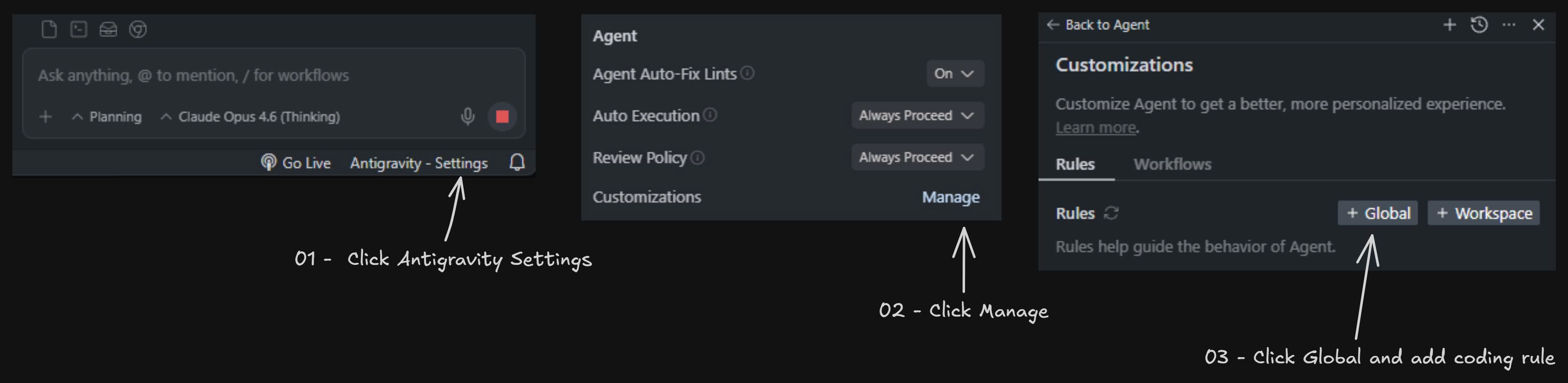
- Click Antigravity - Settings at the bottom of the chat panel.
- In the Agent settings, click Manage next to Customizations.
- Click + Global to add a global coding rule, then paste the prompt above.
Development
To run the server in development mode with a web interface for testing:
uv run fastmcp dev server.py
Author
Created by nhatpse.
License
This project is licensed under the MIT License.