Mail MCP Bridge
Connect macOS Mail to AI through Model Context Protocol (MCP)
Mail MCP Bridge enables AI assistants (like Claude, ChatGPT) to directly access and analyze your macOS Mail emails. Simply copy a Message-ID from Mail and paste it to AI — no manual email exporting needed.
Demo: See it in action (Click to watch)
Shows: Copy Message-ID from Mail → AI analyzes email content
🎯 What & Why
The Problem: Much of real-world communication happens through email — project collaborations, client communications, business negotiations, technical support. Manually exporting emails for AI analysis is tedious and inefficient.
The Solution: Mail MCP Bridge lets AI directly read your emails through a simple workflow:
- Copy Message-ID from Mail (one keyboard shortcut)
- Paste to AI
- AI analyzes email content instantly
Use Cases:
- 📋 Track project progress via email threads
- 💼 Extract key information from business communications
- 🔍 Summarize long email conversations
- 📊 Extract structured data (requirements, feedback, commitments)
- 🤝 Review conversation history
- 📎 Analyze email attachments (invoices, reports, documents)
✨ Features
- 📧 Direct Access - AI reads your emails through MCP protocol
- 🧵 Thread Support - Retrieve entire conversations with one Message-ID
- 📎 Attachment Extraction - Extract email attachments for AI analysis (PDFs, documents, images)
- 🎨 Claude Code Plugins - Pre-built commands and skills for intelligent email analysis
- ⚡ Fast - Millisecond-level query response
- 🎯 Clean Text - Optimized text extraction for AI (excludes HTML, embedded images)
- 🔒 Privacy First - Runs locally, emails never leave your Mac
🚀 Quick Start
Prerequisites
- macOS 12.0+ (with Mail app)
- Python 3.9+
- MCP-compatible AI assistant (e.g., Claude Desktop)
Installation
# Clone the repository
git clone https://github.com/fatbobman/mail-mcp-bridge.git
cd mail-mcp-bridge

# Install MCP dependencies
pip3 install mcp
Configure Claude Desktop
-
Find config location:
~/Library/Application Support/Claude/claude_desktop_config.json -
Edit config (create if doesn't exist):
{ "mcpServers": { "mail": { "command": "python3", "args": [ "/path/to/mail-mcp-bridge/src/mail_mcp_server.py" ] } } }Important: Replace
/path/to/mail-mcp-bridgewith your actual project path.Optional: Configure attachment temp directory (defaults to
/tmp/mail-mcp-attachments):{ "mcpServers": { "mail": { "command": "python3", "args": [ "/path/to/mail-mcp-bridge/src/mail_mcp_server.py" ], "env": { "MAIL_ATTACHMENT_PATH": "/tmp" } } } } -
Restart Claude Desktop (quit completely, then reopen)
Install Claude Code Plugins (Optional but Recommended)
Mail MCP includes ready-to-use Claude Code plugins that provide intelligent email analysis capabilities:
What you get:
- 🎯 Smart Attachment Analysis - Automatically detects important attachments (invoices, contracts, tax docs)
- 🧵 Thread Tracking - Tracks document evolution across email conversations
- 🚀 3 Analysis Modes - Quick/Interactive/Auto modes to optimize token usage
- 📋 Action Item Extraction - Finds deadlines and tasks in emails
Install:
# 1. Add the Mail MCP plugin marketplace
/plugin marketplace add /path/to/mail-mcp-bridge/plugins

# 2. Install the attachment analyzer
/plugin install mail-attachment-analyzer@mail-mcp

# 3. Restart Claude Code
Replace /path/to/mail-mcp-bridge with your actual installation path.
Usage:
After installation, the plugin works automatically:
You: Analyze this email <message-id@example.com>
AI: [Automatically detects attachments and analyzes intelligently]
Or use manual commands:
/mail-mcp:analyze-attachment
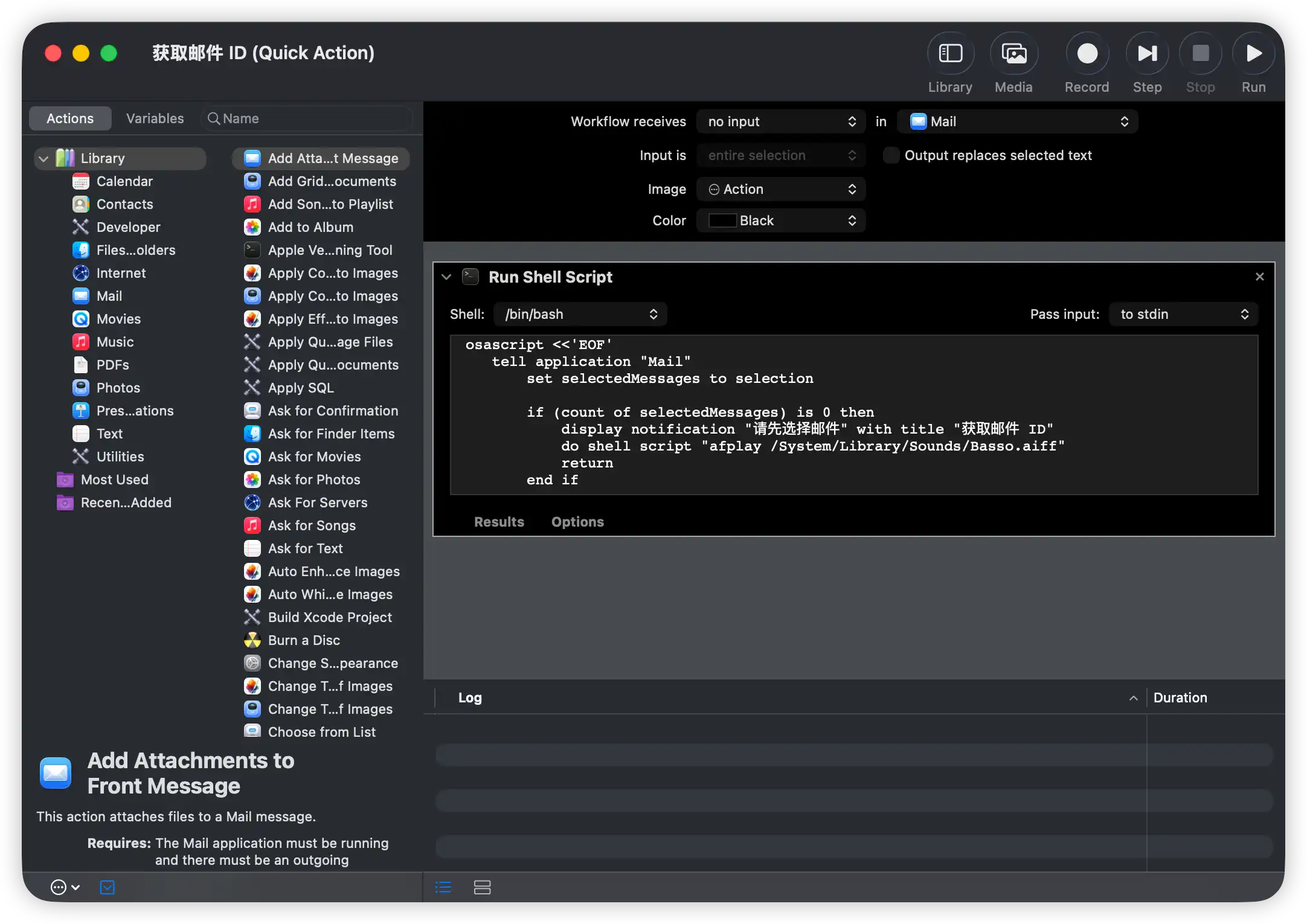
Setup Mail Quick Action
Add a "Copy Message-ID" button to Mail app:
Step-by-Step:
-
Open Automator (
⌘ + Space, type "Automator") -
Create new Quick Action:
- File → New (
⌘ + N) - Select "Quick Action"
- Workflow receives current: no input
- in: Mail.app
- File → New (
-
Add Run Shell Script action:
- Search "Run Shell Script" in left panel
- Drag to workflow area
- Shell: `/bin/bash**
-
Copy script content:
cat automator_script.shPaste entire output into Automator script area
-
Save as "Copy Message-ID"
-
(Optional) Assign keyboard shortcut:
- System Settings → Keyboard → Keyboard Shortcuts
- Services → Mail → "Copy Message-ID"
- Add shortcut (e.g.,
⌘ + ⇧ + C)
Automator Setup Example:
Test It:
- Open Mail app
- Select any email
- Press your keyboard shortcut (if configured)
- You should hear a sound confirming Message-ID copied
📖 Usage
Basic Workflow
1. Select email in Mail
2. Press your keyboard shortcut (e.g., ⌘⇧C)
3. Paste Message-ID to AI
Example Conversations
Read Single Email:
You: Please analyze this email: <message-id@example.com>

AI: I'll read that email for you...
[AI reads and analyzes the email content]
Read Email Thread:
You: What's the full conversation for <message-id@example.com>?

AI: I'll retrieve the entire thread...
[AI shows all emails in the conversation]
Real-World Use Case:
You: Please summarize all communication with our business partner,
including their requirements, promised timelines, and action items.

AI: I'll read the relevant email threads and extract key information...
[AI analyzes email content, organizes project progress, commitments, and action items]
Extract Email Attachments:
You: Extract and analyze the PDF invoice from this email: <message-id@example.com>

AI: I can see this email has an invoice.pdf attachment (1.2MB). Let me extract it...
[AI extracts attachment and analyzes the content]
🛠️ MCP Tools
| Tool | Description |
|---|---|
get_email_path | Get single email file path |
get_thread_paths | Get all paths in email thread |
read_email | Read single email content (includes attachment metadata) |
read_thread | Read entire email thread |
extract_attachments | Extract specific attachments from email |
cleanup_attachments | Clean up temporary attachment files |
📖 → Detailed API Documentation
🏗️ How It Works
┌─────────────┐
│  Mail App   │ Select email → Copy Message-ID (⌘⇧C)
└──────┬──────┘
       │
       ↓ Message-ID
┌─────────────┐
│MCP Server   │ 1. Query Mail SQLite database
│             │ 2. Locate .emlx file by ROWID
│             │ 3. Parse email content
│             │ 4. Extract plain text
└──────┬──────┘
       │
       ↓ Structured Data
┌─────────────┐
│ AI Assistant│ Analyze email content
└─────────────┘
🐛 Troubleshooting
MCP server not found
Solution:
# Verify the path in claude_desktop_config.json
cat ~/Library/Application\ Support/Claude/claude_desktop_config.json

# Restart Claude Desktop (quit completely, then reopen)
Email not found
Possible causes:
- Message-ID format incorrect (must include
< >) - Email deleted from Mail
- Email in different Mail account database
Permission denied
Solution:
# Make scripts executable
chmod +x *.py *.sh
🔒 Privacy & Security
- ✅ Local Processing: All operations run locally on your Mac
- ✅ No External Servers: No data sent to external servers
- ✅ No Telemetry: No analytics or tracking
- ✅ Read-Only: Only reads email data, never modifies
📚 Documentation
- TOOLS.md - Complete API reference for all MCP tools
- ARCHITECTURE.md - Technical architecture and database structure
- README_zh.md - 中文文档
📝 License
MIT License - see LICENSE file for details.
🤝 Contributing
Contributions welcome! Please feel free to submit a Pull Request.
🌟 Acknowledgments
- Built for the MCP (Model Context Protocol) ecosystem
- Inspired by the need to bridge email and AI
- Tested with Claude Desktop on macOS 26 (Tahoe)
📮 Contact
- Issues: https://github.com/fatbobman/mail-mcp-bridge/issues
- Author: Fatbobman (Xu Yang)
☕ Buy Me a Coffee
If you find this project helpful, consider buying me a coffee!

Made with ❤️ for the AI community