
browser-lens-mcp
Your browser's UI, deeply understood by your IDE's AI agent.





How It Works
Browser Lens connects your IDE's AI agent to any running web page. Ask about any UI element and get its exact styles, layout, screenshot, and fix suggestions — with zero code changes.
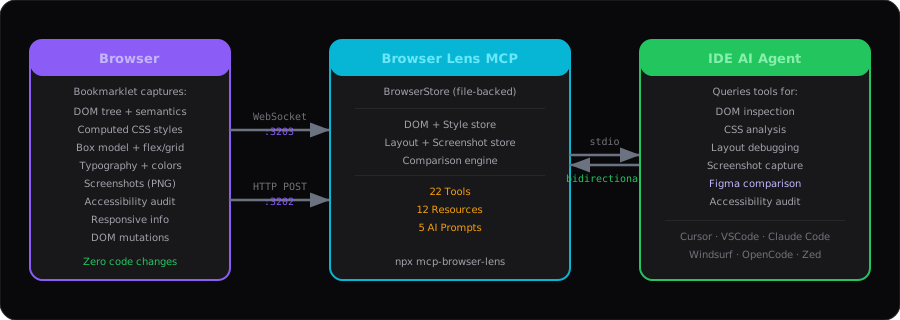
The flow:
- Bookmarklet runs in your browser, captures DOM, CSS, layout, screenshots
- WebSocket streams data in real-time + receives commands from server
- MCP server stores and indexes everything, exposes 30 tools, 12 resources, 5 prompts
- IDE AI agent queries tools via stdio — inspect any element, take screenshots on demand, compare with Figma
Key Capabilities
| Capability | How It Works |
|---|---|
| Deep Element Inspection | live_query_element sends a command to the browser to capture ANY element by CSS selector — even deeply nested ones not in the auto-capture |
| On-Demand Screenshots | trigger_screenshot tells the browser to take a fresh screenshot NOW and returns the image directly to your IDE |
| Figma Comparison | compare_with_figma compares live CSS values against design specs, scores 0-100, generates copy-paste CSS fixes |
| Full Page Analysis | get_full_page_analysis returns structure, design tokens, typography, colors, spacing, accessibility in one call |
| Feature Area Inspection | inspect_feature_area inspects a specific UI section (header, sidebar, form) with all child details |
What Gets Captured
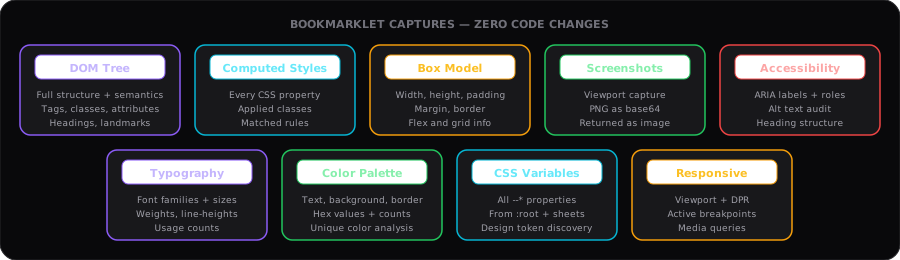
| Category | Data | Details |
|---|---|---|
| DOM | Full tree + element details | Tags, classes, attributes, text, semantic structure |
| CSS | Computed styles | Every CSS property for any element via selector |
| CSS | Variables | All --* custom properties from :root and stylesheets |
| CSS | Typography | Font families, sizes, weights, line-heights with usage counts |
| CSS | Colors | Text, background, border colors with hex values and counts |
| Layout | Box model | Width, height, padding, margin, border dimensions |
| Layout | Flex & Grid | Direction, wrap, gap, template columns/rows |
| Layout | Spacing | Margin/padding analysis, spacing scale, inconsistencies |
| Visual | Screenshots | On-demand viewport capture as PNG, returned as image |
| Visual | Figma comparison | Compare element against design specs with score + diff |
| A11y | Accessibility | ARIA labels, roles, alt text, headings, landmarks |
| Responsive | Viewport | Dimensions, DPR, active media queries, breakpoints |
| Mutations | DOM changes | Attribute changes, added/removed nodes in real-time |
Quick Start
Step 1 — Configure your IDE
Cursor
File: .cursor/mcp.json
{
  "mcpServers": {
    "browser-lens": {
      "command": "npx",
      "args": ["-y", "browser-lens-mcp@latest"]
    }
  }
}
VS Code (Copilot)
File: .vscode/mcp.json
{
  "servers": {
    "browser-lens": {
      "type": "stdio",
      "command": "npx",
      "args": ["-y", "browser-lens-mcp@latest"]
    }
  }
}
Antigravity (Google)
File: ~/.gemini/antigravity/mcp_config.json
Open via:
...menu (top right) → MCP Servers → Manage MCP Servers → View raw config
{
  "mcpServers": {
    "browser-lens": {
      "command": "npx",
      "args": ["-y", "browser-lens-mcp@latest"],
      "env": {
        "MCP_BROWSER_LENS_PORT": "3300",
        "MCP_BROWSER_LENS_WS_PORT": "3301",
        "MCP_BROWSER_LENS_CDP_PORT": "9222"
      }
    }
  }
}
After saving, click Refresh in Manage MCP Servers.
Usage in Antigravity chat:
@browser-lens Chụp screenshot cho tôi xem
@browser-lens/css-colors Show me the color palette
/compare_with_figma
Claude Code
claude mcp add browser-lens npx -y browser-lens-mcp@latest
Windsurf
File: ~/.codeium/windsurf/mcp_config.json
{
  "mcpServers": {
    "browser-lens": {
      "command": "npx",
      "args": ["-y", "browser-lens-mcp@latest"]
    }
  }
}
OpenCode
File: ~/.config/opencode/config.json
{
  "mcpServers": {
    "browser-lens": {
      "type": "local",
      "command": ["npx", "-y", "browser-lens-mcp@latest"]
    }
  }
}
Zed
File: ~/.config/zed/settings.json
{
  "context_servers": {
    "browser-lens": {
      "command": { "path": "npx", "args": ["-y", "browser-lens-mcp@latest"] }
    }
  }
}
Custom ports (avoid conflicts):
{
  "mcpServers": {
    "browser-lens": {
      "command": "npx",
      "args": ["-y", "browser-lens-mcp@latest"],
      "env": {
        "MCP_BROWSER_LENS_PORT": "3300",
        "MCP_BROWSER_LENS_WS_PORT": "3301"
      }
    }
  }
}
Step 2 — Connect your browser
Option A: Chrome Extension (recommended — persists across page reloads)
# Find the extension folder
ls node_modules/browser-lens-mcp/extension/
- Open
chrome://extensionsin Chrome/Edge - Enable Developer Mode (top right)
- Click Load unpacked
- Select
node_modules/browser-lens-mcp/extension/ - Done — auto-connects on every page load, survives reload!
Configure ports via the extension popup icon.
Option B: Bookmarklet (zero install, one-time per page)
- Open http://localhost:3202 (or your custom port)
- Drag the bookmarklet to your bookmarks bar
- Navigate to any web app → click the bookmarklet
[BrowserLens] WebSocket connected to ws://localhost:3203
[BrowserLens] DOM captured: 250 elements
[BrowserLens] Elements captured: 30
[BrowserLens] CSS vars captured: 12
[BrowserLens] Screenshot OK: 1440x900
[BrowserLens] Sync complete
Step 3 — Ask your AI agent
@browser-lens What does the header look like? Show me a screenshot.
@browser-lens What are the 2 buttons in the header? What colors are they?
@browser-lens Compare the hero section with Figma: fontSize 48px, color #ffffff, fontWeight 800
@browser-lens This button looks wrong — find the source file and suggest a fix
@browser-lens Run a full visual QA on this page
Figma Design Comparison
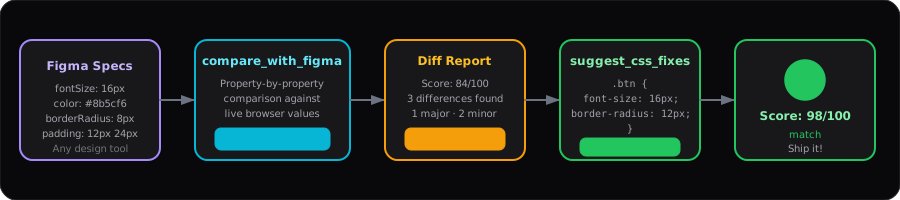
Scoring:
| Score | Status | Meaning |
|---|---|---|
| 95–100 | match | Pixel-perfect — ship it |
| 80–94 | minor-diff | Close — small CSS tweaks needed |
| 50–79 | major-diff | Significant gaps — fixes required |
| 0–49 | mismatch | Major rework needed |
Works with any design tool — Figma, Sketch, Adobe XD, Zeplin. Just provide CSS values.
MCP Tools (30)
Live Browser Commands (2 tools) ⚡
| Tool | Description |
|---|---|
trigger_screenshot | Request browser to take a fresh screenshot NOW — returns PNG image |
live_query_element | Query ANY element by CSS selector in real-time — even deeply nested ones |
DOM Inspection (5 tools)
| Tool | Description |
|---|---|
get_dom_tree | Full DOM tree with semantic structure |
inspect_element | Complete element details: DOM + styles + layout |
query_selector | Search DOM by tag, class, ID, or selector |
get_element_hierarchy | Parent → child path from root to element |
get_elements_summary | Overview of all captured elements |
CSS Analysis (4 tools)
| Tool | Description |
|---|---|
get_computed_styles | All computed CSS properties for any element |
get_css_variables | CSS custom properties (--*) with values |
get_typography | Font families, sizes, weights with usage counts |
get_color_palette | All colors (text, bg, border) with hex + count |
Layout & Spacing (3 tools)
| Tool | Description |
|---|---|
get_layout_info | Box model, flex/grid info, positioning |
get_spacing_analysis | Margin/padding/gap analysis + spacing scale |
get_responsive_info | Viewport, DPR, breakpoints, media queries |
Visual & Screenshots (4 tools)
| Tool | Description |
|---|---|
get_page_screenshot | Latest cached viewport screenshot as PNG |
get_all_screenshots | List all captured screenshots with metadata |
describe_ui | AI-friendly page description |
capture_screenshot_with_analysis | Screenshot + detailed layout/style analysis |
Design Comparison (4 tools)
| Tool | Description |
|---|---|
compare_with_figma | Compare element vs design specs → score + diff |
get_comparison_history | All previous comparison results |
suggest_css_fixes | Generate copy-paste CSS from comparison |
get_visual_diff_report | Aggregate report across all comparisons |
Page Analysis (4 tools)
| Tool | Description |
|---|---|
get_full_page_analysis | Everything in one call: structure, tokens, a11y |
get_design_tokens | CSS variables grouped by category |
inspect_feature_area | Inspect specific UI section with children |
get_connection_status | Check browser connection + setup instructions |
General (4 tools)
| Tool | Description |
|---|---|
get_page_info | Page URL, viewport, element count |
get_dom_mutations | Recent DOM changes |
get_accessibility_info | ARIA, roles, headings, landmarks |
clear_data | Clear all captured data |
MCP Prompts (5) — / Commands in IDE
Type / in your IDE chat to see these guided workflows:
| Prompt | When to Use | What It Does |
|---|---|---|
/compare_with_figma | After implementing a UI from Figma | Walks through comparing each element, generates CSS fixes |
/audit_ui | Before PR review or release | Audits colors, typography, spacing, accessibility — rates 1-10 |
/describe_page | When you need to explain the current UI to AI | Generates detailed page description with structure, styles, elements |
/suggest_fixes | After running comparisons | Collects all failing comparisons + a11y issues → prioritized fix list |
/visual_qa | Final check before shipping | Takes screenshot, compares elements, outputs PASS/NEEDS_WORK/FAIL |
Example usage in Antigravity/Cursor:
/compare_with_figma
→ AI reads current page data, asks for Figma specs, runs comparisons, suggests fixes

/audit_ui
→ AI analyzes colors (too many?), typography (consistent?), spacing (scale?), a11y (issues?)
MCP Resources (12) — @ References in IDE
Type @mcp:browser-lens/ in your IDE to access these data sources directly:
| Resource | Shorthand | When to Use | Example |
|---|---|---|---|
dom://snapshot | @browser-lens/dom-snapshot | Get the full DOM tree structure | "Show me the page structure" |
dom://elements | @browser-lens/dom-elements | List all captured element selectors | "What elements are captured?" |
dom://mutations | @browser-lens/mutations-log | Check recent DOM changes | "What changed since last sync?" |
css://variables | @browser-lens/css-variables | Get all CSS custom properties | "What design tokens exist?" |
css://typography | @browser-lens/css-typography | Get font usage analysis | "What fonts are used?" |
css://colors | @browser-lens/css-colors | Get color palette | "What colors are on this page?" |
layout://responsive | @browser-lens/layout-responsive | Get viewport & breakpoints | "What breakpoint is active?" |
layout://spacing | @browser-lens/layout-spacing | Get spacing analysis | "Is spacing consistent?" |
visual://screenshots | @browser-lens/visual-screenshots | List captured screenshots | "How many screenshots exist?" |
a11y://audit | @browser-lens/accessibility-info | Get accessibility audit | "Any a11y issues?" |
figma://comparisons | @browser-lens/comparison-results | Get comparison results | "How did the last comparison go?" |
browser://page | @browser-lens/page-info | Get page info summary | "Is browser connected?" |
Example usage:
@browser-lens/css-colors Tell me the primary colors used on this page
@browser-lens/dom-snapshot Show me the semantic structure
@browser-lens/accessibility-info Are there any accessibility issues?
Resources vs Tools:
- Resources (
@) = Read-only data snapshots. Fast, no browser command needed. Use for quick lookups. - Tools = Actions that can query the browser live, take screenshots, compare with Figma. Use for interactive work.
Bidirectional Command System
Unlike other MCP tools that only read cached data, Browser Lens has a live command channel:
IDE → MCP Server → WebSocket → Browser Bookmarklet
                                     ↓
                              Execute command
                                     ↓
IDE ← MCP Server ← WebSocket ← Send result
Commands the server can send to the browser:
screenshot— Capture viewport screenshot (cross-origin images auto-replaced with placeholders)element_screenshot— Capture a specific element by CSS selectorquery_element— Inspect any element by CSS selector on-demandfullsync— Trigger a full data re-capture
Screenshots (CDP — 100% Reliable)
Screenshots use Chrome DevTools Protocol (CDP) via puppeteer-core — captures exactly what you see in the browser. No CORS issues, no CSP restrictions, works on any page.
Setup: Launch browser with remote debugging
Brave Browser (Mac)
/Applications/Brave\ Browser.app/Contents/MacOS/Brave\ Browser --remote-debugging-port=9222
Google Chrome (Mac)
/Applications/Google\ Chrome.app/Contents/MacOS/Google\ Chrome --remote-debugging-port=9222
Google Chrome (Linux)
google-chrome --remote-debugging-port=9222
Microsoft Edge (Mac)
/Applications/Microsoft\ Edge.app/Contents/MacOS/Microsoft\ Edge --remote-debugging-port=9222
Tip: Create a shell alias
# Add to ~/.zshrc or ~/.bashrc
alias brave-debug='/Applications/Brave\ Browser.app/Contents/MacOS/Brave\ Browser --remote-debugging-port=9222'
alias chrome-debug='/Applications/Google\ Chrome.app/Contents/MacOS/Google\ Chrome --remote-debugging-port=9222'

# Then just run
brave-debug
Verify CDP is running:
curl http://127.0.0.1:9222/json/version
# Should show: {"Browser":"Brave/...","webSocketDebuggerUrl":"ws://..."}
Screenshot tools
| Tool | What it does |
|---|---|
trigger_screenshot | Capture full viewport — returns PNG image directly |
screenshot_element | Capture specific element by CSS selector (e.g. header, .hero-btn) |
Screenshot fallback chain
trigger_screenshot / screenshot_element
  ├─ 1. CDP (puppeteer-core) ← primary, 100% reliable
  ├─ 2. WS command → bookmarklet → html2canvas (simple pages)
  └─ 3. Return cached screenshot if available
CDP auto-scans ports 9222, 9229, 9333. Set MCP_BROWSER_LENS_CDP_PORT for custom port.
Configuration
| Variable | Default | Description |
|---|---|---|
MCP_BROWSER_LENS_PORT | 3202 | HTTP server port |
MCP_BROWSER_LENS_WS_PORT | 3203 | WebSocket server port |
MCP_BROWSER_LENS_CDP_PORT | 9222 | Chrome DevTools Protocol port for screenshots |
MCP_BROWSER_LENS_STORE_PATH | .store/browser.json | Custom store path |
Full config example:
{
"mcpServers": {
"browser-lens": {
"command": "npx",
"args": ["-y", "browser-lens-mcp@latest"],
"env": {
"MCP_BROWSER_LENS_PORT": "3300",
"MCP_BROWSER_LENS_WS_PORT": "3301",
"MCP_BROWSER_LENS_CDP_PORT": "9222"
}
}
}
}
---
## License
MIT — see [LICENSE](LICENSE)
---
<div align="center">
<sub>Built by <a href="https://github.com/nano-step"><strong>nano-step</strong></a> — Copyright © 2026 Hoai Nho Nguyen</sub>
</div>