🚀 MCP Chat Studio
The Ultimate Testing Platform for MCP Servers
Test, debug, and develop Model Context Protocol servers with a beautiful glassmorphism UI and a powerful Workspace mode.
Record scenarios • Collections + run reports • Workspace canvas • Workflow export (Python + Node) • Mock servers • Docs generator • Zero config with Ollama
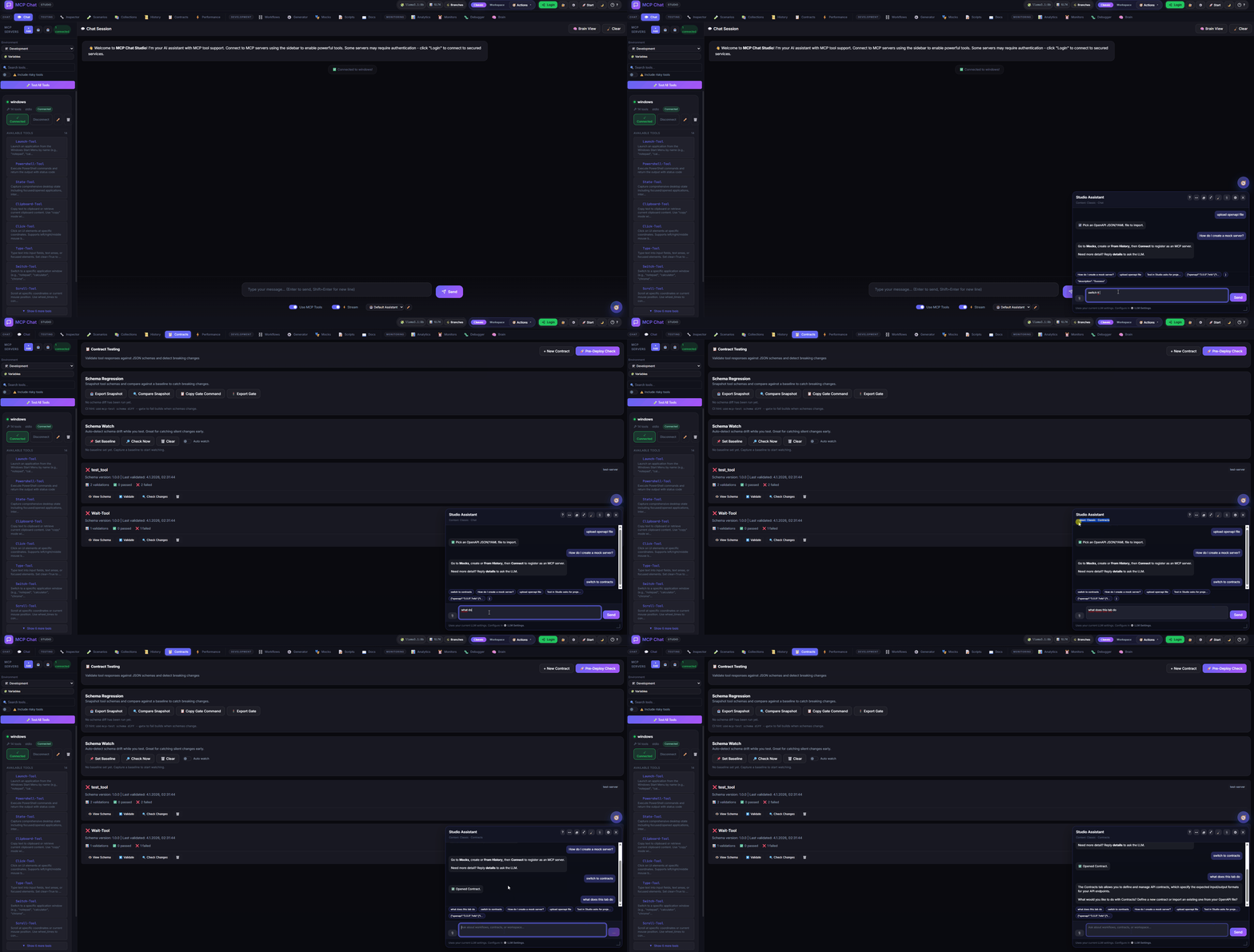
Need help? Use the Studio Assistant (bottom‑right compass) to learn features, generate workflows, import OpenAPI, and navigate the UI — just ask it.




🆕 Major Update (January 2025): This version includes significant new features like OAuth config UI, LLM settings persistence, E2E tests, session management, security enhancements, and much more. The previous stable version is available in the
v2branch as a backup.
🎬 Showcase
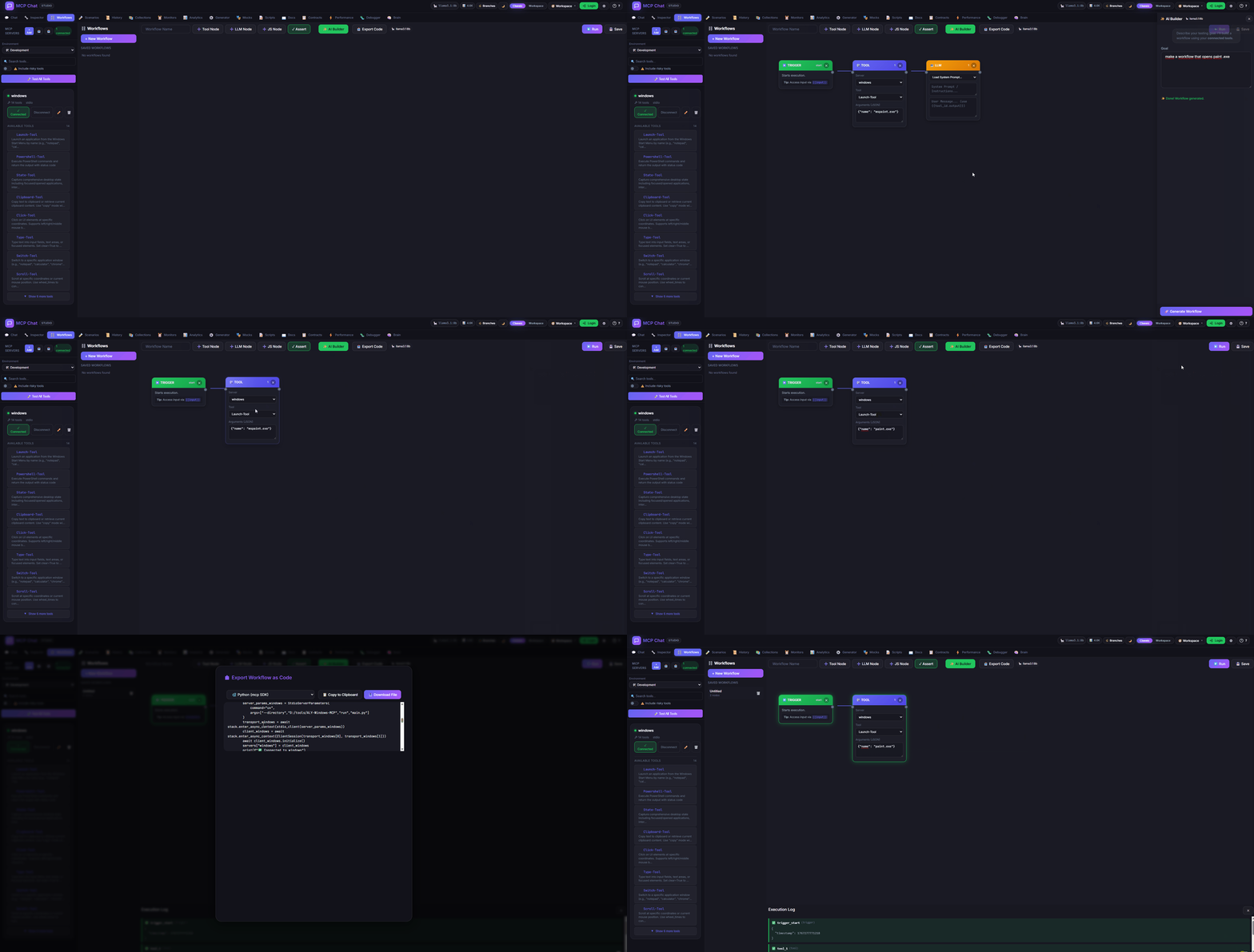
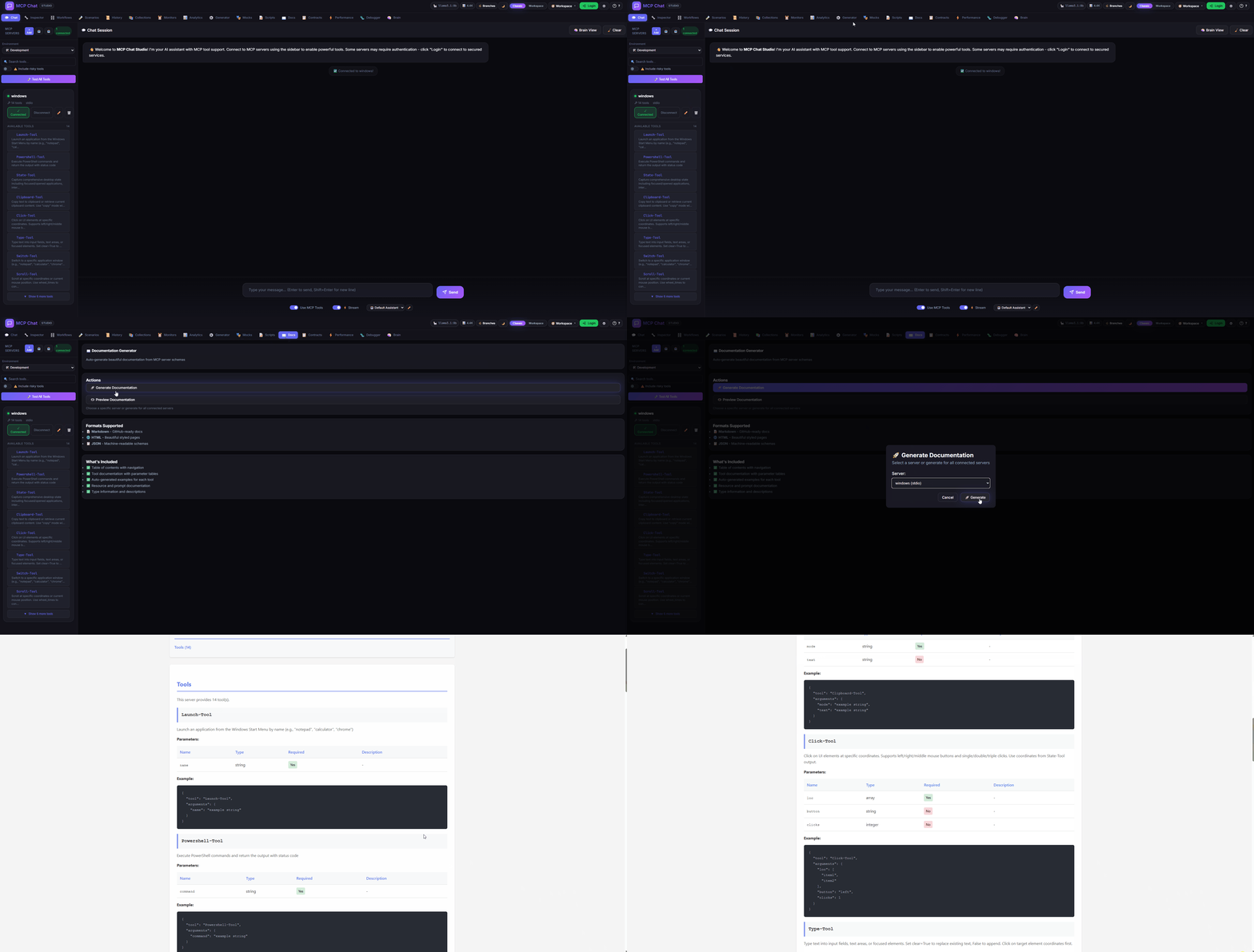
| Workspace Canvas | Studio Assistant | AI Workflow Builder | Documentation Generator |
|---|---|---|---|
 |  |  |  |
📌 Local MCP Test Bench - Designed for development. Not intended for internet exposure.
⚡ Get Started in 60 Seconds
# 1. Clone and install
git clone https://github.com/JoeCastrom/mcp-chat-studio.git && cd mcp-chat-studio && npm install

# 2. Start (works with Ollama out of the box - no API keys needed!)
npm run dev

# 3. Open http://localhost:3082 and start testing! 🎉
That's it! You now have a complete MCP testing platform running locally. Toggle Classic / Workspace in the header to pick your workflow. Use the model badge in the header to switch LLM providers; the ⚙️ Settings button handles model/auth tuning.
🆚 Why Not Just Use Claude Desktop or ChatGPT?
| Feature | MCP Chat Studio | Claude Desktop | ChatGPT |
|---|---|---|---|
| Test ALL tools automatically | ✅ | ❌ | ❌ |
| Record & Replay scenarios | ✅ | ❌ | ❌ |
| Workflow debugger (breakpoints) | ✅ | ❌ | ❌ |
| Bulk testing (multiple inputs) | ✅ | ❌ | ❌ |
| Response diffing | ✅ | ❌ | ❌ |
| Contract testing | ✅ | ❌ | ❌ |
| Tool usage analytics | ✅ | ❌ | ❌ |
| Custom assertions (14 operators) | ✅ | ❌ | ❌ |
| Low-level MCP debugging | ✅ | ❌ | ❌ |
| Mock server generator | ✅ | ❌ | ❌ |
| 9 LLM providers + custom | ✅ | ❌ (Claude only) | ❌ (OpenAI only) |
| Local/no API keys needed | ✅ (Ollama) | ❌ | ❌ |
| Multi-environment profiles | ✅ | ❌ | ❌ |
| Session branching | ✅ | ❌ | ❌ |
🧭 Two Layouts: Classic + Workspace
Classic Mode keeps the familiar sidebar + tabs for focused work.
Workspace Mode turns every tool into a draggable panel on an infinite canvas:
- Radial menu to add panels (right-click)
- Quick access bar for fast panel focus
- Zoom, pan, mini-map, fit-all
- Command palette (Ctrl+K / Ctrl+Shift+P)
- Workspace sessions + export/import bundles
🎨 Highlights: Advanced Testing & Debugging Suite
🐛 Workflow Debugger
Debug complex workflows with professional debugging tools:
- Breakpoint debugging - Pause execution at any node
- Step-through mode - Execute one node at a time
- Variable inspection - View inputs, outputs, and context
- Session management - Pause, resume, step, or abort
✨ AI Workflow Builder
Generate workflows from a natural-language goal:
- Tool-aware prompts - Uses connected MCP tools as context
- One-click generate - Creates a workflow you can edit and run
- Works with Workspace and Classic modes
- Preflight validation - Catch missing tool args and invalid JSON before execution
📦 Workflow Export
Turn visual flows into runnable scripts:
- Python (mcp SDK) and Node.js (mcp SDK)
- Tool calls + variable substitution baked in
- Shareable automation for CI or docs
🔍 Advanced Inspector
Three powerful new testing tools:
- 📊 Timeline - Chronological log of all JSON-RPC messages
- 🧪 Bulk Test - Execute tools with multiple inputs (parallel/sequential)
- 🔥 Bulk Test Heatmap - Visualize latency spread across inputs + export JSON with heatmap data
- 🎬 Fuzz Fail → Scenario - Save failing cases as replayable scenarios
- 📚 Failure Datasets - Store bulk-test failures as dataset rows for data runs
- 🔀 Diff - Side-by-side comparison with similarity scoring
- 🌐 Cross-Server Snapshot - Run one tool across servers and diff output
- 🧭 Matrix wizard - Pick servers + common-tool filter before running diffs
- 🌐 One-click Matrix - Run a tool across servers from the Inspector response
- 🕘 History → Matrix - Launch a cross-server compare directly from past runs
- 🧪 Schema Fuzzing - Generate edge-case inputs from tool schemas
- 🔍 Resolved Preview - See variable substitutions before execution
- 🔐 Per-request Auth Overrides - Bearer/Basic/API key + header/query overrides for OpenAPI proxy tools
- 🔐 OAuth Settings UI - Configure OAuth providers without touching config.yaml or .env (includes a Test OAuth button)
📋 Contract Testing
Consumer-driven contract testing for MCP servers:
- Define contracts - Specify expected tool behavior
- Multiple assertions - Schema, contains, equals, response time, custom
- Auto-generation - Generate contracts from tool schemas
- Version tracking - Track contract changes over time
- Schema Watch - Live drift detection with optional background checks
- Schema CI Gate - One-click baseline export + CI fail-on-change command
📊 Tool Explorer & Analytics
Real-time usage statistics and performance metrics:
- Usage tracking - Calls, success rates, latency per tool
- Performance metrics - p50/p95/p99 latency tracking
- Error monitoring - Recent errors per tool
- Server health badges - Connected/Failed/Not connected with details + retry
- Leaderboards - Most-used tools across servers
- Health dashboard - System-wide health overview
- Flake radar - Highlights tools with rising failure or latency jitter
- Flake alerts - Baseline + regression checks for tool reliability
📚 Documentation Generator
Publish MCP server docs in seconds:
- Markdown / HTML / JSON
- Tools + schemas + examples
- Shareable docs bundle
⏱️ Monitors & Performance
Keep an eye on quality and latency:
- Scheduled monitors with pass/fail history
- Performance tab with p50/p95/p99 and trends
- Health check dashboards
🧭 Workspace Mode
Build your own testing cockpit with floating panels:
- Add panels fast - Radial menu + quick-access bar
- Canvas controls - Zoom, pan, mini-map, fit-all
- Command palette - Ctrl+K / Ctrl+Shift+P
- Sessions + bundles - Save/restore layouts, export/import JSON
- Templates - Save and reuse workspace presets
🎨 Visual MCP Server Generator
Create production-ready MCP servers without writing boilerplate code!
- 🎨 Visual tool designer with parameters and types
- 🧾 OpenAPI import (JSON + YAML) to auto-create tools from API specs (paths + webhooks)
- 🛰️ OpenAPI Proxy mode - generate runnable MCP servers that call real APIs
- 📦 Project bundle export - download a ready-to-run MCP server folder from the Generator
- 🗜️ ZIP export - one-click runnable project archive
- 🧪 Test in Studio - copy config + open Add Server to wire the generated MCP quickly
- ✅ Guided Test flow - step-by-step run commands + required working directory
- 🚀 Run & Connect (Auto) - Studio writes a temporary project folder and connects it for you (Python auto-run requires
mcpinstalled)- Prompts to import selected OpenAPI endpoints if no tools are in the designer yet
- Auto-suffixes the server name to avoid clobbering existing configs (e.g.
my-mcp-server-auto-7f3a)
- 📂 Save to Folder - write the project files directly to a local folder (supported browsers)
- 🔐 Auth mapping - OpenAPI security schemes flow into MCP tool metadata
- 🌐 HTTP hints - Imported endpoints carry read-only/destructive hints via tool annotations
- 🧭 Server URLs + tags - Choose base URL from spec servers[] and bulk-select endpoints by tag
- ⭐ Sample OpenAPI loader - one-click Petstore to explore the workflow
- 🐍 Python (mcp SDK) and 📦 Node.js (TypeScript) code generation
- ⚡ Copy to clipboard or download instantly
- 🔧 Perfect for prototyping and teaching MCP
🎯 Perfect For
- 🔧 MCP Server Developers - Test your tools without manual clicking
- 🤖 AI App Builders - Compare GPT-4 vs Claude vs Llama on the same tasks
- 🏢 Enterprise Teams - Share test scenarios and environments
- 🐛 Debugging - See raw MCP protocol messages when things break
- 📚 Learning MCP - Visual tool designer teaches protocol structure
✨ Why MCP Chat Studio?
- 🎯 Built for MCP Development - Test and debug MCP servers without writing code
- 🔧 9 LLM Providers + Custom - Ollama, OpenAI, Claude, Gemini, Azure, Groq, Together AI, OpenRouter + Custom
- 🧠 Ollama model picker - UI dropdown of locally installed models (auto-detected)
- 🔄 Provider Switcher - Swap LLMs from the model badge and manage visible providers in one place
- 🧭 Studio Assistant - Floating help chat aware of your current panel/layout, with dock + pop‑out modes, quick actions, FAQ fallback, and drag‑and‑drop OpenAPI import
- Commands list + recent command chips + safe confirmations + workspace builder (add/close/resize/arrange panels, sessions, export/import)
- Paste OpenAPI URLs/JSON or upload specs to auto-import into the Generator
- Auto action button to Generate + Test immediately after import
- Resizable panel with dock, pop‑out, and size toggle
- 💬 Smart chat import - Pasting an OpenAPI URL/JSON in the main chat offers to import into Generator
- 🧪 Test Scenarios - Record, replay, and validate tool executions
- 🎬 History → Scenario - Turn real tool calls into replayable test flows
- 🔁 Re-run + Diff - Execute any past tool call and compare outputs instantly
- 🌐 Matrix Runs - Execute the same scenario across multiple servers with baseline diffs
- 📊 Data Runs - Replay scenarios against a JSON dataset
- 📚 Dataset Library - Save reusable data tables for scenarios
- 🔐 OAuth in UI - Configure auth providers and session-based servers from the app
- 🎬 Fuzz Fail → Scenario - Convert bulk test failures into replayable scenarios
- 🌐 Cross-Server Snapshots - Compare live tool outputs across servers
- ⚡ Flake Radar - Spot flaky tools using live failure + jitter signals
- 🚨 Flake Alerts - Detect regressions against a saved reliability baseline
- 📚 Collections & Run Reports - Batch scenarios, run iterations, export JSON/JUnit + CI gate
- ⭐ Golden Baselines - Mark trusted runs and diff against them
- 📸 Run Snapshots - Deterministic replay + drift checks on collections (export/import)
- 🚦 Drift Gate - Export pass/fail gate summary for CI
- 🧭 Workspace Mode - Floating panels, zoom, mini-map, and command palette
- 📊 Response Diffing - Semantic JSON comparison with color-coded changes
- 📋 Schema Validation - Contract testing with auto-inferred schemas
- 🔔 Schema Watch - Detect live schema drift across connected servers
- 📦 Workflow Export - Generate Python or Node.js scripts from workflows
- 📚 Docs Generator - Publish MCP documentation in one click
- 📦 Project Bundles - Export/import full test setups (collections, mocks, envs)
- 🔍 Custom Assertions - 14 operators with JSONPath support
- 🔍 Low-Level Debugging - Inspector tab for raw MCP protocol inspection
- 🐳 Production Ready - Docker support, CI/CD, security-hardened
- 💡 Zero Config Start - Works with Ollama out of the box, no API keys needed
- 🎨 Beautiful UI - Modern glassmorphism design with dark/light themes
📸 Screenshots
Click to view more screenshots
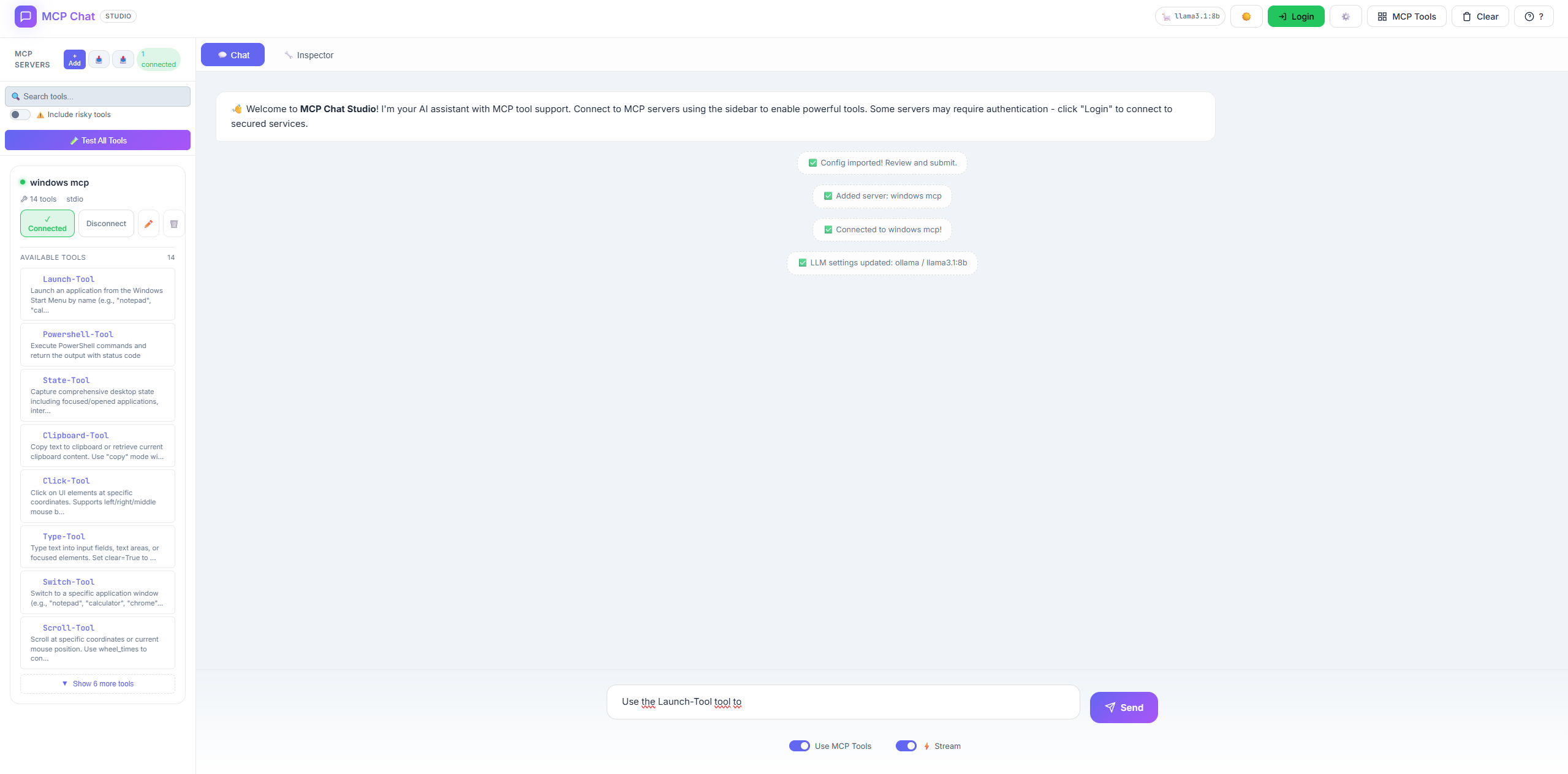
Light Mode
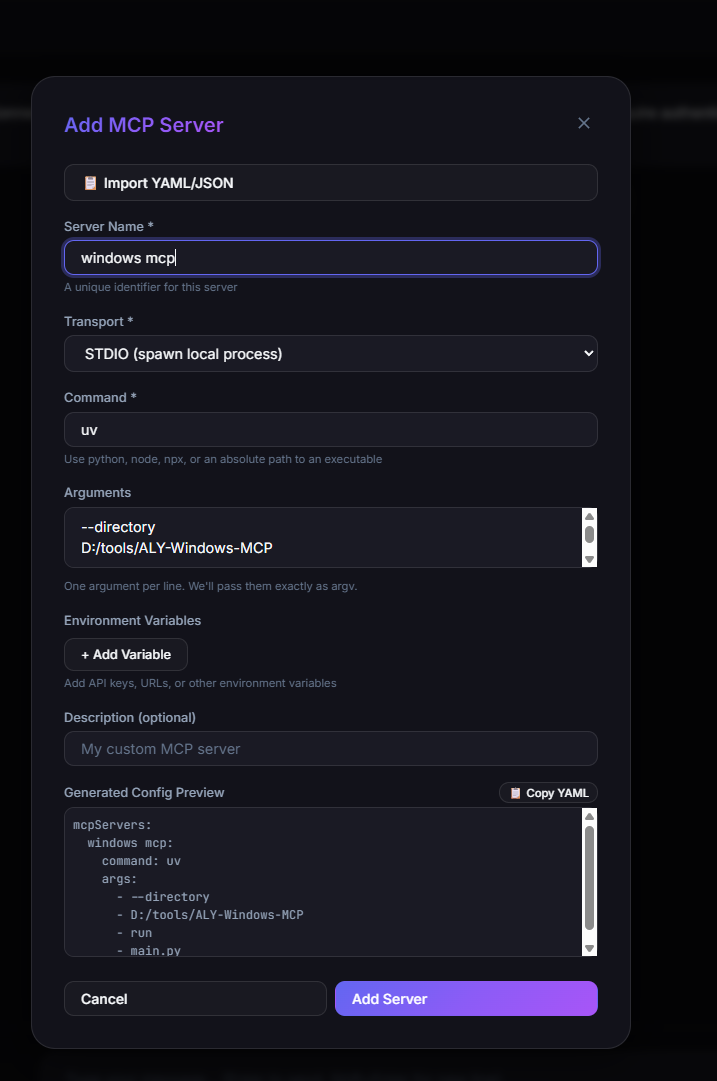
Adding MCP Servers
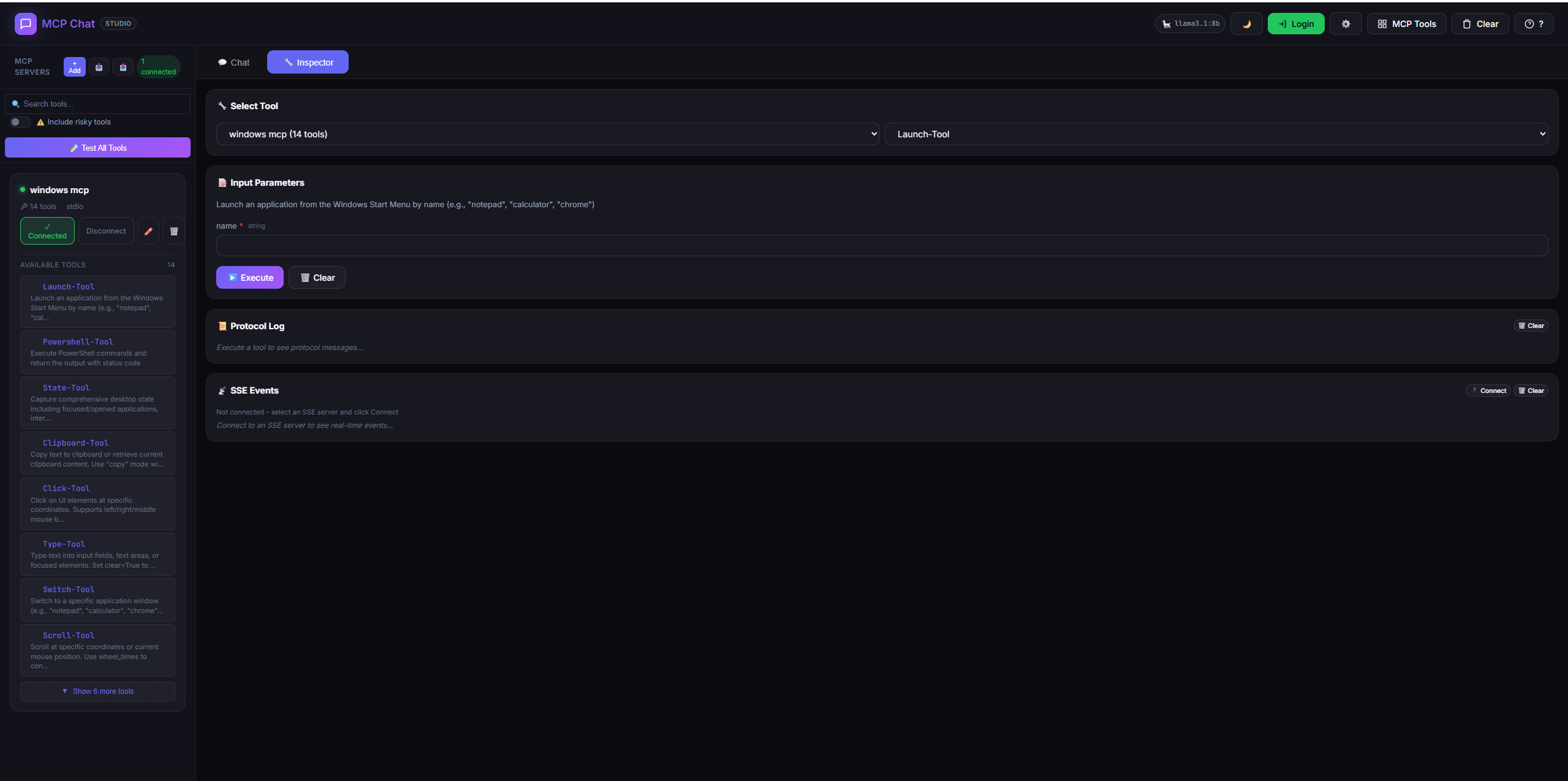
Tool Inspector (Low-Level Debugging)
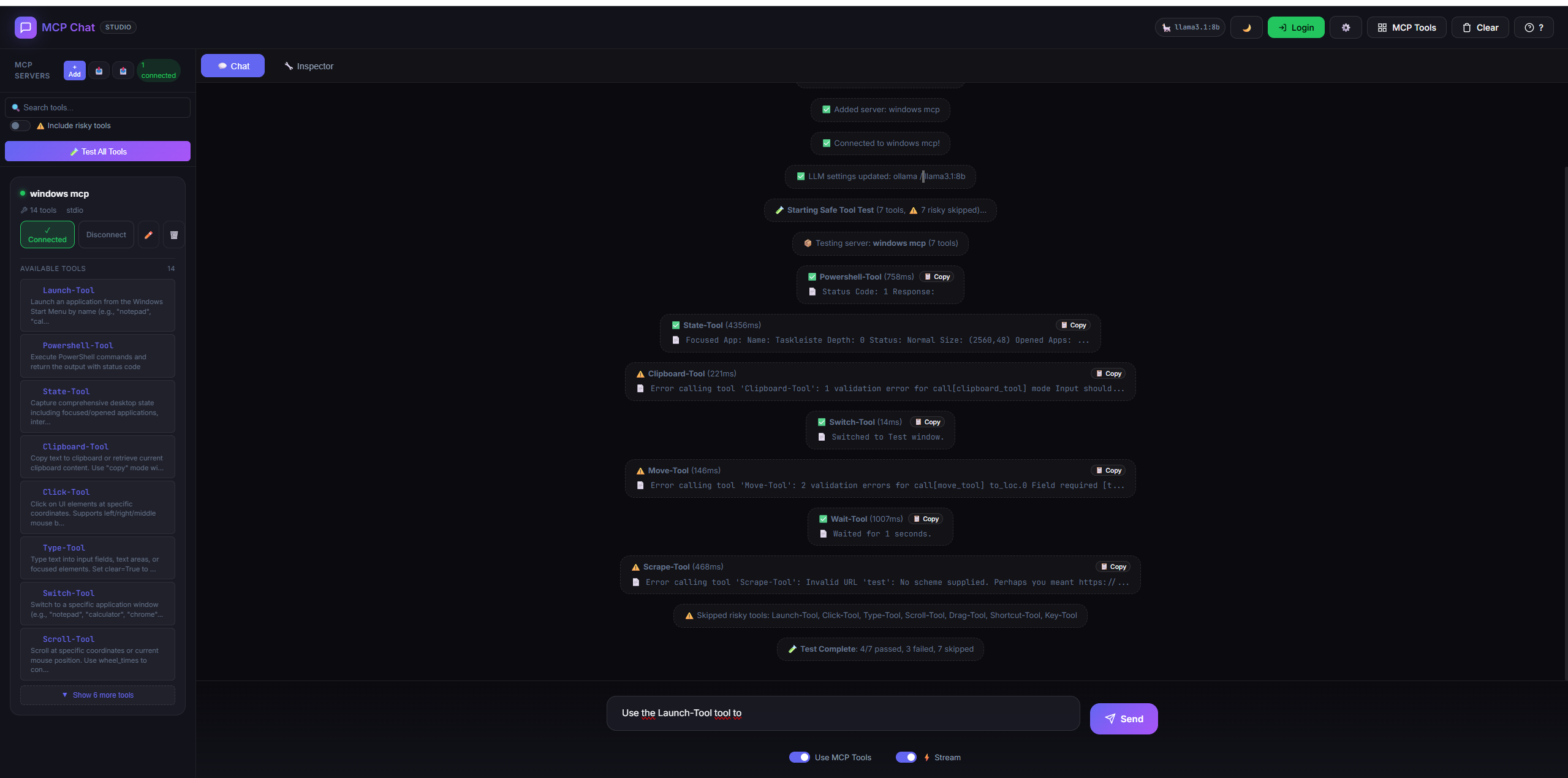
Tool Testing
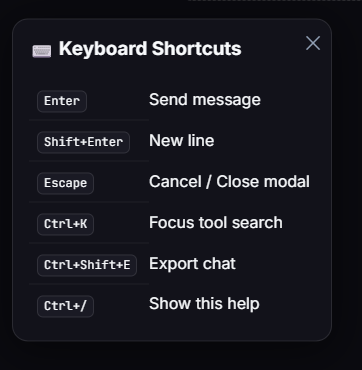
Keyboard Shortcuts
🚀 Features
💬 Multi-Provider LLM Chat
- Ollama - Local LLM (llama3, mistral, qwen, etc.)
- OpenAI - GPT-4o, GPT-4, GPT-3.5
- Anthropic - Claude 3.5, Claude 3
- Google Gemini - Gemini Pro, Gemini Flash
- Azure OpenAI - Enterprise Azure deployments
- Groq - Ultra-fast inference (Mixtral, LLaMA)
- Together AI - Open-source models
- Custom LLM - OpenAI-compatible endpoints with optional OAuth token fetch
- Real-time streaming with typing effect
🔧 MCP Tool Management
- Dynamic server management - Add/remove servers at runtime
- STDIO & SSE transports supported
- Environment variables - Configure API keys, URLs per server
- Import YAML/JSON - Paste config from docs
- Config preview - See generated config before adding
🧪 Tool Testing
- Test All Tools - Smoke test all connected tools
- Response preview - See what each tool returns
- Timing - Measure tool response times
- Safe mode - Skip risky tools (Click, Type, Launch)
- Error detection - Uses MCP's
isErrorfield
🔧 Inspector Tab (Low-Level Debugging)
- Manual tool execution - Call any tool with custom arguments
- Auto-generated forms - Input fields from JSON schema
- Protocol log - See raw MCP request/response JSON
- SSE event viewer - Real-time server events for SSE transports
- Resources/Prompts API - Full MCP protocol support
- Timeline - Chronological JSON-RPC message log with filtering
- Bulk Testing - Execute tools with arrays of inputs
- Diff Tool - Side-by-side result comparison with similarity %
🐛 Workflow Debugger
- Breakpoint debugging - Set breakpoints on any workflow node
- Step-through execution - Execute workflows one node at a time
- Variable inspection - View all context, inputs, and outputs
- Pause/Resume/Abort - Full execution control
- Debug sessions - Multiple concurrent debug sessions
- Execution log - Complete history of node executions
- 11 API endpoints - Full REST API for debugging
📋 Contract Testing Suite
- Define contracts - JSON-based contract definitions
- Schema assertions - Validate response structure
- Response time limits - Performance SLAs
- Custom assertions - Path-based queries with operators
- Auto-generation - Create contracts from tool schemas
- Schema Watch - Live drift detection with on-demand or auto checks
- Version tracking - Contract versioning and updates
- CRUD API - Full contract lifecycle management
- Test reporting - Detailed pass/fail with error messages
📊 Tool Explorer & Analytics
- Usage statistics - Total calls, success/failure rates
- Performance metrics - p50/p95/p99 latency percentiles
- Error tracking - Last 10 errors per tool
- Leaderboard - Most-used tools across servers
- Health dashboard - System-wide health overview
- Trend analysis - Usage patterns over time
- Automatic tracking - Zero-config usage recording
- Export stats - CSV/JSON export for reporting
📤 Config Export/Import
- Export - Download your config as YAML
- Import - Load config from YAML/JSON file
- Team sharing - Share configs across machines
🧪 Test Scenarios (Record/Replay)
- Recording - Click "🔴 Start Recording" to capture tool executions
- Step capture - Records tool name, args, response, timing, schema
- Save scenarios - Name and save as JSON to localStorage
- History → Scenario - Convert recent tool history into a scenario in one click
- Matrix runs - Run one scenario across all connected servers
- Latency heatmap - Visualize step timing across servers at a glance
- Matrix export - Download cross-server results as JSON for CI or sharing
- Data runs - Feed a JSON dataset to replay scenarios with variables
- Dataset library - Save reusable data tables for quick replay
- Replay - Run all steps with ✅/❌/🔶 pass/fail status
- Export - Download scenarios as JSON for Git/CI integration
📊 Response Diffing
- Semantic comparison - Not raw text diff, but JSON-aware
- Color-coded - 🔴 missing, 🟢 added, 🟡 changed, 🟠 type change
- Side-by-side view - Modal shows baseline vs current
- Breaking change detection - Flags structural changes
- History re-run - Diff a new run against any past tool call
📋 Schema Validation
- Auto-inference - Generates schema from first "good" response
- Contract testing - Validates responses against saved schema
- Inline results - Shows "📋 Schema OK" or "📋 N issues"
- Violation details - Missing fields, type mismatches, extra fields
- Schema Watch - Keep a baseline and surface drift during live testing
🔒 Flexible Authentication
- Keycloak - Full OIDC with PKCE
- GitHub - OAuth2 preset
- Google - OAuth2 preset
- Custom - Any OAuth2 provider with custom URLs
🎨 Modern UI
- Glassmorphism design - Frosted glass aesthetic
- Dark/Light theme - Toggle with 🌙/☀️
- Tool schema viewer - See parameter details inline
- Responsive layout - Works on all screen sizes
⌨️ Keyboard Shortcuts
| Shortcut | Context | Action |
|---|---|---|
Enter | Chat | Send message |
Shift+Enter | Chat | New line |
Escape | Global | Cancel / Close modal |
Ctrl+K | Classic | Focus tool search |
Ctrl+K | Workspace | Command palette |
Ctrl+Shift+P | Workspace | Command palette |
Ctrl+S | Workspace | Save layout |
Ctrl+L | Workspace | Load preset |
Ctrl+= / Ctrl+- | Workspace | Zoom in / out |
Ctrl+0 | Workspace | Reset zoom |
Alt+M | Workspace | Toggle mini-map |
G | Workspace | Toggle grid snapping |
Ctrl+Shift+E | Chat | Export chat |
Ctrl+/ | Workspace | Show shortcuts help |
📊 Token Usage Display
- Real-time tracking - Input/output tokens per session
- Cost estimation - Supports 8 LLM providers
- Header badge - Click for detailed breakdown
- Reset option - Start fresh anytime
🧠 Brain View
- Execution timeline - See user/assistant/tool events in order
- Token breakdown - System/User/Assistant/Tools at a glance
- Clear resets state - Timeline and stats reset with chat
🎭 System Prompt Library
- 5 Presets - Default, Strict Coder, JSON Validator, Creative Writer, Tool Tester
- Custom prompts - Create and save your own personas
- Quick switch - Dropdown in chat panel
- Prompt Manager - Edit/delete saved prompts
📦 Test Suites
- Group scenarios - Combine related tests
- Batch execution - Run entire suite at once
- Aggregate results - Pass/fail summary
- Last run tracking - Timestamp and stats
🔍 Custom Assertions
- 14 operators - equals, contains, matches, exists, type, length, gt, lt, gte, lte, etc.
- JSONPath support - Deep value access with
$.path.to.value - Flexible validation - Beyond simple equality checks
💻 CLI Test Runner
Run collections from the command line for CI/CD integration:
# Run a collection
mcp-test run ./collections/my-collection.json --server http://localhost:3082

# Run with iteration data
mcp-test run ./collections/my-collection.json --data ./datasets/users.json

# JUnit output for CI
mcp-test run ./collections/my-collection.json --reporters junit --export ./reports/junit.xml

# Authenticated run (OAuth/session-based)
mcp-test run ./collections/my-collection.json --session <session-id>
🧬 Schema Regression CI
Capture tool schemas and gate changes in CI:
# Snapshot current tool schemas
mcp-test schema snapshot --out ./schema-baseline.json

# Compare snapshots and fail on change
mcp-test schema diff ./schema-baseline.json ./schema-current.json --format junit --out ./schema-diff.xml --gate
In the UI, use Schema Watch under Contracts to auto-detect drift during live testing.
🚦 Collection Run Gates (CI)
Export a Gate file from any Collection Run Report and fail CI on regressions:
# From the UI: click 🚦 Export Gate to download collection-run-gate.json
node scripts/collection-gate.js ./collection-run-gate.json
🎙️ Mock Recorder (Live Capture)
Record live tool calls and instantly spin them into a mock server:
- Capture tool calls from the Inspector
- Create mock with one click
- Keep context with real tool schemas and outputs
🌿 Session Branching
- Fork conversations - Branch at any message
- Save snapshots - Preserve conversation states
- Load branches - Continue from any saved point
- Branch manager - View, load, delete branches
🌍 Multi-Environment Profiles
- Dev/Staging/Prod - Switch between environments
- Auto-save config - Per-environment settings
- Global + env variables - Shared and environment-scoped variables
- Quick switching - Sidebar dropdown
📦 Installation
Prerequisites
- Node.js 18+
- npm or yarn
Quick Start
# Clone the repository
git clone https://github.com/JoeCastrom/mcp-chat-studio.git
cd mcp-chat-studio

# Install dependencies
npm install

# Copy environment template
cp .env.example .env

# Start the server
npm run dev
In-App Quick Start
Use the 🚀 Start button in the header to open a guided checklist that jumps you into Inspector, Scenarios, Collections, Contracts, and the Generator.
Open http://localhost:3082 in your browser.
🐳 Docker Deployment
Using Docker Compose (Recommended)
Option 1: Use Your Local Ollama (Default)
If you already have Ollama installed on your machine:
# Start MCP Chat Studio only (uses your local Ollama)
docker-compose up

# Run in background
docker-compose up -d
The app automatically connects to your local Ollama at http://localhost:11434.
Option 1b: Lite Profile (No Python/MCP Auto-Run)
If you want a smaller container without Generator auto‑run:
docker-compose --profile lite up mcp-chat-studio-lite
Option 2: Include Ollama in Docker
If you don't have Ollama installed locally:
# Start both MCP Chat Studio AND Ollama in Docker
docker-compose --profile with-ollama up

# Run in background
docker-compose --profile with-ollama up -d
Services started:
- MCP Chat Studio: http://localhost:3082
- Ollama (if using profile): http://localhost:11434
Configure API Keys
# Create .env file or set environment variables
OPENAI_API_KEY=sk-your-key
ANTHROPIC_API_KEY=sk-ant-your-key
GOOGLE_API_KEY=your-google-key
Using Docker Only
# Build image
docker build -t mcp-chat-studio .

# Run with Ollama (default)
docker run -p 3082:3082 mcp-chat-studio

# Run with OpenAI
docker run -p 3082:3082 \
  -e OPENAI_API_KEY=sk-your-key \
  mcp-chat-studio

# Run with custom config
docker run -p 3082:3082 \
  -v $(pwd)/config.yaml:/app/config.yaml:ro \
  mcp-chat-studio
Lite Docker Image (Smaller)
If you don’t need Generator auto‑run, use the lite image:
# Build lite image
docker build -f Dockerfile.lite -t mcp-chat-studio:lite .

# Run lite image
docker run -p 3082:3082 mcp-chat-studio:lite
Note: Lite image omits Python/MCP, so “Run & Connect (Auto)” is disabled.
Persisting Studio Data (Recommended)
Persist sessions, mocks, monitors, OAuth tokens, and logs by mounting data/:
docker run -p 3082:3082 \
  -v $(pwd)/data:/app/data \
  mcp-chat-studio
If you use Generator → Run & Connect (Auto) in Docker, also mount the temp project folder:
docker run -p 3082:3082 \
  -v $(pwd)/data:/app/data \
  -v $(pwd)/.mcp-generator:/app/.mcp-generator \
  mcp-chat-studio
Note: The Docker image includes the MCP Python package needed for auto‑run.
Health Check
curl http://localhost:3082/api/health
Response:
{
  "status": "ok",
  "mcpServers": {
    "server-name": "connected"
  }
}
⚙️ Configuration
LLM Providers
MCP Chat Studio supports 9 LLM providers + Custom. Configure in config.yaml or from the UI (⚙️):
UI changes are saved locally in data/llm-config.json (including optional auth settings).
API keys can be entered directly in the UI (they are persisted in the same file). .env is still supported for headless/CI setups.
Provider Visibility (optional)
Hide providers per-user in the UI, or enforce a server allow-list:
# Only show/allow these providers in the UI
LLM_ALLOWED_PROVIDERS=ollama,openai,custom
Ollama (Local - Default)
llm:
  provider: ollama
  model: llama3.2
No API key needed. Just run ollama serve.
OpenAI
llm:
  provider: openai
  model: gpt-4o
# .env
OPENAI_API_KEY=sk-your-key
Anthropic Claude
llm:
  provider: anthropic
  model: claude-3-5-sonnet-20241022
# .env
ANTHROPIC_API_KEY=sk-ant-your-key
Google Gemini
llm:
  provider: gemini
  model: gemini-1.5-flash
# .env
GOOGLE_API_KEY=your-google-ai-key
Azure OpenAI
llm:
  provider: azure
  model: gpt-4o
# .env
AZURE_OPENAI_API_KEY=your-key
AZURE_OPENAI_ENDPOINT=https://your-resource.openai.azure.com
AZURE_OPENAI_DEPLOYMENT=your-deployment-name
Groq (Ultra-fast)
llm:
  provider: groq
  model: llama-3.3-70b-versatile
# .env
GROQ_API_KEY=gsk_your-key
Together AI
llm:
  provider: together
  model: meta-llama/Llama-3.3-70B-Instruct-Turbo
# .env
TOGETHER_API_KEY=your-key
Custom (OpenAI-compatible)
llm:
  provider: custom
  model: your-model
  base_url: 'https://your-llm.example.com/v1'
  auth:
    type: client_credentials
    auth_url: 'https://your-idp.example.com/oauth/token'
    client_id: '${LLM_CLIENT_ID}'
    client_secret: '${LLM_CLIENT_SECRET}'
    scope: 'scope1 scope2'
Custom endpoints also work with Bearer tokens (set auth.type: bearer and provide api_key).
In the UI, we’ll auto‑prefix Bearer if you paste a raw token.
If your gateway needs an extra header, set it in ⚙️ LLM Settings → Extra Auth Header.
OpenRouter (100+ Models)
Access Claude, GPT-4, Gemini, Llama, and 100+ more models through a single API:
llm:
  provider: openrouter
  model: anthropic/claude-3.5-sonnet # or openai/gpt-4o, google/gemini-pro-1.5
# .env
OPENROUTER_API_KEY=your-key
# Get your key at https://openrouter.ai/keys
MCP Servers (config.yaml)
mcpServers:
  my-mcp-server:
    type: stdio
    command: python
    args:
      - -m
      - my_mcp_server
    cwd: /path/to/project
    env:
      API_KEY: '${API_KEY}' # From .env
    description: 'My custom MCP server'
    startup: true # Auto-connect on startup
🛠️ Adding MCP Servers
Via UI (Recommended)
- Click + Add in the sidebar
- Fill in server details:
- Name: Unique identifier
- Transport: STDIO or SSE
- Command/URL: How to start/connect
- Arguments: Command-line args
- Environment Variables: API keys, URLs
- Preview the generated config
- Click Add Server
Via Import
- Click 📋 Import YAML/JSON
- Paste your config:
command: python
args:
  - -m
  - my_server
env:
  API_KEY: sk-xxx
- Click Import → Form auto-fills
- Review and Add Server
Official MCP Servers
- @modelcontextprotocol/server-postgres - PostgreSQL database access
- @modelcontextprotocol/server-sqlite - SQLite database operations
- @modelcontextprotocol/server-slack - Slack integration
- @modelcontextprotocol/server-google-maps - Google Maps API
Find more: MCP Servers Directory
🧪 Testing Tools
Test All Tools
- Connect to an MCP server
- Click 🧪 Test All Tools
- View results:
- ✅ Tool works with minimal input
- ⚠️ Tool responded but input validation failed
- ❌ Tool failed completely
Risky Tools
Some tools have side effects and are skipped by default:
Click-Tool- Clicks on screenType-Tool- Types textLaunch-Tool- Opens applicationsDrag-Tool,Key-Tool,Shortcut-Tool,Scroll-Tool
Check ⚠️ Include risky tools to test them.
Response Data
- Each test shows a preview of the response
- Click 📋 Copy to copy full JSON
- Duration shows response time in ms
🧪 Test Scenarios (Advanced Testing)
Test Scenarios let you record, replay, and validate tool executions for regression testing.
Workflow
1. RECORD → Execute tools normally, they're saved as baseline
2. REPLAY → Re-run all steps, compare responses
3. ANALYZE → See diffs and schema violations
Recording a Scenario
- Go to 🧪 Scenarios tab
- Click 🔴 Start Recording
- Switch to 🔧 Inspector tab
- Execute your tools (each becomes a step)
- Return to 🧪 Scenarios tab
- Click ⏹️ Stop Recording
- Name and 💾 Save your scenario
Each step captures:
- Tool name & server
- Arguments used
- Response (as baseline)
- Response hash (for quick comparison)
- Inferred schema (for contract testing)
- Execution timing
Replaying a Scenario
- Find your scenario in Saved Scenarios
- Click ▶️ Replay
- Watch results appear:
- ✅ Pass - Response matches baseline
- 🔶 Diff - Response differs (click "View Diff")
- ❌ Fail - Execution error
- 📋 Schema - Validation result
Response Diffing
When a step shows 🔶, click View Diff to see:
| Color | Meaning |
|---|---|
| 🔴 MISSING | Field was in baseline, now gone |
| 🟢 ADDED | New field appeared |
| 🟡 CHANGED | Same key, different value |
| 🟠 TYPE | Type changed (e.g., string→number) |
Schema Validation
Each step's response schema is auto-inferred during recording. On replay:
- Type checks - Expected
string, gotnumber - Required fields - Field was present, now missing
- Extra fields - Unexpected new fields (warning)
Results show as 📋 Schema OK or 📋 N issues.
Exporting Scenarios
- Single: Click 📦 Export on a scenario
- All: Click 📦 Export All
- Format: JSON (version-controllable in Git)
📚 Collections + Run Reports
Group multiple scenarios and run them like Postman collections.
- Add scenarios to collections with one click
- Run with iterations + environment variables + retries
- CSV/JSON iteration data for data-driven testing
- Run history with one-click rerun
- Run report shows pass/fail + timing
- Regression delta vs previous run (new failures + recoveries)
- Golden baseline runs for trusted comparisons
- Run snapshots for deterministic replay + drift checks
- Drift gate export for CI-friendly pass/fail checks
- Export JSON, JUnit, HTML, or a full run bundle
- Mock from run to generate offline test servers
🧩 Pre/Post Scripts
- Pre-request hooks - Modify inputs before execution
- Post-request hooks - Validate or transform outputs
- Reusable scripts - Create, enable/disable, and test scripts
💬 Using the Chat
Basic Chat
- Type a message and press Enter
- The LLM responds (with streaming if enabled)
Using MCP Tools
- Enable Use MCP Tools checkbox
- The LLM can call any connected tool
- Tool results appear in the chat
Streaming
- Enable ⚡ Stream for real-time typing effect
- Streaming is disabled when tools are enabled (tools need full response)
Force Tool Mode
- Click a tool in the sidebar
- Click Force to require the LLM to use it
- Badge shows which tool is forced
🔧 Inspector Tab
The Inspector provides low-level MCP debugging without using the LLM.
How to Use
- Click the 🔧 Inspector tab
- Select a Server from the dropdown
- Select a Tool from the dropdown
- Fill in the parameters (auto-generated from schema)
- Click ▶️ Execute
- View the raw JSON response
Input Types
| Schema Type | Input Field |
|---|---|
| string | Text input |
| number | Number input |
| boolean | True/False dropdown |
| array | JSON textarea |
| object | JSON textarea |
| enum | Dropdown with options |
Auth Overrides (OpenAPI Proxy Tools)
Per-request auth is available for OpenAPI proxy tools generated in the Generator.
- Toggle 🔐 Auth Overrides in Inspector
- Choose Bearer, Basic, or API Key
- Optionally add Headers JSON / Query JSON
- Execute the tool — overrides are sent as
__headers/__query
Notes:
- Auth overrides apply only to OpenAPI proxy tools (generated with the OpenAPI Generator).
- If a tool does not support overrides, the Inspector shows a warning and ignores the overrides.
- Re-generate older OpenAPI servers to get
__headers/__querysupport.
When to Use
- Debugging - Test tools without LLM interpretation
- Development - Iterate on tool parameters quickly
- Verification - Check exact MCP responses
📁 Project Structure
mcp-chat-studio/
├── public/
│   └── index.html        # Single-page UI (HTML + CSS + JS)
├── server/
│   ├── index.js          # Express server entry
│   ├── routes/
│   │   ├── chat.js       # Chat & LLM endpoints
│   │   ├── llm.js        # LLM settings endpoints
│   │   ├── mcp.js        # MCP management endpoints
│   │   └── oauth.js      # OAuth endpoints
│   └── services/
│       ├── LLMClient.js  # Multi-provider LLM client
│       └── MCPManager.js # MCP server manager
├── config.yaml           # MCP server configs
├── .env                  # Environment variables
└── package.json
🔌 API Endpoints
Chat
| Method | Endpoint | Description |
|---|---|---|
| POST | /api/chat | Send message (streaming supported) |
| POST | /api/chat/continue | Continue after tool call |
MCP
| Method | Endpoint | Description |
|---|---|---|
| GET | /api/mcp/status | Get server statuses |
| GET | /api/mcp/tools | Get all available tools |
| POST | /api/mcp/add | Add new server |
| POST | /api/mcp/connect | Connect to server |
| POST | /api/mcp/disconnect | Disconnect from server |
| POST | /api/mcp/call | Call a tool |
| DELETE | /api/mcp/remove/:name | Remove server |
| GET | /api/mcp/resources/:name | List resources |
| POST | /api/mcp/resources/read | Read a resource |
| GET | /api/mcp/prompts/:name | List prompts |
| POST | /api/mcp/prompts/get | Get a prompt |
LLM
| Method | Endpoint | Description |
|---|---|---|
| GET | /api/llm/settings | Get current LLM settings |
| POST | /api/llm/settings | Update LLM settings |
🎨 Theming
Toggle between Dark and Light mode using the 🌙/☀️ button in the header.
Theme is saved to localStorage and persists across sessions.
🔒 Authentication (Optional)
MCP Chat Studio supports multiple OAuth2 providers:
Provider Presets
oauth:
  provider: keycloak # or github, google
  client_id: '${OAUTH_CLIENT_ID}'
  client_secret: '${OAUTH_CLIENT_SECRET}'
  redirect_uri: 'http://localhost:3082/api/oauth/callback'

  # Keycloak-specific
  keycloak_url: 'https://your-keycloak/auth'
  keycloak_realm: 'your-realm'
Custom OAuth2 Provider
oauth:
  authorize_url: 'https://provider.com/oauth/authorize'
  token_url: 'https://provider.com/oauth/token'
  userinfo_url: 'https://provider.com/api/userinfo'
  client_id: '${OAUTH_CLIENT_ID}'
  client_secret: '${OAUTH_CLIENT_SECRET}'
  scopes: ['openid', 'profile', 'email']
  use_pkce: true # false for legacy providers
Environment Variables
OAUTH_CLIENT_ID=your-client-id
OAUTH_CLIENT_SECRET=your-secret
OAUTH_AUTHORIZE_URL=https://...  # For custom providers
OAUTH_TOKEN_URL=https://...
OAUTH_DISABLE_SSL_VERIFY=true    # Dev only (self-signed/internal PKI)
MCP_SANDBOX_ENGINE=vm2           # Optional: set to isolated-vm if installed
Click Login to authenticate.
🔐 Security Best Practices
Security Environment Variables
| Variable | Default | Description |
|---|---|---|
ENABLE_SCRIPTS | false | Enable script execution (ScriptRunner, JS workflow nodes). Disabled by default for security. |
HOST | 127.0.0.1 | Server bind address. Defaults to localhost only. |
ALLOW_REMOTE | false | Required if HOST=0.0.0.0. Prevents accidental network exposure. |
CORS_ORIGINS | localhost | Comma-separated list of allowed origins for CORS. |
Script Execution
Script execution (pre/post-request scripts, JavaScript workflow nodes) is disabled by default for security. To enable:
ENABLE_SCRIPTS=true npm run dev
Network Binding
By default, the server binds to 127.0.0.1 (localhost only). To expose to all network interfaces:
HOST=0.0.0.0 ALLOW_REMOTE=true npm run dev
The server will refuse to start if HOST=0.0.0.0 without ALLOW_REMOTE=true to prevent accidental exposure.
Important Security Notes
- ⚠️ Never commit
.envfile - Contains API keys and secrets - ⚠️ Use environment variables - All secrets should be in
.envor environment - ⚠️ SSL verification enabled - Disable only for dev/self-signed certs (UI toggle or
OAUTH_DISABLE_SSL_VERIFY=true) - 🔐 OAuth token storage - Set
OAUTH_TOKEN_KEYto persist tokens encrypted indata/oauth-tokens.json(memory-only if unset). Use Redis/DB for multi-user production. - ⚠️ Sandbox engine - Defaults to
isolated-vmwhen installed (falls back to vm2). SetMCP_SANDBOX_ENGINEto override. - 🔑 LLM API keys (UI) - Saved server-side in
data/llm-config.jsonwhen entered in ⚙️ LLM Settings (not localStorage). For custom Bearer auth, the UI auto‑prefixesBearerif you paste a raw token. Use.envfor headless/CI. - 🔒 CSRF protection - Browser requests require
X-CSRF-Token(UI adds it automatically). CLI requests without anOriginheader are allowed. - 📝 Audit logging - Security-relevant events are written to
data/audit.log. - 💾 Server-side sessions - Chat sessions/tool history sync to
data/sessions.json(tied tosessionIdcookie). - 🧼 HTML sanitization - DOMPurify is used when installed (fallback allowlist sanitizer).
- 🔗 Session share links - Share the current session via Settings → "Share" (one-time link to import a session snapshot).
For Development
# .env (local development)
OPENAI_API_KEY=sk-your-key
ANTHROPIC_API_KEY=sk-ant-your-key

# Disable SSL verify only for internal/self-signed certs
OAUTH_DISABLE_SSL_VERIFY=true
For Production
# Use secure environment variables
export OPENAI_API_KEY="sk-your-key"
export ANTHROPIC_API_KEY="sk-ant-your-key"

# Never disable SSL verification in production
# OAUTH_DISABLE_SSL_VERIFY should NOT be set

# Use Redis for OAuth tokens (multi-instance deployments)
# Modify server/services/OAuthManager.js to use Redis instead of Map
MCP Server Security
- Filesystem Server: Only grant access to specific directories
- Database Servers: Use read-only credentials when possible
- API Keys: Store in
.env, never inconfig.yaml - Network Servers (SSE): Use HTTPS and authentication
What's Safe to Commit
✅ Safe:
config.yaml.example.env.example- Source code
- Documentation
❌ NEVER Commit:
.env(actual credentials)config.yaml(may contain secrets)- API keys or tokens
- Certificates or private keys
❓ Frequently Asked Questions
General
Q: Can I use multiple MCP servers at once?
A: Yes! Add as many as you want. Tools are automatically namespaced (e.g., github__get_issue, filesystem__read_file) to prevent conflicts.
Q: Do I need API keys to start? A: No! Use Ollama locally (free, no keys required). API keys are only needed for cloud LLM providers like OpenAI, Anthropic, etc.
Q: Can I use my own MCP server?
A: Absolutely! Add it via the UI or edit config.yaml. Supports both STDIO and SSE transports.
Q: Does this work on Windows? A: Yes! Works on Windows, macOS, and Linux. For Windows, use PowerShell or Git Bash for commands.
Usage
Q: How do I test tools without the chat? A: Use the Inspector tab to call tools directly without involving the LLM. Perfect for debugging and testing.
Q: Why can't I use streaming with tools? A: LLMs need the complete response to decide which tools to call. Streaming is auto-disabled when tools are enabled.
Q: What are "risky tools"? A: Tools that have side effects (clicking, typing, launching apps). They're skipped by default in "Test All Tools" to prevent unwanted actions.
Q: How do I switch LLM providers? A: Click ⚙️ Settings → Change provider and model → Save. Changes take effect immediately.
MCP Servers
Q: What's the difference between STDIO and SSE? A: STDIO runs locally as a subprocess. SSE connects to remote servers over HTTP. Use STDIO for local tools, SSE for network services.
Q: Can MCP servers see my API keys? A: Only if you explicitly pass them via environment variables. Each server only sees the env vars you configure for it.
Q: My MCP server won't connect. What's wrong? A: Check:
- Command/path is correct
- Required dependencies installed (
npm install -g ...) - Environment variables set
- Server logs in browser console (F12)
Q: Can I use the same MCP server with different configurations?
A: Yes! Add it multiple times with different names and configs. For example, github-personal and github-work with different tokens.
Development
Q: How do I add a new LLM provider?
A: Edit server/services/LLMClient.js. See CONTRIBUTING.md for details.
Q: Can I contribute new features? A: Yes! We welcome contributions. See CONTRIBUTING.md for guidelines.
Q: Is there an API for automation? A: Yes! See the API Endpoints section. All features are accessible via REST API.
🐛 Troubleshooting
MCP Server Won't Connect
- Check the command/path is correct
- Verify environment variables
- Check server logs in console
- Try running the command manually
LLM Not Responding
- Check provider settings in ⚙️ Settings
- Verify Ollama is running (
ollama serve) - Check API key for OpenAI
Tools Show ⚠️ Warning
This means the tool responded but our dummy test input was invalid. The tool is working - it just needs proper arguments.
📜 License
MIT License - feel free to use and modify.
🤝 Contributing
We welcome contributions from the community! Whether it's bug fixes, new features, documentation improvements, or examples - all contributions are appreciated.
How to Contribute
- Fork the repository
- Clone your fork:
git clone https://github.com/YOUR_USERNAME/mcp-chat-studio.git - Create a branch:
git checkout -b feature/amazing-feature - Make changes and test thoroughly
- Format code:
npm run format - Lint code:
npm run lint - Commit:
git commit -m 'feat: add amazing feature' - Push:
git push origin feature/amazing-feature - Open a Pull Request
Contribution Guidelines
Please read CONTRIBUTING.md for:
- Code style guidelines
- Commit message conventions
- Testing requirements
- Pull request process
Found a Bug?
Open an issue with:
- Clear description
- Steps to reproduce
- Expected vs actual behavior
- Screenshots if applicable
- Environment details (OS, Node version, etc.)
Want a Feature?
Request it here with:
- Use case description
- Proposed solution
- Alternatives considered
Quick Contribution Ideas
- 🐛 Fix a bug from issues
- 📚 Improve documentation
- 🧪 Add tests
- 🎨 Improve UI/UX
- 🔌 Add new LLM provider
- 📦 Create example MCP servers
- 🌐 Add translations
🙏 Acknowledgments
- Created by Youssef Ghazi
- Built with Model Context Protocol
- Inspired by the MCP community
- Thanks to all contributors!
Built with ❤️ by Youssef Ghazi for MCP developers