MCPChatbot Example
This project demonstrates how to integrate the Model Context Protocol (MCP) with customized LLM (e.g. Qwen), creating a powerful chatbot that can interact with various tools through MCP servers. The implementation showcases the flexibility of MCP by enabling LLMs to use external tools seamlessly.
[!TIP] For Chinese version, please refer to README_ZH.md.
Overview
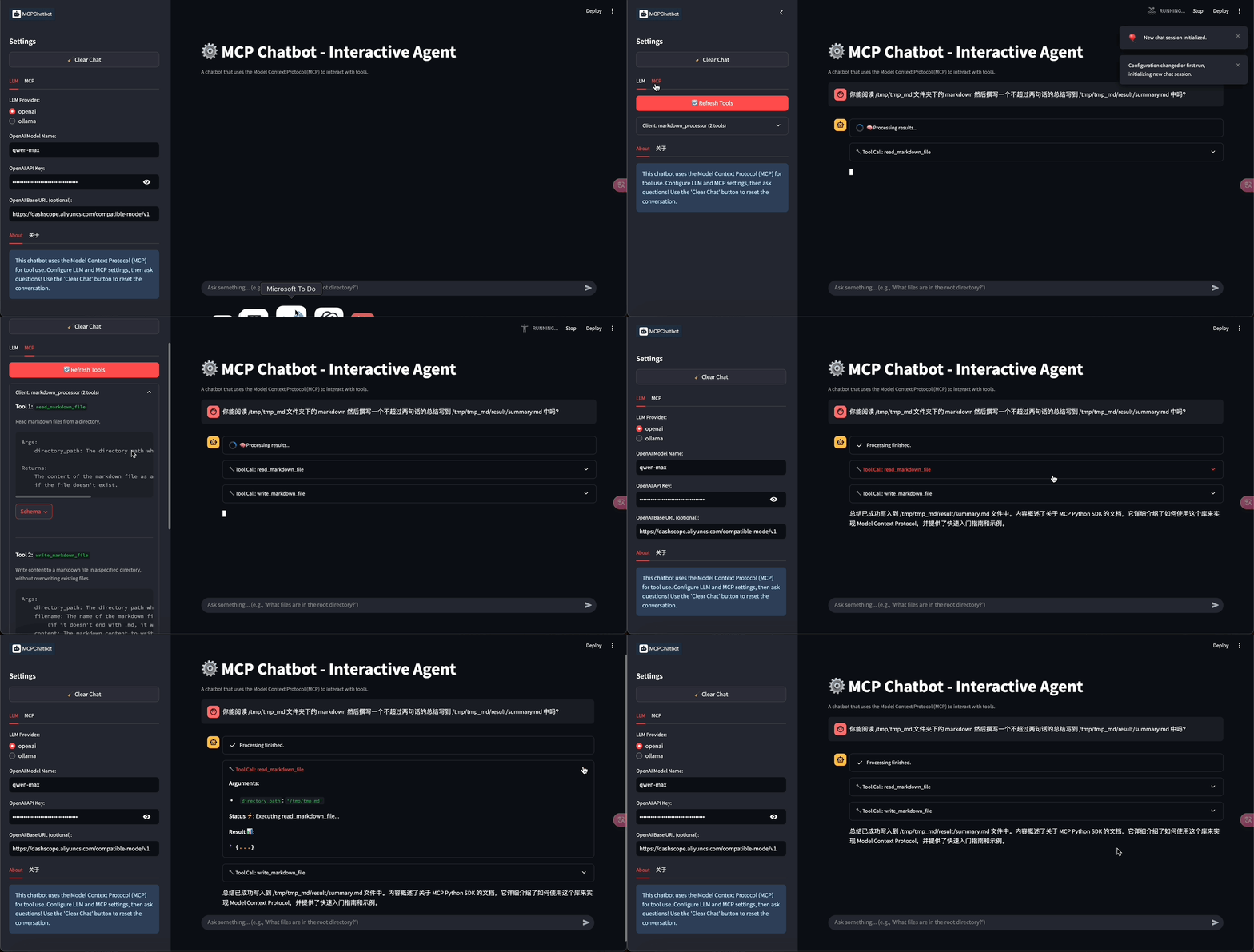
Chatbot Streamlit Example
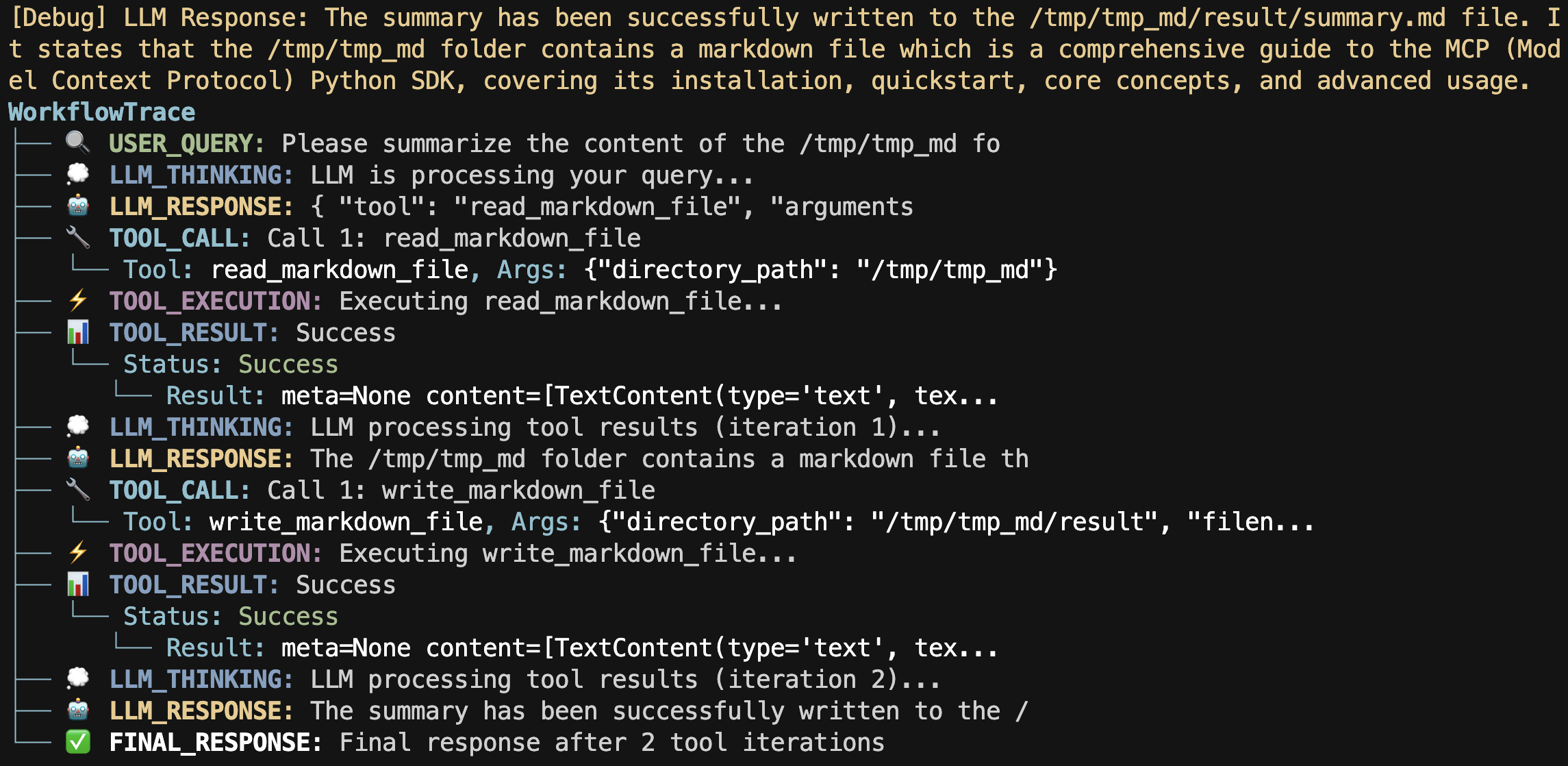
Workflow Tracer Example
- 🚩 Update (2025-04-11):
- Added chatbot streamlit example.
- 🚩 Update (2025-04-10):
- More complex LLM response parsing, supporting multiple MCP tool calls and multiple chat iterations.
- Added single prompt examples with both regular and streaming modes.
- Added interactive terminal chatbot examples.
This project includes:
- Simple/Complex CLI chatbot interface
- Integration with some builtin MCP Server like (Markdown processing tools)
- Support for customized LLM (e.g. Qwen) and Ollama
- Example scripts for single prompt processing in both regular and streaming modes
- Interactive terminal chatbot with regular and streaming response modes
Requirements
- Python 3.10+
- Dependencies (automatically installed via requirements):
- python-dotenv
- mcp[cli]
- openai
- colorama
Installation
-
Clone the repository:
git clone git@github.com:keli-wen/mcp_chatbot.git cd mcp_chatbot -
Set up a virtual environment (recommended):
cd folder # Install uv if you don't have it already pip install uv # Create a virtual environment and install dependencies uv venv .venv --python=3.10 # Activate the virtual environment # For macOS/Linux source .venv/bin/activate # For Windows .venv\Scripts\activate # Deactivate the virtual environment deactivate -
Install dependencies:
pip install -r requirements.txt # or use uv for faster installation uv pip install -r requirements.txt -
Configure your environment:
-
Copy the
.env.examplefile to.env:cp .env.example .env -
Edit the
.envfile to add your Qwen API key (just for demo, you can use any LLM API key, remember to set the base_url and api_key in the .env file) and set the paths:LLM_MODEL_NAME=your_llm_model_name_here LLM_BASE_URL=your_llm_base_url_here LLM_API_KEY=your_llm_api_key_here OLLAMA_MODEL_NAME=your_ollama_model_name_here OLLAMA_BASE_URL=your_ollama_base_url_here MARKDOWN_FOLDER_PATH=/path/to/your/markdown/folder RESULT_FOLDER_PATH=/path/to/your/result/folder
-
Important Configuration Notes ⚠️
Before running the application, you need to modify the following:
-
MCP Server Configuration: Edit
mcp_servers/servers_config.jsonto match your local setup:{ "mcpServers": { "markdown_processor": { "command": "/path/to/your/uv", "args": [ "--directory", "/path/to/your/project/mcp_servers", "run", "markdown_processor.py" ] } } }Replace
/path/to/your/uvwith the actual path to your uv executable. You can usewhich uvto get the path. Replace/path/to/your/project/mcp_serverswith the absolute path to the mcp_servers directory in your project. (For Windows users, you can take a look at the example in the Troubleshooting section) -
Environment Variables: Make sure to set proper paths in your
.envfile:MARKDOWN_FOLDER_PATH="/path/to/your/markdown/folder" RESULT_FOLDER_PATH="/path/to/your/result/folder"The application will validate these paths and throw an error if they contain placeholder values.
You can run the following command to check your configuration:
bash scripts/check.sh
Usage
Unit Test
You can run the following command to run the unit test:
bash scripts/unittest.sh
Examples
Single Prompt Examples
The project includes two single prompt examples:
-
Regular Mode: Process a single prompt and display the complete response
python example/single_prompt/single_prompt.py -
Streaming Mode: Process a single prompt with real-time streaming output
python example/single_prompt/single_prompt_stream.py
Both examples accept an optional --llm parameter to specify which LLM provider to use:
python example/single_prompt/single_prompt.py --llm=ollama
[!NOTE] For more details, see the Single Prompt Example README.
Terminal Chatbot Examples
The project includes two interactive terminal chatbot examples:
-
Regular Mode: Interactive terminal chat with complete responses
python example/chatbot_terminal/chatbot_terminal.py -
Streaming Mode: Interactive terminal chat with streaming responses
python example/chatbot_terminal/chatbot_terminal_stream.py
Both examples accept an optional --llm parameter to specify which LLM provider to use:
python example/chatbot_terminal/chatbot_terminal.py --llm=ollama
[!NOTE] For more details, see the Terminal Chatbot Example README.
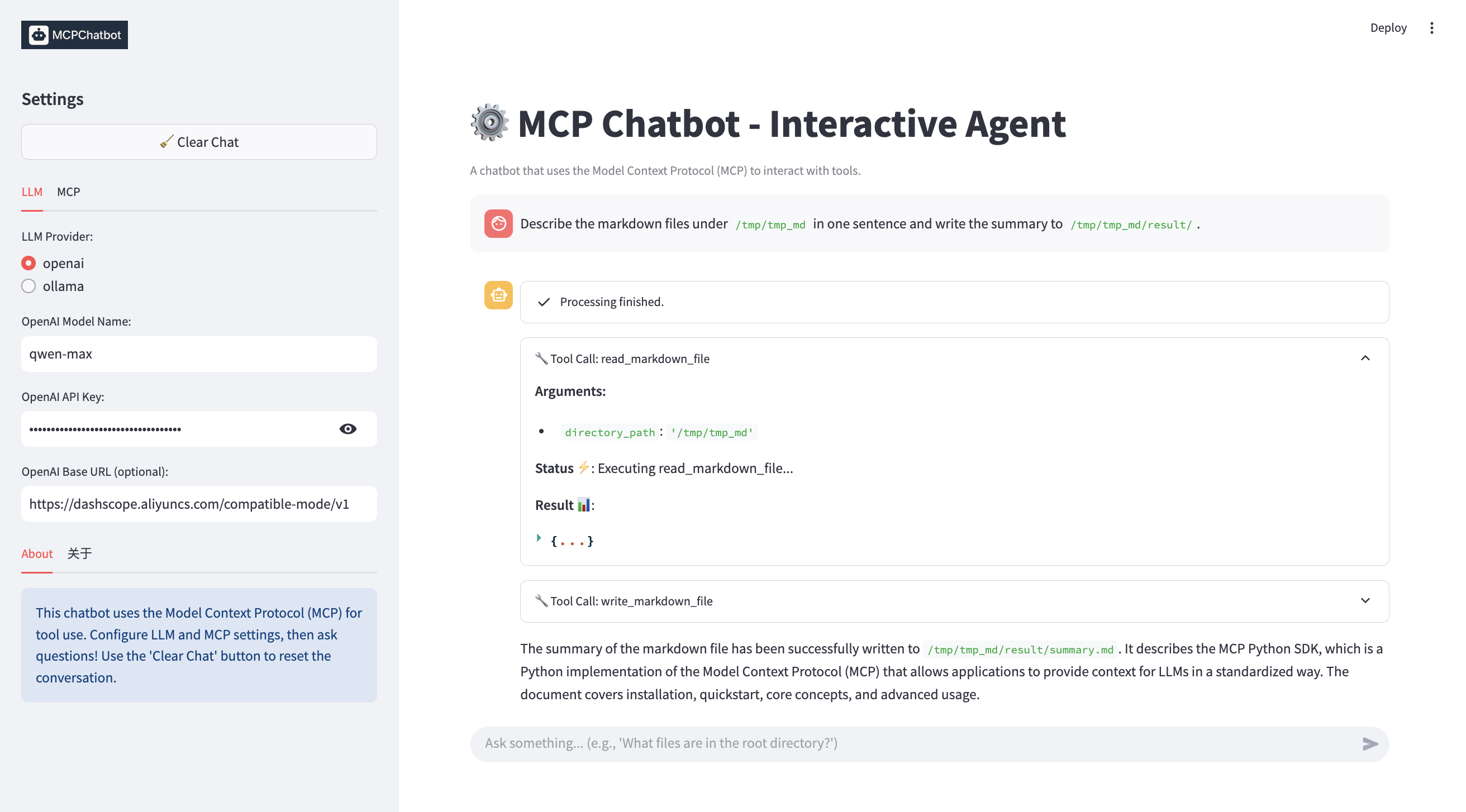
Streamlit Web Chatbot Example
The project includes an interactive web-based chatbot example using Streamlit:
streamlit run example/chatbot_streamlit/app.py
This example features:
- Interactive chat interface.
- Real-time streaming responses.
- Detailed MCP tool workflow visualization.
- Configurable LLM settings (OpenAI/Ollama) and MCP tool display via the sidebar.
[!NOTE] For more details, see the Streamlit Chatbot Example README.
Project Structure
mcp_chatbot/: Core library codechat/: Chat session managementconfig/: Configuration handlingllm/: LLM client implementationmcp/: MCP client and tool integrationutils/: Utility functions (e.g.WorkflowTraceandStreamPrinter)
mcp_servers/: Custom MCP servers implementationmarkdown_processor.py: Server for processing Markdown filesservers_config.json: Configuration for MCP servers
data-example/: Example Markdown files for testingexample/: Example scripts for different use casessingle_prompt/: Single prompt processing examples (regular and streaming)chatbot_terminal/: Interactive terminal chatbot examples (regular and streaming)chatbot_streamlit/: Interactive web chatbot example using Streamlit
Extending the Project
You can extend this project by:
- Adding new MCP servers in the
mcp_servers/directory - Updating the
servers_config.jsonto include your new servers - Implementing new functionalities in the existing servers
- Creating new examples based on the provided templates
Troubleshooting
For Windows users, you can take the following servers_config.json as an example:
{
    "mcpServers": {
        "markdown_processor": {
            "command": "C:\\Users\\13430\\.local\\bin\\uv.exe",
            "args": [
                "--directory",
                "C:\\Users\\13430\\mcp_chatbot\\mcp_servers",
                "run",
                "markdown_processor.py"
            ]
        }
    }
}
- Path Issues: Ensure all paths in the configuration files are absolute paths appropriate for your system
- MCP Server Errors: Make sure the tools are properly installed and configured
- API Key Errors: Verify your API key is correctly set in the
.envfile