MCP-Link for Blender
Transform Blender into an AI-Controllable 3D Creation Platform
MCP-Link for Blender exposes Blender's entire Python API to AI agents through the Model Context Protocol (MCP). No hardcoded commands - just pure, generic API access that lets AI do anything Blender can do.
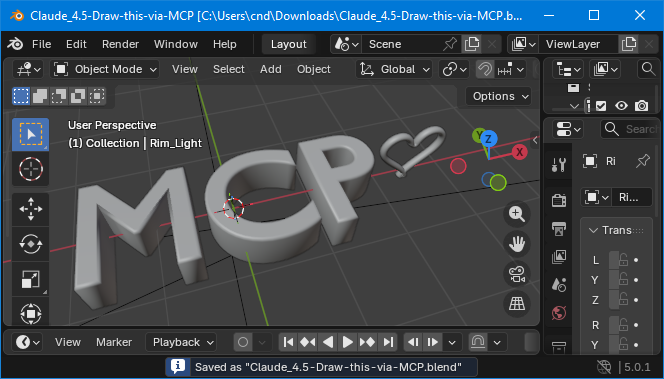
What Makes This Revolutionary
Unlike traditional add-ons, MCP-Link provides infrastructure. It's a bridge that lets any AI agent - ChatGPT, Claude, Cursor, or custom agents - control Blender through natural language.
Three Levels of Power
- Python Execution - Run arbitrary Python code in Blender's runtime with full
bpyaccess - Direct API Calls - Execute any Blender operator or access any data
- MCP Tool Integration - Access 10+ tools (SQLite, browser, AI models, and more)
Features
- ✅ 100% Generic API - Works with ANY Blender command
- ✅ Full Python Access - Run arbitrary Python code with complete
bpyaccess - ✅ Persistent Sessions - Variables persist across multiple AI commands
- ✅ MCP Tool Ecosystem - SQLite, browser automation, system control, and more
- ✅ Auto-Connect - Extension connects to MCP-Link server on startup
- ✅ Auto-Reconnect - Handles connection drops gracefully
- ✅ Thread-Safe - Proper main-thread execution for Blender API calls
Requirements
- Blender 4.2+ - Download from blender.org
- MCP-Link Server - Free download from AuraFriday
- MCP-Compatible AI - Cursor, Claude Code, or any MCP client
Installation
Method 1: From Blender Extensions
- Open Blender
- Go to Edit → Preferences → Get Extensions
- Search for "MCP-Link"
- Click Install
Method 2: From ZIP File
- Download
mcp_link_blender-x.x.x.zipfrom releases - Open Blender
- Go to Edit → Preferences → Add-ons
- Click Install from Disk...
- Select the ZIP file
Method 3: Command Line
blender --command extension install-file -r user_default -e mcp_link_blender-1.0.0.zip
Usage Examples
Create a 3D Cube
{
  "operation": "execute_python",
  "code": "import bpy\nbpy.ops.mesh.primitive_cube_add(size=2, location=(0, 0, 1))\nprint(f'Created: {bpy.context.active_object.name}')"
}
Create a Complete Scene
{
  "operation": "execute_python",
  "code": "import bpy\n\n# Clear scene\nbpy.ops.object.select_all(action='SELECT')\nbpy.ops.object.delete()\n\n# Add ground plane\nbpy.ops.mesh.primitive_plane_add(size=10)\n\n# Add a sphere\nbpy.ops.mesh.primitive_uv_sphere_add(radius=1, location=(0, 0, 1))\nsphere = bpy.context.active_object\n\n# Add material\nmat = bpy.data.materials.new('Red')\nmat.diffuse_color = (1, 0, 0, 1)\nsphere.data.materials.append(mat)\n\nprint('Scene created!')"
}
Render to File
{
  "operation": "execute_python",
  "code": "import bpy\nbpy.context.scene.render.filepath = '/tmp/render.png'\nbpy.ops.render.render(write_still=True)\nprint('Rendered!')"
}
Building from Source
# Clone the repository
git clone https://github.com/AuraFriday/mcp_link_blender.git
cd MCP-Link-Blender

# Build the extension
make build

# Install to Blender
make install
Makefile Commands
| Command | Description |
|---|---|
make | Build the extension ZIP |
make install | Build and install to Blender |
make clean | Remove build artifacts |
make version | Show current version |
make bump-patch | Bump patch version (1.0.0 → 1.0.1) |
make bump-minor | Bump minor version (1.0.0 → 1.1.0) |
make bump-major | Bump major version (1.0.0 → 2.0.0) |
How It Works
- Extension loads when Blender starts
- Auto-connects to the local MCP-Link server via SSE
- Registers "blender" as a remote tool
- Listens for commands from AI agents
- Executes on main thread via
bpy.app.timersfor thread safety - Returns results to the AI agent
Privacy & Security
- ✅ 100% Local - All processing happens on your machine
- ✅ No Cloud Dependencies - Works completely offline
- ✅ No Data Collection - Your designs never leave your computer
- ✅ Open Source - Full transparency, auditable code
- ✅ GPL-3.0 License - Free as in freedom
Troubleshooting
Extension not connecting
- Make sure MCP-Link server is running
- Check Blender's System Console for error messages
- Verify the server is listening on the expected port
Commands not executing
- Ensure Blender is in Object Mode for most operations
- Check that required objects exist before manipulating them
- Review the error message in the response
Contributing
Contributions are welcome! Please see CONTRIBUTING.md for guidelines.
License
GPL-3.0-or-later - See LICENSE for details.
Credits
Created by Aura Friday - Trusted by 15,000+ users of previous add-ins.
Links: