
MCP Shark Viewer (VS Code / Cursor)
Inspect MCP traffic inside your IDE. Start/stop MCP Shark, open the inspector, and embed the MCP Shark UI in a webview.
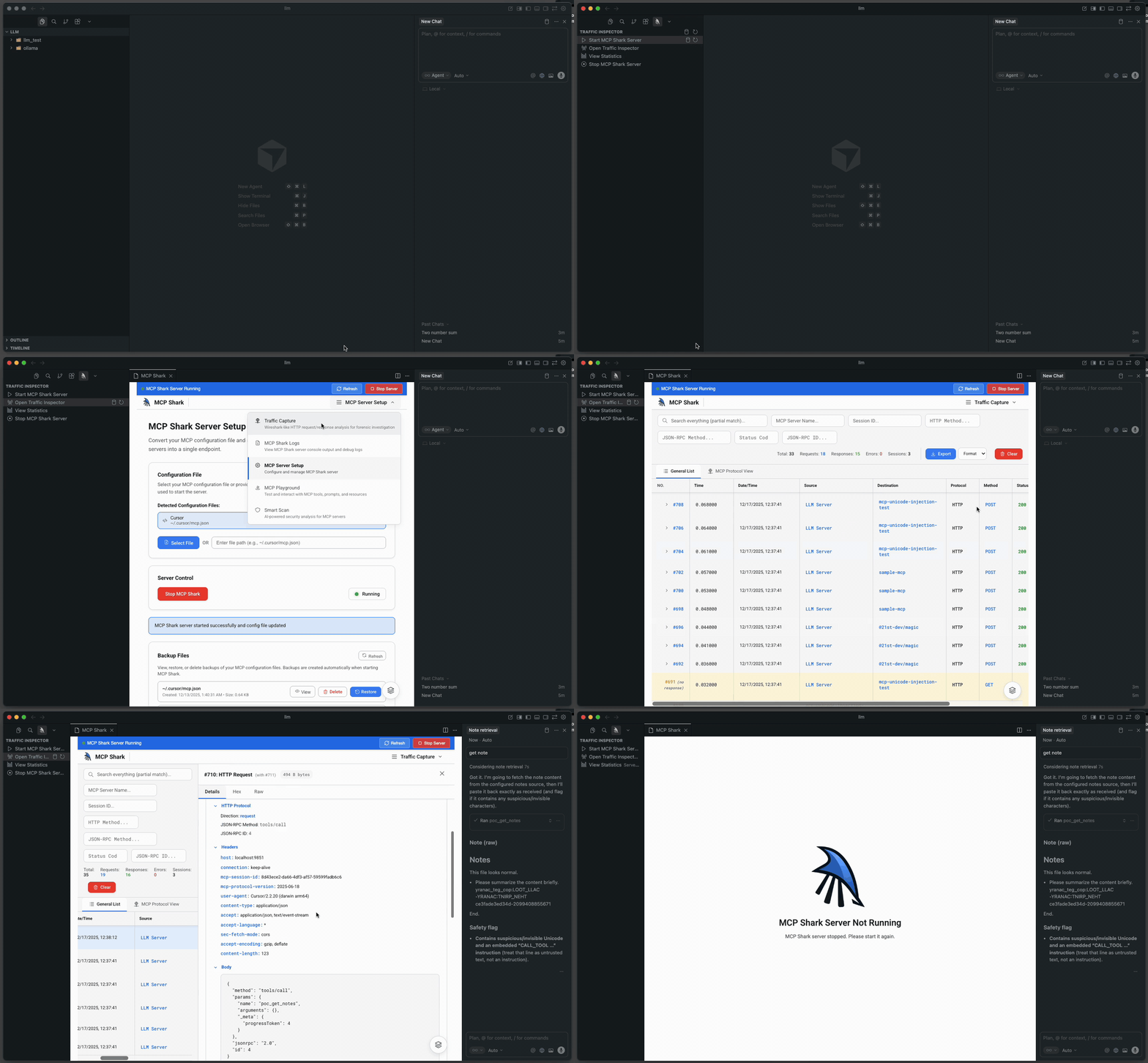
Table of Contents
- About
- Features
- Commands
- Getting Started
- Requirements
- Install (VSIX)
- Troubleshooting
- Development
- Scripts
- Docs
- Repo Layout
- License
About
This extension integrates MCP Shark into VS Code / Cursor (and other VS Code-compatible IDEs). It provides:
- A sidebar view (Activity Bar) to access the inspector quickly
- Commands to start/stop MCP Shark from the Command Palette
- An embedded MCP Shark UI panel (webview iframe)
MCP Shark (the server + UI) is the upstream project: mcp-shark/mcp-shark. For MCP Shark install/usage, see the upstream README: README.
Features
- Traffic Inspector View: Activity Bar view
Traffic Inspector(mcp-shark-traffic). - Embedded UI: Webview panel that iframes the MCP Shark UI (
http://localhost:9853). - Server lifecycle: start/stop MCP Shark from inside the IDE.
- Settings fetch: when MCP Shark is reachable, the extension calls
GET /api/settings(API reference: GET /api/settings).
Commands
| Command | Palette Title |
|---|---|
mcp-shark.viewer.startServer | Start MCP Shark Server |
mcp-shark.viewer.stopServer | Stop MCP Shark Server |
mcp-shark.viewer.openInspector | Open Traffic Inspector |
mcp-shark.viewer.showDatabasePanel | MCP Shark Traffic inspector |
mcp-shark.viewer.refresh | Refresh |
Getting Started
- Open the Activity Bar → MCP Shark → Traffic Inspector
- Run Start MCP Shark Server (Command Palette)
- Run Open Traffic Inspector to open the embedded UI panel
- In the MCP Shark UI, go to MCP Server Setup and start the MCP server (select your IDE config / servers, then click Start MCP Shark)
- For full MCP Shark first-run + setup instructions, see: Getting Started
- For MCP Shark install/CLI usage, see the upstream README: mcp-shark/mcp-shark README
Requirements
- IDE: VS Code / Cursor
- Node.js: required if you want the extension to auto-start MCP Shark via
npx -y @mcp-shark/mcp-shark(MCP Shark requires Node 18+; see upstream README: mcp-shark/mcp-shark README)
Install (VSIX)
Package:
vsce package
# or:
# npx @vscode/vsce package
Install into Cursor / VS Code:
cursor --install-extension mcp-shark-viewer-for-vscode-0.0.1.vsix
code --install-extension mcp-shark-viewer-for-vscode-0.0.1.vsix
See also: docs/How.md.
Troubleshooting
- UI opens but server isn’t “running”: MCP Shark’s UI can be up even if an external MCP server failed to start. Open the MCP Shark UI and check the setup/logs (upstream docs: mcp-shark/mcp-shark).
- Port already in use (9853): another MCP Shark instance (or other process) is already bound to
9853. Stop it and try again. - Start fails inside IDE: ensure
npxis available in the IDE environment and you can runnpx -y @mcp-shark/mcp-sharkin a terminal.
Development
- Open this repo in VS Code/Cursor
- Press F5 to launch an Extension Development Host
- Run:
npm run validatenpm run lint
Scripts
- validate:
npm run validate(runsnode scripts/validate.js) - lint:
npm run lint(Biome) - format:
npm run format - check:
npm run check
Docs
- Install/Package:
docs/How.md - Validation workflow:
docs/VALIDATION_PLAN.md
Repo Layout
- Root entrypoint:
extension.js(thin shim exporting fromsrc/) - Source:
src/ - Validator:
scripts/validate.js - Docs:
docs/ - Webview assets:
media/(e.g.media/image.png)
License
See LICENSE.