💻 mcp-vnc


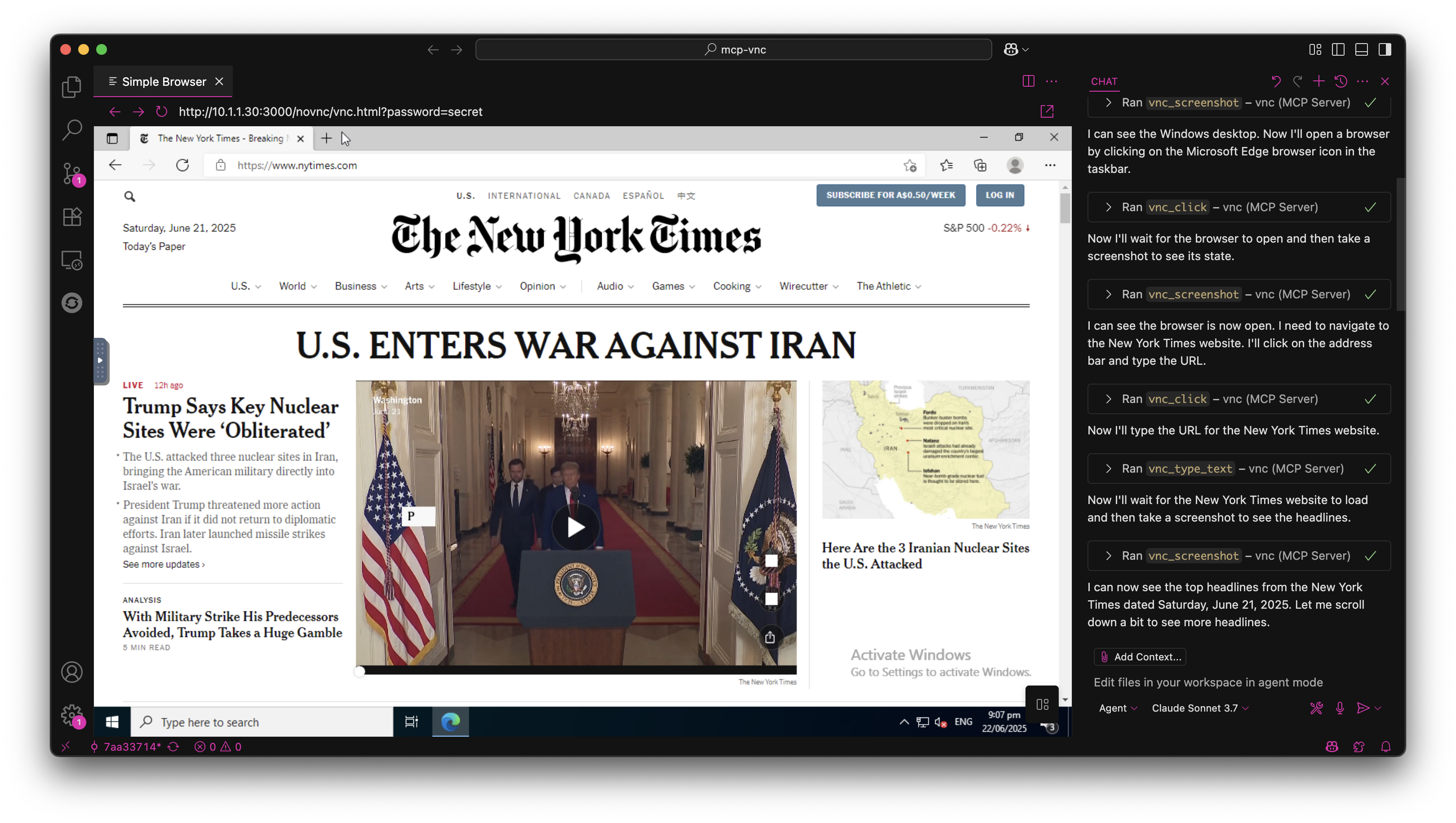
A Model Context Protocol (MCP) server that enables AI agents to remotely control Windows, Linux, macOS or anything else that can run a VNC server (don't worry, it's probably fine).
🚀 Quick Start
Install from NPM
npm install -g @hrrrsn/mcp-vnc
Install from Source
git clone https://github.com/hrrrsn/mcp-vnc
cd mcp-vnc
npm install
npm run build
⚙️ Configuration
Claude Desktop
-
Locate and open your Claude Desktop configuration file:
- macOS:
~/Library/Application Support/Claude/claude_desktop_config.json - Windows:
%APPDATA%\Claude\claude_desktop_config.json - Linux:
~/.config/Claude/claude_desktop_config.json
- macOS:
-
Add the following configuration:
Using NPM Install:
{
  "mcpServers": {
    "vnc-controller": {
      "type": "stdio",
      "command": "mcp-vnc",
      "env": {
        "VNC_HOST": "192.168.1.100",
        "VNC_PORT": "5900",
        "VNC_PASSWORD": "your-vnc-password"
      }
    }
  }
}
Built from Source:
{
  "mcpServers": {
    "vnc-controller": {
      "type": "stdio",
      "command": "node",
      "args": ["dist/index.js"],
      "cwd": "/path/to/mcp-vnc",
      "env": {
        "VNC_HOST": "192.168.1.100",
        "VNC_PORT": "5900",
        "VNC_PASSWORD": "your-vnc-password"
      }
    }
  }
}
VS Code
Please refer to the VS Code documentation
🛠️ Available Tools
The MCP server provides the following tools for remote desktop control:
🖱️ Mouse Control
vnc_click - Click at specified coordinates
| Parameter | Required | Type | Description | Default |
|---|---|---|---|---|
x | ✅ | number | X coordinate | - |
y | ✅ | number | Y coordinate | - |
button | ❌ | string | Mouse button (left, right, middle) | left |
double | ❌ | boolean | Double-click instead of single click | false |
Example: vnc_click(x=100, y=200, button="right", double=true)
vnc_move_mouse - Move mouse cursor
| Parameter | Required | Type | Description |
|---|---|---|---|
x | ✅ | number | X coordinate |
y | ✅ | number | Y coordinate |
Example: vnc_move_mouse(x=500, y=300)
⌨️ Keyboard Control
vnc_key_press - Send keys and key combinations
| Parameter | Required | Type | Description |
|---|---|---|---|
key | ✅ | string | Key or key combination to press |
Supported Keys:
- Single keys:
a,Enter,F1,Escape,Up,Down,Tab,Space - Key combinations:
Ctrl+c,Alt+F4,Ctrl+Alt+Delete,Shift+Tab - Modifiers:
Ctrl,Alt,Shift,Super/Win,Meta/Cmd
Examples:
vnc_key_press(key="Enter")vnc_key_press(key="Ctrl+Alt+Delete")
📝 Text Input
vnc_type_text - Type single-line text
| Parameter | Required | Type | Description | Default |
|---|---|---|---|---|
text | ✅ | string | Text to type | - |
enter | ❌ | boolean | Press Enter after typing | false |
Example: vnc_type_text(text="Hello World!", enter=true)
vnc_type_multiline - Type multiple lines
| Parameter | Required | Type | Description |
|---|---|---|---|
lines | ✅ | string[] | Array of lines to type |
Example: vnc_type_multiline(lines=["Line 1", "Line 2", "Line 3"])
📸 Screen Capture
vnc_screenshot - Capture screen
| Parameter | Required | Type | Description | Default |
|---|---|---|---|---|
delay | ❌ | number | Delay before screenshot (0-300000ms) | 0 |
Example: vnc_screenshot(delay=1000) - Wait 1 second before capture
🤝 Contributing
Contributions are welcome! Please feel free to submit a Pull Request.
📄 License
This project is licensed under the MIT License - see the LICENSE file for details.