MeiGen AI Design MCP
Turn Claude Code / OpenClaw into your personal design assistant rivaling Lovart
Local ComfyUI generation, API integration, 1,300+ pro prompt library, multi-direction parallel output






Quick Start • Demo • Features • Providers • Commands
English | 中文
What Is This?
An open-source MCP Server (installed via plugin marketplace) that gives LLMs creative and aesthetic capabilities through 7 tools and carefully designed skills, enabling them to handle complex design tasks. It teaches LLMs how to use various image generation models effectively, delivering professional results through reference images and multi-direction parallel workflows.
- Works with local ComfyUI — no external API dependency; also easily integrates with any custom API
- Built-in 1,300+ curated prompt templates and fine-tuned prompt engineering techniques that turn requirements into concrete image generation tasks
- Parallel batch generation and sub-agent execution to keep the main context window clean
See It in Action
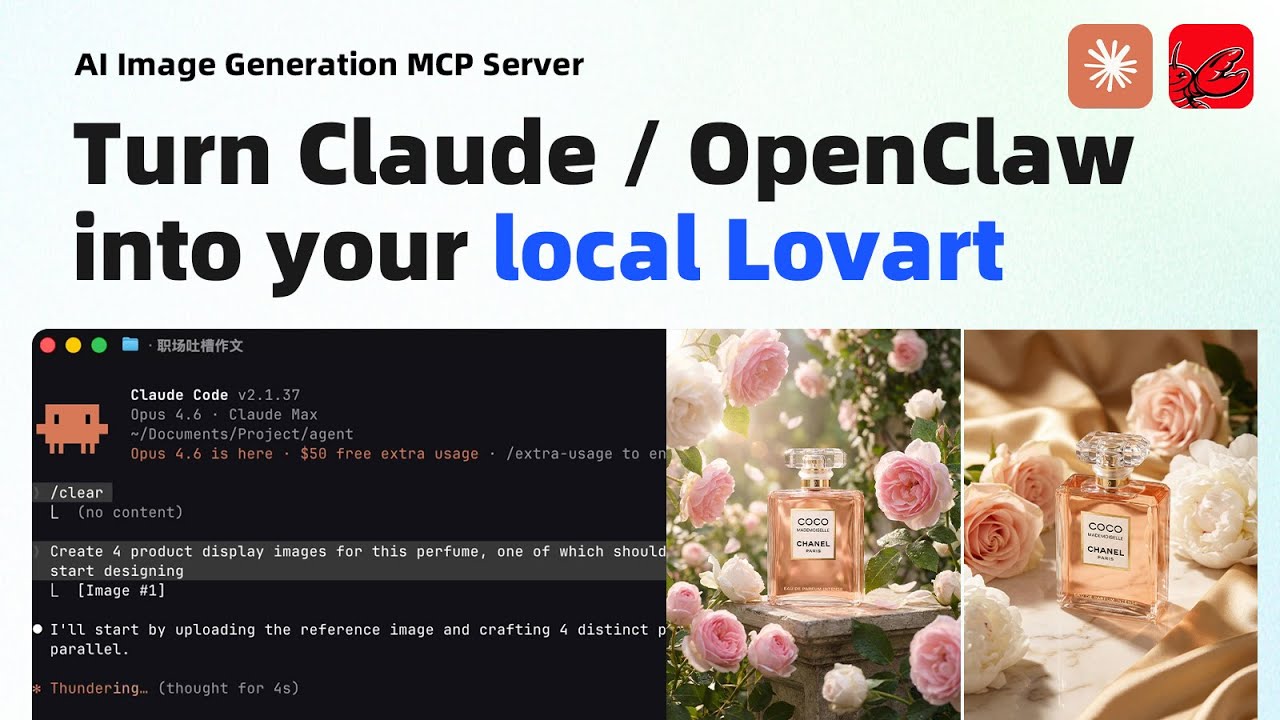
Product Photo — 4 Directions in Parallel
"Create 4 product display images for this perfume, one of which should feature a model."
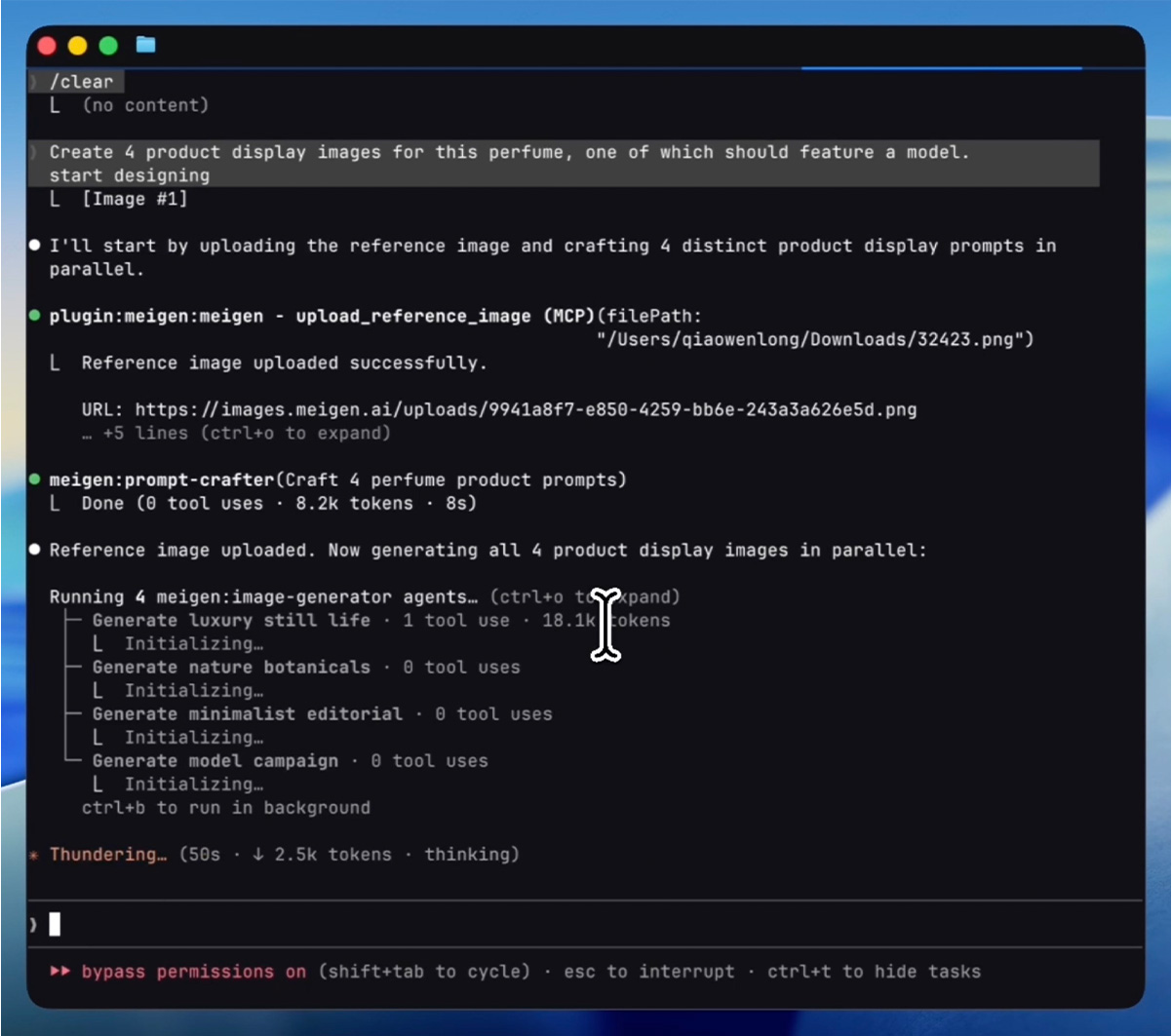
Process — AI uploads the reference image, crafts 4 distinct prompts, then generates all 4 in parallel:
Result — 4 creative directions delivered in under 2 minutes:
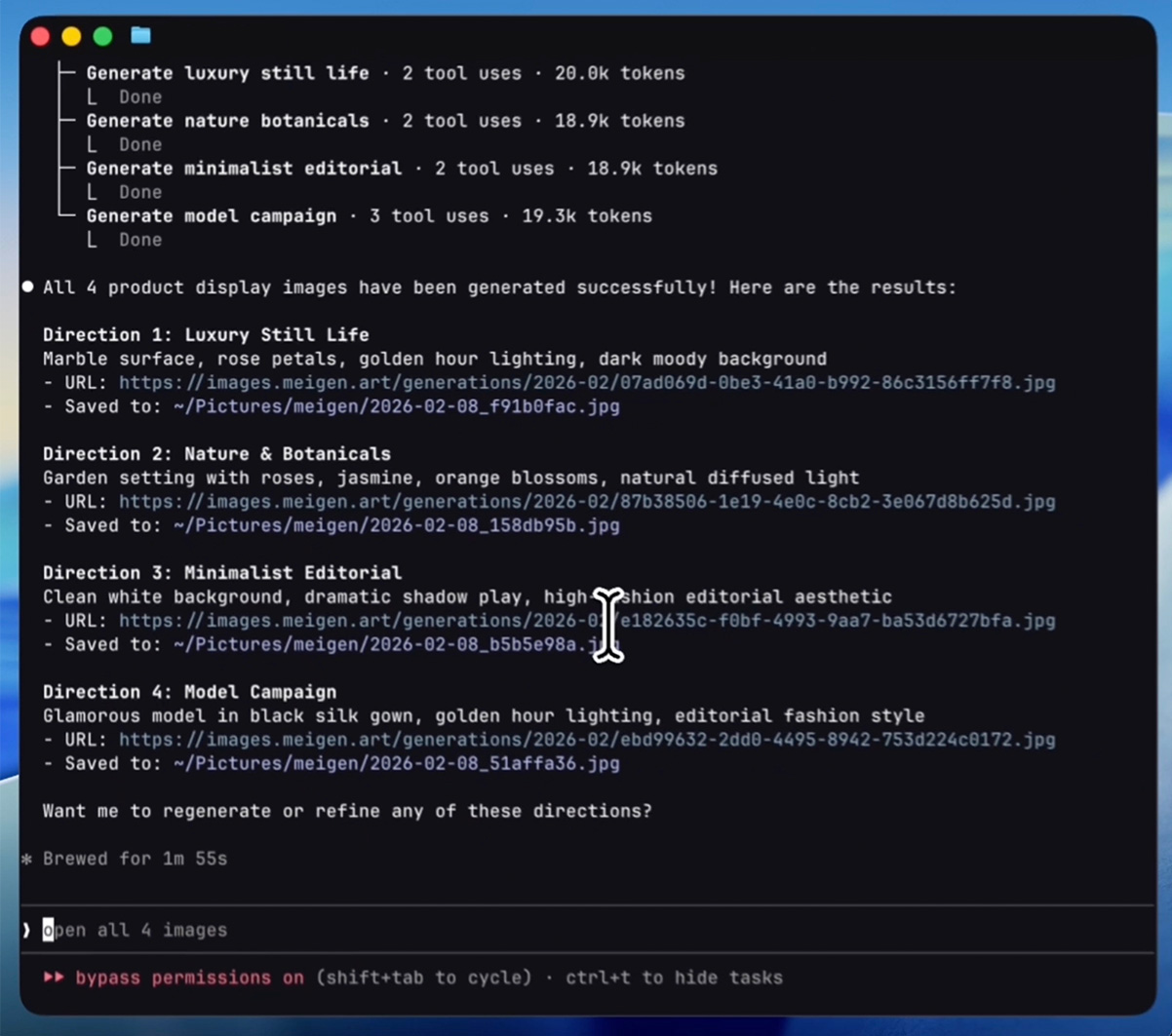
Generated images:




Quick Start
Claude Code Plugin (Recommended)
# Add the plugin marketplace
/plugin marketplace add jau123/MeiGen-AI-Design-MCP

# Install
/plugin install meigen@meigen-marketplace
Restart Claude Code after installation (close and reopen, or open a new terminal tab).
First-Time Setup
Free features work immediately after restart — try:
"Search for some creative inspiration"
To unlock image generation, run the setup wizard:
/meigen:setup
The wizard walks you through:
- Choose a provider — local ComfyUI, MeiGen Cloud, or OpenAI-compatible API
- Enter credentials — ComfyUI URL, API token, or key
- Done — restart Claude Code once more, then start generating
OpenClaw
Our skills follow the Agent Skills open standard — copy them into your OpenClaw workspace and they work directly. For MCP tools, use OpenClaw's MCP adapter to connect the MeiGen server.
Other MCP-Compatible Hosts
Add to your MCP config (e.g. .mcp.json, claude_desktop_config.json):
{
  "mcpServers": {
    "meigen": {
      "command": "npx",
      "args": ["-y", "meigen@latest"],
      "env": {
        "MEIGEN_API_TOKEN": "meigen_sk_..."
      }
    }
  }
}
Free features (inspiration search, prompt enhancement, model listing) work without any API key.
Features
MCP Tools
| Tool | Free | Description |
|---|---|---|
search_gallery | Yes | Search 1,300+ curated trending prompts with visual previews |
get_inspiration | Yes | Get full prompt, all images, and metadata for any gallery entry |
enhance_prompt | Yes | Transform a brief idea into a professional image prompt |
list_models | Yes | List available models across all configured providers |
upload_reference_image | Yes | Compress and upload a local image for use as a reference |
comfyui_workflow | Yes | Manage ComfyUI workflow templates: list, view, import, modify, delete |
generate_image | Key | Generate an image — routes to the best available provider automatically |
Slash Commands
| Command | Description |
|---|---|
/meigen:gen <prompt> | Quick generate — skip conversation, go straight to image |
/meigen:find <keywords> | Search 1,300+ curated prompts for inspiration |
/meigen:models | Browse and switch AI models for this session |
/meigen:ref <file> | Upload a local image as reference, get a URL back |
/meigen:setup | Interactive provider configuration wizard |
Smart Agents
MeiGen uses specialized sub-agents for efficient parallel execution:
| Agent | Purpose |
|---|---|
image-generator | Executes generate_image in isolated context — enables true parallel generation |
prompt-crafter | Writes multiple distinct prompts for batch generation (runs on Haiku for cost efficiency) |
gallery-researcher | Deep gallery exploration without cluttering the main conversation (runs on Haiku) |
Output Styles
Switch creative modes with /output-style:
- Creative Director — Art direction mode with visual storytelling, mood boards, and design thinking
- Minimal — Just images and file paths, no commentary. Ideal for batch workflows
Automation Hooks
- Config Check — Validates provider configuration on session start, guides setup if missing
- Auto-Open — Generated images automatically open in Preview (macOS)
Providers
MeiGen MCP supports three image generation backends. Configure one or multiple — the system auto-selects the best available.
ComfyUI — Local & Free
Run generation on your own GPU with full control over models, samplers, and workflow parameters. Import any ComfyUI API-format workflow — MeiGen auto-detects KSampler, CLIPTextEncode, EmptyLatentImage, and LoadImage nodes.
{
  "comfyuiUrl": "http://localhost:8188",
  "comfyuiDefaultWorkflow": "txt2img"
}
Perfect for Flux, SDXL, or any model you run locally. Your images never leave your machine.
MeiGen Cloud
Cloud API with multiple models: Nanobanana Pro, GPT image 1.5, Seedream 4.5, and more. No GPU required.
Get your API token:
- Sign in at meigen.ai
- Click your avatar → Settings → API Keys
- Create a new key (starts with
meigen_sk_)
{ "meigenApiToken": "meigen_sk_..." }
OpenAI-Compatible API
Bring your own API key for OpenAI (gpt-image-1.5), Together AI, Fireworks AI, or any compatible service.
{
  "openaiApiKey": "sk-...",
  "openaiBaseUrl": "https://api.openai.com",
  "openaiModel": "gpt-image-1.5"
}
All three providers support reference images. MeiGen and OpenAI accept URLs directly; ComfyUI injects them into LoadImage nodes in your workflow.
Configuration
Interactive Setup (Recommended)
/meigen:setup
The wizard walks you through provider selection, API key entry, and ComfyUI workflow import. You can also paste a curl command from your API provider's docs — it auto-extracts the key, URL, and model.
Config File
Configuration is stored at ~/.config/meigen/config.json. ComfyUI workflows are stored at ~/.config/meigen/workflows/.
Environment Variables
Environment variables take priority over the config file.
| Variable | Description |
|---|---|
MEIGEN_API_TOKEN | MeiGen platform token |
OPENAI_API_KEY | OpenAI / compatible API key |
OPENAI_BASE_URL | API base URL (default: https://api.openai.com) |
OPENAI_MODEL | Default model (default: gpt-image-1.5) |
COMFYUI_URL | ComfyUI server URL (default: http://localhost:8188) |
Privacy
MeiGen MCP respects your privacy. Here's what happens with your data:
- ComfyUI (local) — All processing stays on your machine. No data is sent externally.
- MeiGen Cloud — Prompts and reference images are sent to
api.meigen.aifor generation. Generated images are stored temporarily on Cloudflare R2. See meigen.ai/privacy. - OpenAI-compatible — Prompts and reference images are sent to the configured API endpoint. See your provider's privacy policy.
- Reference image upload — Images are compressed locally (max 2MB) and uploaded to Cloudflare R2 via
gen.meigen.ai. No authentication required. - Gallery search & prompt enhancement — Run locally against bundled data. No external API calls.
No telemetry, analytics, or tracking of any kind.
License
MIT — free for personal and commercial use.