native-devtools-mcp




Give your AI agent "eyes" and "hands" for native desktop applications.
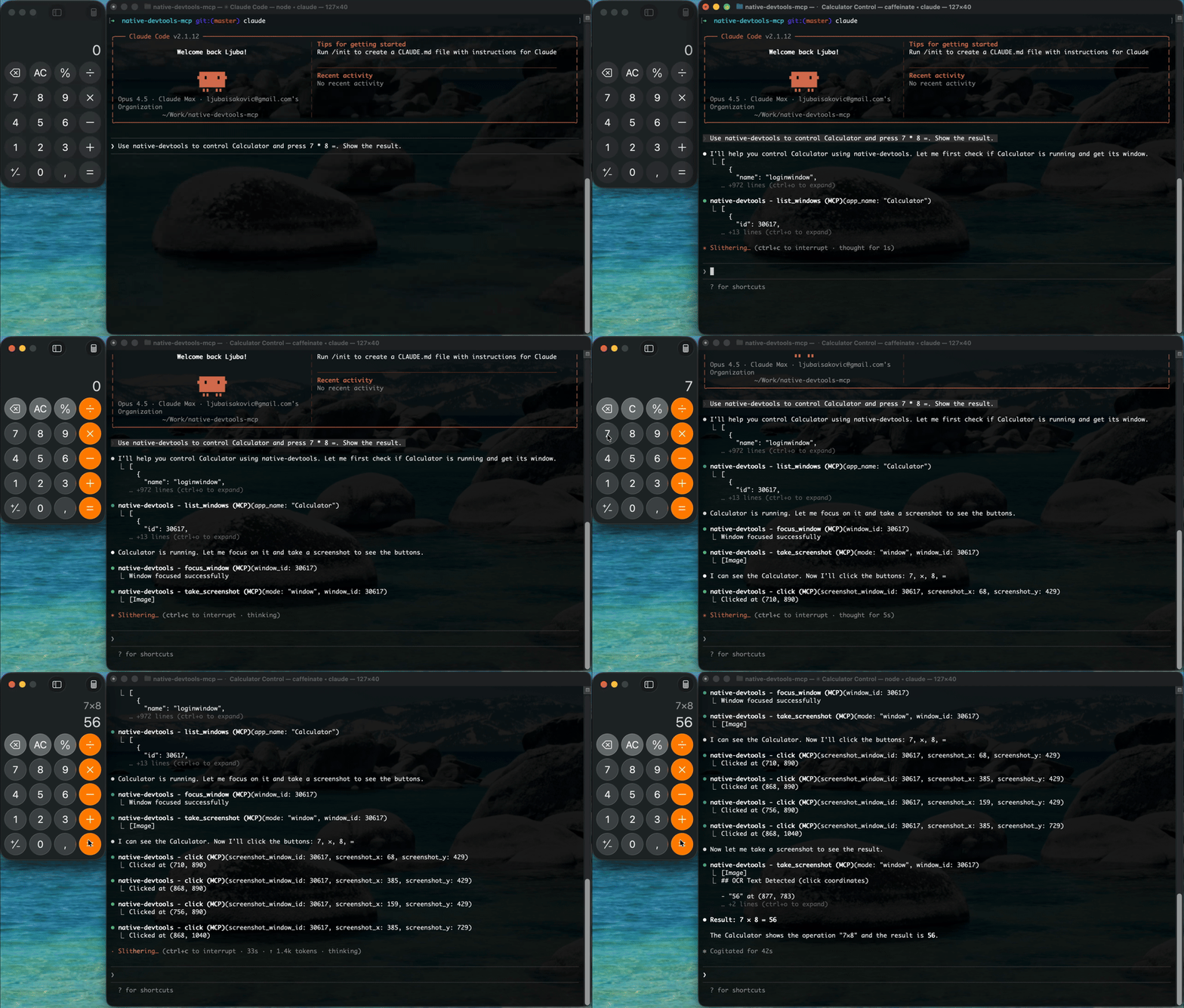
A Model Context Protocol (MCP) server that provides Computer Use capabilities: screenshots, OCR, input simulation, and window management.
Features • Installation • For AI Agents • Permissions
🔍 Search Keywords
MCP, Model Context Protocol, computer use, desktop automation, UI automation, RPA, screenshots, OCR, screen reading, mouse, keyboard, macOS, Windows, native-devtools-mcp.
🚀 Features
- 👀 Computer Vision: Capture screenshots of screens, windows, or specific regions. Includes built-in OCR (text recognition) to "read" the screen.
- 🖱️ Input Simulation: Click, drag, scroll, and type text naturally. Supports global coordinates and window-relative actions.
- 🪟 Window Management: List open windows, find applications, and bring them to focus.
- 🔒 Local & Private: 100% local execution. No screenshots or data are ever sent to external servers.
- 🔌 Dual-Mode Interaction:
- Visual/Native: Works with any app via screenshots & coordinates (Universal).
- AppDebugKit: Deep integration for supported apps to inspect the UI tree (DOM-like structure).
🤖 For AI Agents (LLMs)
This MCP server is designed to be highly discoverable and usable by AI models (Claude, Gemini, GPT).
- 📄 Read
AGENTS.md: A compact, token-optimized technical reference designed specifically for ingestion by LLMs. It contains intent definitions, schema examples, and reasoning patterns.
Core Capabilities for System Prompts:
take_screenshot: The "eyes". Returns images + layout metadata + text locations (OCR).click/type_text: The "hands". Interacts with the system based on visual feedback.find_text: A shortcut to find text on screen and get its coordinates immediately.
📦 Installation (macOS + Windows)
The install steps are identical on macOS and Windows.
Option 1: Run with npx (no install needed)
npx -y native-devtools-mcp
Option 2: Global install
npm install -g native-devtools-mcp
Option 3: Build from source (Rust)
Click to expand build instructions
git clone https://github.com/sh3ll3x3c/native-devtools-mcp
cd native-devtools-mcp
cargo build --release
# Binary: ./target/release/native-devtools-mcp
⚙️ Configuration
macOS Configuration
Claude Desktop config file: ~/Library/Application Support/Claude/claude_desktop_config.json
Claude Desktop requires the signed app bundle (npx/npm will not work due to Gatekeeper):
- Download
NativeDevtools-X.X.X.dmgfrom GitHub Releases - Open the DMG and drag
NativeDevtools.appto/Applications - Configure Claude Desktop:
{
  "mcpServers": {
    "native-devtools": {
      "command": "/Applications/NativeDevtools.app/Contents/MacOS/native-devtools-mcp"
    }
  }
}
- Restart Claude Desktop - it will prompt for Screen Recording and Accessibility permissions for NativeDevtools
Note: Claude Code (CLI) can use either the signed app or npx - both work.
Windows Configuration
Claude Desktop config file: %APPDATA%\Claude\claude_desktop_config.json
Configuration JSON (Windows and macOS CLI)
For Windows (or macOS with Claude Code CLI):
{
  "mcpServers": {
    "native-devtools": {
      "command": "npx",
      "args": ["-y", "native-devtools-mcp"]
    }
  }
}
Note: Requires Node.js 18+ installed.
For Claude Code (CLI) Users
To avoid approving every single tool call (clicks, screenshots), you can add this wildcard permission to your project's settings or global config:
File: .claude/settings.local.json (or similar)
{
  "permissions": {
    "allow": ["mcp__native-devtools__*"]
  }
}
🔍 Two Approaches to Interaction
We provide two ways for agents to interact, allowing them to choose the best tool for the job.
1. The "Visual" Approach (Universal)
Best for: 99% of apps (Electron, Qt, Games, Browsers).
- How it works: The agent takes a screenshot, analyzes it visually (or uses OCR), and clicks at coordinates.
- Tools:
take_screenshot,find_text,click,type_text. - Example: "Click the button that looks like a gear icon."
2. The "Structural" Approach (AppDebugKit)
Best for: Apps specifically instrumented with our AppDebugKit library (mostly for developers testing their own apps).
- How it works: The agent connects to a debug port and queries the UI tree (like HTML DOM).
- Tools:
app_connect,app_query,app_click. - Example:
app_click(element_id="submit-button").
🏗️ Architecture
graph TD
    Client[Claude / LLM Client] <-->|JSON-RPC 2.0| Server[native-devtools-mcp]
    Server -->|Direct API| Sys[System APIs]
    Server -->|WebSocket| Debug[AppDebugKit]

    subgraph "Your Machine"
        Sys -->|Screen/OCR| macOS[CoreGraphics / Vision]
        Sys -->|Input| Win[Win32 / SendInput]
        Debug -.->|Inspect| App[Target App]
    end
🔧 Technical Details (Under the Hood)
| OS | Feature | API Used |
|---|---|---|
| macOS | Screenshots | screencapture (CLI) |
| Input | CGEvent (CoreGraphics) | |
| OCR | VNRecognizeTextRequest (Vision Framework) | |
| Windows | Screenshots | BitBlt (GDI) |
| Input | SendInput (Win32) | |
| OCR | Windows.Media.Ocr (WinRT) |
Screenshot Coordinate Precision
Screenshots include metadata for accurate coordinate conversion:
screenshot_origin_x/y: Screen-space origin of the captured area (in points)screenshot_scale: Display scale factor (e.g., 2.0 for Retina displays)screenshot_pixel_width/height: Actual pixel dimensions of the imagescreenshot_window_id: Window ID (for window captures)
Coordinate conversion:
screen_x = screenshot_origin_x + (pixel_x / screenshot_scale)
screen_y = screenshot_origin_y + (pixel_y / screenshot_scale)
Implementation notes:
- Window captures (macOS): Uses
screencapture -owhich excludes window shadow. The captured image dimensions matchkCGWindowBounds × scaleexactly, ensuring click coordinates derived from screenshots land on intended UI elements. - Region captures: Origin coordinates are aligned to integers to match the actual captured area.
🛡️ Privacy, Safety & Best Practices
🔒 Privacy First
- 100% Local: All processing (screenshots, OCR, logic) happens on your device.
- No Cloud: Images are never uploaded to any third-party server by this tool.
- Open Source: You can inspect the code to verify exactly what it does.
⚠️ Operational Safety
- Hands Off: When the agent is "driving" (clicking/typing), do not move your mouse or type.
- Why? Real hardware inputs can conflict with the simulated ones, causing clicks to land in the wrong place.
- Focus Matters: Ensure the window you want the agent to use is visible. If a popup steals focus, the agent might type into the wrong window unless it checks first.
🔐 Required Permissions (macOS)
On macOS, you must grant permissions to the host application (e.g., Terminal, VS Code, Claude Desktop) to allow screen recording and input control.
- Screen Recording: Required for
take_screenshot.- System Settings > Privacy & Security > Screen Recording
- Accessibility: Required for
click,type_text,scroll.- System Settings > Privacy & Security > Accessibility
Restart Required: After granting permissions, you must fully quit and restart the host application.
🪟 Windows Notes
Works out of the box on Windows 10/11.
- Uses standard Win32 APIs (GDI, SendInput).
- OCR uses the built-in Windows Media OCR engine (offline).
- Note: Cannot interact with "Run as Administrator" windows unless the MCP server itself is also running as Administrator.
📜 License
MIT © sh3ll3x3c