Pagecast


Record any browser page as GIF or video via MCP — powered by Playwright + ffmpeg.
AI assistants can record browser sessions, perform interactions (scroll, click, hover), and export optimized GIFs or video — perfect for demo content, documentation, and recording automated workflows.
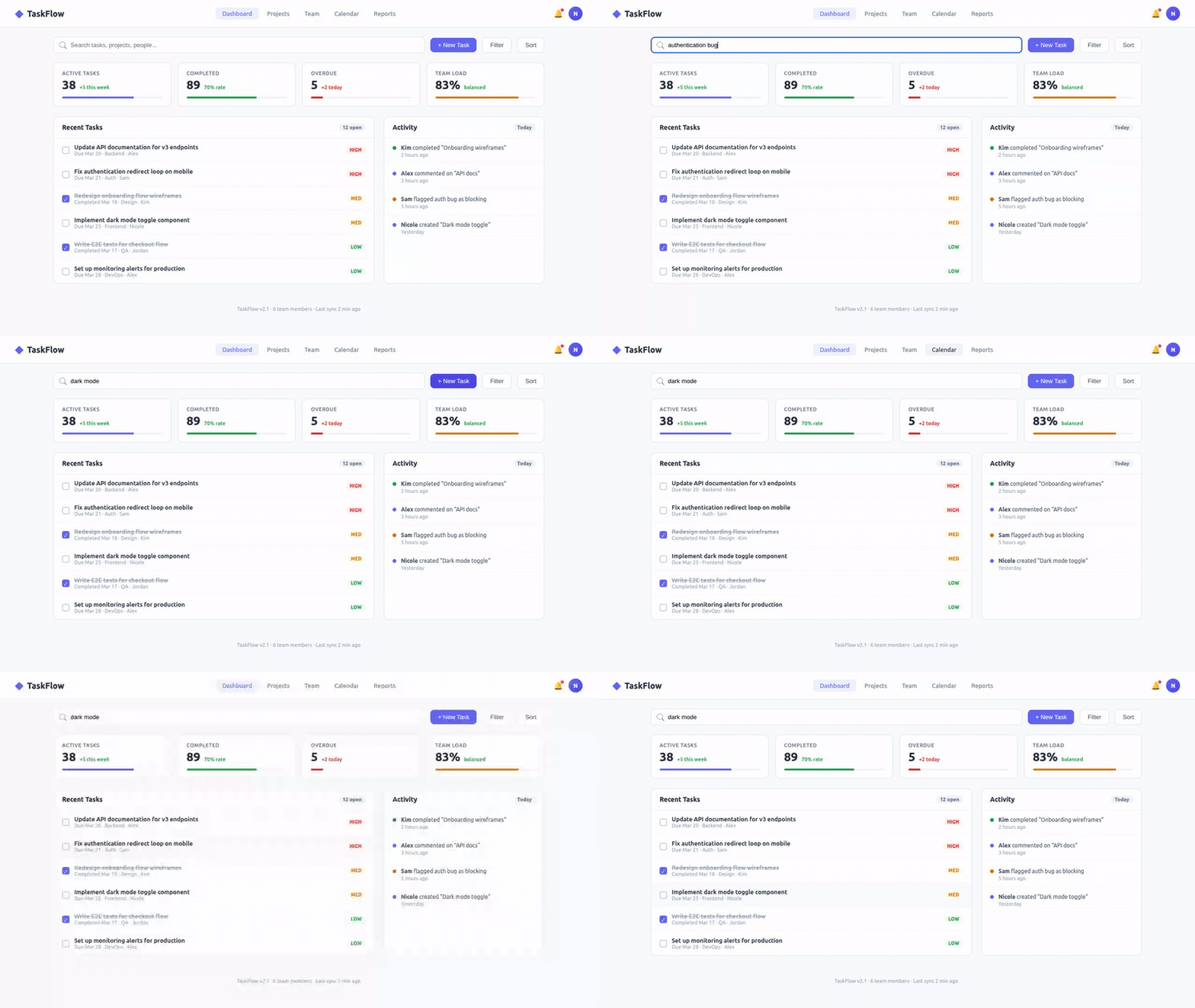
The Problem
Creating demo GIFs and recording browser sessions is manual and tedious:
- Open a screen recorder
- Manually perform the demo
- Export and optimize the GIF
- Repeat when the UI changes
Pagecast lets AI assistants do this programmatically. Record what the browser does, export as GIF or video.
How It Works
AI Assistant → MCP tools → Playwright (browser + video recording)
                                ↓
                         .webm video file
                                ↓
                    ffmpeg two-pass palette → optimized .gif
record_pageopens a URL in Chromium with video recording enabledinteract_pagescrolls, clicks, hovers — all captured in the recordingstop_recordingsaves the .webm fileconvert_to_gifcreates an optimized GIF using ffmpeg's two-pass palette method
Tools
| Tool | Description |
|---|---|
record_page | Open URL and start recording. Returns session ID |
interact_page | Perform actions during recording (scroll, click, hover, wait, navigate) |
stop_recording | Stop recording and save .webm file |
convert_to_gif | Convert .webm to optimized GIF (two-pass palette, trim blank frames) |
record_and_gif | All-in-one: record URL for N seconds → GIF |
list_recordings | List all recordings in output directory |
Quick Start
Prerequisites
- Node.js ≥ 20
- ffmpeg (
sudo apt install ffmpeg/brew install ffmpeg) - Chromium (auto-installed with Playwright)
Add to Claude Code
claude mcp add pagecast -- npx -y @mcpware/pagecast
Or run directly
npx @mcpware/pagecast
Headless mode (no visible browser window)
claude mcp add pagecast -- npx -y @mcpware/pagecast --headless
By default, Pagecast opens a visible browser window so you can see what's being recorded. Use --headless for background recording.
Install Playwright browsers (first time only)
npx playwright install chromium
Use Cases
| Use Case | Duration | Output | Example Prompt |
|---|---|---|---|
| Demo GIF for README | 5-15s | GIF | "Record my app, click through the main features, make a GIF" |
| Record automation session | 1-5min | WebM/MP4 | "Log into the dashboard, toggle settings, record the whole thing" |
| QA / test evidence | 30s-2min | MP4 | "Run through the checkout flow and record it as evidence" |
| Record form submission | 15-60s | GIF or MP4 | "Fill out the signup form with test data and record the process" |
| Document a bug | 10-30s | GIF | "Go to the settings page, click export — record what happens" |
| Onboarding walkthrough | 1-3min | WebM | "Walk through the first-time user flow and record a video" |
Usage Examples
Simple: Record a page for 5 seconds
Ask your AI assistant:
"Record https://myapp.localhost:3000 for 5 seconds and make a GIF"
The assistant calls record_and_gif → outputs recordings/recording-{id}.gif
Demo GIF with interactions
"Record my app at localhost:3000. Scroll down slowly, hover over the navbar, then stop and make a GIF"
record_page→ starts recordinginteract_page→ scrolls, hovers (all captured on video)stop_recording→ saves .webmconvert_to_gif→ optimized GIF for README
Record a full automation session
"Log into the dashboard, navigate to settings, toggle dark mode, and record the whole thing"
record_page→ opens the page and starts recordinginteract_page→ clicks through the UI (multiple action sequences)stop_recording→ saves the full session as .webm- Keep as video for review, or
convert_to_giffor a short clip
QA evidence capture
"Go to the payments page, try submitting an empty form, and record what error messages appear"
record_page→ starts recordinginteract_page→ navigates, clicks submit, waits for errorsstop_recording→ saves as evidence .webm
Comparison
| Approach | Automated? | Interactions? | Output | AI-driven? |
|---|---|---|---|---|
| Pagecast | ✅ | ✅ scroll/click/hover | GIF + WebM | ✅ |
| gifcap.dev | ❌ manual | ❌ manual | GIF | ❌ |
| Peek / ScreenToGif / Kap | ❌ manual | ❌ manual | GIF | ❌ |
| Playwright MCP (official) | ✅ | ✅ | Screenshot only | Partial |
| playwright-record-mcp | ✅ | ✅ | WebM only | Partial |
| VHS (Charmbracelet) | ✅ | Terminal only | GIF | ❌ |
GIF Quality
Uses ffmpeg's two-pass palette method for optimal quality:
- Pass 1: Analyzes all frames to build an optimal 256-color palette (
palettegen=stats_mode=diff) - Pass 2: Encodes GIF using that palette with Bayer dithering (
paletteuse=dither=bayer)
This produces dramatically better quality than single-pass encoding at similar file sizes.
Configuration
| Environment Variable | Default | Description |
|---|---|---|
RECORDING_OUTPUT_DIR | ./recordings | Where to save recordings |
| CLI Flag | Default | Description |
|---|---|---|
--headless | off (headed) | Run browser without visible window |
GIF defaults
| Setting | Default | Notes |
|---|---|---|
| FPS | 10 | Higher = smoother but larger |
| Width | 640px | Height auto-scaled. Half of 1280px viewport |
| Video viewport | 1280×720 | Full HD recording, downscaled for GIF |
Architecture
src/
├── index.js       # MCP server — 6 tool definitions, stdio transport
├── recorder.js    # Playwright browser lifecycle + session management
└── converter.js   # ffmpeg two-pass GIF conversion
Key design decisions:
- Headed by default — You see what the browser is doing. Use
--headlessfor background recording - Lazy browser launch — Chromium only starts on first
record_pagecall, keeping MCP server startup fast - Session-based — Multiple recordings can run simultaneously, tracked by session ID
- One browser, multiple contexts — Each recording gets its own BrowserContext (lightweight, isolated)
execFilenotexec— No shell interpretation of filenames for safety
License
MIT