replicant-mcp
Let AI build, test, and debug your Android apps.


replicant-mcp is a Model Context Protocol server that gives AI assistants like Claude the ability to interact with your Android development environment. Build APKs, launch emulators, install apps, navigate UIs, and debug crashes—all through natural conversation.
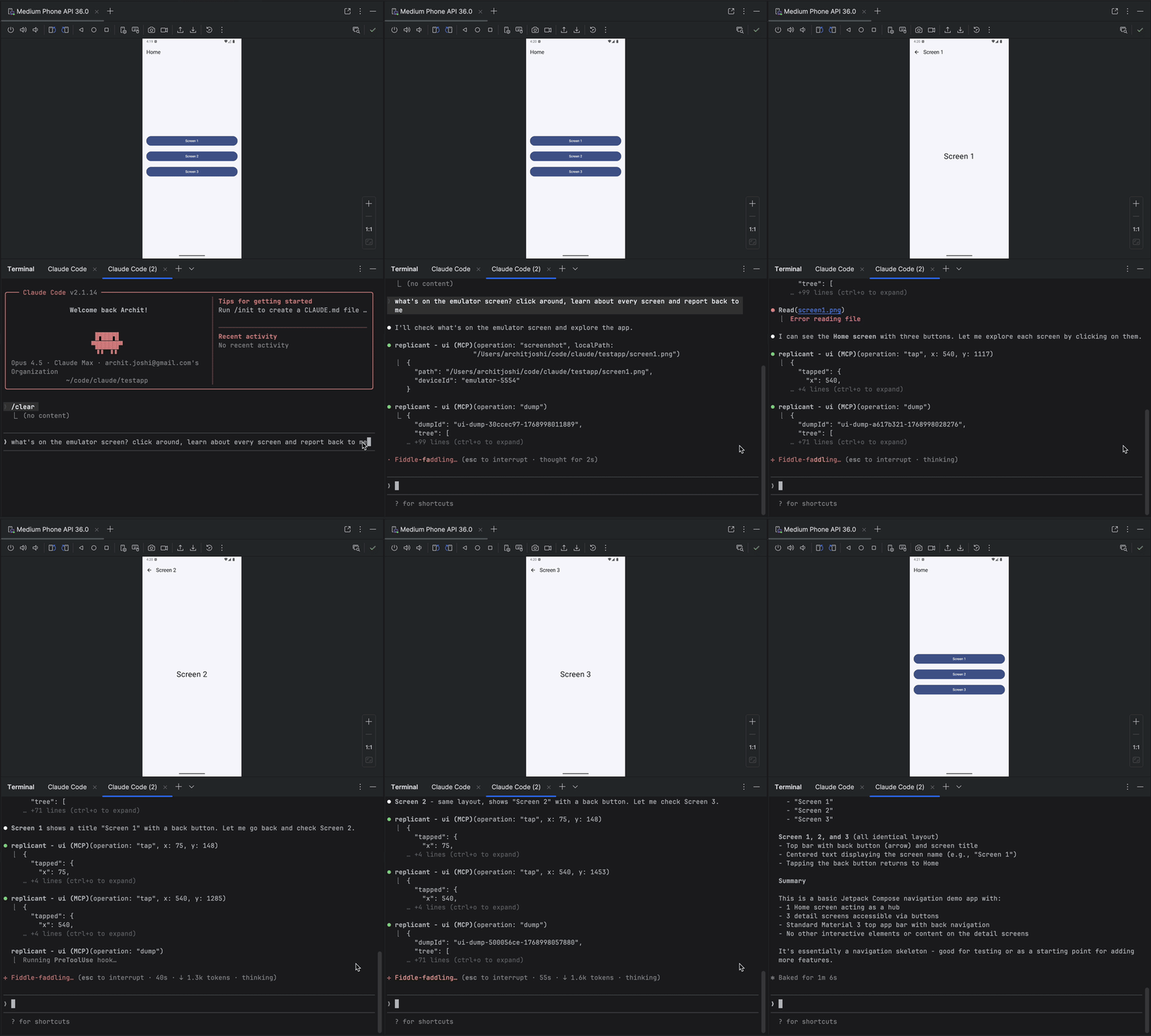
Demo
Why replicant-mcp?
Android development involves juggling a lot: Gradle builds, emulator management, ADB commands, logcat filtering, UI testing. Each has its own CLI, flags, and quirks.
replicant-mcp wraps all of this into a clean interface that AI can understand and use effectively:
| Without replicant-mcp | With replicant-mcp |
|---|---|
"Run ./gradlew assembleDebug, then adb install, then adb shell am start..." | "Build and run the app" |
| Copy-paste logcat output, lose context | AI reads filtered logs directly |
| Screenshot → describe UI → guess coordinates | AI sees accessibility tree, taps elements by text |
| 5,000 tokens of raw Gradle output | 50-token summary + details on demand |
Current Features
| Category | Capabilities |
|---|---|
| Build & Test | Build APKs/bundles, run unit and instrumented tests, list modules/variants/tasks, fetch detailed build logs |
| Emulator | Create, start, stop, wipe emulators; save/load/delete snapshots |
| Device Control | List connected devices, select active device, query device properties |
| App Management | Install, uninstall, launch, stop apps; clear app data; list installed packages |
| Log Analysis | Filter logcat by package, tag, level, time; configurable line limits |
| UI Automation | Accessibility-first element finding with multi-tier fallback (accessibility → OCR → visual), spatial proximity search (nearestTo), grid-based precision tapping, tap, text input, screenshots |
| Configuration | YAML config via REPLICANT_CONFIG for UI behavior customization |
| Utilities | Response caching with progressive disclosure, on-demand documentation |
Future Roadmap
| Feature | Item | Status |
|---|---|---|
| Visual Fallback | Icon recognition (pattern + visual + grid fallback) | ✅ |
| Semantic image search (LLM-assisted visual understanding) | Future | |
| Custom Build Commands | Skill override for project-specific builds | Planned |
| Auto-detect gradlew vs gradle | Planned | |
| Configurable default variant | Planned | |
| Extend skill override to test/lint operations | Future | |
| Video Capture | Start/stop recording | Planned |
| Duration-based capture | Planned | |
| Configurable output directory and quality | Planned | |
| WebM/GIF conversion (ffmpeg) | Future | |
| Developer Experience | Simplified tool authoring with defineTool() helper | Future |
Auto-generate JSON schema from Zod via zod-to-json-schema | Future | |
| Convention-based tool auto-discovery (no manual wiring) | Future |
Quick Start
Prerequisites
You'll need:
- Node.js 18+
- Android SDK with
adbandemulatorin your PATH - An Android project with
gradlew(for build tools)
Verify your setup:
node --version  # Should be 18+
adb --version   # Should show Android Debug Bridge version
emulator -version  # Should show Android emulator version
Installation
Option 1: npm (recommended)
npm install -g replicant-mcp
Option 2: From source
git clone https://github.com/thecombatwombat/replicant-mcp.git
cd replicant-mcp
npm install
npm run build
npm test
Connect to Claude Desktop
Add this to your Claude Desktop config (~/Library/Application Support/Claude/claude_desktop_config.json on macOS):
{
  "mcpServers": {
    "replicant": {
      "command": "node",
      "args": ["/absolute/path/to/replicant-mcp/dist/index.js"]
    }
  }
}
Restart Claude Desktop. You should see "replicant" in the MCP servers list.
Connect to Claude Code
Add the MCP server with environment variables for Android SDK:
claude mcp add replicant \
  -e ANDROID_HOME=$HOME/Library/Android/sdk \
  -e PATH="$HOME/Library/Android/sdk/platform-tools:$HOME/Library/Android/sdk/emulator:$HOME/Library/Android/sdk/cmdline-tools/latest/bin:$PATH" \
  -- node $(npm root -g)/replicant-mcp/dist/index.js
Note: Adjust
ANDROID_HOMEif your Android SDK is in a different location. On Linux, it's typically$HOME/Android/Sdk.
Restart Claude Code to load the MCP server.
Reducing Permission Prompts (Optional)
By default, Claude Code asks for permission on each tool call. To auto-approve replicant-mcp tools, add this to your .claude/settings.json:
{
  "permissions": {
    "allow": [
      "mcp__replicant__*"
    ]
  }
}
This is especially useful for agentic workflows where human intervention is limited.
PR Automation (Optional)
This project includes a Claude Code skill for automated PR handling. When invoked, it:
- Creates a branch and PR from your current changes
- Polls for Greptile and human reviews every 2 minutes (max 5 cycles)
- Automatically addresses Greptile feedback
- Merges when a human approves
To use:
/pr-with-review --branch feature/my-feature --title "My PR" --body "Description" --commit-message "feat: add feature"
Or let Claude invoke it automatically when creating PRs.
Output Directory
replicant-mcp stores screenshots in .replicant/screenshots/ within your current working directory. Add this to your .gitignore:
.replicant/
What Can It Do?
Build & Test
You: "Build the debug variant of the app"

Claude: I'll build the debug APK.
        [Calls gradle-build with operation: "assembleDebug"]

        Build successful in 34s
        APK: app/build/outputs/apk/debug/app-debug.apk (12.4 MB)
        2 warnings (use gradle-get-details for full output)
You: "Run the unit tests for the login module"

Claude: Running unit tests for :feature:login...
        [Calls gradle-test with operation: "unitTest", module: ":feature:login"]

        47 tests passed, 2 failed, 0 skipped

        Failed:
        - LoginViewModelTest.testInvalidEmail
        - LoginRepositoryTest.testNetworkError

        Want me to show the failure details?
Emulator Management
You: "Start up a Pixel 7 emulator"

Claude: I'll start the Pixel_7_API_34 emulator.
        [Calls emulator-device with operation: "start", avdName: "Pixel_7_API_34"]

        Emulator started: emulator-5554
        Waiting for boot... ready!
Install & Launch Apps
You: "Install the APK we just built and open the app"

Claude: Installing and launching...
        [Calls adb-app with operation: "install"]
        [Calls adb-app with operation: "launch"]

        App installed and running on emulator-5554
Debug with Logcat
You: "The app crashed. What happened?"

Claude: Let me check the error logs.
        [Calls adb-logcat with level: "error", lines: 50]

        Found the crash:

        java.lang.NullPointerException: Attempt to invoke virtual method
        'void com.example.User.getName()' on a null object reference
            at com.example.ProfileActivity.onCreate(ProfileActivity.kt:47)

        Looks like `user` is null when ProfileActivity starts.
        Want me to look at that file?
UI Automation (Smart Element Finding)
You: "Tap the Login button"

Claude: I'll find and tap the Login button.
        [Calls ui with operation: "find", selector: { text: "Login" }]
        [Calls ui with operation: "tap", elementIndex: 0]

        Tapped "Login" at coordinates (540, 1847)
Spatial proximity search — find elements near other elements:
You: "Tap the edit icon next to John's name"

Claude: [Calls ui with operation: "find", selector: { textContains: "edit", nearestTo: "John" }]
        Found edit button nearest to "John" at (892, 340)
Multi-tier fallback — when accessibility data isn't available:
- Accessibility tree — fast, reliable, text-based
- OCR fallback — Tesseract extracts text from screenshot
- Visual fallback — returns screenshot + metadata for AI vision
Grid-based precision — tap icons without text labels:
Claude: [Calls ui with operation: "tap", gridCell: 5, gridPosition: 3]
        // Taps center of cell 5 in a 24-cell grid overlay
This approach is faster, cheaper, and more reliable than pure screenshot-based automation.
Tool Reference
replicant-mcp provides 12 tools organized into categories:
Build & Test
| Tool | Description |
|---|---|
gradle-build | Build APKs and bundles (assembleDebug, assembleRelease, bundle) |
gradle-test | Run unit and instrumented tests with filtering |
gradle-list | List modules, build variants, and tasks |
gradle-get-details | Fetch full logs/errors from cached build results |
Emulator
| Tool | Description |
|---|---|
emulator-device | Create, start, stop emulators; manage snapshots |
ADB
| Tool | Description |
|---|---|
adb-device | List devices, select active device, get properties |
adb-app | Install, uninstall, launch, stop apps; clear data |
adb-logcat | Read filtered device logs by package/tag/level |
adb-shell | Run shell commands (with safety guards) |
UI Automation
| Tool | Description |
|---|---|
ui | Element finding with fallback chain, spatial search (nearestTo), tap (coordinates or grid), input text, screenshot, accessibility-check, visual-snapshot |
Utilities
| Tool | Description |
|---|---|
cache | Manage cached outputs (stats, clear, config) |
rtfm | On-demand documentation for tools |
Want details? Ask Claude to call rtfm with a category like "build", "adb", "emulator", or "ui".
Design Philosophy
Progressive Disclosure
Gradle builds can produce thousands of lines of output. Dumping all of that into an AI context is wasteful and confusing.
Instead, replicant-mcp returns summaries with cache IDs:
{
  "buildId": "build-a1b2c3-1705789200",
  "summary": {
    "success": true,
    "duration": "34s",
    "apkSize": "12.4 MB",
    "warnings": 2
  }
}
If the AI needs the full output (e.g., to debug a failure), it can request it:
{ "tool": "gradle-get-details", "id": "build-a1b2c3-1705789200", "detailType": "errors" }
This typically reduces token usage by 90-99%.
Accessibility-First UI
Most AI-driven UI automation uses screenshots: capture the screen, send it to a vision model, get coordinates, click.
replicant-mcp takes a different approach: it reads the accessibility tree—the same structured data that powers screen readers. This is:
- Faster — No image processing
- Cheaper — Text is smaller than images
- More reliable — Elements are identified by text/ID, not pixel coordinates
- Better for apps — Encourages accessible app development
Single Device Focus
Instead of passing deviceId to every command, you select a device once:
{ "tool": "adb-device", "operation": "select", "deviceId": "emulator-5554" }
All subsequent commands target that device automatically. Simple.
Safety Guards
The adb-shell tool blocks dangerous commands like rm -rf /, reboot, and su. You can run shell commands, but not brick your device.
Configuration
replicant-mcp can be configured via a YAML file. Set the REPLICANT_CONFIG environment variable to the path:
export REPLICANT_CONFIG=/path/to/config.yaml
Example config.yaml:
ui:
  # Always use visual mode (skip accessibility) for these packages
  visualModePackages:
    - com.example.legacy.app

  # Auto-include screenshot when find returns no results (default: true)
  autoFallbackScreenshot: true

  # Include base64-encoded screenshot in responses (default: false)
  includeBase64: false
Most users won't need a config file—the defaults work well for typical Android apps.
Development
Project Structure
src/
  index.ts           # Entry point
  server.ts          # MCP server setup
  tools/             # Tool implementations (one file per tool)
  adapters/          # CLI wrappers (adb, emulator, gradle)
  services/          # Core services (cache, device state, process runner)
  parsers/           # Output parsers
  types/             # TypeScript types
docs/rtfm/           # On-demand documentation
tests/               # Unit and integration tests
scripts/             # Utility scripts
Running Tests
# All tests
npm test

# Unit tests only
npm run test:unit

# Integration tests (MCP protocol compliance)
npm run test:integration

# With coverage
npm run test:coverage

# Full validation (build + all tests)
npm run validate
Checking Prerequisites
npm run check-prereqs
This verifies your Android SDK setup and reports what's available.
Troubleshooting
"No device selected"
Run adb-device with operation: "list" to see available devices, then operation: "select" to choose one. If only one device is connected, it's auto-selected.
"Gradle wrapper not found"
Make sure you're in an Android project directory that contains gradlew. The Gradle tools won't work from other locations.
"Command timed out"
Long-running operations (builds, tests) have a 5-minute default timeout. If your builds are slower, you may need to adjust the timeout in the adapter.
Emulator won't start
Check that:
- You have an AVD created (
avdmanager list avd) - Virtualization is enabled (KVM on Linux, HAXM on Mac/Windows)
- Enough disk space for the emulator
Contributing
Contributions are welcome! Please:
- Fork the repo
- Create a feature branch (
git checkout -b feature/amazing-feature) - Make your changes
- Run
npm run validateto ensure tests pass - Commit with a descriptive message
- Push and open a PR
Acknowledgments
- Inspired by xc-mcp for iOS
- Built on the Model Context Protocol
- Thanks to the Android team for
adband the emulator
License
Questions? Issues? Ideas? Open an issue — we'd love to hear from you.