Sharp MCP





MCP (Model Context Protocol) server for image session management and processing. Provides tools for storing images in sessions and extracting image metadata and colors.
Features
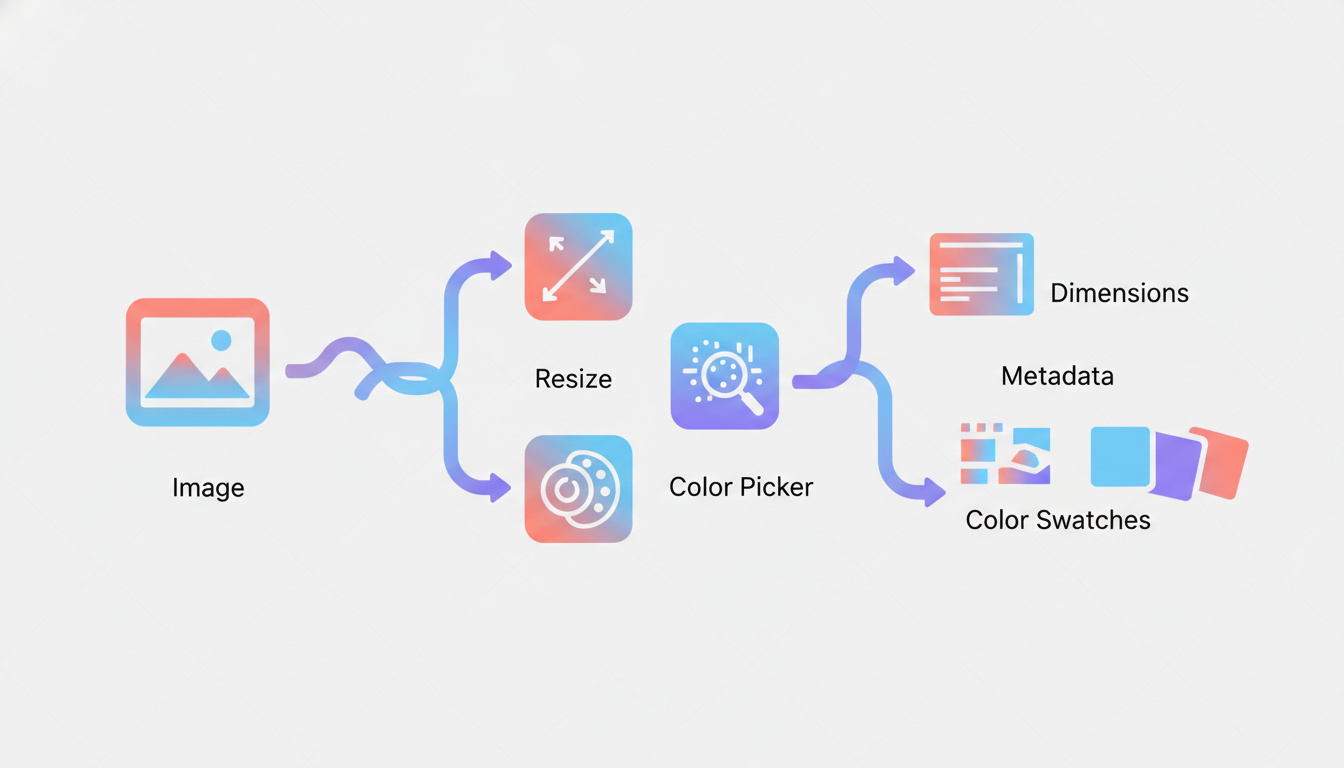
- create_session: Store base64 images in memory sessions with unique IDs
- create_session_by_path: Create sessions from image file paths (auto base64 conversion)
- list_session: List all active image sessions
- get_dimensions: Get image dimensions and MIME type
- pick_color: Extract average color from a specified region
- remove_background: Remove background from images using ML-based segmentation
- extract_region: Crop a rectangular region from an image
- compress_image: Compress images with format conversion (JPEG, PNG, WebP)
- Built with TypeScript for type safety
- Uses sharp for high-performance image processing
Installation
NPM
npm install -g sharp-mcp
Smithery
To install Sharp MCP for any client automatically via Smithery:
npx -y @smithery/cli@latest install sharp-mcp --client <CLIENT_NAME>
Available clients: cursor, claude, vscode, windsurf, cline, zed, etc.
MCP Client Integration
Sharp MCP can be integrated with various AI coding assistants and IDEs that support the Model Context Protocol (MCP).
Requirements
- Node.js >= v18.0.0
- An MCP-compatible client (Cursor, Claude Code, VS Code, Windsurf, etc.)
Install in Cursor
Go to: Settings -> Cursor Settings -> MCP -> Add new global MCP server
Add the following configuration to your ~/.cursor/mcp.json file:
{
  "mcpServers": {
    "sharp": {
      "command": "npx",
      "args": ["-y", "sharp-mcp"]
    }
  }
}
Install in Claude Code
Run this command:
claude mcp add sharp -- npx -y sharp-mcp
Install in VS Code
Add this to your VS Code MCP config file. See VS Code MCP docs for more info.
"mcp": {
  "servers": {
    "sharp": {
      "type": "stdio",
      "command": "npx",
      "args": ["-y", "sharp-mcp"]
    }
  }
}
Install in Windsurf
Add this to your Windsurf MCP config file:
{
  "mcpServers": {
    "sharp": {
      "command": "npx",
      "args": ["-y", "sharp-mcp"]
    }
  }
}
Install in Claude Desktop
Open Claude Desktop developer settings and edit your claude_desktop_config.json file:
{
  "mcpServers": {
    "sharp": {
      "command": "npx",
      "args": ["-y", "sharp-mcp"]
    }
  }
}
Install in OpenAI Codex
Add this to your codex.toml or ~/.codex/config.toml file:
[mcp_servers.sharp]
command = "npx"
args = ["-y", "sharp-mcp"]
Available Tools
create_session
Creates a new session with the provided image payload and returns a unique session ID.
Parameters:
image_payload(string, required): Base64 encoded image datadescription(string, optional): Optional description for the image
Returns:
{ "sessionId": "img_abc123xyz" }
Example:
{
  "image_payload": "iVBORw0KGgoAAAANSUhEUgAA...",
  "description": "Screenshot of the homepage"
}
create_session_by_path
Creates a new session by reading an image from the specified absolute file path. Automatically converts the file to base64 and validates that it's a valid image.
Parameters:
path(string, required): Absolute path to the image filedescription(string, optional): Optional description for the image
Returns:
{
  "sessionId": "img_abc123xyz",
  "source_path": "/path/to/image.png",
  "file_size": 46849
}
Example:
{
  "path": "/Users/username/images/screenshot.png",
  "description": "Homepage screenshot"
}
Error Responses:
- Relative path:
Path must be absolute. Received relative path: "./image.png" - File not found:
File not found: "/path/to/image.png" - Invalid image:
Invalid or corrupted image file: "/path/to/file.txt"
list_session
Lists all active sessions with their session IDs, image payloads, and descriptions.
Parameters: None
Returns:
[
  {
    "sessionId": "img_abc123xyz",
    "image_payload": "iVBORw0KGgoAAAANSUhEUgAA...",
    "description": "Screenshot of the homepage"
  }
]
get_dimensions
Gets the dimensions and MIME type of an image stored in a session.
Parameters:
sessionId(string, required): The session ID returned from create_session or create_session_by_path
Returns:
{
  "width": 1920,
  "height": 1080,
  "mimeType": "image/png"
}
Error Response (invalid session):
Invalid or non-existent session ID. Please call create_session first to obtain a valid session ID.
pick_color
Picks the average color from a square region centered at the specified coordinates.
Parameters:
sessionId(string, required): The session ID returned from create_sessionx(number, required): X coordinate of the center pointy(number, required): Y coordinate of the center pointradius(number, optional, default: 5): Radius of the sampling area. The sampling area will be a square of (radius × 2) size.
Returns:
{
  "r": 255,
  "g": 128,
  "b": 64,
  "hex": "#FF8040"
}
Error Response (out of bounds):
Coordinates (2000, 500) exceed image bounds (1920x1080).
remove_background
Removes the background from an image using ML-based segmentation. Returns PNG with transparency. Powered by @imgly/background-removal-node for accurate subject detection.
Parameters:
sessionId(string, required): The session ID returned from create_sessionoutput_path(string, optional): Absolute path to save the output PNG file. If not provided, returns base64 payload.
Returns (without output_path):
{
  "image_payload": "iVBORw0KGgoAAAANSUhEUgAA...",
  "mime_type": "image/png"
}
Returns (with output_path):
{
  "path": "/path/to/output.png"
}
Example:
{
  "sessionId": "img_abc123xyz"
}
Note: The first run may take longer as the ML model files (~10-50MB) are downloaded and cached.
Before & After:
| Before | After |
|---|---|
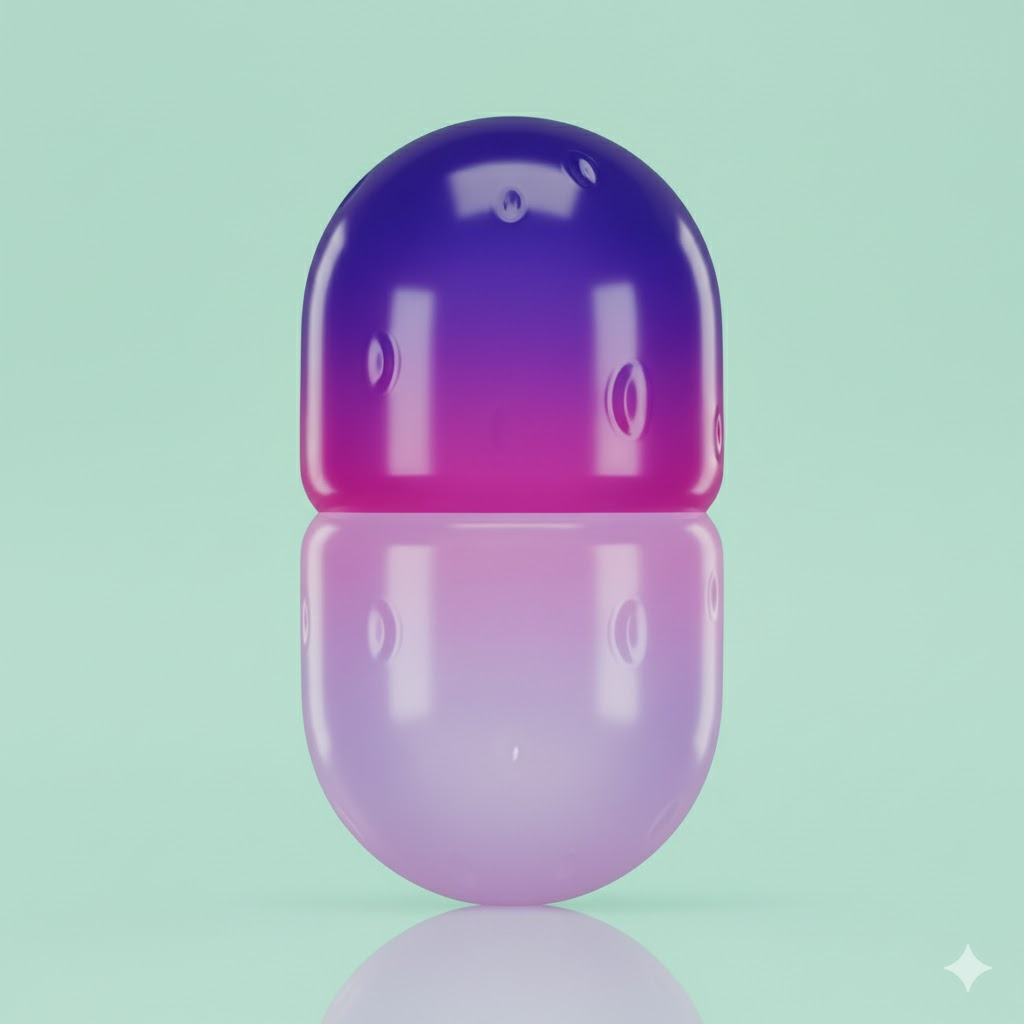 | 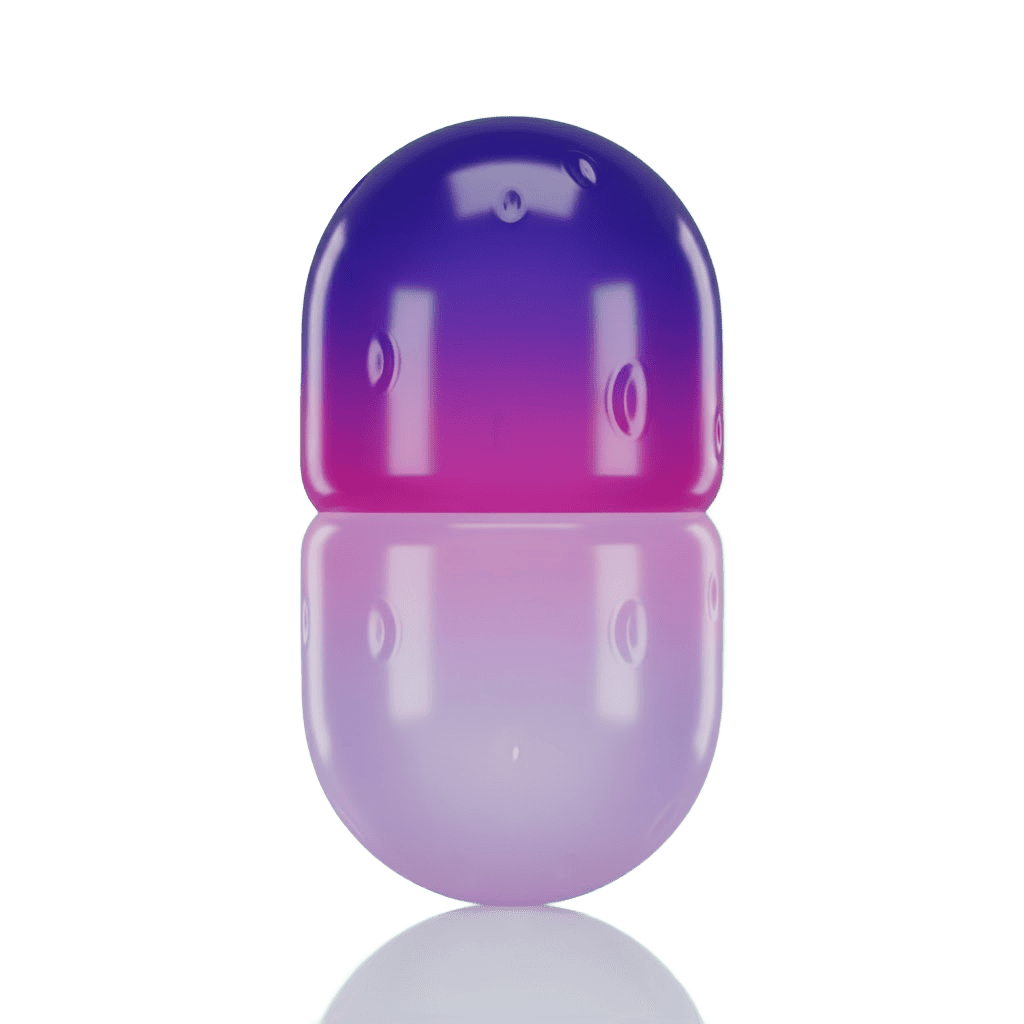 |
extract_region
Extracts (crops) a rectangular region from an image stored in a session. Returns the cropped image as a file or base64 payload.
Parameters:
sessionId(string, required): The session ID returned from create_sessionx(number, required): X coordinate of the top-left corner of the crop regiony(number, required): Y coordinate of the top-left corner of the crop regionwidth(number, required): Width of the crop regionheight(number, required): Height of the crop regionoutput_path(string, optional): Absolute path to save the cropped image. If not provided, returns base64 payload.
Returns (without output_path):
{
  "base64": "iVBORw0KGgoAAAANSUhEUgAA...",
  "mimeType": "image/png"
}
Returns (with output_path):
{
  "success": true,
  "path": "/path/to/cropped.png"
}
Example:
{
  "sessionId": "img_abc123xyz",
  "x": 100,
  "y": 50,
  "width": 200,
  "height": 150,
  "output_path": "/path/to/cropped.png"
}
Error Responses:
- Out of bounds:
Region (100, 50, 200x150) exceeds image bounds (150x100) - Invalid coordinates:
Invalid coordinates: x and y must be non-negative values. - Invalid dimensions:
Invalid dimensions: width and height must be positive values.
compress_image
Compresses an image with specified format and quality. Supports JPEG, PNG, and WebP formats. Returns the compressed image as a file or base64 payload.
Parameters:
sessionId(string, required): The session ID returned from create_sessionformat(string, optional): Output format: 'jpeg', 'png', or 'webp'. If not specified, keeps the original format.quality(number, optional, default: 80): Compression quality (1-100). Higher values mean better quality but larger file size.output_path(string, optional): Absolute path to save the compressed image. If not provided, returns base64 payload.
Returns (without output_path):
{
  "base64": "iVBORw0KGgoAAAANSUhEUgAA...",
  "mimeType": "image/jpeg",
  "format": "jpeg",
  "originalSize": 245632,
  "compressedSize": 98234,
  "compressionRatio": "60.01%"
}
Returns (with output_path):
{
  "success": true,
  "path": "/path/to/compressed.jpg",
  "format": "jpeg",
  "originalSize": 245632,
  "compressedSize": 98234,
  "compressionRatio": "60.01%"
}
Example:
{
  "sessionId": "img_abc123xyz",
  "format": "webp",
  "quality": 75,
  "output_path": "/path/to/output.webp"
}
Note: For PNG format, the quality parameter is converted to compression level (quality 100 → level 0, quality 0 → level 9).
Usage Examples
Example 1: Analyze an image
In Cursor/Claude Code:
Read the screenshot at ./screenshot.png, create a session with it,
and tell me its dimensions.
Example 2: Extract colors from UI
In Cursor/Claude Code:
I have a UI screenshot. Create a session with it and pick the colors
at these coordinates: (100, 50), (200, 150), (300, 200).
Example 3: Get image metadata
In Cursor/Claude Code:
Load ./logo.png into a session and get its size and format.
Example 4: Remove background from image
In Cursor/Claude Code:
Create a session with ./product-photo.jpg and remove the background.
Save the result to ./product-transparent.png
Example 5: Compress and convert image format
In Cursor/Claude Code:
Load ./large-image.png into a session and compress it to WebP format
with 75% quality. Save to ./optimized.webp
Command Line Usage
Run the server directly:
# Using stdio transport (default)
sharp-mcp

# Using HTTP transport
sharp-mcp --transport http --port 5000
CLI Options:
--transport <stdio|http>: Transport type (default: stdio)--port <number>: Port for HTTP transport (default: 5000)
Development
# Install dependencies
npm install

# Run in development mode
npm run dev

# Run tests
npm test

# Build
npm run build

# Type check
npm run typecheck

# Lint
npm run lint
Architecture
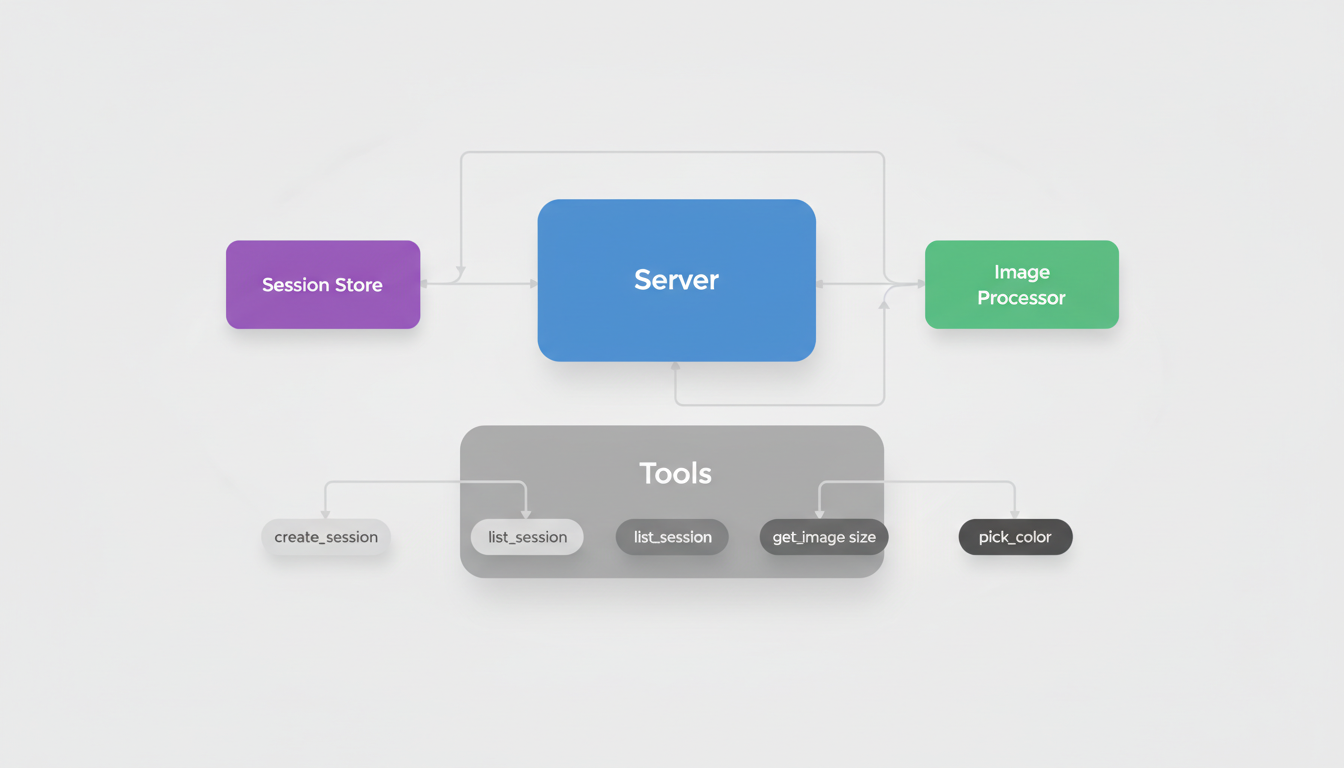
The project follows a modular architecture:
- services/: Session storage and image processing services
session-store.ts: In-memory session managementimage-processor.ts: Sharp-based image analysis
- tools/: MCP tool implementations
create-session.ts: Session creation from base64create-session-by-path.ts: Session creation from file pathlist-session.ts: Session listingget-image-size.ts: Image dimensions extraction (get_dimensions)pick-color.ts: Color extractionremove-background.ts: ML-based background removalextract-region.ts: Image croppingcompress-image.ts: Image compression
- utils/: Shared utilities
validation.ts: Session ID validation
- server.ts: Main MCP server setup and configuration
Supported Image Formats
- JPEG (.jpg, .jpeg)
- PNG (.png)
- GIF (.gif)
- WebP (.webp)
- TIFF (.tiff)
- AVIF (.avif)
License
MIT
Contributing
Contributions are welcome! Please feel free to submit a Pull Request.
Author
choesumin