SmartKasa MCP Server
Production-ready Model Context Protocol (MCP) server for SmartKasa POS API


Overview
SmartKasa MCP Server enables AI assistants (Claude, GPT, etc.) to interact with SmartKasa - Ukrainian POS system with fiscal compliance. Through natural language, you can manage:
- 🏪 Shops - Create, update, manage retail locations
- 📦 Products - Full inventory management with categories
- 🧾 Receipts - Sales transactions and fiscal operations
- 👥 Employees - Staff management with roles
- 📊 Reports - Z-reports and sales statistics
- 💳 Terminals - POS terminal configuration
Features
- ✅ 58 API tools covering all SmartKasa endpoints
- ✅ HTTP/2 with connection pooling for high performance
- ✅ Automatic token refresh with exponential backoff
- ✅ Rate limiting protection with smart retries
- ✅ Secure credential handling - memory-only storage
- ✅ Multi-user support via process isolation
- ✅ Structured logging for debugging
- ✅ Two transport modes: stdio (local) and SSE (remote server)
- ✅ Docker support for easy deployment
How MCP Works
⚠️ Important: You do NOT need to manually run this server!
MCP uses stdio transport by default - your LLM client (Claude Desktop, Cursor, etc.) automatically starts the server as a child process and communicates via stdin/stdout.
┌─────────────────────────────────────────────────────────┐
│  LLM Client (Claude Desktop / Cursor / VS Code)         │
│                                                         │
│  1. Reads your config file                              │
│  2. Spawns: python smartkasa-mcp-server.py              │
│  3. Communicates via stdin/stdout                       │
│  4. Server runs as long as client is open               │
└─────────────────────────────────────────────────────────┘
You only configure the path - the client handles everything else.
Quick Start
1. Installation
# Clone the repository
git clone https://github.com/1212bogdan/smartkasa-mcp-server.git
cd smartkasa-mcp-server

# Create virtual environment
python -m venv venv
source venv/bin/activate  # On Windows: venv\Scripts\activate

# Install dependencies
pip install -r requirements.txt
2. Get SmartKasa Credentials
You need three things from SmartKasa:
- API Key - Get from SmartKasa dashboard or support
- Phone Number - Your registered phone (e.g.,
380501234567) - Password - Your account password
3. Configure Your LLM Client
See Client Configuration section below for your specific client.
Client Configuration
Claude Desktop (macOS)
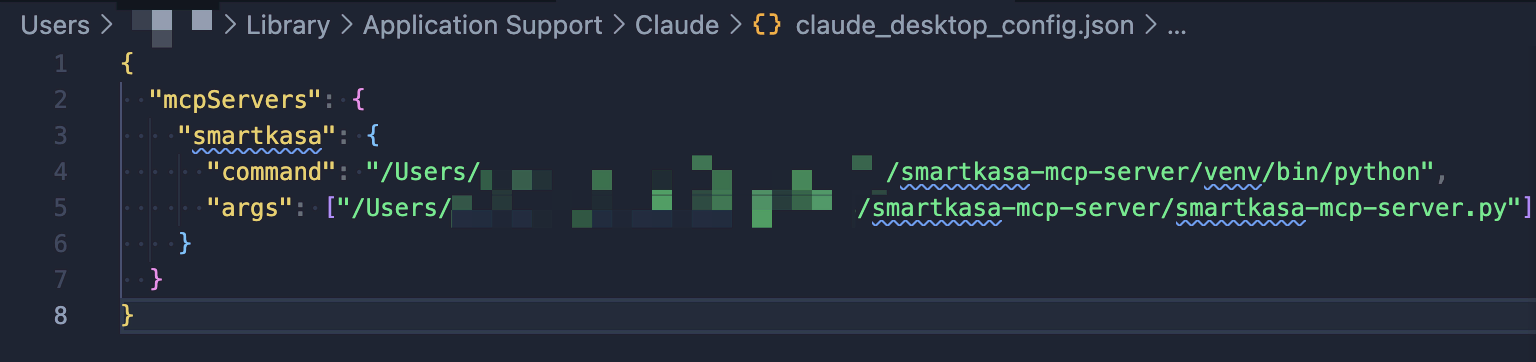
Edit ~/Library/Application Support/Claude/claude_desktop_config.json:
{
  "mcpServers": {
    "smartkasa": {
      "command": "/path/to/venv/bin/python",
      "args": ["/path/to/smartkasa-mcp-server/smartkasa-mcp-server.py"],
      "env": {
        "SMARTKASA_API_KEY": "your_api_key_here",
        "SMARTKASA_PHONE": "380501234567",
        "SMARTKASA_PASSWORD": "your_password"
      }
    }
  }
}
Claude Desktop (Windows)
Edit %APPDATA%\Claude\claude_desktop_config.json:
{
  "mcpServers": {
    "smartkasa": {
      "command": "C:\\path\\to\\venv\\Scripts\\python.exe",
      "args": ["C:\\path\\to\\smartkasa-mcp-server\\smartkasa-mcp-server.py"],
      "env": {
        "SMARTKASA_API_KEY": "your_api_key_here",
        "SMARTKASA_PHONE": "380501234567",
        "SMARTKASA_PASSWORD": "your_password"
      }
    }
  }
}
Claude Desktop (Linux)
Edit ~/.config/Claude/claude_desktop_config.json:
{
  "mcpServers": {
    "smartkasa": {
      "command": "/path/to/venv/bin/python",
      "args": ["/path/to/smartkasa-mcp-server/smartkasa-mcp-server.py"],
      "env": {
        "SMARTKASA_API_KEY": "your_api_key_here",
        "SMARTKASA_PHONE": "380501234567",
        "SMARTKASA_PASSWORD": "your_password"
      }
    }
  }
}
VS Code with Continue Extension
Add to ~/.continue/config.json:
{
  "experimental": {
    "modelContextProtocolServers": [
      {
        "transport": {
          "type": "stdio",
          "command": "/path/to/venv/bin/python",
          "args": ["/path/to/smartkasa-mcp-server/smartkasa-mcp-server.py"]
        }
      }
    ]
  }
}
Cursor IDE
Add to Cursor settings (Cmd/Ctrl + , → search "MCP"):
{
  "mcp.servers": {
    "smartkasa": {
      "command": "/path/to/venv/bin/python",
      "args": ["/path/to/smartkasa-mcp-server/smartkasa-mcp-server.py"]
    }
  }
}
Cline (VS Code Extension)
Configure in Cline settings panel:
- Server Name:
smartkasa - Command:
/path/to/venv/bin/python - Arguments:
/path/to/smartkasa-mcp-server/smartkasa-mcp-server.py
Usage Guide
First Time Setup
If you didn't configure environment variables, set credentials via chat:
Please set my SmartKasa credentials:
- API Key: sk_live_xxxxx
- Phone: 380501234567
- Password: mypassword

Then authenticate and show my shops.
Example Conversations
List all products:
Show me all products in my SmartKasa account
Create a new product:
Create a new product called "Espresso" with price 45 UAH,
tax group 1 (20% VAT), sold by units (not weight)
Get sales report:
Show me sales statistics for the last week for shop ID 123
Check inventory:
What products have low stock in my main shop?
Manage employees:
List all employees with their roles, then show me details for employee ID 5
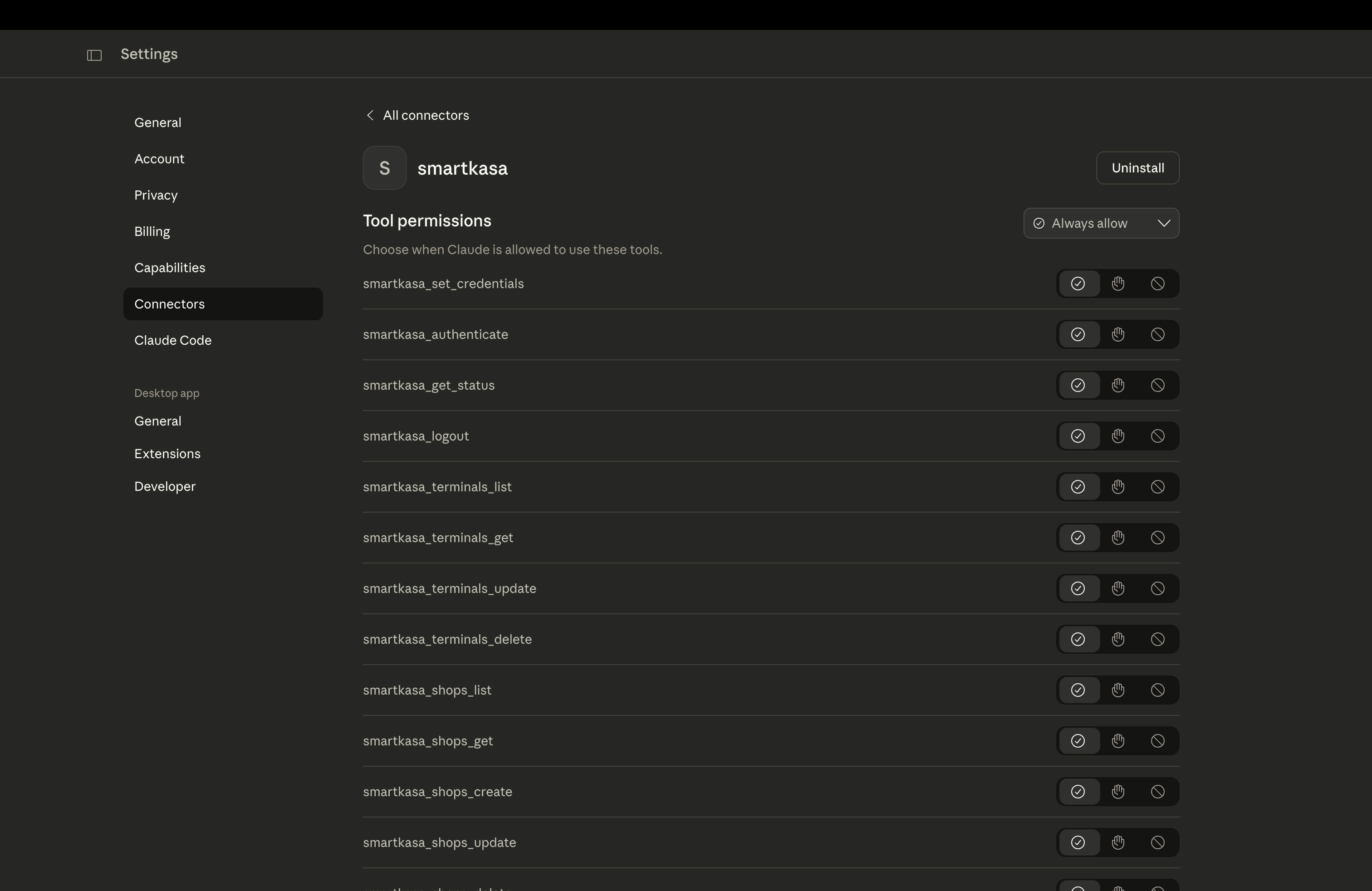
Available Tools (58 total)
Authentication (4 tools)
| Tool | Description |
|---|---|
smartkasa_set_credentials | Set API key, phone, password |
smartkasa_authenticate | Authenticate and get token |
smartkasa_get_status | Check auth status and expiry |
smartkasa_logout | Logout and clear session |
Terminals (4 tools)
| Tool | Description |
|---|---|
smartkasa_terminals_list | List all POS terminals |
smartkasa_terminals_get | Get terminal by ID |
smartkasa_terminals_update | Update terminal config |
smartkasa_terminals_delete | Delete terminal |
Shops (6 tools)
| Tool | Description |
|---|---|
smartkasa_shops_list | List all shops |
smartkasa_shops_get | Get shop by ID |
smartkasa_shops_create | Create new shop |
smartkasa_shops_update | Update shop |
smartkasa_shops_delete | Delete shop |
smartkasa_shops_employees | List shop employees |
Employees (5 tools)
| Tool | Description |
|---|---|
smartkasa_employees_list | List all employees |
smartkasa_employees_get | Get employee by ID |
smartkasa_employees_create | Create employee |
smartkasa_employees_update | Update employee |
smartkasa_employees_delete | Delete employee |
Categories (6 tools)
| Tool | Description |
|---|---|
smartkasa_categories_list | List categories |
smartkasa_categories_create | Create category |
smartkasa_categories_update | Update category |
smartkasa_categories_delete | Delete category |
smartkasa_categories_batch_create | Batch create |
smartkasa_categories_batch_delete | Batch delete |
Products (8 tools)
| Tool | Description |
|---|---|
smartkasa_products_list | Search/list products |
smartkasa_products_get | Get product by UUID |
smartkasa_products_create | Create product |
smartkasa_products_update | Update product |
smartkasa_products_delete | Delete product |
smartkasa_products_batch_create | Batch create |
smartkasa_products_batch_delete | Batch delete |
Inventory Cards (5 tools)
| Tool | Description |
|---|---|
smartkasa_cards_list | List inventory cards |
smartkasa_cards_get | Get card by ID |
smartkasa_cards_create | Create card |
smartkasa_cards_update | Update stock |
smartkasa_cards_delete | Delete card |
Receipts (7 tools)
| Tool | Description |
|---|---|
smartkasa_receipts_list | List receipts |
smartkasa_receipts_get | Get receipt by UUID |
smartkasa_receipts_create | Create receipt |
smartkasa_receipts_update | Update receipt |
smartkasa_receipts_delete | Delete receipt |
smartkasa_receipts_batch_create | Batch create |
smartkasa_receipts_batch_delete | Batch delete |
Reports (2 tools)
| Tool | Description |
|---|---|
smartkasa_reports_z_reports | Get Z-reports |
smartkasa_reports_product_sales | Sales statistics |
Other Tools
smartkasa_unit_types_list- Unit typessmartkasa_subgroups_*- Product subgroups (4 tools)smartkasa_import_*- Product import (3 tools)smartkasa_shifts_*- Fiscal shifts (2 tools)smartkasa_transactions_get- Payment transactions
Security
Credential Storage
🔐 Credentials are stored in memory only and are never written to disk by the server.
The security model:
- Each MCP client spawns a separate process for this server
- Process memory is isolated - credentials cannot leak between users
- When the process ends, all credentials are cleared
- Tokens auto-expire (typically 12 hours for access, 30 days for refresh)
Environment Variables
| Variable | Description |
|---|---|
SMARTKASA_API_KEY | Your SmartKasa API key |
SMARTKASA_PHONE | Phone number (e.g., 380501234567) |
SMARTKASA_PASSWORD | Account password |
SMARTKASA_LOG_LEVEL | Logging level (DEBUG/INFO/WARNING/ERROR) |
SMARTKASA_BASE_URL | API URL (default: https://core.smartkasa.ua) |
Multi-User Architecture
How It Works
┌─────────────────┐     ┌─────────────────┐     ┌─────────────────┐
│   User Alice    │     │    User Bob     │     │   User Carol    │
│  (Claude App)   │     │   (VS Code)     │     │   (Cursor)      │
└────────┬────────┘     └────────┬────────┘     └────────┬────────┘
         │                       │                       │
         ▼                       ▼                       ▼
┌─────────────────┐     ┌─────────────────┐     ┌─────────────────┐
│  MCP Process 1  │     │  MCP Process 2  │     │  MCP Process 3  │
│  (Alice's creds)│     │  (Bob's creds)  │     │ (Carol's creds) │
└─────────────────┘     └─────────────────┘     └─────────────────┘
         │                       │                       │
         └───────────────────────┴───────────────────────┘
                                 │
                                 ▼
                    ┌───────────────────────┐
                    │   SmartKasa API       │
                    │ core.smartkasa.ua     │
                    └───────────────────────┘
Key points:
- Each user's LLM client spawns its own MCP server process
- Credentials are isolated in process memory
- No session conflicts between users
- Process termination = automatic cleanup
Session Persistence
⚠️ Sessions do NOT persist across:
- Application restarts
- System reboots
- Process crashes
To maintain access:
- Configure credentials in environment variables
- Server auto-authenticates on startup if env vars are set
- Or re-set credentials via
smartkasa_set_credentialstool
Troubleshooting
Common Issues
"Import mcp could not be resolved"
pip install mcp
"Authentication failed: 401"
- Verify API key is correct
- Check phone number format (no + prefix, just 380...)
- Verify password
"Connection timeout"
- Check internet connection
- Verify https://core.smartkasa.ua is accessible
- Try increasing
SMARTKASA_REQUEST_TIMEOUT
"Rate limited"
- Server automatically handles this with retry
- Reduce request frequency if persistent
Debug Mode
Enable verbose logging:
export SMARTKASA_LOG_LEVEL=DEBUG
Or in config:
{
  "env": {
    "SMARTKASA_LOG_LEVEL": "DEBUG"
  }
}
Development
Running Tests
pip install pytest pytest-asyncio
pytest tests/
Local Development
# Run server directly
python smartkasa-mcp-server.py

# With debug logging
SMARTKASA_LOG_LEVEL=DEBUG python smartkasa-mcp-server.py
Remote Deployment (Server Mode)
For hosting on a server, use SSE (Server-Sent Events) transport instead of stdio.
Deployment Options
| Platform | Suitability | Notes |
|---|---|---|
| Docker + VPS | ✅ Best | Full control, persistent connections |
| Coolify | ✅ Excellent | Easy Docker deployment |
| Railway | ✅ Good | Supports long-running processes |
| Fly.io | ✅ Good | Global edge deployment |
| Render | ✅ Good | Free tier available |
| AWS ECS/Fargate | ✅ Good | Enterprise-grade |
| Vercel | ❌ No | Serverless, no persistent connections |
| Cloudflare Workers | ❌ No | No long-running processes |
| AWS Lambda | ❌ No | Timeout limits, no SSE |
Option 1: Docker (Recommended)
# Build image
docker build -t smartkasa-mcp .

# Run with credentials
docker run -d \
  --name smartkasa-mcp \
  -p 8080:8080 \
  -e SMARTKASA_API_KEY="your_api_key" \
  -e SMARTKASA_PHONE="380501234567" \
  -e SMARTKASA_PASSWORD="your_password" \
  --restart unless-stopped \
  smartkasa-mcp
Option 2: Docker Compose
Create .env file:
SMARTKASA_API_KEY=your_api_key
SMARTKASA_PHONE=380501234567
SMARTKASA_PASSWORD=your_password
Run:
docker-compose up -d
Option 3: Coolify
- Create new service in Coolify
- Select "Docker Compose" or "Dockerfile"
- Point to your repository
- Add environment variables in Coolify UI
- Deploy
Option 4: Direct Python (with systemd)
Create /etc/systemd/system/smartkasa-mcp.service:
[Unit]
Description=SmartKasa MCP Server
After=network.target

[Service]
Type=simple
User=www-data
WorkingDirectory=/opt/smartkasa-mcp-server
Environment=SMARTKASA_API_KEY=your_key
Environment=SMARTKASA_PHONE=380501234567
Environment=SMARTKASA_PASSWORD=your_password
Environment=SMARTKASA_TRANSPORT=sse
ExecStart=/opt/smartkasa-mcp-server/venv/bin/python smartkasa-mcp-server.py --transport sse
Restart=always
RestartSec=5

[Install]
WantedBy=multi-user.target
Enable and start:
sudo systemctl enable smartkasa-mcp
sudo systemctl start smartkasa-mcp
Option 5: Process Manager (PM2)
# Install PM2
npm install -g pm2

# Start server
pm2 start smartkasa-mcp-server.py \
  --name smartkasa-mcp \
  --interpreter python \
  -- --transport sse --port 8080

# Save and enable startup
pm2 save
pm2 startup
HTTPS with Reverse Proxy
For production, put behind nginx/Caddy with HTTPS:
Caddy (automatic HTTPS):
mcp.yourdomain.com {
    reverse_proxy localhost:8080
}
Nginx:
server {
    listen 443 ssl http2;
    server_name mcp.yourdomain.com;

    ssl_certificate /path/to/cert.pem;
    ssl_certificate_key /path/to/key.pem;

    location / {
        proxy_pass http://localhost:8080;
        proxy_http_version 1.1;
        proxy_set_header Connection "";
        proxy_buffering off;
        proxy_cache off;
        # SSE specific
        proxy_set_header Cache-Control no-cache;
        proxy_read_timeout 86400s;
    }
}
Connecting to Remote MCP Server
Claude Desktop (Remote SSE)
Edit config to use SSE transport:
{
  "mcpServers": {
    "smartkasa": {
      "transport": {
        "type": "sse",
        "url": "https://mcp.yourdomain.com/sse"
      }
    }
  }
}
VS Code with Continue (Remote)
{
  "experimental": {
    "modelContextProtocolServers": [
      {
        "transport": {
          "type": "sse",
          "url": "https://mcp.yourdomain.com/sse"
        }
      }
    ]
  }
}
Health Check Endpoint
Your remote server exposes /health endpoint:
curl https://mcp.yourdomain.com/health
# {"status": "healthy", "server": "smartkasa-mcp", "transport": "sse", "authenticated": true}
License
MIT License - see LICENSE file.
SmartKasa MCP Server (Українська)
Production-ready MCP сервер для SmartKasa POS API
Огляд
SmartKasa MCP Server дозволяє AI-асистентам (Claude, GPT тощо) працювати з SmartKasa - українською касовою системою з фіскалізацією. Через звичайну мову ви можете керувати:
- 🏪 Магазинами - створення, оновлення, керування точками продажу
- 📦 Товарами - повне управління складом з категоріями
- 🧾 Чеками - продажі та фіскальні операції
- 👥 Працівниками - управління персоналом з ролями
- 📊 Звітами - Z-звіти та статистика продажів
- 💳 Терміналами - конфігурація POS терміналів
Швидкий старт
1. Встановлення
# Клонуйте репозиторій
git clone https://github.com/1212bogdan/smartkasa-mcp-server.git
cd smartkasa-mcp-server

# Створіть віртуальне середовище
python -m venv venv
source venv/bin/activate  # Windows: venv\Scripts\activate

# Встановіть залежності
pip install -r requirements.txt
2. Отримайте дані для SmartKasa
Вам потрібні:
- API Key - отримайте в особистому кабінеті SmartKasa або через підтримку
- Номер телефону - ваш зареєстрований номер (наприклад,
380501234567) - Пароль - пароль вашого облікового запису
3. Налаштуйте ваш LLM клієнт
Claude Desktop (macOS)
Редагуйте ~/Library/Application Support/Claude/claude_desktop_config.json:
{
  "mcpServers": {
    "smartkasa": {
      "command": "/шлях/до/venv/bin/python",
      "args": ["/шлях/до/smartkasa-mcp-server/smartkasa-mcp-server.py"],
      "env": {
        "SMARTKASA_API_KEY": "ваш_api_ключ",
        "SMARTKASA_PHONE": "380501234567",
        "SMARTKASA_PASSWORD": "ваш_пароль"
      }
    }
  }
}
Claude Desktop (Windows)
Редагуйте %APPDATA%\Claude\claude_desktop_config.json:
{
  "mcpServers": {
    "smartkasa": {
      "command": "C:\\шлях\\до\\venv\\Scripts\\python.exe",
      "args": ["C:\\шлях\\до\\smartkasa-mcp-server\\smartkasa-mcp-server.py"],
      "env": {
        "SMARTKASA_API_KEY": "ваш_api_ключ",
        "SMARTKASA_PHONE": "380501234567",
        "SMARTKASA_PASSWORD": "ваш_пароль"
      }
    }
  }
}
Приклади використання
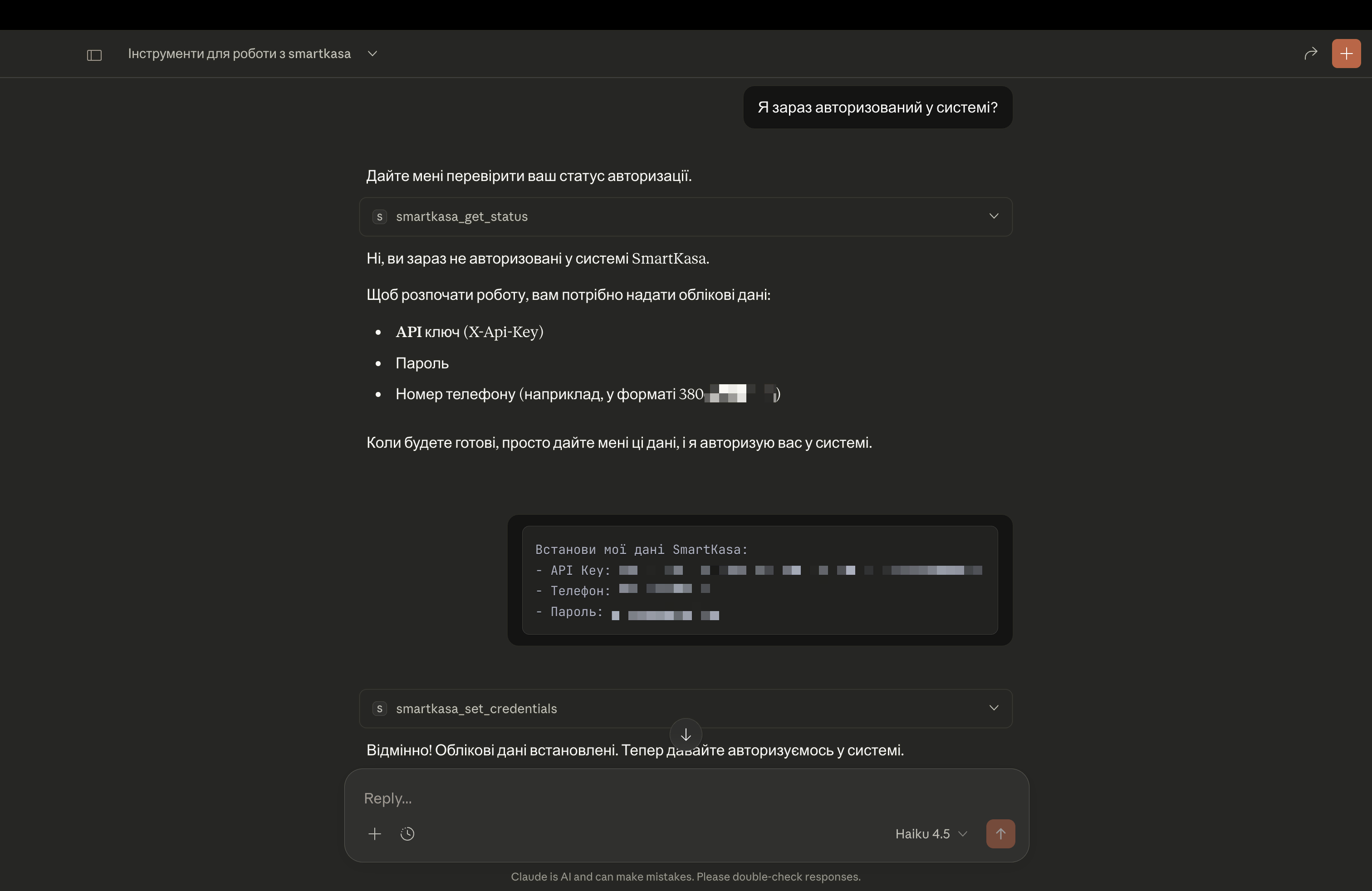
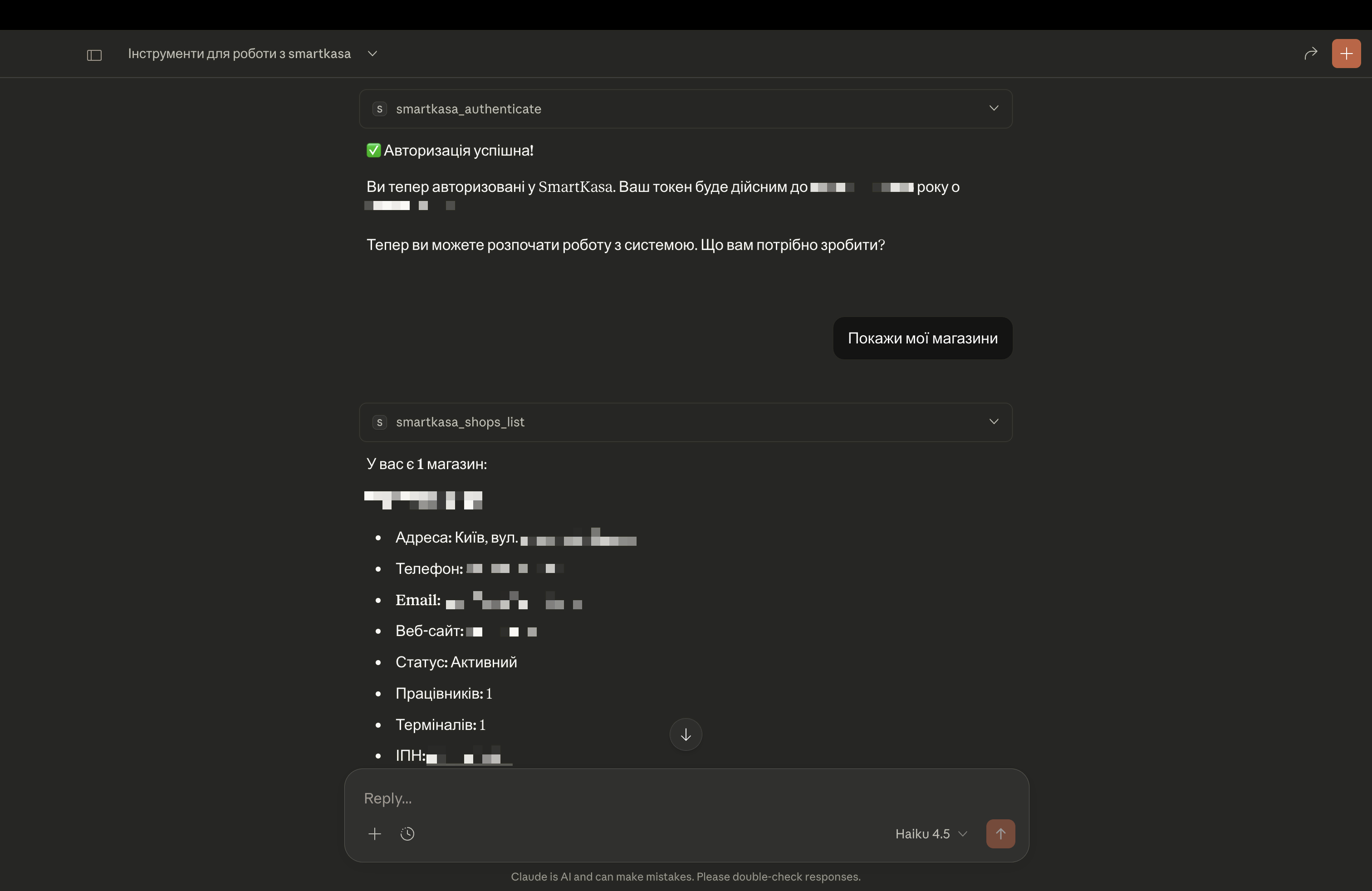
Перша авторизація (якщо не налаштовані env vars):
Встанови мої дані SmartKasa:
- API Key: sk_live_xxxxx
- Телефон: 380501234567
- Пароль: мій_пароль

Потім авторизуйся і покажи мої магазини.
Показати всі товари:
Покажи всі товари в моєму акаунті SmartKasa
Створити новий товар:
Створи новий товар "Еспресо" з ціною 45 грн,
група оподаткування 1 (ПДВ 20%), продається штуками
Звіт по продажах:
Покажи статистику продажів за останній тиждень для магазину ID 123
Перевірити залишки:
Які товари мають низький запас в головному магазині?
Безпека
Зберігання даних
🔐 Дані зберігаються тільки в пам'яті і ніколи не записуються на диск сервером.
Модель безпеки:
- Кожен LLM клієнт запускає окремий процес сервера
- Пам'ять процесів ізольована - дані не можуть витікати між користувачами
- Коли процес завершується, всі дані очищаються
- Токени автоматично закінчуються (зазвичай 12 годин для access, 30 днів для refresh)
Мультикористувацька архітектура
Як це працює
- Кожен LLM клієнт користувача запускає власний процес MCP сервера
- Дані авторизації ізольовані в пам'яті процесу
- Немає конфліктів сесій між користувачами
- Завершення процесу = автоматичне очищення
Збереження сесій
⚠️ Сесії НЕ зберігаються після:
- Перезапуску додатка
- Перезавантаження системи
- Аварійного завершення процесу
Для збереження доступу:
- Налаштуйте дані у змінних оточення
- Сервер автоматично авторизується при запуску
- Або повторно задайте дані через
smartkasa_set_credentials
Усунення проблем
"Authentication failed: 401"
- Перевірте правильність API ключа
- Перевірте формат номера (без +, просто 380...)
- Перевірте пароль
"Connection timeout"
- Перевірте з'єднання з інтернетом
- Перевірте доступність https://core.smartkasa.ua
Режим налагодження
export SMARTKASA_LOG_LEVEL=DEBUG
Віддалений розгортання (Серверний режим)
Для хостингу на сервері використовуйте SSE (Server-Sent Events) transport.
Як це працює
При локальному використанні (stdio) - LLM клієнт сам запускає сервер.
При віддаленому (SSE) - сервер працює постійно, клієнти підключаються по HTTP.
Варіанти розгортання
| Платформа | Придатність | Примітки |
|---|---|---|
| Docker + VPS | ✅ Найкраще | Повний контроль |
| Coolify | ✅ Відмінно | Легке Docker розгортання |
| Railway | ✅ Добре | Підтримує long-running |
| Fly.io | ✅ Добре | Global edge |
| Vercel | ❌ Ні | Serverless, немає SSE |
| Lambda | ❌ Ні | Timeout, немає SSE |
Docker
# Збірка
docker build -t smartkasa-mcp .

# Запуск
docker run -d \
  --name smartkasa-mcp \
  -p 8080:8080 \
  -e SMARTKASA_API_KEY="ваш_ключ" \
  -e SMARTKASA_PHONE="380501234567" \
  -e SMARTKASA_PASSWORD="ваш_пароль" \
  --restart unless-stopped \
  smartkasa-mcp
Docker Compose
# Створіть .env файл з credentials
docker-compose up -d
Systemd (Linux сервер)
Створіть /etc/systemd/system/smartkasa-mcp.service:
[Unit]
Description=SmartKasa MCP Server
After=network.target

[Service]
Type=simple
User=www-data
WorkingDirectory=/opt/smartkasa-mcp-server
Environment=SMARTKASA_API_KEY=ваш_ключ
Environment=SMARTKASA_TRANSPORT=sse
ExecStart=/opt/smartkasa-mcp-server/venv/bin/python smartkasa-mcp-server.py --transport sse
Restart=always

[Install]
WantedBy=multi-user.target
Підключення до віддаленого сервера
У конфігу Claude Desktop:
{
  "mcpServers": {
    "smartkasa": {
      "transport": {
        "type": "sse",
        "url": "https://mcp.yourdomain.com/sse"
      }
    }
  }
}
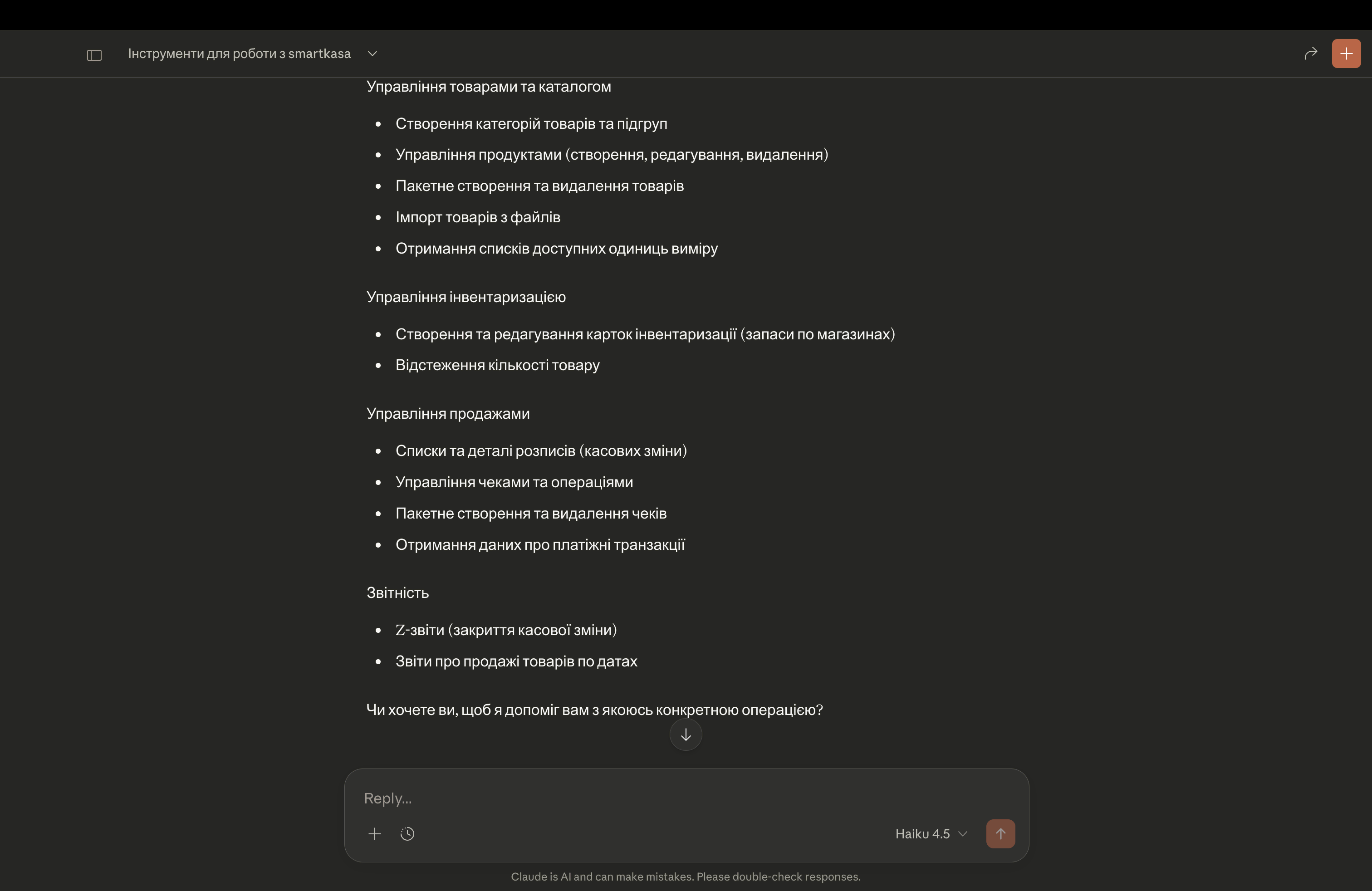
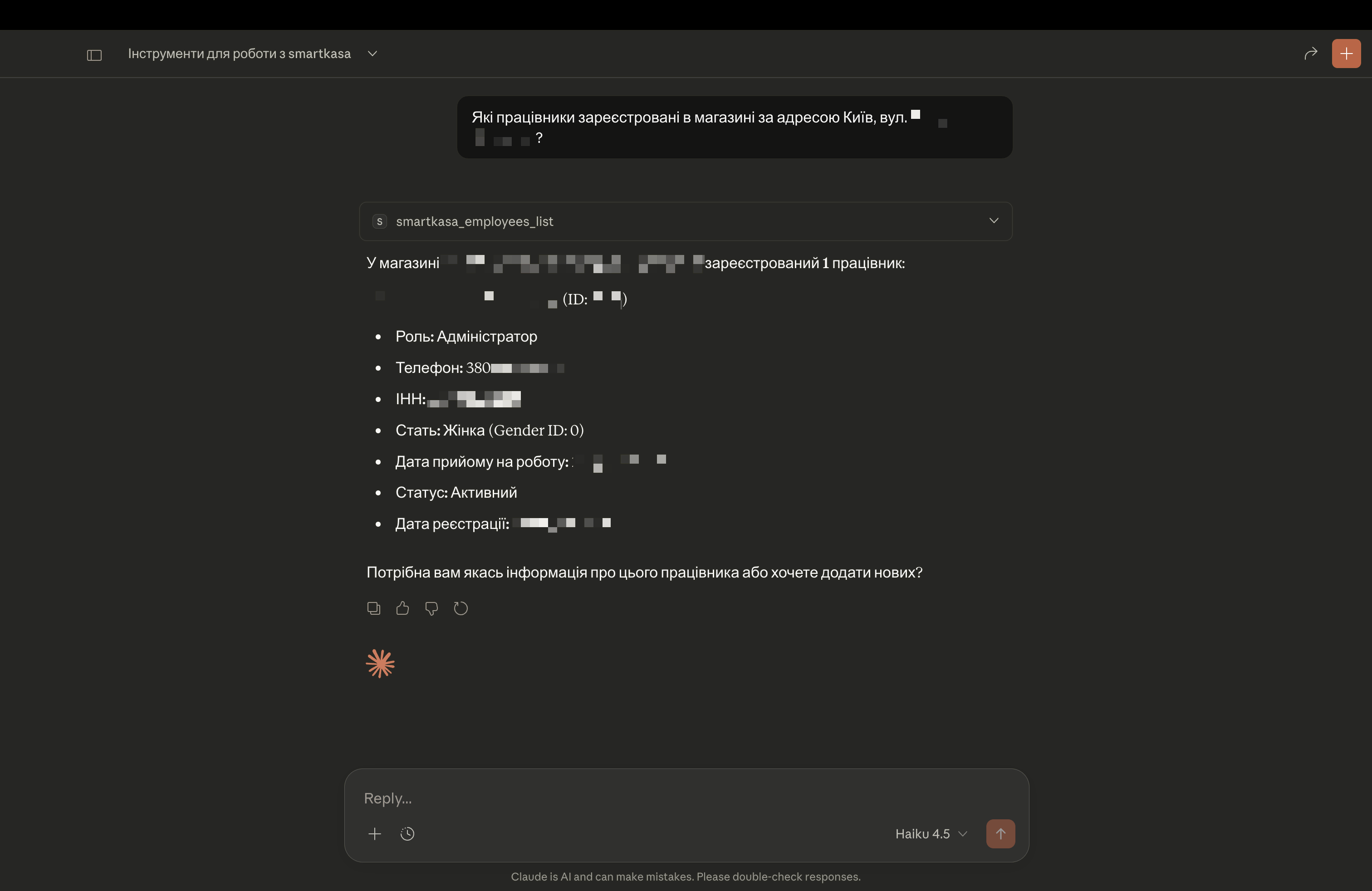
Скріншоти
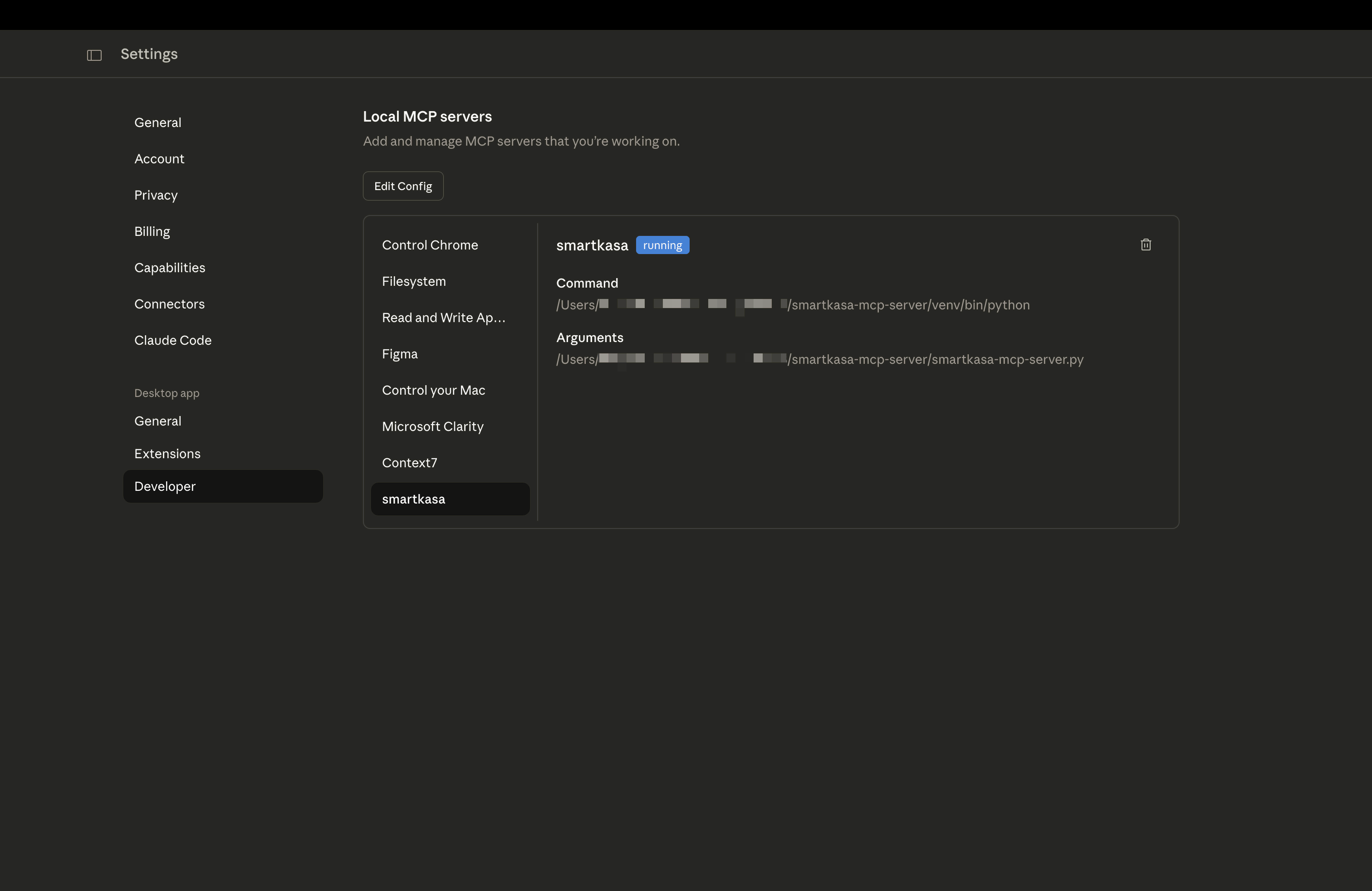
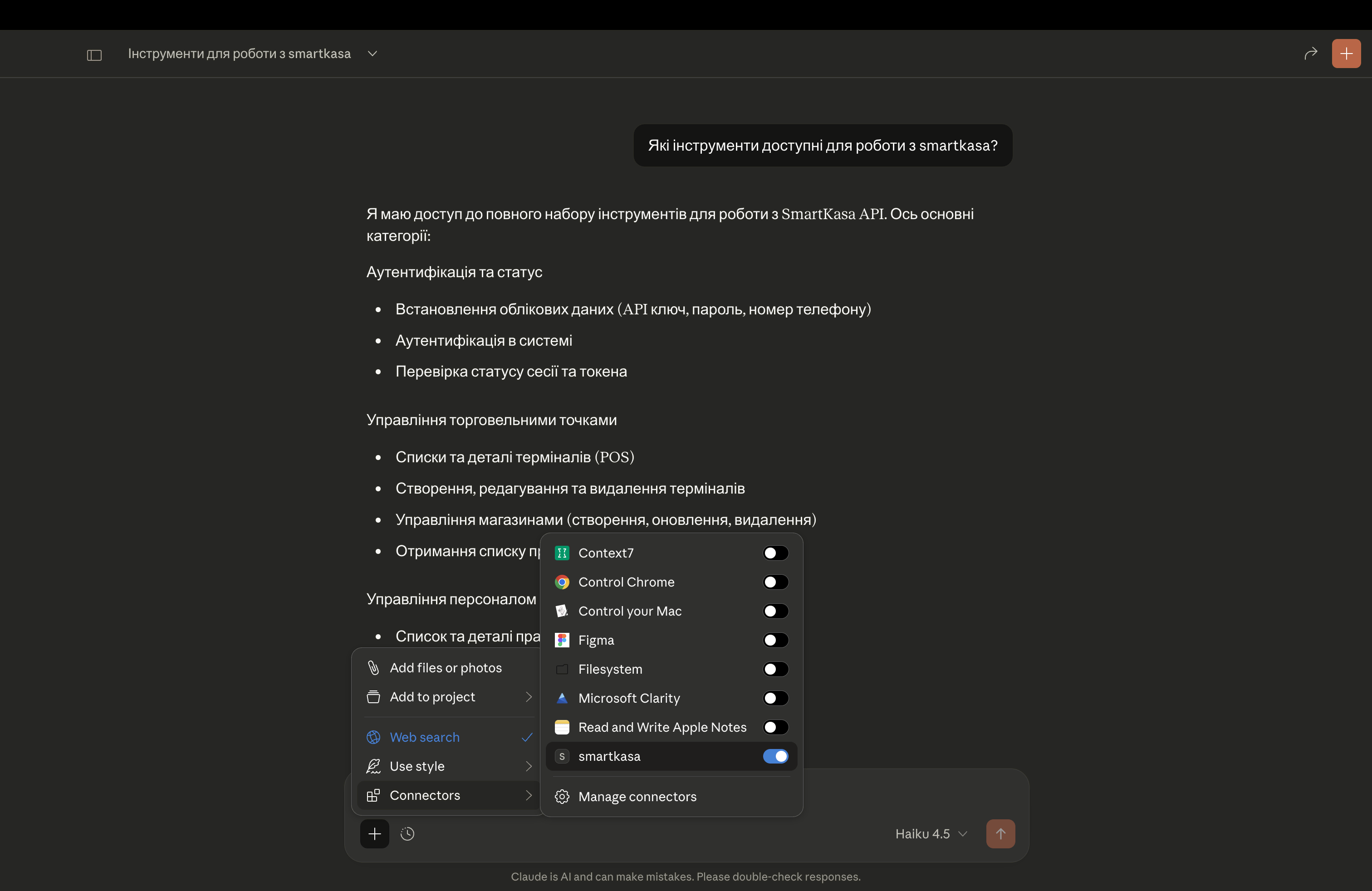
Робота зі SmartKasa API через Claude Desktop з локально запущеним MCP
Ліцензія
MIT License - дивіться файл LICENSE.
Зроблено з ❤️ для української спільноти розробників