Unity MCP — AI Assistant Integration for Unity Editor




Unity-native Model Context Protocol (MCP) server for AI-powered game development. Connect Claude, Codex, Cursor, and other AI assistants directly to the Unity Editor — no Node.js, Python, or external runtimes required. Install the package and start building.
New in v2.2
Canvas UI building tools, Input Action management, Project Settings management, batch execution, and merged vision capture.
Features
- 100% Unity-native — Runs entirely inside the Unity Editor as a single package. No sidecar processes to install or maintain.
- Zero telemetry — Completely private. No data leaves your machine.
- 51 built-in tools — Create GameObjects, run tests, build projects, manage scenes, build Canvas UIs, manage input actions, and more.
- 23 resources + 6 resource templates — Read-only access to project settings, scene state, console output, and more via URI patterns.
- 4 workflow prompts — Pre-built prompt templates for common Unity tasks.
- 4 built-in recipes — One-call scene setup templates (FPS prototype, UI canvas, 3D template, physics playground).
- Checkpoint system — Save and restore scene state before destructive operations, with diff support.
- Vision capture — Send Game/Scene View screenshots directly to AI assistants for visual analysis.
- Scene diagnostics — Narrative scene summaries and structured issue scanning in one call.
- Remote access — Connect from other devices on your network with TLS encryption and API key authentication.
- Activity log — Monitor MCP requests and responses in real time from the editor window.
- Per-action annotations — Safety hints (
readOnlyHint,destructiveHint) resolved per action, so AI assistants get accurate signals even for multi-action tools. - Simple extension API — Add custom tools, resources, prompts, and recipes with a single C# attribute.
Requirements
- Unity 2022.3 or later (including Unity 6)
- Any MCP-compatible AI client: Claude Code, Claude Desktop, Codex, Cursor, or others
Installation
- Open Unity Package Manager (Window > Package Manager)
- Click + > Add package from git URL
- Enter the URL for the version you want
Latest version (recommended)
https://github.com/emeryporter/UnityMCP.git?path=/Package
Specific version
Append a #version tag to pin to a release:
https://github.com/emeryporter/UnityMCP.git?path=/Package#2.2.0
See Releases for available versions.
Setup
Claude Code
claude mcp add unity-mcp --transport http http://localhost:8080/
Claude Desktop
Add this to your Claude Desktop configuration file:
macOS: ~/Library/Application Support/Claude/claude_desktop_config.json
Windows: %APPDATA%\Claude\claude_desktop_config.json
{
  "mcpServers": {
    "unity-mcp": {
      "command": "npx",
      "args": ["-y", "mcp-remote", "http://localhost:8080/"]
    }
  }
}
Restart Claude Desktop after saving.
Other MCP clients (Codex, Cursor, etc.)
Unity MCP exposes a built-in HTTP server at http://localhost:8080/. Any MCP-compatible client with HTTP transport support can connect directly. For stdio-only clients, use the mcp-remote bridge as shown above.
Note: Configurations for clients other than Claude Code have not been tested. Open a PR!
Configuration
Editor window
Open the Unity MCP control panel from Window > Unity MCP:
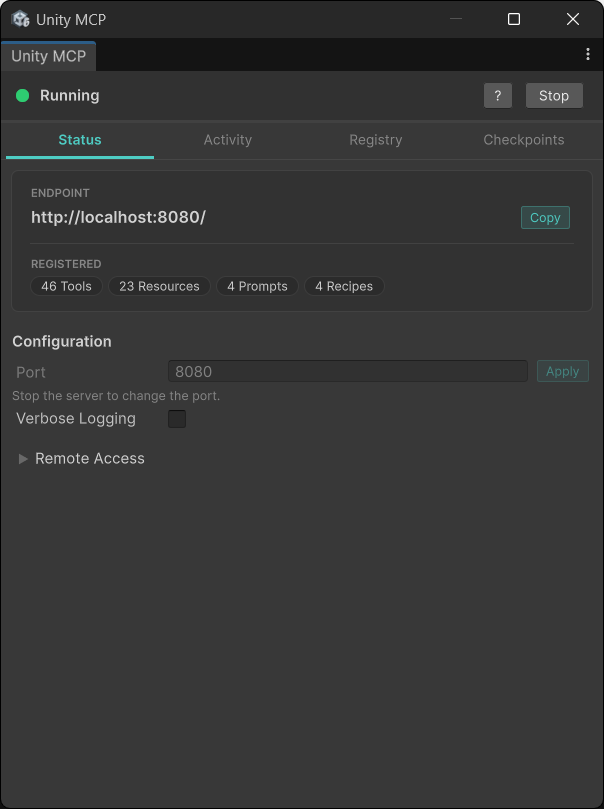
The editor window has four tabs:
- Status — Start/stop the server, view the endpoint URL (with copy button), see tool/resource/prompt/recipe counts, configure the port, and manage remote access settings.
- Activity — Live feed of MCP requests with timestamps, status indicators, and expandable detail panels showing arguments and response metadata.
- Registry — Searchable catalog of all registered tools, resources, prompts, and recipes. Organized by category with annotation badges and expandable parameter details.
- Checkpoints — Browse saved checkpoints, restore or diff scene state, view tracked assets, and check bucket status.
Port
The default port is 8080. To change it:
- Stop the server.
- Enter a new port number in the Status tab.
- Click Apply.
- Start the server.
Verbose logging
Toggle Verbose Logging in the editor window to enable detailed debug output in the Unity Console. Useful for troubleshooting connection or tool execution issues.
Remote access
Enable remote access to allow AI assistants to connect from other devices on your network:
- Toggle remote access in the Status tab to bind to all network interfaces (
0.0.0.0). - TLS required — Unity MCP auto-generates a self-signed certificate for secure connections.
- API key authentication — A key with the prefix
umcp_is auto-generated on first enable and required for all remote requests. - Copy or regenerate the API key directly from the editor window.
- Endpoint changes to
https://<LAN_IP>:<port>/when remote access is enabled. - Certificate storage — Stored in
LocalApplicationData/UnityMCP/. Auto-regenerates if your LAN IP changes. - Firewall — You may need to allow incoming connections on the configured port. This is your responsibility.
Claude Code remote setup
claude mcp add unity-mcp --transport http --header "Authorization: Bearer <API_KEY>" https://<LAN_IP>:8080/
Replace <API_KEY> with your generated key and <LAN_IP> with your Unity machine's IP address.
Available MCP Tools
51 built-in tools organized by category:
[!Tip] Use
search_toolswith no arguments for a category overview, or pass aqueryorcategoryto narrow results. Useget_unity_guidefor workflow guidance and tool-chaining recipes.
View all 51 built-in tools
Scene (8)
| Tool | Description |
|---|---|
create_scene | Creates a new empty scene at the specified path |
load_scene | Loads a scene by path or build index |
save_scene | Saves the current scene, optionally to a new path |
get_active_scene | Gets information about the currently active scene |
get_scene_hierarchy | Gets the hierarchy of GameObjects in the current scene |
describe_scene | Returns a narrative summary of the active scene including camera, lighting, key objects, and issue detection |
manage_checkpoint | Save, restore, list, or compare scene checkpoints (action: save, list, restore, diff) |
vision_capture | Capture Game/Scene View as base64 or save to disk, with optional target framing, camera angles, and format control |
GameObject (2)
| Tool | Description |
|---|---|
manage_gameobject | Manages GameObjects (action: create, modify, delete, duplicate, move_relative) |
find_gameobject | Finds GameObjects by name, tag, layer, component, path, or instance ID |
Component (1)
| Tool | Description |
|---|---|
manage_component | Manages components (action: add, remove, set_property, inspect) |
Asset (6)
| Tool | Description |
|---|---|
manage_asset | Manages assets (action: create, delete, move, rename, duplicate, import, search, get_info, create_folder) |
manage_prefab | Manages prefab operations (action: open_stage, close_stage, save_open_stage, create_from_gameobject) |
manage_material | Manages materials (action: create, get_info, set_property, set_color, assign_to_renderer, set_renderer_color) |
manage_texture | Manages textures: get info, list, find, modify import settings |
manage_shader | Manages shaders: get info, list, find, manage keywords |
manage_scriptable_object | Manages ScriptableObjects: create, modify, get, list |
VFX (1)
| Tool | Description |
|---|---|
manage_vfx | Manages VFX: particles, lines, trails |
Build & Testing (2)
| Tool | Description |
|---|---|
run_build | Manages player builds (action: start, get_job) |
run_tests | Runs Unity Test Runner (action: run, get_job) |
Editor (7)
| Tool | Description |
|---|---|
manage_playmode | Manages play mode state (action: enter, exit, pause, step) |
manage_selection | Manages editor selection (action: get, set) |
execute_menu_item | Executes a Unity Editor menu item by path |
manage_editor | Manages editor state, tags, layers, and tools |
refresh_unity | Refreshes the Unity asset database and optionally requests script compilation |
focus_editor | Frames and selects a GameObject in the Scene View |
manage_settings | Manages Project Settings and Editor Preferences: discover settings files, inspect/set properties, and read/write EditorPrefs |
Console & Profiling (2)
| Tool | Description |
|---|---|
read_console | Reads Unity Console log entries with filtering and pagination |
run_profiler | Controls profiler recording (action: start, stop, get_job) |
UI Toolkit (6)
| Tool | Description |
|---|---|
uitoolkit_query | Queries VisualElements in EditorWindows |
uitoolkit_get_styles | Gets computed USS styles for a VisualElement |
uitoolkit_click | Clicks a button, toggle, or clickable element |
uitoolkit_get_value | Gets the current value from an input field |
uitoolkit_set_value | Sets the value of an input field |
uitoolkit_navigate | Expands/collapses foldouts or selects tabs |
Guide & Diagnostics (2)
| Tool | Description |
|---|---|
get_unity_guide | Returns markdown guidance on Unity tools, conventions, and workflow recipes by topic |
diagnose_scene | Scans for missing references, shader issues, console errors, and build readiness |
Export (1)
| Tool | Description |
|---|---|
export_scene | Exports the active scene as a unitypackage, screenshot gallery, or markdown report |
Recipes (2)
| Tool | Description |
|---|---|
list_recipes | Lists all available scene recipes with descriptions and parameters |
execute_recipe | Executes a scene recipe by name |
Canvas UI (4)
| Tool | Description |
|---|---|
manage_canvas | Manages Canvas objects: create, configure, list, or delete Canvas UIs with CanvasScaler and EventSystem |
manage_ui_element | Manages individual uGUI elements: create, modify, delete, duplicate, reorder, or add effects |
inspect_ui | Inspects Canvas UI hierarchies: view element trees, deep-inspect elements, find by type/name, or get summaries |
build_ui | Batch-builds complete Canvas UIs from JSON tree descriptions, applies templates, or configures anchors in bulk |
Input (1)
| Tool | Description |
|---|---|
manage_input_actions | Manages Input Action Assets: full CRUD on assets, maps, actions, bindings, and composites |
Search (1)
| Tool | Description |
|---|---|
search_tools | Searches available tools by name, description, or category |
Utility (1)
| Tool | Description |
|---|---|
batch_execute | Execute a tool multiple times with different arguments in one call, with auto-checkpointing and safety guardrails |
Debug (4)
| Tool | Description |
|---|---|
test_echo | Echoes back input message (connectivity test) |
test_add | Adds two numbers (parameter handling test) |
test_unity_info | Gets basic Unity editor information |
test_list_scenes | Lists all scenes in build settings |
Available MCP Resources
23 built-in resources and 6 resource templates provide read-only access to Unity Editor state via URI patterns:
View all 29 built-in resources
Scene
scene://loaded— All currently loaded scenes and their status
Editor
editor://state— Current editor state (play mode, compiling, focus, etc.)editor://selection— Currently selected objects in the editoreditor://windows— Open editor windows and their stateseditor://prefab_stage— Current prefab editing stage informationeditor://active_tool— Currently active editor tool (Move, Rotate, Scale, etc.)
Project
project://info— Project path, name, and Unity versionproject://tags— Project tagsproject://layers— Project layers and their indicesproject://player_settings— Player settings including icons, resolution, and platform settingsproject://quality— Quality settings and all quality levelsproject://physics— Physics settings including gravity, solver iterations, and layer collision matrixproject://audio— Audio settings including speaker mode, DSP buffer, and sample rateproject://input— Input system actions and bindings, or legacy input axesproject://rendering— Rendering settings including render pipeline, ambient lighting, and fog
Build & Packages
build://settings— Build target, scenes, and configurationpackages://installed— Installed packages and their versions
Console & Tests
console://summary— Error/warning/info counts from the consoleconsole://errors— Detailed compilation/runtime errors with file paths and line numberstests://list— Available unit testsprofiler://state— Profiler recording status and configuration
Menu
menu://items— Available Unity Editor menu items
UI
ui://unitymcp/scene-preview.html— Scene preview widget HTML for inline display
Resource Templates
These use URI parameters to query specific objects:
scene://gameobject/{id}— GameObject details by instance IDscene://gameobject/{id}/components— List of components on a GameObjectscene://gameobject/{id}/component/{type}— Specific component details on a GameObjecttests://list/{mode}— Tests filtered by mode (EditModeorPlayMode)animation://controller/{path}— AnimatorController details including layers, parameters, and state machinesassets://dependencies/{path}— Asset dependencies — what an asset uses and what uses it
Available MCP Prompts
4 built-in prompt templates for common Unity workflows:
View all 4 built-in prompts
-
read_gameobject— Inspect a GameObject's transform, components, and optionally its childrenname(required) — Name of the GameObject to inspectinclude_children— Whether to include the children hierarchy (true/false)
-
inspect_prefab— Examine a prefab asset by pathpath(required) — Path to the prefab asset (e.g.,Assets/Prefabs/Player.prefab)
-
modify_component— Step-by-step guide to safely change a component propertytarget(required) — Name or path of the target GameObjectcomponent(required) — Component type to modify (e.g.,Rigidbody,BoxCollider)property(required) — Property to modify (e.g.,mass,isTrigger)
-
setup_scene— Set up a new scene with appropriate defaults for 3D, 2D, or UIscene_type— Type of scene:3d,2d, orui(default:3d)
Available Recipes
4 built-in scene setup recipes:
View all 4 built-in recipes
-
fps_prototype— Creates a basic FPS prototype scene with player capsule, ground plane, directional light, and camera at eye heightground_size— Ground plane size (10–1000, default:100)
-
ui_canvas— Creates a Canvas with EventSystem and a 3-panel layout (header, content, footer) -
3d_scene_template— Creates a basic 3D scene with directional light, ground plane, and camera positioned at (0, 5, -10) -
physics_playground— Creates a physics playground with a ground plane, three ramps (15°/30°/45°), five spheres, and three cubes — all with Rigidbodies
Architecture
Unity MCP is entirely self-contained within the Unity Editor. A native C plugin runs the HTTP server on a background thread and persists across Unity domain reloads, so the AI assistant connection stays active even while Unity recompiles scripts. No external processes, runtimes, or sidecar applications are needed.
┌─────────────────┐
│  MCP Client     │
│  (Claude, etc.) │
└────────┬────────┘
         │ HTTP(S) POST (JSON-RPC)
         ▼
┌─────────────────────────────────────┐
│  Proxy Plugin (C)                   │
│  - HTTP server on background thread │
│  - Persists across domain reloads   │
│  - Buffers request, waits for       │
│    response from C#                 │
└────────┬────────────────────────────┘
         │ Polling (EditorApplication.update)
         ▼
┌─────────────────────────────────────┐
│  Unity C# (main thread)             │
│  - Compilation gate: defers         │
│    requests while isCompiling       │
│  - Routes to MCPServer handlers     │
│  - Executes tools, reads resources  │
│                                     │
│  Services:                          │
│  - CheckpointManager (scene state)  │
│  - RecipeRegistry (scene templates) │
│  - UISchema (Canvas UI definitions) │
│  - Response dedup cache (defense)   │
└─────────────────────────────────────┘
During script recompilation, the C# compilation gate defers request consumption until the domain reload completes. The AI assistant sees a brief delay rather than a disconnection.
Extending Unity MCP
Adding custom tools
There are two ways to define tools: an action-based tool for grouping related operations under one tool name, and a single-method tool for standalone operations.
Action-based tools (recommended for related operations)
Place [MCPTool] on a static class and [MCPAction] on each action method. The framework generates a unified JSON schema with a required action enum parameter.
using UnityEditor;
using UnityMCP.Editor;
using UnityEngine;

[MCPTool("enemy_manager", "Manage enemies in the scene", Category = "Gameplay")]
public static class EnemyManagerTool
{
    [MCPAction("spawn", Description = "Spawn an enemy at a position",
        DestructiveHint = true)]
    public static object Spawn(
        [MCPParam("type", "Enemy type", required: true,
            Enum = new[] { "goblin", "skeleton", "dragon" })] string type,
        [MCPParam("x", "X position", required: true)] float x,
        [MCPParam("y", "Y position", required: true)] float y,
        [MCPParam("z", "Z position", required: true)] float z)
    {
        GameObject enemy = new GameObject($"Enemy_{type}");
        enemy.transform.position = new Vector3(x, y, z);
        return new { instanceID = enemy.GetInstanceID(), type };
    }

    [MCPAction("list", Description = "List all enemies in the scene",
        ReadOnlyHint = true)]
    public static object List()
    {
        var enemies = GameObject.FindGameObjectsWithTag("Enemy");
        return new { count = enemies.Length };
    }

    [MCPAction("despawn", Description = "Remove an enemy from the scene",
        DestructiveHint = true)]
    public static object Despawn(
        [MCPParam("instance_id", "Instance ID of the enemy to remove",
            required: true)] int instanceId)
    {
        var target = EditorUtility.InstanceIDToObject(instanceId) as GameObject;
        if (target == null) return new { success = false, error = "Enemy not found." };
        Object.DestroyImmediate(target);
        return new { success = true };
    }
}
Annotation resolution for action-based tools:
destructiveHint = trueif any action hasDestructiveHint = truereadOnlyHint = trueonly if all actions haveReadOnlyHint = true
The server uses per-action metadata to tell AI assistants which specific actions warrant a checkpoint before proceeding, rather than flagging the entire tool.
Single-method tools (for standalone operations)
Place [MCPTool] directly on a static method:
using UnityMCP.Editor;
using UnityEngine;

public static class MyCustomTools
{
    [MCPTool("hello_world", "Says hello to the specified name")]
    public static string SayHello(
        [MCPParam("name", "Name to greet", required: true)] string name)
    {
        return $"Hello, {name}!";
    }

    [MCPTool("spawn_enemy", "Spawn an enemy at a position with difficulty scaling",
        Category = "Gameplay", DestructiveHint = true)]
    public static object SpawnEnemy(
        [MCPParam("enemy_type", "Type of enemy to spawn", required: true,
            Enum = new[] { "goblin", "skeleton", "dragon" })] string enemyType,
        [MCPParam("x", "X position", required: true)] float x,
        [MCPParam("y", "Y position", required: true)] float y,
        [MCPParam("z", "Z position", required: true)] float z,
        [MCPParam("difficulty", "Difficulty multiplier (1–10)",
            Minimum = 1, Maximum = 10)] float difficulty = 5)
    {
        GameObject enemy = new GameObject($"Enemy_{enemyType}");
        enemy.transform.position = new Vector3(x, y, z);

        return new
        {
            instanceID = enemy.GetInstanceID(),
            type = enemyType,
            difficulty
        };
    }
}
Tools are automatically discovered on domain reload. No registration needed.
Tool annotations
Set annotations on [MCPTool] for single-method tools, or on [MCPAction] for per-action accuracy on action-based tools.
| Property | Type | Default | Description |
|---|---|---|---|
Category | string | "Uncategorized" | Groups related tools in search_tools results (set on [MCPTool]) |
ReadOnlyHint | bool | false | Operation does not modify any state |
DestructiveHint | bool | false | Operation may perform irreversible changes |
IdempotentHint | bool | false | Same arguments always yield the same result |
OpenWorldHint | bool | false | Operation interacts with systems outside Unity |
Title | string | null | Human-readable display title (set on [MCPTool]) |
Parameter constraints
Constraints are included in the JSON Schema sent to AI assistants:
| Property | Type | Description |
|---|---|---|
Enum | string[] | Valid values for string parameters |
Minimum | double | Minimum value for numeric parameters |
Maximum | double | Maximum value for numeric parameters |
Adding custom resources
Resources expose read-only data to AI assistants via URI patterns. Use [MCPResource]:
using UnityMCP.Editor;
using UnityEngine;

public static class MyCustomResources
{
    [MCPResource("unity://player/stats", "Current player statistics")]
    public static object GetPlayerStats()
    {
        var player = GameObject.Find("Player");
        if (player == null)
            return new { error = "Player not found" };

        return new
        {
            position = player.transform.position,
            health = player.GetComponent<Health>()?.CurrentHealth ?? 0,
            isGrounded = player.GetComponent<CharacterController>()?.isGrounded ?? false
        };
    }
}
Resources are read via resources/read using their URI (e.g., unity://player/stats). They are automatically discovered on domain reload.
Adding custom prompts
Prompts provide reusable workflow templates for AI assistants. Use [MCPPrompt]:
using System.Collections.Generic;
using UnityMCP.Editor;
using UnityMCP.Editor.Core;

public static class MyCustomPrompts
{
    [MCPPrompt("debug_gameobject", "Debug a GameObject by inspecting its state")]
    public static PromptResult DebugGameObject(
        [MCPParam("name", "Name of the GameObject to debug", required: true)] string name,
        [MCPParam("verbose", "Include full component details (true/false)")] string verbose = "false")
    {
        bool isVerbose = verbose?.ToLower() == "true";

        string instructions = $@"Debug the GameObject ""{name}"" using these steps:

1. Use `find_gameobject` with search_term=""{name}"" to locate it
2. Use `manage_component` with action=""inspect"" to check each component";

        if (isVerbose)
        {
            instructions += $@"
3. Use `read_console` with filter=""{name}"" to check for related log messages";
        }

        return new PromptResult
        {
            description = $"Debug instructions for '{name}'",
            messages = new List<PromptMessage>
            {
                new PromptMessage
                {
                    role = "user",
                    content = new PromptMessageContent
                    {
                        type = "text",
                        text = instructions
                    }
                }
            }
        };
    }
}
Adding custom recipes
Recipes are reusable scene setup templates invoked via execute_recipe. Use [MCPRecipe] on a static method:
using UnityMCP.Editor;

public static class MyRecipes
{
    [MCPRecipe("my_scene_setup", "Creates a custom scene layout")]
    public static object MySceneSetup(
        [MCPParam("size", "World size", Minimum = 10, Maximum = 500)] float size = 50)
    {
        // Create your scene objects here...
        return new { success = true, summary = "Scene created" };
    }
}
Recipes are automatically discovered on domain reload and appear in list_recipes output.
License
GPLv3 — see the LICENSE file for details.