WebClaw


The first WebMCP-native browser agent — control Chrome from Claude, Cursor, and any MCP client.
Why WebClaw?
| WebClaw | browser-use | Playwright MCP | |
|---|---|---|---|
| Runs in real Chrome | Yes (extension) | No (CDP) | No (Playwright) |
| User's logged-in sessions | Yes | No | No |
| Bot detection | Resistant | Vulnerable | Vulnerable |
| WebMCP native tools | Yes | No | No |
| Page understanding | @ref a11y tree | Screenshots | DOM / Screenshots |
WebClaw runs as a Chrome extension, so it sees exactly what you see — cookies, logins, extensions, and all. No headless browser, no CDP injection, no bot flags.
Quick Start
1. Configure your MCP client
Claude Desktop
Add to claude_desktop_config.json:
{
  "mcpServers": {
    "webclaw": {
      "command": "npx",
      "args": ["-y", "webclaw-mcp"]
    }
  }
}
Config file locations:
- macOS:
~/Library/Application Support/Claude/claude_desktop_config.json - Linux:
~/.config/Claude/claude_desktop_config.json - Windows:
%APPDATA%\Claude\claude_desktop_config.json
Claude Code
claude mcp add webclaw -- npx -y webclaw-mcp
Cursor
Add to .cursor/mcp.json in your project root:
{
  "mcpServers": {
    "webclaw": {
      "command": "npx",
      "args": ["-y", "webclaw-mcp"]
    }
  }
}
VS Code (Copilot)
Add to .vscode/mcp.json in your project root:
{
  "servers": {
    "webclaw": {
      "type": "stdio",
      "command": "npx",
      "args": ["-y", "webclaw-mcp"]
    }
  }
}
Windsurf
Add to ~/.codeium/windsurf/mcp_config.json:
{
  "mcpServers": {
    "webclaw": {
      "command": "npx",
      "args": ["-y", "webclaw-mcp"]
    }
  }
}
2. Load the Chrome extension
- Download
webclaw-extension-v0.5.0.zipand unzip - Open
chrome://extensions/→ enable Developer mode - Click Load unpacked → select the
dist/folder
Or build from source
git clone https://github.com/kuroko1t/webclaw.git && cd webclaw && pnpm install && pnpm build
Then load packages/extension/dist/ as above.
3. Try it
Restart your MCP client and ask:
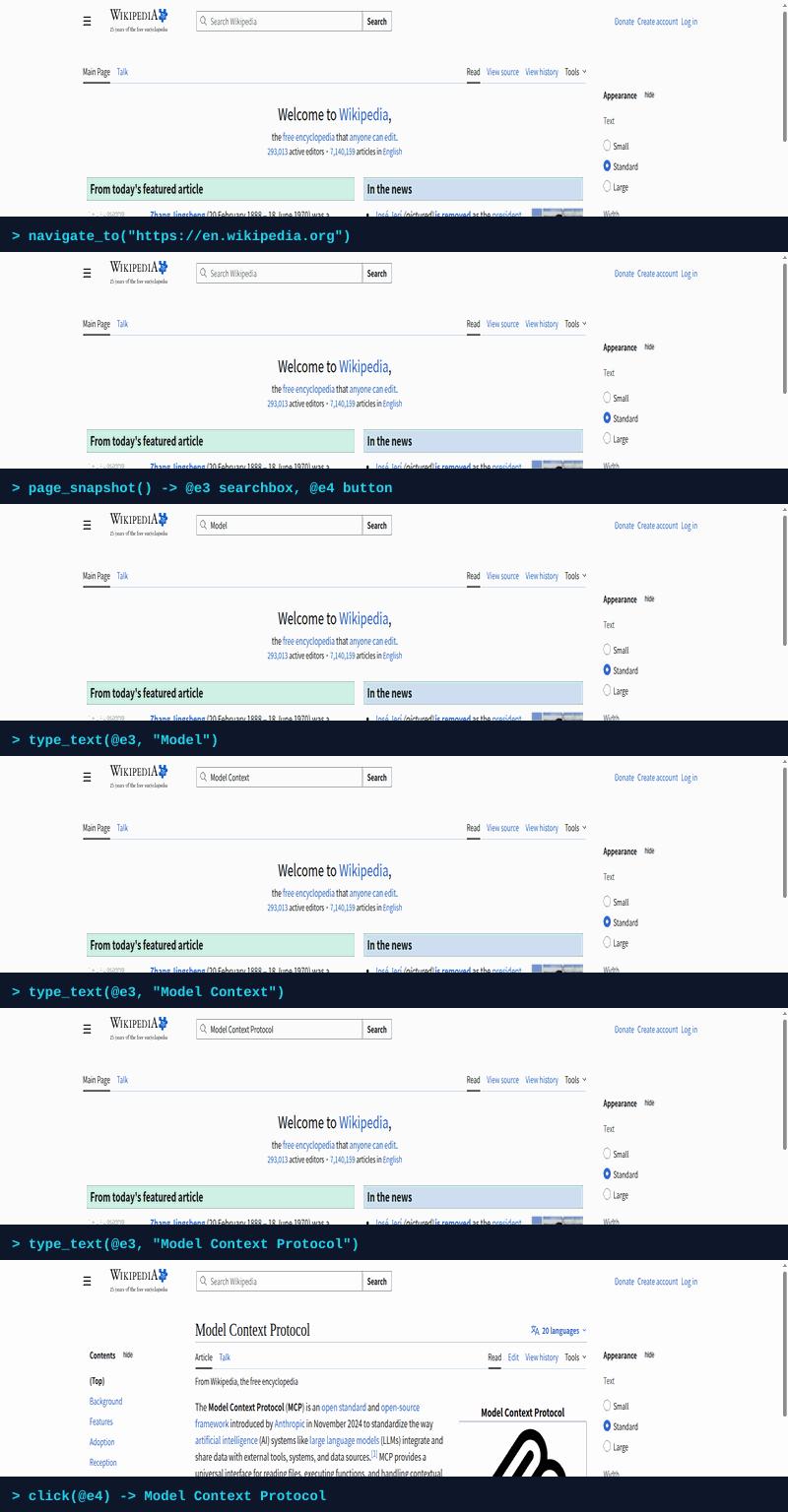
"Go to wikipedia.org and search for Model Context Protocol"
Chrome launches automatically on the first tool call. The Side Panel shows all activity in real-time.
How It Works
flowchart LR
    LLM["AI Assistant"]
    MCP["MCP Server"]
    EXT["Chrome Extension"]
    CS["Content Script"]

    LLM -- "stdio" --> MCP -- "WebSocket" --> EXT --> CS

    style LLM fill:#7b2d8b,stroke:#333,color:#fff
    style MCP fill:#1a5276,stroke:#333,color:#fff
    style EXT fill:#1e8449,stroke:#333,color:#fff
    style CS fill:#b7950b,stroke:#333,color:#fff
- The AI calls MCP tools (
navigate_to,page_snapshot,click, ...) - The MCP server forwards requests to the Chrome extension via WebSocket
- The content script reads the page as a compact accessibility tree with
@reflabels - The AI picks the right
@refand acts — no pixel coordinates, no CSS selectors
page_snapshot output
[page "Wikipedia, the free encyclopedia"]
  [search]
    [form]
      [@e3 searchbox "Search Wikipedia"]    ← AI targets this
      [@e4 button "Search"]                 ← and clicks this
  [main]
    [heading[1] "Welcome to Wikipedia"]
    [group]
      [heading[2] "From today's featured article"]
      ...
Every interactive element gets a stable @ref label. The AI reads the tree, picks the right @ref, and calls click / type_text / select_option.
MCP Tools (18)
Page Interaction — navigate, snapshot, click, hover, type, select, screenshot
| Tool | Parameters | Description |
|---|---|---|
navigate_to | url, tabId? | Navigate to a URL |
page_snapshot | maxTokens?, tabId? | Get a compact accessibility tree with @ref labels |
click | ref, snapshotId, tabId? | Click an element by its @ref label |
hover | ref, snapshotId, tabId? | Hover over an element to reveal hidden UI (dropdowns, tooltips) |
type_text | ref, text, snapshotId, tabId? | Type text into an input/textarea by @ref |
select_option | ref, value, snapshotId, tabId? | Select a dropdown option by @ref |
screenshot | tabId? | Capture the visible area of the active tab |
Tab Management — new, list, switch, close
| Tool | Parameters | Description |
|---|---|---|
new_tab | url? | Open a new tab (optionally with a URL) |
list_tabs | List all open tabs with tabId, URL, title, and active state | |
switch_tab | tabId | Switch to a specific tab |
close_tab | tabId | Close a specific tab |
Navigation — back, forward, reload, wait, scroll
| Tool | Parameters | Description |
|---|---|---|
go_back | tabId? | Go back to the previous page |
go_forward | tabId? | Go forward to the next page |
reload | tabId?, bypassCache? | Reload the current page |
wait_for_navigation | tabId?, timeoutMs? | Wait for the page to finish loading |
scroll_page | direction?, amount?, ref?, snapshotId?, tabId? | Scroll the page or scroll to a specific element |
WebMCP — discover and invoke page-declared tools
| Tool | Parameters | Description |
|---|---|---|
list_webmcp_tools | tabId? | Discover tools on the page (native WebMCP + auto-synthesized from buttons/forms) |
invoke_webmcp_tool | toolName, args?, tabId? | Invoke a discovered tool (native or synthesized) |
Development
git clone https://github.com/kuroko1t/webclaw.git
cd webclaw
pnpm install
pnpm build        # Build all packages
pnpm test         # Run all tests
pnpm dev          # Watch mode
Project Structure
packages/
  shared/          Type definitions, Zod schemas, utilities
  mcp-server/      MCP server with 18 tools, WebSocket bridge
  extension/       Chrome MV3 extension (service worker, content scripts, side panel)
examples/
  webmcp-demo-site/  WebMCP-enabled Todo app for testing native tool discovery
Environment Variables
| Variable | Default | Description |
|---|---|---|
WEBCLAW_PORT | 18080 | WebSocket port for MCP server ↔ extension communication |
Troubleshooting
Chrome extension not connected
- Chrome is auto-launched when a tool is called. If it fails, start Chrome manually with the extension loaded
- Check the Service Worker console (
chrome://extensions/→ Details → Service Worker) forConnected to MCP server - Verify the MCP server is running (look for
WebSocket server listening on 127.0.0.1:18080in stderr)
MCP client cannot connect
- Ensure
npx webclaw-mcpruns successfully from your terminal - Check for port conflicts on 18080 (override with
WEBCLAW_PORTenv var) - Restart your MCP client after updating the config
Content script not injecting
- Content scripts only inject into
http://andhttps://pages (notchrome://,file://, etc.) - Try refreshing the page after loading the extension
WebMCP tools not discovered
- Native WebMCP requires Chrome 146+ with the
navigator.modelContextAPI - Verify the page declares tools via
navigator.modelContext.addTool()or<link rel="webmcp-manifest">
Contributing
Contributions are welcome! Please open an issue to discuss your idea before submitting a pull request.